When you use SAML SSO to authenticate users only, IDMC verifies the user credentials each time a user signs in to IDMC. In this scenario, you manage a user's authorization using the group and role assignments within IDMC.
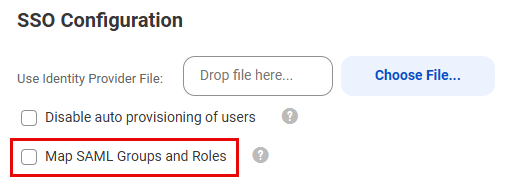
To use SAML SSO for authentication only, disable the Map SAML Groups and Roles option on the SAML Setup page. The following image shows the SAML Setup page with this option disabled:
The Map SAML Groups and Roles option is disabled by default and you'll need to configure a default user role and optionally a default user group. For more information, see SAML role and group mapping properties.
When you use SAML for authentication only, you manage users in the following ways:
New users with auto-provisioning
When a new user signs on to IDMC for the first time and auto-provisioning is enabled, IDMC gets the user attributes such as first name, last name, and email address from the SAML token and stores them in the repository. It creates the user and assigns the user the default role and the default group, if one has been configured.
If you want to refine the user's level of access to assets, update the user's group and role assignments on the user details page. For more information, seeUser details.
New users without auto-provisioning
If auto-provisioning is disabled, users are not automatically added to the organization when they attempt to sign on to IDMC for the first time. You need to create the user in Administrator.
Existing users
When an existing user signs on, IDMC authenticates the user but does not get the SAML roles, groups, or user attributes from the SAML token. If this information changes, you can update the user's groups and roles on the user details page.
You can also create a native user account with credentials in Administrator, and the user credentials are saved in the IDMC repository. If you do this, the user logs in to IDMC directly instead of using SAML single sign-on.
If you delete a user from IDMC, the user is deleted from the IDMC repository but not from the identity provider.
For all SAML users, the information in the user profile is read-only except for the time zone. The password and security question do not appear in the user profile.
Switching from SAML authentication and authorization
If your organization uses SAML for both authentication and authorization, you can change it to use SAML for authentication only.
To use SAML for authentication only, disable the Map SAML Groups and Roles option on the SAML Setup page. The following image shows the SAML Setup page with this option disabled:
If you disable this option after it was previously enabled, the group and role mapping information on the SAML Setup page becomes read-only but is not deleted. All SAML groups become regular IDMC groups. You can edit the groups, delete them, and add and remove group members.
When you disable this option, users’ IDMC roles do not change, so scheduled jobs are unaffected.