User management with SAML authentication and authorization
When you use SAML SSO for user authentication and authorization, IDMC verifies the user credentials each time a user attempts to sign on. It also gets the user's SAML groups and roles and assigns the user the corresponding IDMC roles.
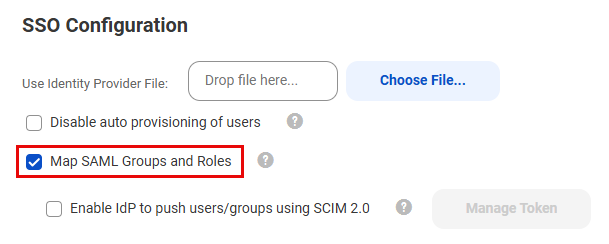
To use SAML SSO for authentication and authorization, enable the Map SAML Groups and Roles option on the SAML Setup page. The following image shows the SAML Setup page with this option enabled:
For some identity providers, you can also choose to push user and group information to IDMC using SCIM 2.0.
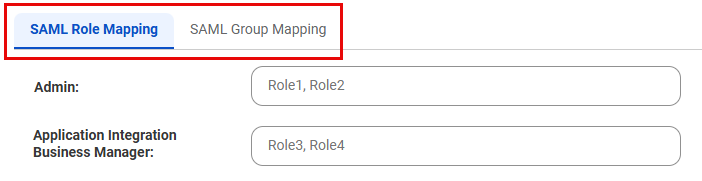
When you enable the Map SAML Groups and Roles option, map IDMC roles to SAML roles and groups on the SAML Role Mapping and SAML Group Mapping tabs. The following image shows the SAML Role Mapping and SAML Group Mapping tabs:
Mapping roles and groups ensures that users have the appropriate levels of access to IDMC assets. You can't configure user roles or groups for these users individually in Administrator.
If the SAML groups that you map on the SAML Setup page don't exist yet, IDMC creates these groups for you.
Note:
You can view these groups on the User Groups page, but you can't edit the group information or change the group members.
IDMC ignores any SAML groups and roles that are returned in the SAML token but are not mapped on the SAML Setup page.
When you use SAML for authentication and authorization, you manage users in the following ways:
New users with auto-provisioning
When a new user signs on to IDMC for the first time and auto-provisioning is enabled, IDMC gets the SAML roles, groups, and user attributes from the SAML token and stores them in the repository. It creates and authenticates the user and assigns the user the IDMC roles that are mapped on the SAML Setup page.
If there are no roles or groups in the SAML token, IDMC fails the login.
New users without auto-provisioning
If auto-provisioning is disabled, users are not automatically added to the organization when they attempt to sign on to IDMC for the first time. You need to create the user in Administrator.
Existing users
When an existing user signs on, IDMC authenticates the user and gets the SAML roles, groups, and user attributes from the SAML token. If this information has changed since the last login, IDMC updates the user attributes and roles.
You can also create a native user account with credentials in Administrator, and the user credentials are saved in the IDMC repository. If you do this, the user logs in to IDMC directly instead of using single sign-on. You can delete these user accounts in Administrator.
For all SAML users, the information in the user profile is read-only except for the time zone. The password and security question do not appear in the user profile.
Switching from SAML authentication only
If your organization currently uses SAML for authentication only, you can change it to using SAML for both authentication and authorization.
To switch from SAML authentication to SAML authentication and authorization, enable the Map SAML Groups and Roles option on the SAML Setup page. The following image shows the SAML Setup page with this option enabled:
If you enable this option after it was previously disabled, the role and group mapping tabs on the SAML Setup page becomes editable. If any group or role mapping was configured previously, it is retained.
When you enable this option, users’ authorization information is updated when they are authenticated in IDMC with a new SAML token. Updating authorization information can affect a user's scheduled jobs if the user's privileges change.
Pushing user and group information using SCIM 2.0
When you use SAML SSO for authentication and authorization and the identity provider is Okta or Azure Active Directory, you can choose to push user and group information to IDMC using SCIM 2.0.
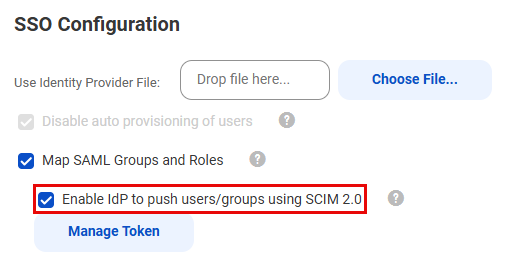
To push information using SCIM 2.0, enable the Enable IdP to push users/groups using SCIM 2.0 option on the SAML Setup page. The following image shows the SAML Setup page with this option enabled:
Enabling this option allows the identity provider to push user and group information at regular intervals to provision new users, delete users, and keep each user's SAML groups and roles in sync with their IDMC user roles. In this case, auto-provisioning of users is disabled because users are provisioned through SCIM. You can also create users manually in Administrator.
IDMC hosts SCIM endpoints that the identity provider can use to perform certain operations in IDMC. These operations include creating and deactivating users, creating and deleting user groups, adding and removing users from groups, and updating user attributes.
To access the SCIM endpoints, you must create a provisioning app as a SCIM client on Azure Active Directory or Okta. No special privileges are needed to access the SCIM endpoints. When you create the app, you must provide a SCIM token which you generate on the SAML Setup page using the Manage Token button.
For information about setting up SCIM 2.0 and creating the provisioning app, see the following articles on Informatica Network:
When you enable SCIM provisioning, additional user attributes such as Display Name, Employee Number, Organization, Division, and Department are also pushed to IDMC. You must map these attributes on the SAML Setup page. You can view these attributes for each user on the user details page.
User and group information for individual users is also passed in the SAML token during single sign-on. As a result, if a user's SAML roles, groups, or attributes change, IDMC updates the user information when the user signs on.
Note:
If you change group membership through SCIM, you must also update the SAML group-mapping configuration in Administrator to match the identity provider's SAML assertion. The SAML single sign-on overrides group membership on login, removing any updates performed through SCIM.
Managing SCIM tokens
Each user can create and use up to two SCIM tokens simultaneously. Each token is valid for 180 days from the time of generation. When a token expires, you need to generate a new one, even for an existing connection.
As a best practice, create tokens on different days so that they don't expire on the same day. For example, you might want to generate a token on one day and a second token 90 days later. IDMC notifies you when a token is about to expire.
Note:
You can generate up to two SCIM tokens, including expired tokens. To generate another token, first delete one of the existing tokens.
You can also manage SCIM tokens using the scimTokens REST API resource. For more information, see REST API Reference.
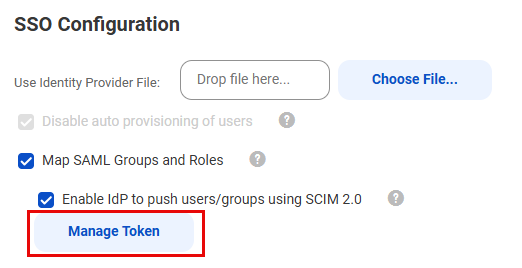
1On the SAML Setup page in Administrator, click Manage Token. The following image shows the Manage Token button:
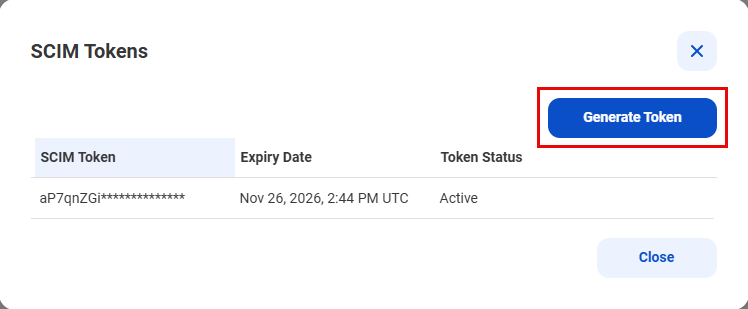
The SCIM Tokens dialog box displays the SCIM tokens that you created along with the expiration date and status of each token. If two tokens are listed, delete one before generating a new token.
2To generate a token, click Generate Token. The following image shows the Generate Token button:
You need this token when you enable SCIM in the provisioning app.
3Click Copy to copy the token to the clipboard.
4To delete a token, click the Delete icon for the token you want to delete.