After you create a Secure Agent, you might need to perform management tasks such as viewing and configuring agent properties, checking the host information, viewing audit logs, or refreshing the agent status. You can also delete a Secure Agent if it is no longer used.
You perform most management tasks for Secure Agents on the agent details page. To access the agent details page, click a Secure Agent on the Runtime Environments page.
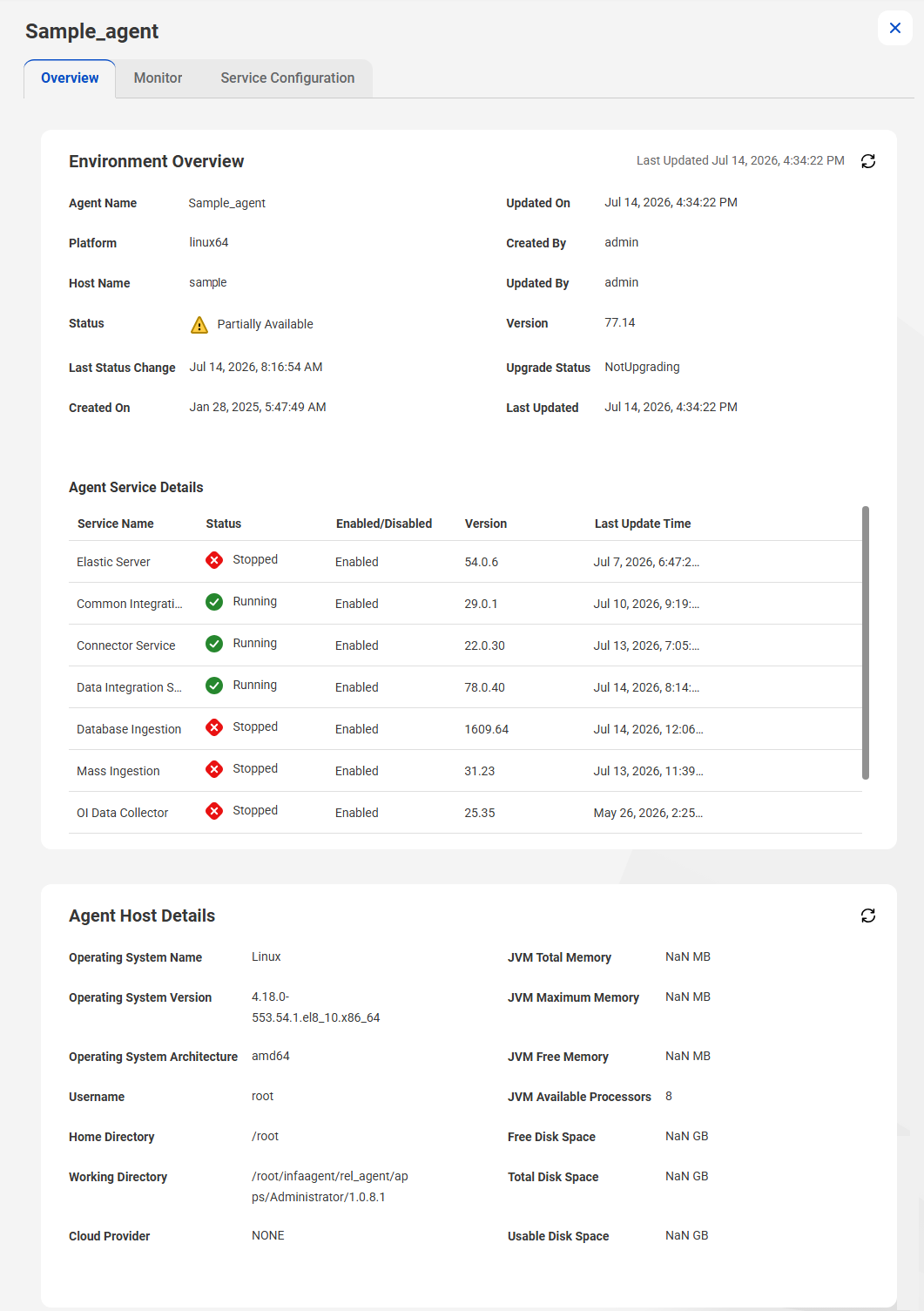
The following image shows the agent details page:
You can perform the following tasks on the agent details page:
•View the Secure Agent details.
•View the Secure Agent host properties.
•Refresh the Secure Agent status.
•View the Secure Agent service details.
•View the Secure Agent service package details.
•View and edit Secure Agent service properties.
•View the audit log.
View the Secure Agent details
The Environment Overview section on the tab of the agent details page displays details such as the host name, the current status, the last date and time that the agent was updated, and the agent version.
The Secure Agent can have any of the following statuses:
Status
Description
Agent Core is not running
Secure Agent is not available, but one or more of the services is running.
Not all the services are running
Secure Agent is available, but one or more of the services is not available.
Agent Core Upgrading
Secure Agent is upgrading to a new version.
Stopped
Secure Agent is not available.
Up and Running
Secure Agent and all of the services that the agent runs are available.
View the Secure Agent host properties
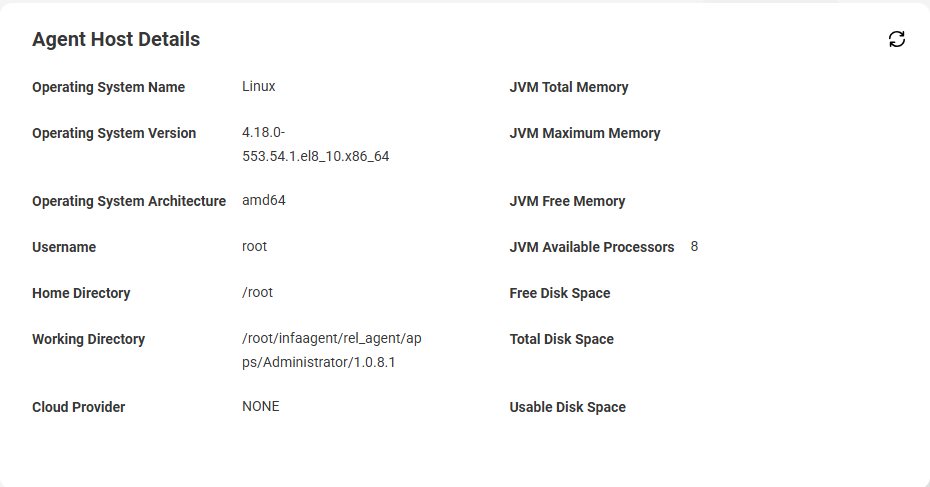
The Agent Host Details section in the Overview tab of the agent details page displays information about the machine that hosts the Secure Agent. For example, you can view the machine name, operating system, and available disk space.
The following image shows an example of the Secure Agent host details:
All information shown here is display only and can't be changed.
Refresh the Secure Agent status
Refresh the Secure Agent status to view the most up to date information.
To refresh the status of the Secure Agent, click the refresh icon in the upper right corner of any of the tabs.
You can also view the status on Linux by performing the following steps:
1Navigate to the following directory: <Secure Agent installation directory>/apps/agentcore
In the Agent Service Details section of the Overview tab on the agent details page, you can view details for Secure Agent services that run on the Secure Agent such as the service name, status, version, and last update time.
A Secure Agent service can have any of the following statuses:
Status
Description
Error
The process failed.
Restarting Due to Error
The service is starting due to a failure.
Shutting Down
The service is shutting down.
Standby
The service is running, but it is not compatible with IDMC.
Starting Up
The service is starting up.
Stopped
The service is not available.
Running
The service is running.
User Stopped
The service was stopped by a user.
Warning
The service is running, but it cannot accept work.
The version number changes each time you modify the service. The Secure Agent retains the directories for the old version of the service for seven days. For example, if you update the NetworkTimeoutPeriod for version 55.0.2 of the Data Integration Server, the agent increments the version number to 55.0.3 and creates the following directory:
It deletes the <Secure Agent installation directory>/apps/Data_Integration_Server/55.0.2.x directories after seven days.
View the Secure Agent service package details
You can see the name and version number for the packages in each service that runs on the Secure Agent. You can filter the packages by service.
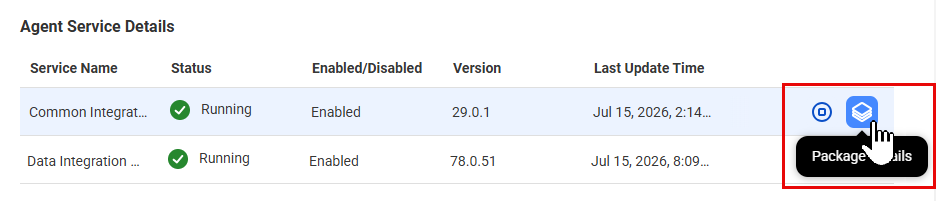
To see package details for a service, on the Overview tab, click the package icon in the row that contains the service. The following image shows the location of the icon:
View and edit Secure Agent service properties
You can details about the service properties for all the services that run on the Secure Agent. You can filter the properties by service and type.
To see package details for a service, on the Overview tab, click the package icon in the row that contains the service. To view or edit a property, on the Service Configuration tab, click the edit icon in the row that contains the service.
You can configure properties for each service that runs on the Secure Agent. You can also add and remove custom properties, which are used by connectors. These custom properties appear on the Custom Configuration tab.
For more information about Secure Agent services and service properties, see Secure Agent Services. For more information about custom properties, see the help for the appropriate connector.
View the audit log
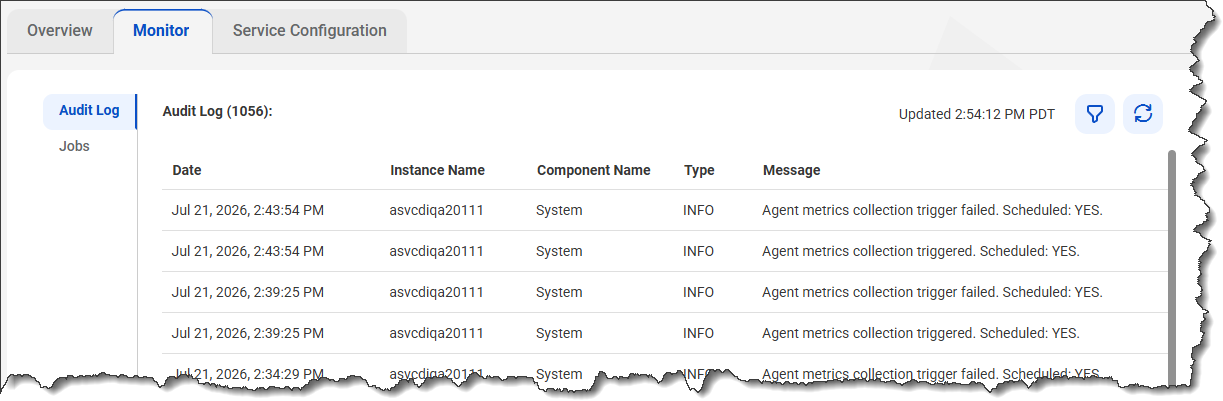
You can view audit information such as start and stop times, server connections, and upgrade messages for a Secure Agent.
To view audit information, select the Monitor tab as shown in the following image: