Prepare for Workload Identity Federation authentication
To connect to Google BigQuery using Workload Identity Federation authentication, you need the project number, client ID, secret ID, authorization URL, access token URL, pool ID, provider ID, and access token.
To get the authorization details, create an OAuth application in the Okta identity provider with a principal user and register the Informatica redirect URL. This setup enables clients that support OAuth to redirect users to an authorization page and generate access tokens, and optionally, refresh tokens to access Google BigQuery. If the access token expires, the Informatica redirect URL, which is outside the customer firewall, attempts to connect to the Okta identity provider endpoint and retrieves a new access token.
In the Google Cloud console, you need to create a Workload Identity Federation pool and register Okta as the provider. Then, assign roles to the principal user so that it can directly access the Google Cloud resources.
To set up an OAuth application in the Okta server, perform the following steps:
Note:
The third-party information included in Informatica documentation is subject to change without prior notice. Check the third-party documentation for the most up-to-date information.
1Log in to the Okta portal as an Okta administrator.
2From the Admin console, go to Applications.
3Click Create App Integration.
4On the Create a new app integration page,
aIn the Sign-in method, select OIDC - OpenID Connect.
bIn the Application type, select Web Application and click Next.
5On the New Web App Integration page,
aEnter the OAuth application name in the App integration name field.
Example: Informatica Cloud Okta OIDC Web Application
bSelect Authorization Code and Refresh Token in the Grant type field.
cEnter the URIs in the Sign-in redirect URIs and Sign-out redirect URIs fields. You can enter multiple URIs according to your requirements.
Syntax: https://<Server name where Informatica Secure Agent is hosted>/ma/proxy/oauthcallback
dIn the Refresh Token section, select Use persistent token in the Refresh token behavior field.
eIn the USER CONSENT section, select Require consent in the User consent field.
fIn the Assignments section,
aSelect a desired option according to your requirements for the Controlled access field.
bSelect Enable immediate access with Federation Broker Mode in the Enable immediate access field.
gClick Save. The OAuth application is created.
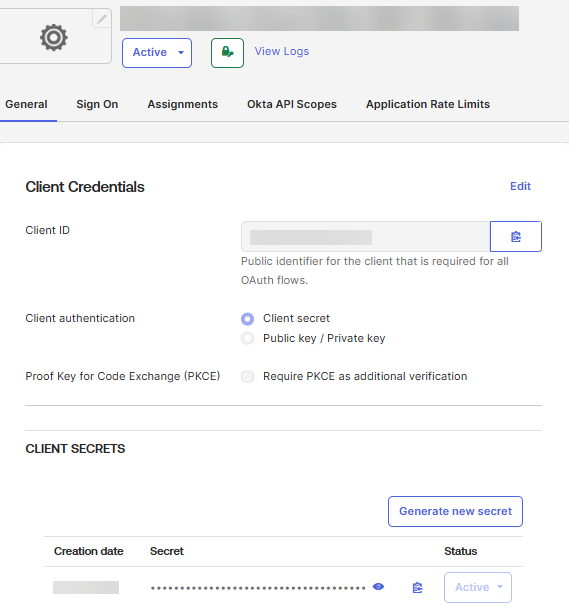
6Record the values of Client ID and CLIENT SECRET fields. You require these values to configure the Google BigQuery V2 connection.
Add an Okta authorization server
To add an Okta authorization server, perform the following steps:
Note:
The third-party information included in Informatica documentation is subject to change without prior notice. Check the third-party documentation for the most up-to-date information.
1Log in to the Okta portal as an Okta administrator.
2Go to Security > API.
3On the Authorization Servers tab, click Add Authorization Server.
4On the Add Authorization Server page,
aEnter a name for the authorization server in the Name field.
Example: Informatica Cloud Okta Authorization Server
bEnter the value in the Audience field.
Syntax: gcp-workload-identity-pool://<Workload Identity Pool ID>
Note:
Ensure that you enter the same value in the identity provider field in Google Cloud Console.
cEnter the description in the Description field and click Save.
dRecord the Okta issuer value, which is required for the server configuration.
5On the Settings tab,
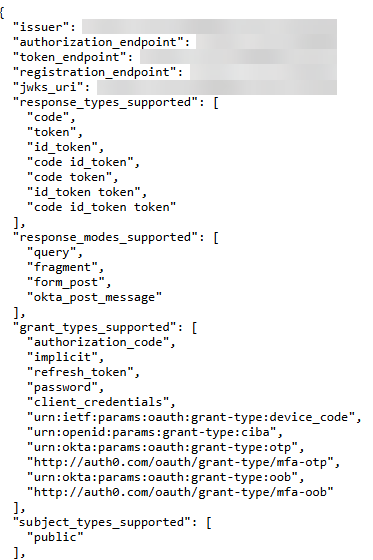
aClick Metadata URI. A JSON response output is generated.
Note:
Alternatively, you can copy the value and open in an internet browser window.
bCopy the JSON response output to an advanced text editor application and record the values of the following parameters:
▪ authorization_endpoint: This value specifies the Okta authorization server issuer URI. You need to enter this value in the Authorization URL field of the Google BigQuery V2 connection.
▪ token_endpoint: This value specifies the Okta authorization server access token endpoint. You need to enter this value in the Access Token URL field of the Google BigQuery V2 connection.
▪ jwks_uri: This value specifies the Okta authorization server JSON web key sets URI.
6On the Claims tab, verify that an Access type exists with the name sub.
7On the Access Policies tab, click Add New Access Policy.
8On the Add Policy page,
aEnter the policy name in the Name field.
Example: Informatica Cloud Access Policy v1
bEnter the policy description in the Description field.
cSelect the The following clients: option in the Assign to field and select the OIDC web application that you created.
Note:
You can select multiple client applications.
dClick Create Policy.
9On the Access Policies tab, click Add Rule in the newly created access policy.
10On the Add Rule page,
aEnter the rule name in the Rule Name field.
bIn the IF Grant type is field,
aSelect Client Credentials in the Client acting on behalf of itself field.
bSelect Authorization Code in the Core grants field.
cSelect Implicit (hybrid) and Resource Owner Password in the Other grants field.
cIn the AND User is field, select Any user assigned the app.
Note:
You can further review the access policy rules and specify restrictions for additional groups or users according to your requirements.
dIn the AND Scopes requested field, select Any scopes.
eVerify the default value set for the AND Access token lifetime is field and adjust the value, if required.
fClick Create rule.
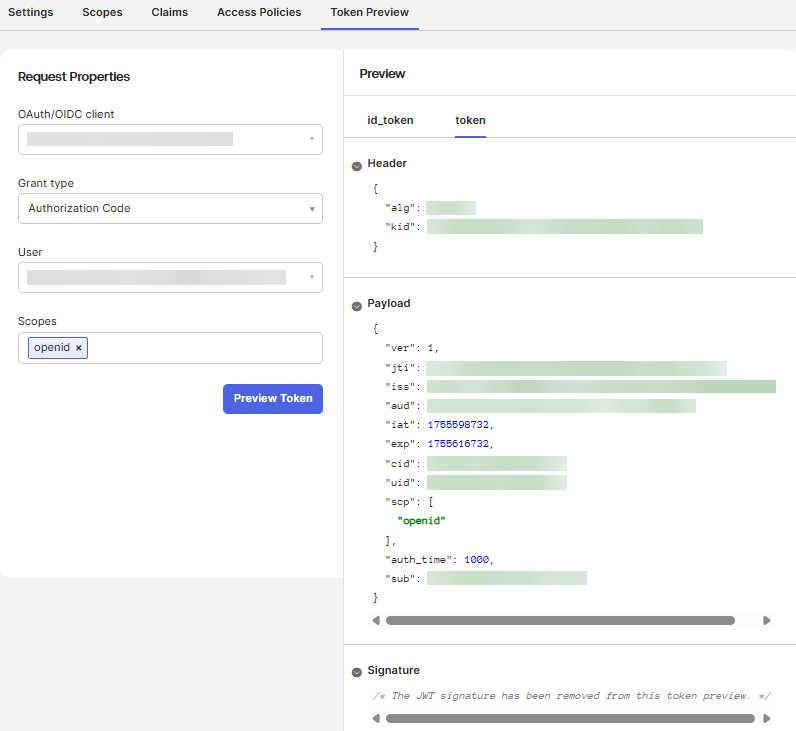
11On the Token Preview tab, verify the configuration for the Okta authorization server.
aIn the Request Properties section,
aSelect the Okta OIDC web application that you created in the OAuth/OIDC client field.
bSelect Authorization Code in the Grant type field.
cSelect a user in the User field.
Note:
Ensure that the selected user is a member of any of the groups associated with the OIDC web application that you created and the access policy rule set for the authorization server.
dEnter openid in the Scopes field.
eClick Preview Token.
bIn the Preview section, go to the token tab.
cIn the Payload section, verify the value of the sub claim or any other claims that you created.
Register the identity provider with Workload Identity Pool
To register the identity provider with Workload Identity Pool, perform the following steps:
Note:
The third-party information included in Informatica documentation is subject to change without prior notice. Check the third-party documentation for the most up-to-date information.
1In the Google Cloud Console, go to IAM & Admin > Workload Identity Federation.
2Click Create pool.
3In the Create an identity pool section,
aEnter the identity pool name in the Name field.
bEnter the identity pool ID in the Pool ID field.
cEnter the identity pool description in the Description field.
dClick Continue.
4In the Add a provider to pool section, select OpenID Connect (OIDC) in the Select a provider field.
5In the Configure provider attributes section,
aEnter the identity provider name in the Provider name field.
bEnter the identity provider issuer URL in the Issuer (URL) field.
cEnsure that the JWK file (JSON) field is empty.
dSelect the Allowed audiences option.
eEnter gcp-workload-identity-pool://<identity pool ID> in the Audience 1 field.
fClick Continue.
gVerify that google.subject is auto populated in the Google 1 field.
hEnter assertion.sub in the OIDC 1 field.
iClick Save.
6Record the values of Pool ID and Provider ID that you created. You require these values to configure the Google BigQuery V2 connection.
Assign required roles to Workload Identity Pool principal user
To assign required roles to the Workload Identity Pool principal user, perform the following steps:
Note:
The third-party information included in Informatica documentation is subject to change without prior notice. Check the third-party documentation for the most up-to-date information.
1In the Google Cloud Console, go to IAM & Admin > IAM > Allow.
2Click Grand access.
3On the Grant access to "API Project" page,
aEnter the IAM principal information in the New principals field.
Syntax: principal://iam.googleapis.com/projects/<Project number>/locations/global/workloadIdentityPools/<Pool ID>/subject/<email ID of the registered user>
You can find the project number in the Google Cloud Console. This value is required to configure the Google BigQuery V2 connection.
bAssign the required roles for the IAM principal user.
Note:
You can assign multiple roles for the user. For a beginner user, you can assign the roles such as Bigquery Admin, Storage Admin, and Workload Identity User.