Welcome to AI Agent Engineering! AI Agent Engineering is an easy-to-use, generative AI development tool for building, testing, and deploying AI agents. It leverages the power of Informatica®Intelligent Data Management Cloud™ (IDMC) to seamlessly connect to and work with popular third-party LLMs and vector databases as well as your organization’s own trusted and proven IDMC assets.
Preview Notice:
Effective in the April 2026 release, AI Agent Engineering is available for preview.
Preview functionality is supported for evaluation purposes but is unwarranted and is not supported in production environments or any environment that you plan to push to production. Informatica intends to include the preview functionality in an upcoming release for production use, but might choose not to in accordance with changing market or technical circumstances. Note that if you are working on a preview POD, all data is excluded from SOC 2 compliance coverage. For more information, contact Informatica Global Customer Support.
Use AI Agent Engineering to complete the following tasks:
•Easily build AI agents and define their workflows using an intuitive, no- or low-code, drag-and-drop user interface.
•Connect your AI agents to your enterprise data and ground them with your organization’s trusted data and existing business processes like Application Integration processes and Data Integration tasks.
•Publish your AI agents using APIs and govern them in one central platform.
•Use and interact with your AI agents.
AI Agent Engineering contains the following main components that work in harmony to provide a robust development experience:
Model component
The model component is the large language model (LLM) that powers your agent’s reasoning and decision-making capabilities.
Memory component
The memory provider manages your agent's data persistence and context. It allows the agent to retain and recall information to maintain state and user context each time the agent is invoked within a conversation thread.
Tools component
The tool component consists of the external APIs and IDMC tools that expand your agent’s functionality and support complex task execution.
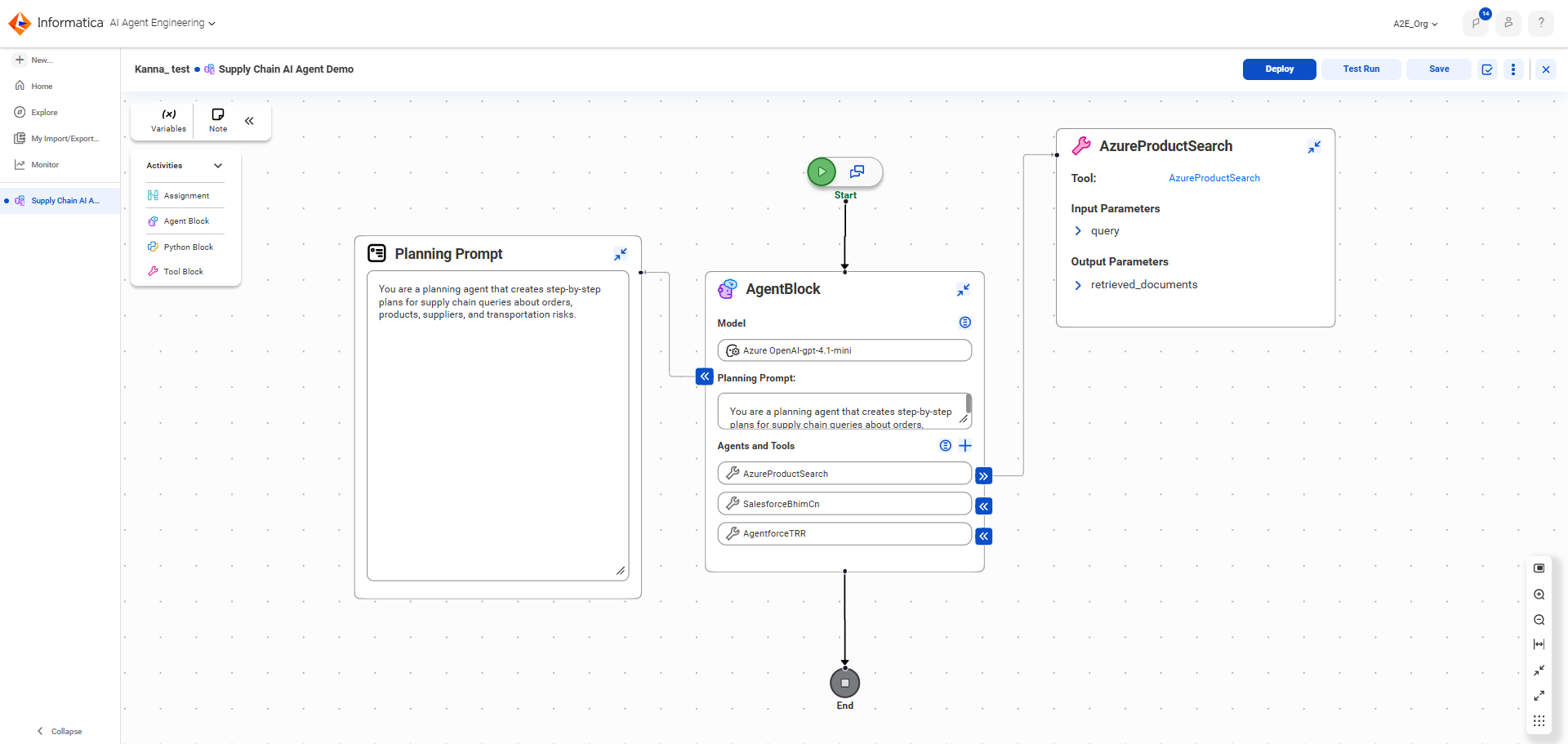
You build and test your AI agents using the agent flow canvas, an intuitive drag-and-drop interface.
The following image shows the agent flow canvas:
After you build your agent's flow, you can deploy and test it. You can also monitor its usage.