The following snippet shows a sample configuration block:
ENV_FILE = ".env"
scope = "offline_access ChatMessage.Send ChannelMessage.Send"
answer = ""
load_dotenv(ENV_FILE)
#Set Teams credentials and comment it after first run
#set_key(ENV_FILE, "TEAMS_TENANT_ID", '')
#set_key(ENV_FILE, "TEAMS_CLIENT_ID", '')
unset_key(ENV_FILE, "TEAMS_ACCESS_TOKEN")
unset_key(ENV_FILE, "TEAMS_REFRESH_TOKEN")
unset_key(ENV_FILE, "TEAMS_DEVICE_CODE")
scope = "offline_access ChatMessage.Send ChannelMessage.Send"
answer = ""
load_dotenv(ENV_FILE)
#Set Teams credentials and comment it after first run
#set_key(ENV_FILE, "TEAMS_TENANT_ID", '')
#set_key(ENV_FILE, "TEAMS_CLIENT_ID", '')
unset_key(ENV_FILE, "TEAMS_ACCESS_TOKEN")
unset_key(ENV_FILE, "TEAMS_REFRESH_TOKEN")
unset_key(ENV_FILE, "TEAMS_DEVICE_CODE")
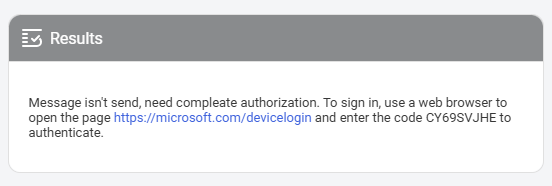
During the first script run, authenticate using the web browser with the generated URL as shown in the following image: