The October 2026 release includes the following changed behaviors.
Field limits
To maintain application performance as you read, create, or update data, MDM SaaS now limits a business entity to 350 enabled fields, including field groups. The system fields and disabled fields within a business entity don't count toward the limit. By default, for business entities that you created before the October 2026 release and that are close to or exceed the limit, Informatica applies a buffer of 20 above your current field count to ensure no immediate impact to development.
Previously, MDM SaaS didn't limit the number of fields or field groups in a business entity.
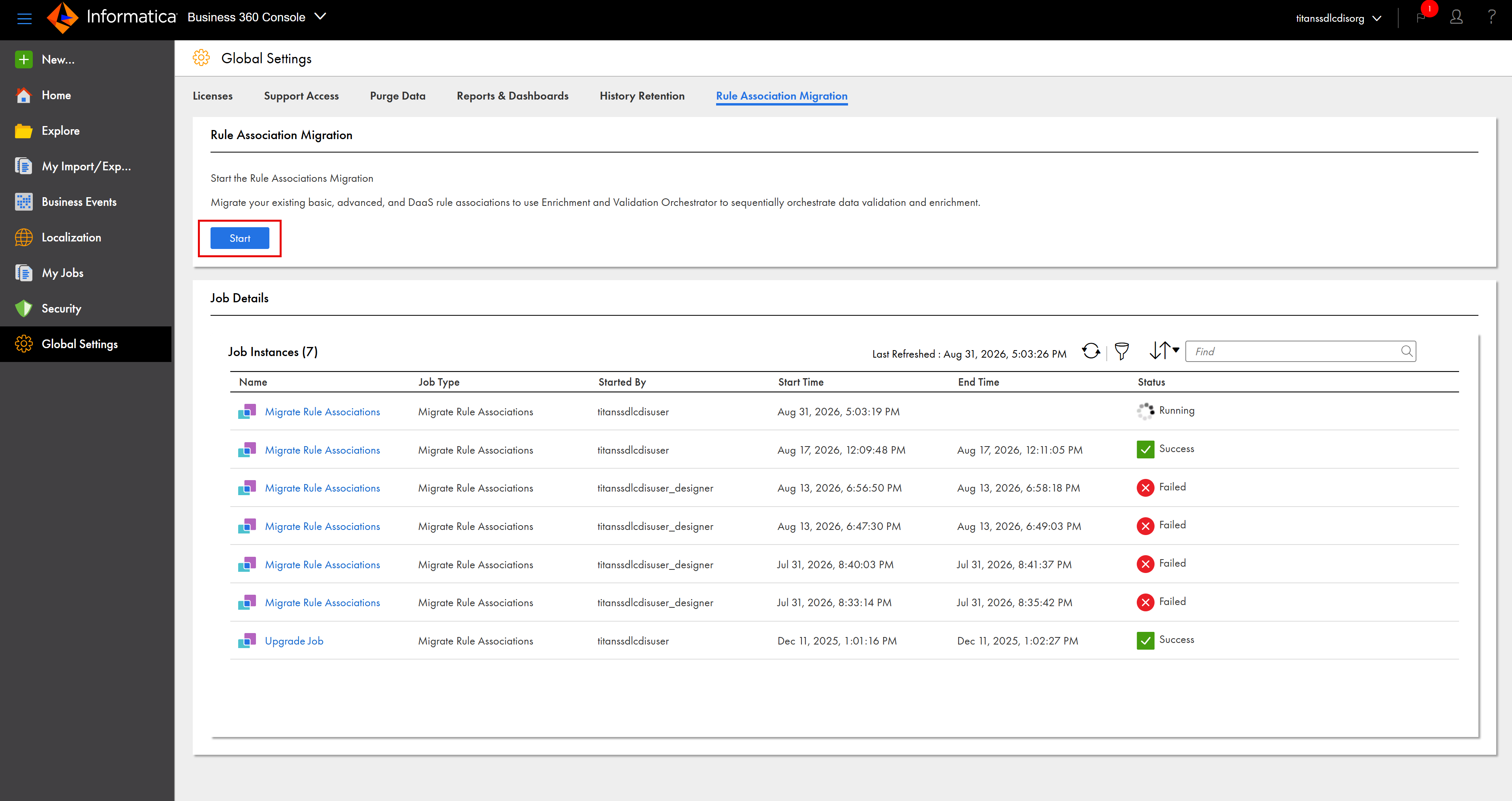
You can now migrate your basic, advanced, and DaaS rule associations to use Enrichment and Validation Orchestrator from the Global Settings page. You can migrate the rule associations only once for each organization. Informatica recommends that you first migrate rule associations to use Enrichment and Validation Orchestrator in your development and QA organizations. After you complete testing the migrated rule associations, migrate them in your production organization.
When you migrate, MDM SaaS runs the migrate rule associations job. You can track the status of the job on the Global Settings page or monitor the job on the My Jobs page.
The following image shows the Rule Association Migration tab on the Global Settings page:
If you have already migrated your rule associations in existing organizations, the option to start the migration is disabled.
Previously, you migrated existing rule associations from the Home page of Business 360 Console.
You can now run match and merge jobs that only update match explainability metrics without performing matching. Normally, a match and merge job updates these metrics as part of performing matching, but you can now exclude the metrics update to complete the job faster.
Previously, the match process updated match explainability metrics only as part of a match and merge job.
You can now configure candidate selection criteria separately and associate them with match models. As a result, match keys no longer regenerate each time you configure candidate selection criteria, which significantly improves match process performance. You can configure up to 10 candidate selection criteria for each business entity. Business entities that already exceed the limit retain the existing criteria, but you can't add new criteria.
Previously, you could create candidate selection criteria only as part of match model configuration.
The search process includes the following changes:
Search configuration for dynamic field values
You can now enable up to 5,000 searchable and 5,000 facetable dynamic fields in an organization.
Previously, you could enable only up to 50 searchable and 50 facetable dynamic fields in an organization.
Index limits
To optimize performance and enhance search results, the search process indexes 100 dynamic fields for each record. If a record exceeds this limit, MDM SaaS doesn't index the other fields, and searches on those fields don't return the record.
If a record exceeds the 100 index limit, the Search REST API response includes the error code 100001, which you can use to identify the affected record. You can also pass the error code in your request to retrieve all records that exceed the index limit.
Previously, you couldn't identify records with fields that weren't completely indexed.
Note:
To apply these changes, reindex the records in your business entities. To reindex the records, run the Generate Search and Report Indexes or Match Keys job by using the MDMSearchIndex process.
For more information about configuring search for dynamic field values and dynamic fields index limit, see Limits and thresholds and Search REST API.
Internal ID of assets
After you delete an asset, you can reuse its internal ID for other assets.
Previously, you couldn't reuse the internal ID of a deleted asset.
Merge job
When you merge records, the merge job updates the first 1,000 relationships to the surviving master record and then ends its run. The resolve long-running operations job then updates the remaining relationships.
For example, when you merge records A and D, MDM SaaS updates the relationships of record D to reference master record A. If record D has more than 1,000 relationships, such as D-E and D-F, the merge job processes the first 1,000 updates. The job changes the business ID from D to A. As a result, the relationships become A-E and A-F. The merge job then ends its run, and the resolve long-running operations job updates the remaining relationships.
Previously, MDM SaaS considered a merge job complete only after it updated all relationships to reference the new master record.
Advanced rule associations
When you configure advanced rule associations in organizations that were created after the October 2025 release, MDM SaaS now displays error messages on all input fields. If you have existing advanced rule associations in these organizations, MDM SaaS doesn't apply this change until you update the rule associations.
However, MDM SaaS displays error messages on applied fields for advanced rule associations in organizations where you already migrated the rule associations during the April 2026 release.
Previously, MDM SaaS displayed error messages only on the applied fields for advanced rule associations that you created after the October 2025 release.
If you want to control how MDM SaaS displays error messages for advanced rule associations in both the organizations, see Advanced rule associations .
A rule association configured with the Data Quality - Transformation plugin throws an exception if its output exceeds the maximum length of the target string field. Additionally, the rule association doesn’t return any value to the output field.
Previously, the rule association automatically trimmed the output to fit the length of the field.