1Open the published match model that contains the trained Adaptive AI match model to retrain.
2Open the Adaptive AI Match Model page.
3To retrain the Adaptive AI match model as a new version, click Train as a New Version.
Note:
When you import assets from existing organizations into new organizations, you can't view the Train as a New Version button on the Adaptive AI match model page for existing match models in the imported organizations.
A Warning dialog box appears.
4Click Create.
The Adaptive AI Match Model page appears.
The match process creates a draft version of the match model without the Adaptive AI match model. Additionally, the match process discards labeled record pairs and training metrics from all previous versions of the published match model.
5In the Match Fields section, review the match fields.
The fields that the Directed AI match rules and candidate selection criteria use appear as recommended match fields.
6To add the recommended match fields, perform the following steps:
- aClick the recommended match fields that appear as hyperlinks.
- bFrom the Add Recommended Match Fields dialog box, select the match fields to add, and click Add.
7To remove any match field, Select the field that you want to remove, and click Actions > Remove.
8To add additional match fields, click Manage Fields.
9In the Manage Fields dialog box, select the fields that you want to add, and click OK.
The selected fields are added for training the model.
10After you review and add the match fields, click Start Training.
The training process starts preparing the data for training.
11After the training data preparation completes, click Start Labeling.
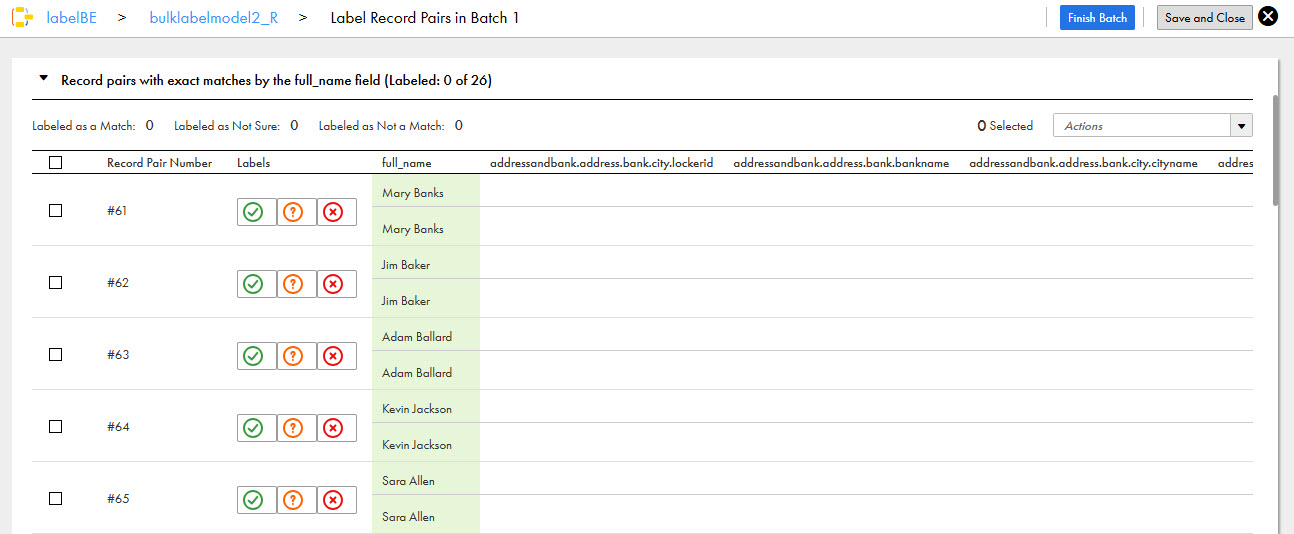
The Label Record Pairs in Batch page appears. The record pairs are grouped into sections based on exact match fields that matched them.
12To label record pairs, perform the following steps:
- aExpand a section that contains the record pairs to label.
- bSelect a record pair and label it with one of the following labels:
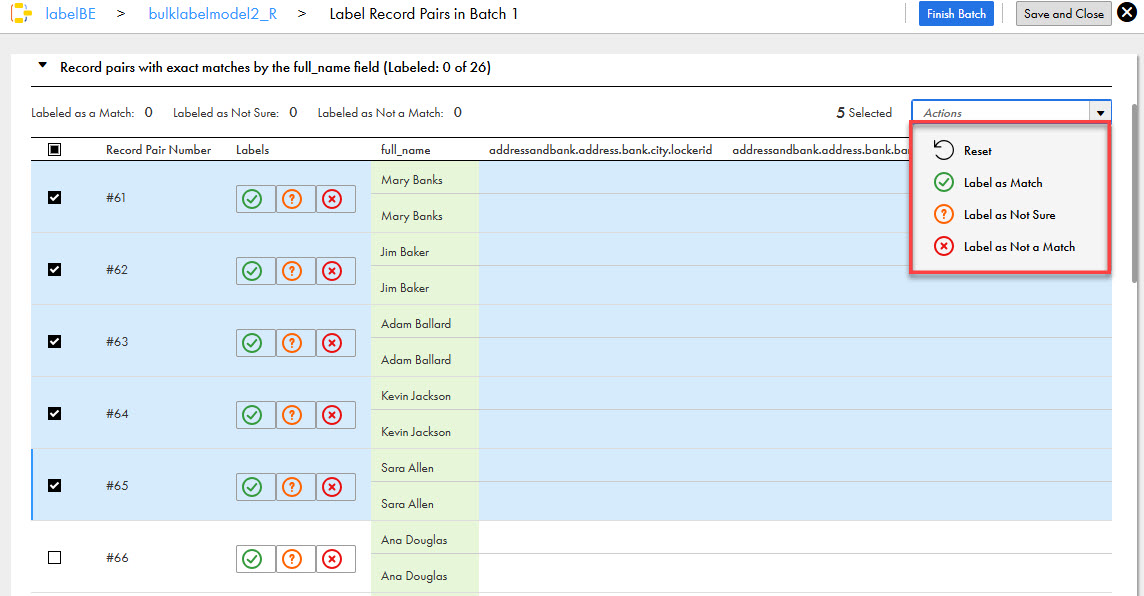
- cOptionally, if you are confident about the record pairs, you can select multiple record pairs within a section and label them in bulk.
- dIf you selected multiple record pairs, click Actions.
- eSelect a label.
- fTo reset the label assigned to a record pair, select the record pair, and click Actions > Reset.
- gTo view the details of a record pair, select the record pair and click Actions > View Details.
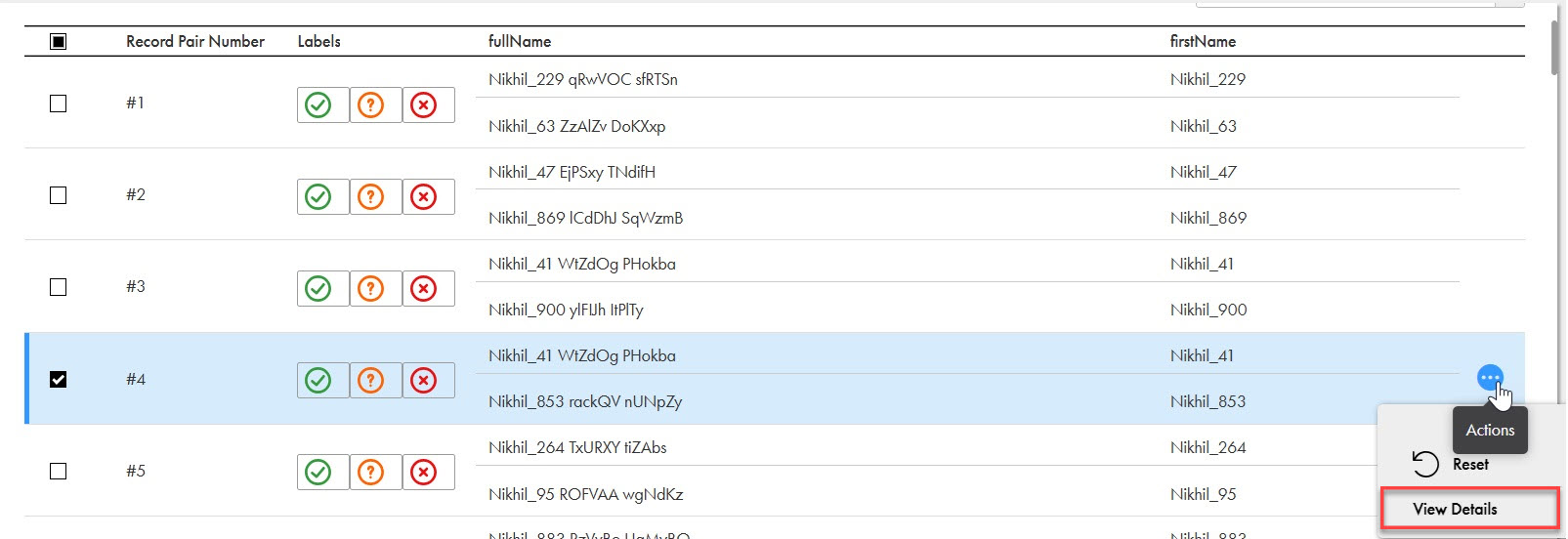
- hOptionally, you can continue labeling the record pair without navigating to the Label Record Pairs in Batch page. To label the record pair in the Details of Record Pair dialog box, select a label.
- iTo label the next record pair, click Next.
- jSelect another section and continue labeling.
- kTo review the labeled record pairs, click Previous and Next.
Each section contains up to 90 record pairs.
The following image shows a section that lists record pairs matched exactly by the Full Name field:
Label | Description |
|---|---|
Match | A conclusive label. Indicates that the records in the pair are the same. |
Not a Match | A conclusive label. Indicates that the records in the pair are different. |
Requires Manual Review | A conclusive label. Indicates that the record pairs require manual review by a data steward. |
Skip | An inconclusive label. Indicates that you want to exclude record pairs from labeling. The record pairs with the Skip label don’t appear for labeling again within the same batch during the training process. |
The following image shows multiple record pairs selected within a section for bulk labeling:
The label assigned to the selected record pair is reset and the record pair is set to participate in the training process again.
After you select conclusive labels for 30 record pairs, the labeling for the batch is complete. However, you can label up to 90 record pairs to improve the match accuracy.
13To complete labeling the batch, click Finish Batch.
The accuracy of the Adaptive AI match model is calculated.
14To label the next batch of record pairs, click Next Batch, and label record pairs by repeating step 12.
15To pause and resume labeling later on the Match Training page click Continue Labeling, and then label record pairs by repeating step 12.
16After you complete labeling the required number of batches and reach an acceptable accuracy, precision, and recall, click Finish Training.
The training process completes and saves the Adaptive AI match model as part of the match model.