You can reset your organization to its default, newly provisioned state. A reset applies to all business applications and permanently deletes all data, assets, configurations, jobs, and job schedules in MDM SaaS. You can't recover any of the deleted data and configurations.
Over time, an MDM SaaS organization can accumulate configurations and data that you no longer want. For example, trial-and-error customization in a development or QA environment can build up and eventually make the organization unusable.
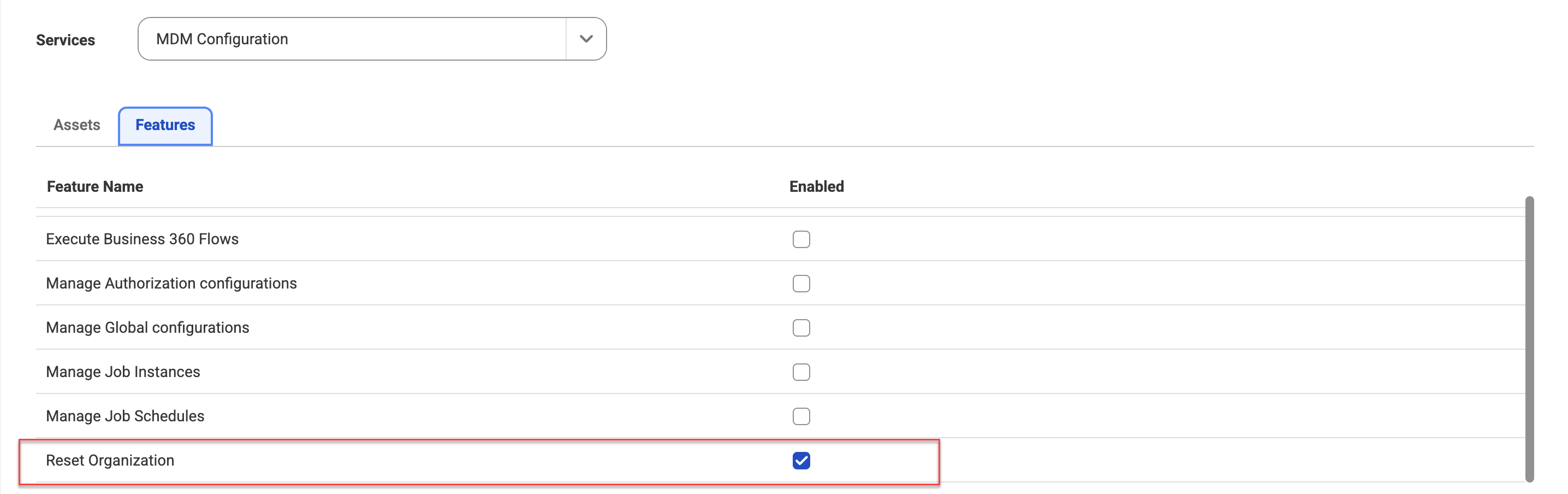
The reset capability isn't enabled by default. To enable it, contact Informatica Global Customer Support. After reset is enabled, you can perform a reset if you have the Reset Organization privilege.
The following image shows the Reset Organization privilege in Administrator:
During a reset, the process identifies and lists non-MDM dependencies that reference MDM SaaS assets. You must first remove any references to MDM SaaS assets from other services. For example, if MDM SaaS assets are referenced in Data Governance and Catalog, disassociate them from MDM first. If an active license exists, the reset then reprovisions the organization, giving you the same experience as a newly licensed MDM SaaS organization.
If you rename a predefined asset, such as a rule specification or verifier, the reset doesn't delete the renamed asset. After the reset, the process reprovisions the organization and provisions the predefined asset with its original name. The renamed asset remains in the organization.
Only one reset can run at a time in an organization. When you reset an organization, a job is created. On the My Jobs page, you can monitor the status of the job.
Rules and guidelines to reset an organization
Before you reset an organization, consider the following rules and guidelines to prevent any data issues:
•Ensure that no users are logged in to business applications.
•Ensure that no jobs are running.
•If you reset the development environment, reset the higher environments to avoid a data type mismatch in fields across environments.
•Export any data that you want to keep because a reset permanently deletes all data and configurations in the organization.
Reset an organization
Resetting an organization removes all the data, assets, configurations, jobs, and job schedules from the specific organization.
1Click Global Settings > Reset Organization.
2Click Start.
3In the Reset Organization dialog box, enter the organization ID.
4Acknowledge that you understand all data and configurations in the specified organization will be deleted and can't be recovered.
5Click Next.
6In View Dependencies, you can view the assets that have dependencies on the MDM assets.
7After you resolve the dependencies, click Reset.
You can monitor the status of the job on the My Jobs page.