Use the Match Analysis and Explainability dashboard to explore match results, gain insights into the match process, and understand how record pairs are generated. You can use the match results to fine-tune the match model and gain trust in the quality of the match results.
The Match Analysis and Explainability dashboard includes the following tabs:
•Overview. Shows key metrics of the match process, a visual summary of match trends, and an analysis of match and merge jobs that ran for a business entity.
•Outcome. Displays interactive pie charts of the match and merge outcomes with clickable segments for filtering record pairs. You can also explore individual record pairs.
•Source Systems. Shows a graphical summary of record pairs categorized by source systems. You can filter record pairs based on the selected source system.
•Match Model. Lists the summary of record pairs generated based on the Directed AI match rules. Additionally, you can explore and analyze the record pairs to fine-tune the match model configurations.
•Large Clusters. Shows a graphical summary of large record clusters formed during the match process. Additionally, you can explore and analyze these large clusters and fine-tune the match model configurations to prevent their formation.
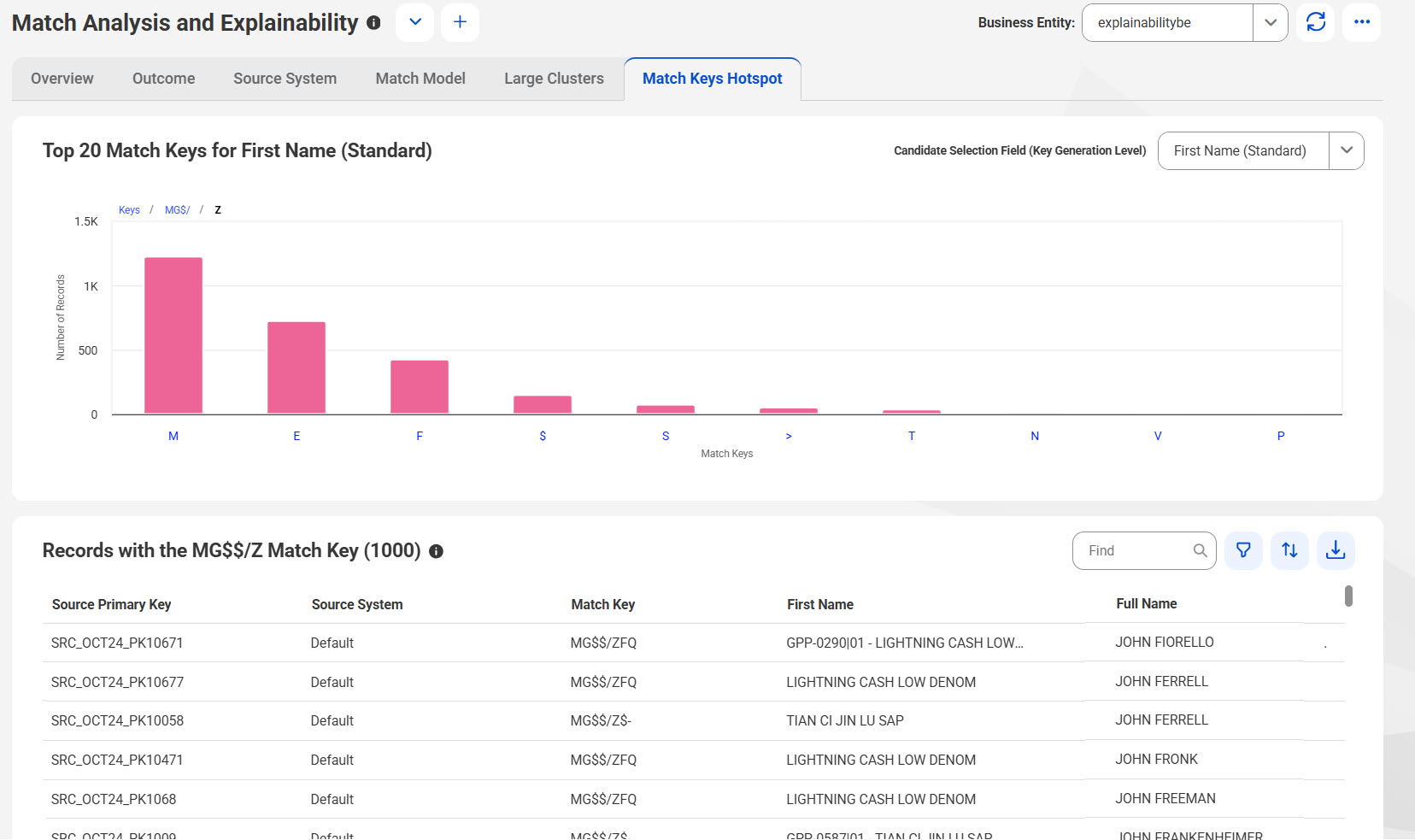
•Match Keys Hotspot. Shows the distribution of match keys generated for each field that the candidate selection criteria uses. You can identify potential hotspots with a high concentration of match keys that might result in overmatching. You can also view source records that contain these match keys. You can drill down each key to analyze the hotspots better.
Overview tab
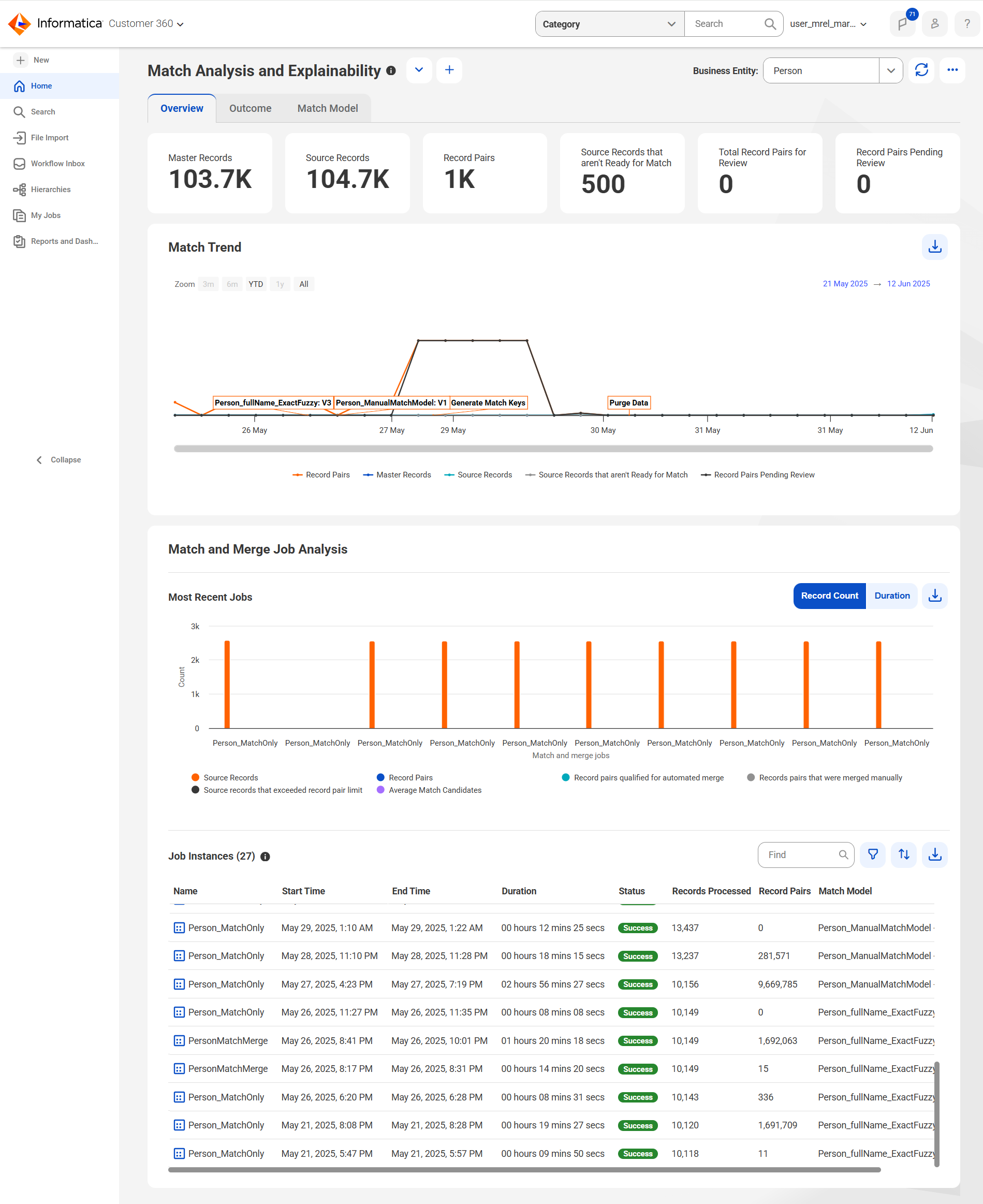
You can view key metrics of the match process, a visual summary of match trends, an analysis of the match and merge jobs, and a list of job instances that ran for a business entity.
The following image displays the Overview tab of the Match Analysis and Explainability dashboard:
The Overview tab has the following sections:
•Key Metrics
•Match Trend
•Match and Merge Job Analysis
•Job Instances
Key metrics
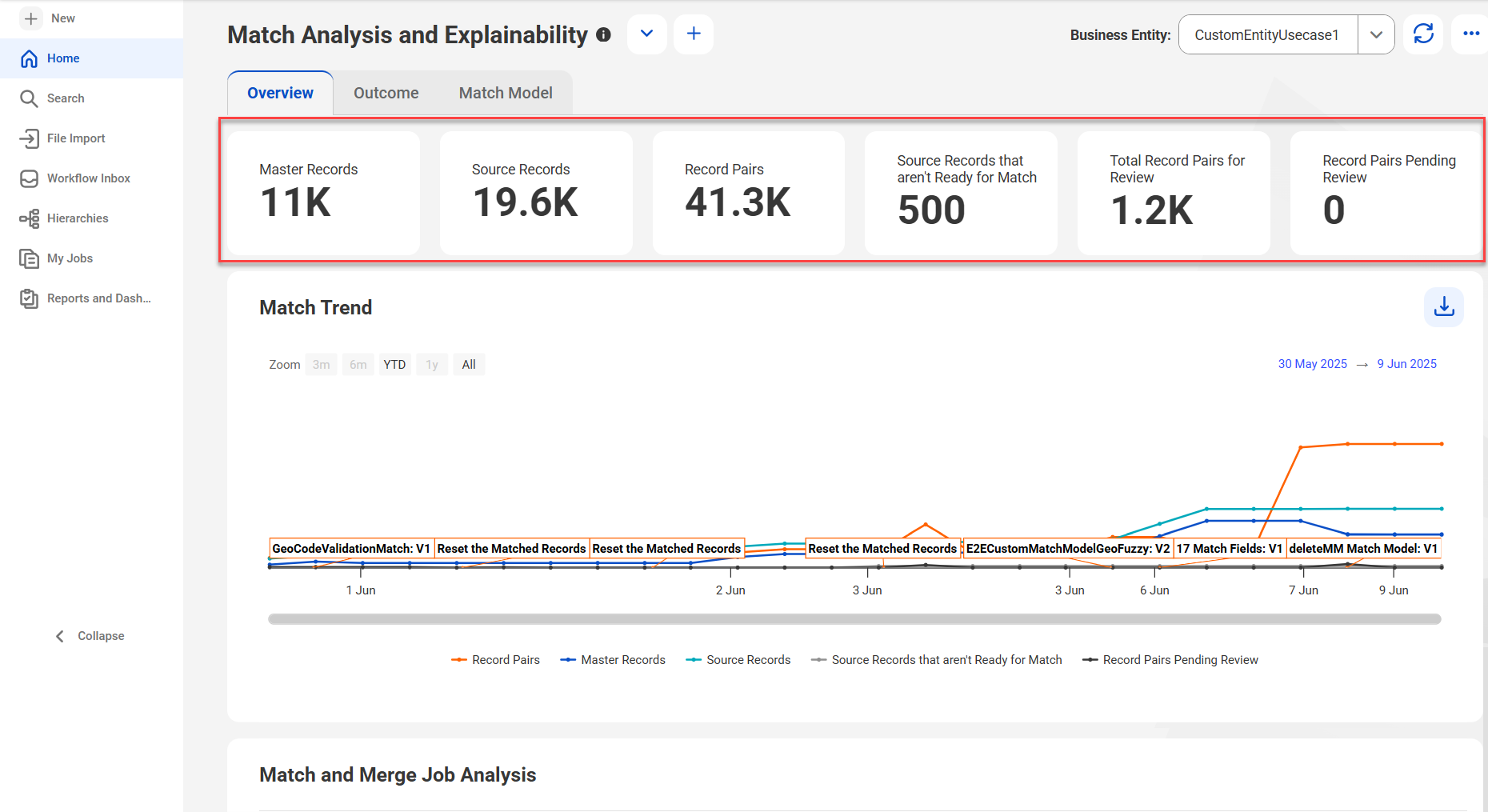
The Overview tab shows key metrics for the selected business entity from the date when the dashboard is enabled.
The key metrics shows the count of records based on the most recent match job run for the business entity.
The following image shows the key metrics of a business entity on the Match Analysis and Explainability dashboard:
The following table describes the details of key metrics displayed for a business entity:
Name
Description
Master Records
Total number of master records.
Source Records
Total number of source records.
Record Pairs
Total number of record pairs that the match process has identified.
Note:
The count excludes the record pairs that are manually merged in a business application.
For more information about merge records from the Search Results page, see Merge master records.
Source Records that aren't Ready for Match
Number of source records that are set to the NOT_READY_FOR_MATCH state by the users.
Total Record Pairs for Review
Total number of record pairs that are identified for manual review.
Record Pairs Pending Review
Total number of record pairs that are pending review.
For example, if 1000 record pairs are identified for manual review and 100 record pairs are reviewed, then the record pairs pending review are 900.
Match trend
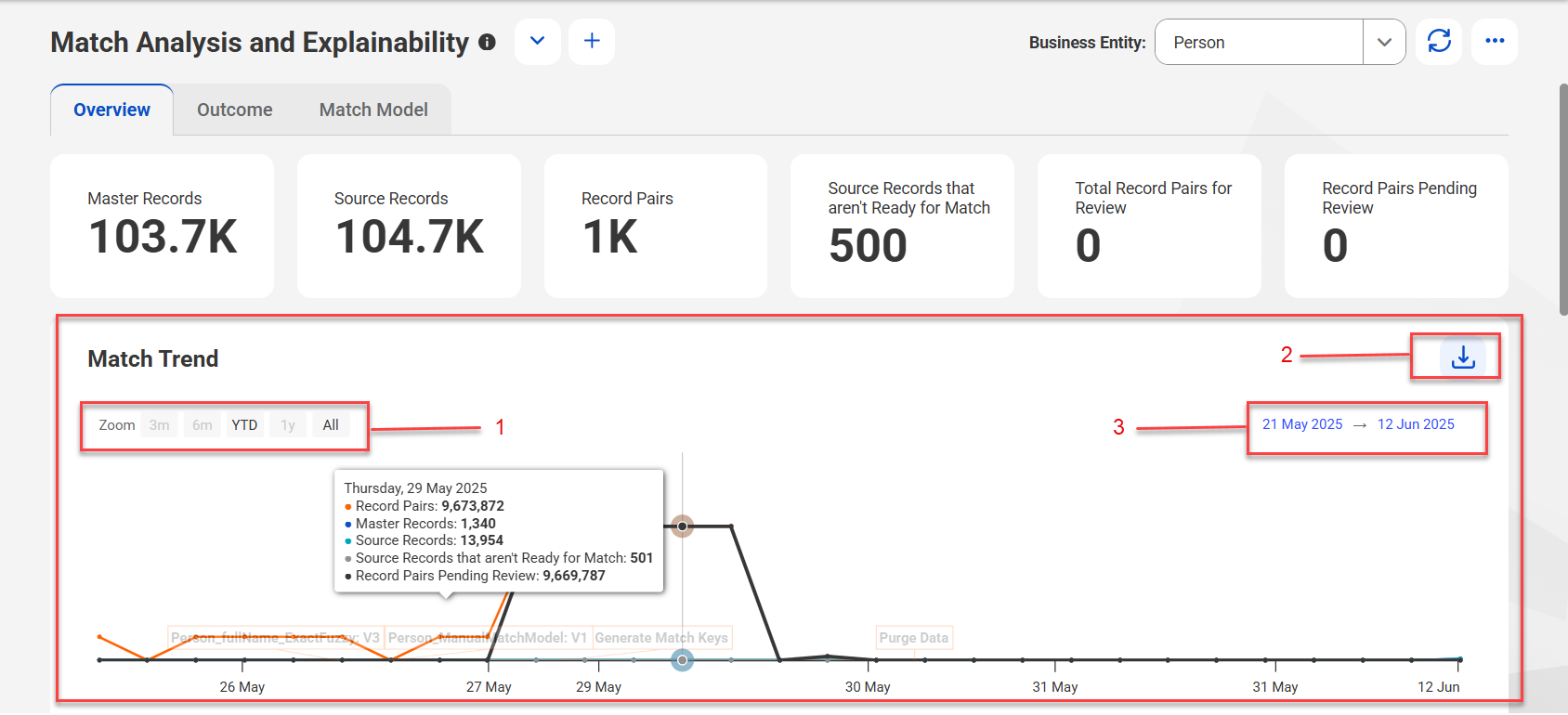
The Match Trend section provides a graphical representation of metrics from match and merge jobs, published match models, and batch jobs that ran to reset matched records, purge data, and generate match keys for the selected time period.
It shows the trend for the business entity from the date when the Match Analysis and Explainability dashboard is enabled. You can select a date range to view key metrics on the graph.
The following image displays the Match Trend section of the Overview tab:
1Zoom
2Export Data
3Date Range
The following table lists the user interface elements that you can use in the Match Trend section:
User Interface Elements
Description
Zoom
View data by months, year, or all data.
Export Data
Exports key metrics of the jobs to a CSV file, that includes the job type and job description.
Date Range
Start and end dates to view the match trend.
Match and merge job analysis
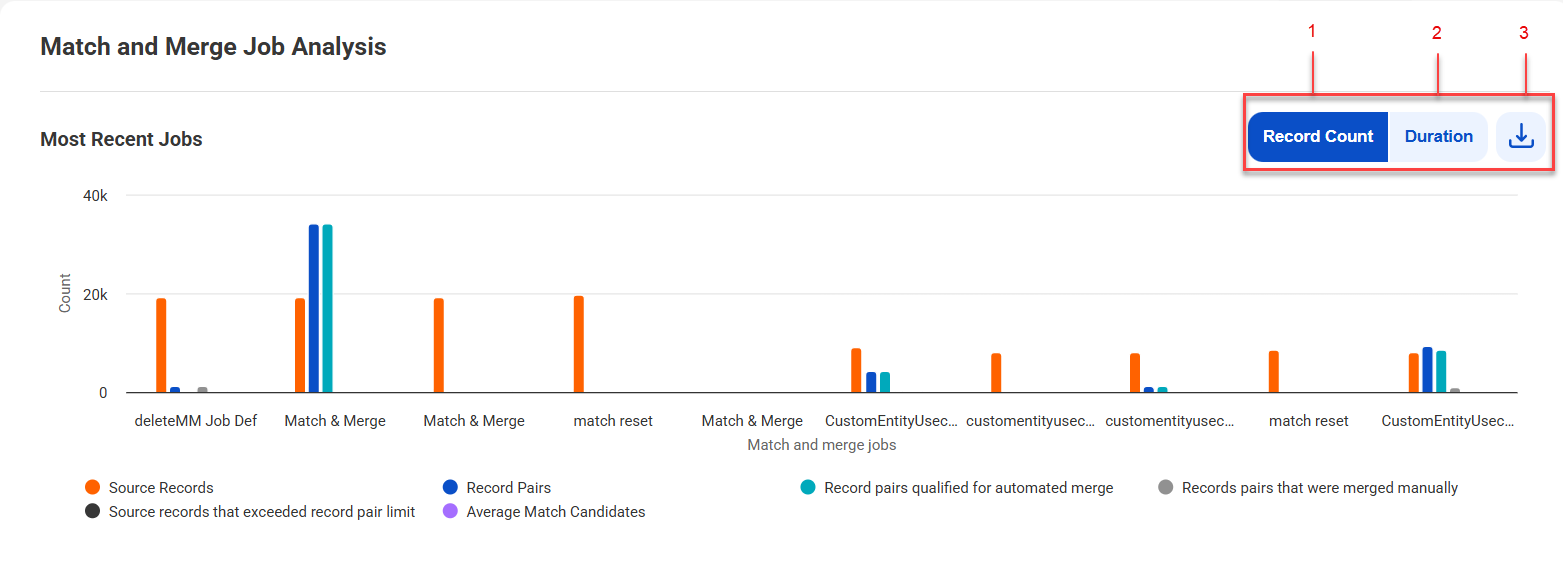
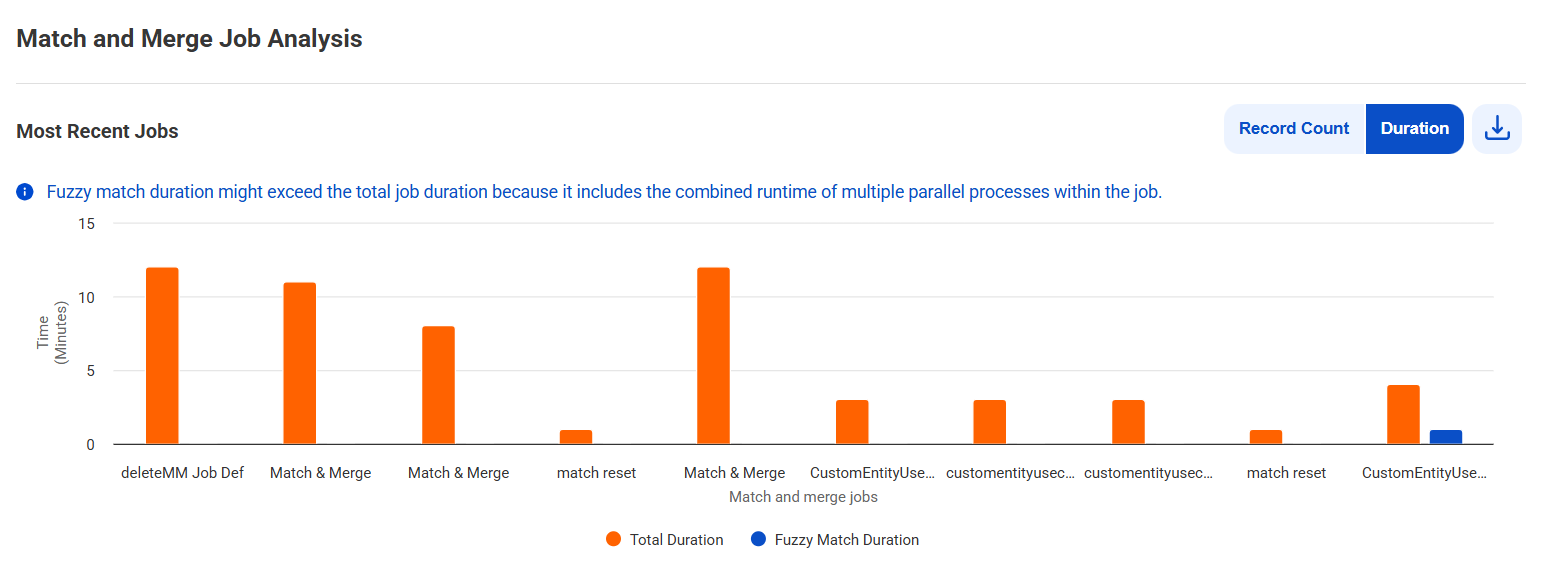
The Match and Merge Job Analysis section displays bar graphs representing metrics for the 10 most recent match and merge jobs.
The graph shows metrics for each job, such as number of source records, record pairs, record pairs that were already merged, record pairs qualified for automated merge, and average match candidates. You can also view the time taken to complete each job. Additionally, the graph shows the time taken for a job to complete when fuzzy match is configured.
Note:
The time taken for fuzzy match is longer than the total job duration because it includes the time of multiple parallel processes running within the same job.
The following image shows the Match and Merge Job Analysis section of the Overview tab:
1Record Count
2Duration
3Export Data
The following image shows the duration details of the 10 most recent match and merge jobs:
The following table describes the user interface elements that you can use in the Match and Merge Job Analysis section:
Job Details
Description
Record Count
Displays bar graphs for metrics, such as the number of source records, record pairs, source records that exceed record pair limit, record pairs qualified for automated merge, and record pairs merged manually for each job using the bar chart.
Duration
Displays bar graphs for metrics, such as the total duration each job took to complete and total duration a job configured with fuzzy match took to complete.
Export Data
Exports details of the most recent jobs to a CSV file. The CSV file includes the latest 10 jobs run for the business entity and includes details, such as number of source records, record pairs, record pairs that were already merged or qualified for automated merge. It also includes the total and fuzzy match duration for each job.
Job instances
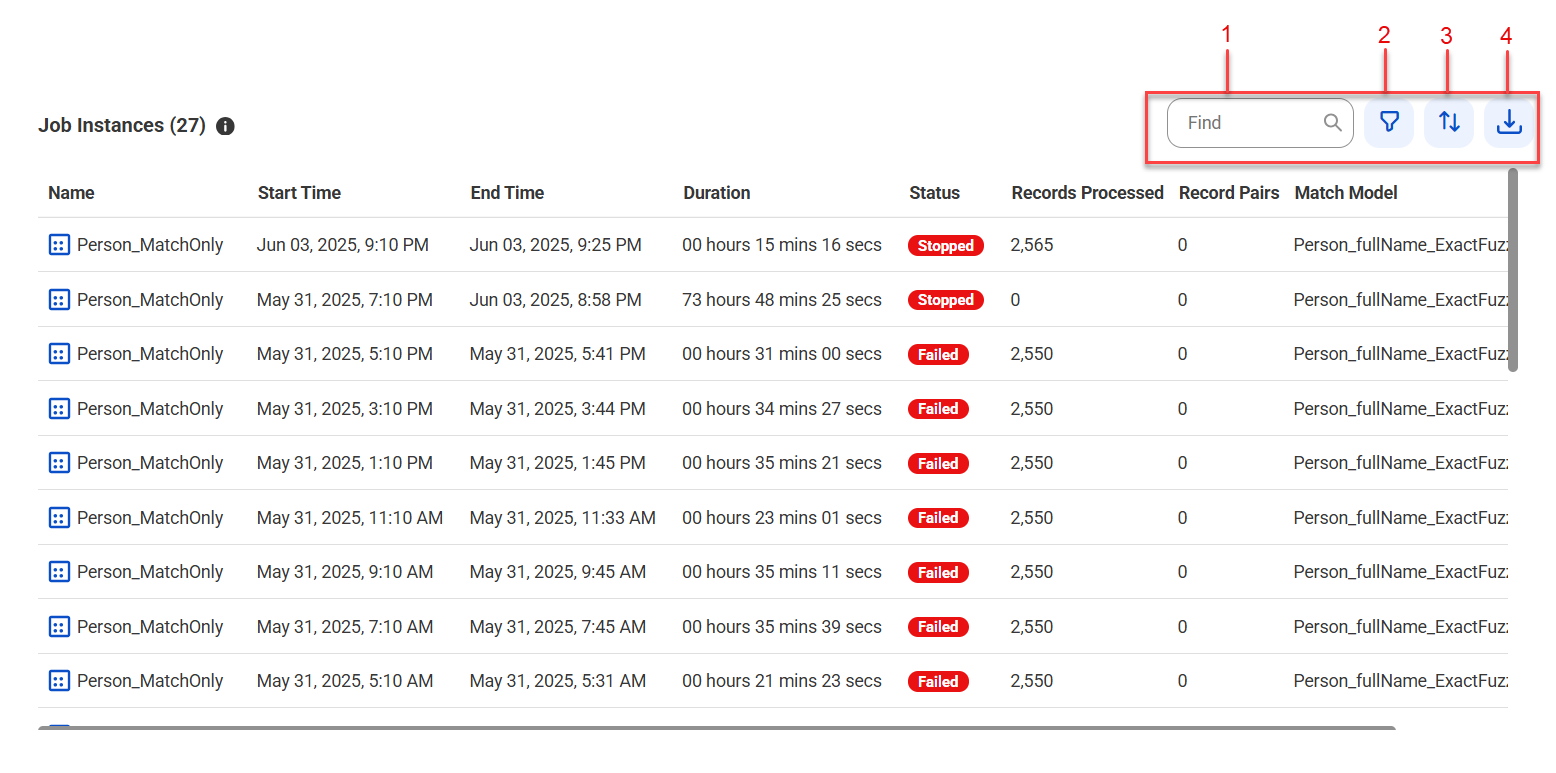
The Job Instances section displays a list of match and merge jobs that ran for a business entity and their details.
The following image displays the Job Instances section of the Overview tab:
1Find
2Filter
3Sort
4Export Data
The following table describes the details that you can view for each job instance:
Job Detail
Description
Name
Name of the job instance.
Start Time
Date and time when the job started.
End Time
Date and time when the job ended.
Duration
Total time taken to complete the job.
Status
Status of the job instance.
Records Processed
Number of records that the job processed.
Record Pairs
Number of record pairs that the job generated.
Match Model
Name of the match model that the job used.
The following table describes the user interface elements that you can use in the Job Instances section:
User Interface Elements
Description
Find
Searches jobs based on the job instance name or the match model name.
Filter
Filters jobs based on duration, status, records processed, record pairs, and match models.
Sort
Sorts jobs in ascending or descending order based on a selected column.
Export Data
Exports details of all job instances to a CSV file.
Outcome tab
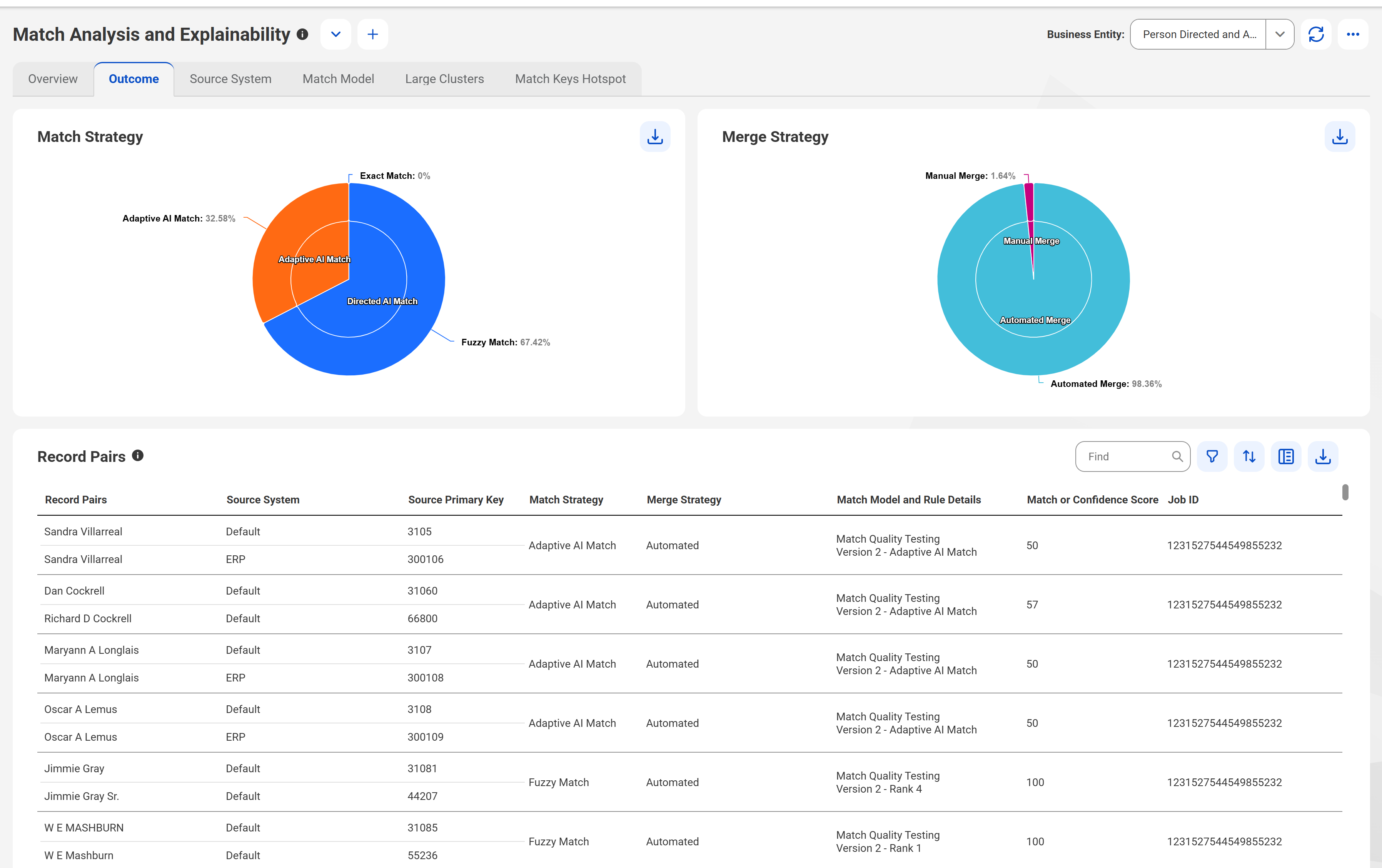
You can view interactive pie charts of the match and merge outcomes with drill-down capabilities. You can view a list of record pairs generated by the match and merge strategies. Additionally, you can explore individual record pairs.
The Outcome tab consists of the following sections:
•Match Strategy
•Merge Strategy
•Record Pairs
The following image displays the Outcome tab of the Match Analysis and Explainability dashboard:
Match strategy
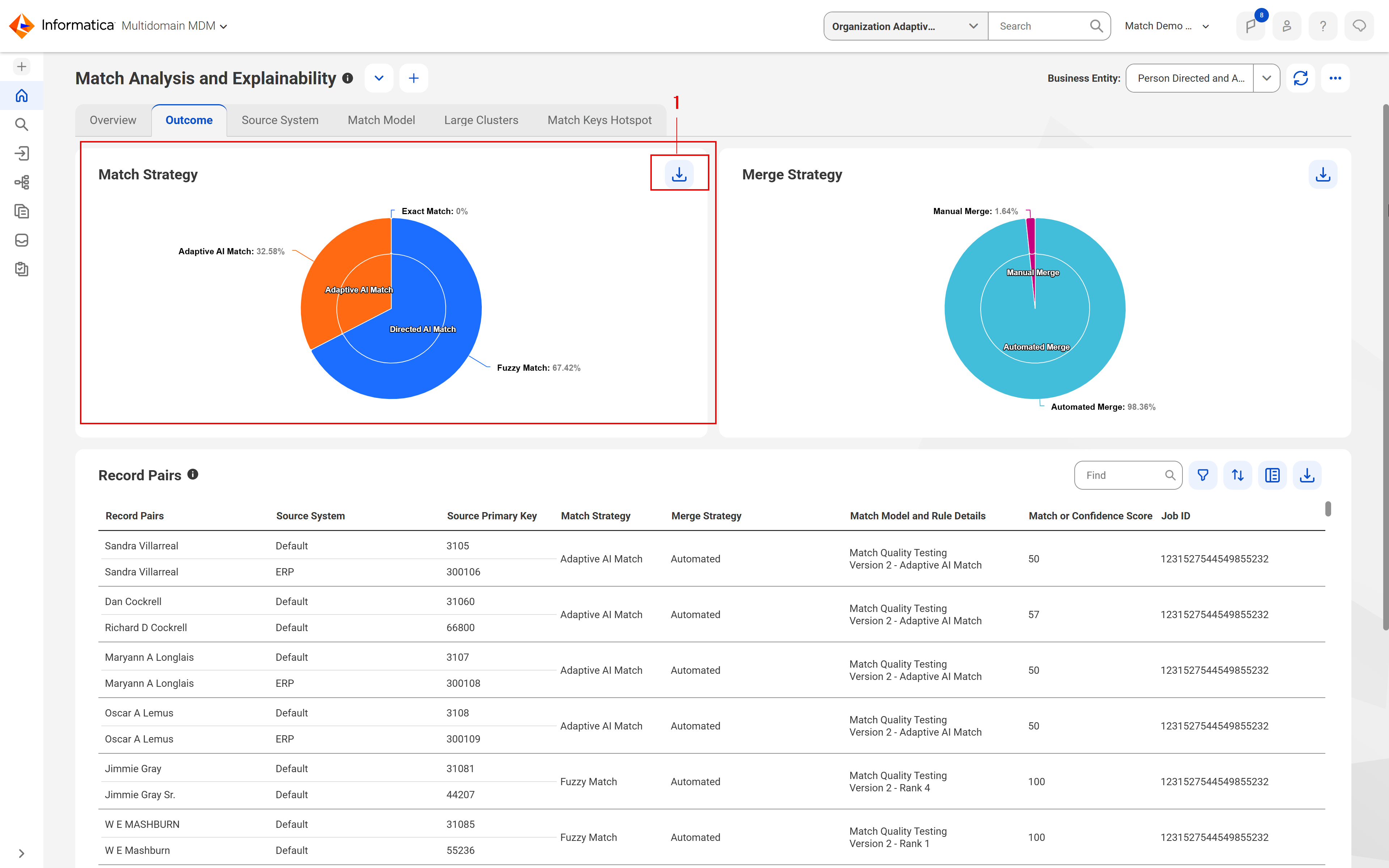
The Match Strategy section displays a pie chart representing the number of record pairs generated by Adaptive AI matching and Directed AI matching using exact and fuzzy rules. Each segment of the pie chart is clickable and filters record pairs based on the selected segment.
The legend shows the percentage of record pairs for each match strategy.
The following image shows the Match Strategy section and the corresponding record pairs in the Record Pairs section:
1Export Data
The following table lists the user interface element that you can use in the Match Strategy section:
User Interface Elements
Description
Export Data
Exports details, such as number and percentage of record pairs generated based on each match strategy to a CSV file.
Merge strategy
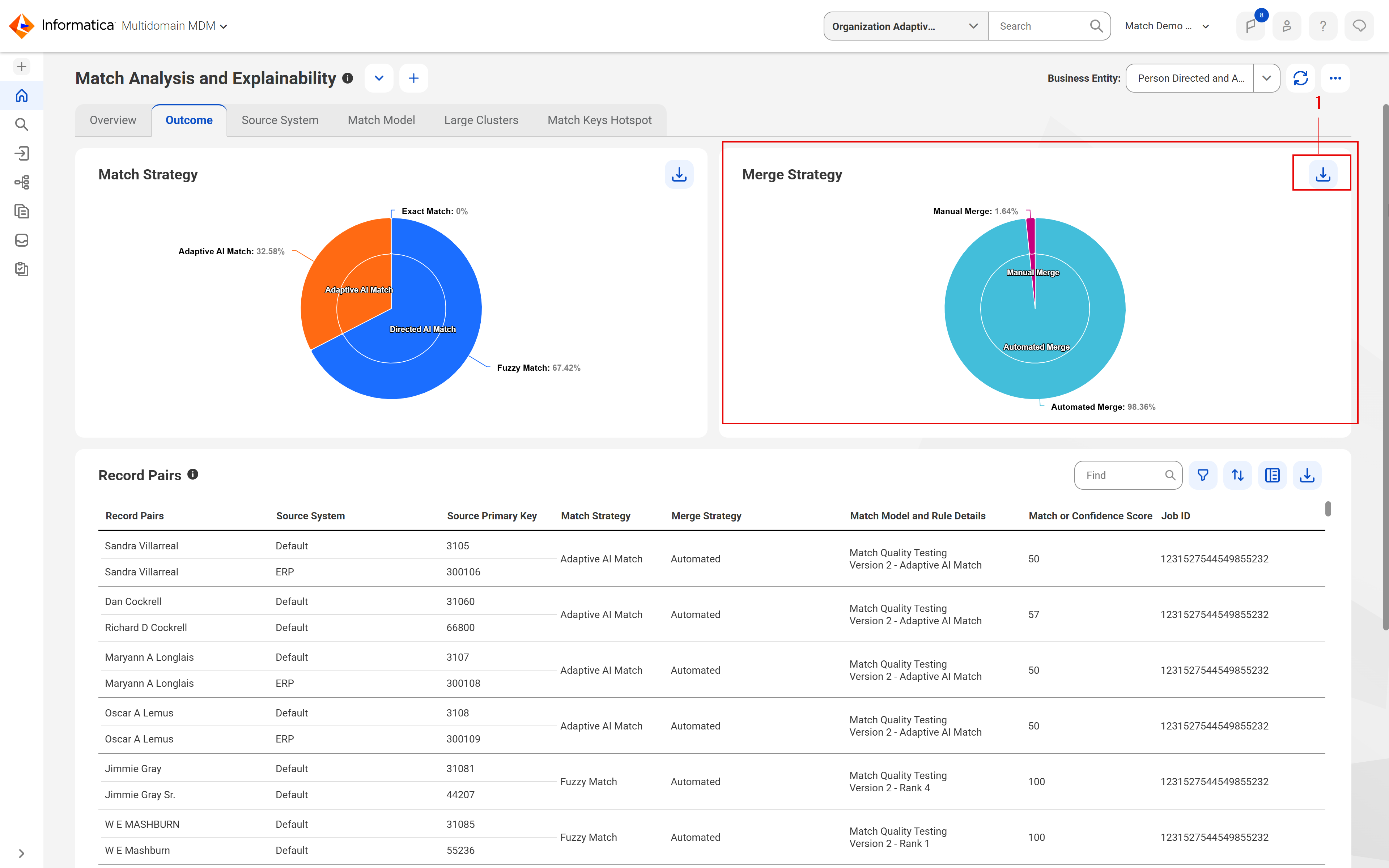
The Merge Strategy section displays a pie chart representing the number of record pairs generated based on automated and manual merge rules. Each segment of the pie chart is clickable and filters record pairs based on the selected segment.
The legend shows the percentage of record pairs for each merge strategy.
The following image shows the Merge Strategy section and the corresponding record pair in the Record Pairs section:
1Export Data
The following table lists the user interface element that you can use in the Merge Strategy section:
User Interface Elements
Description
Export Data
Exports details, such as the number and percentage of record pairs generated based on each merge strategy to a CSV file.
Record pairs
View the details of record pairs that the match and merge strategies generated.
When you select a section of the match or merge strategy pie chart, the Record Pairs section shows the matched record pairs corresponding to the selection.
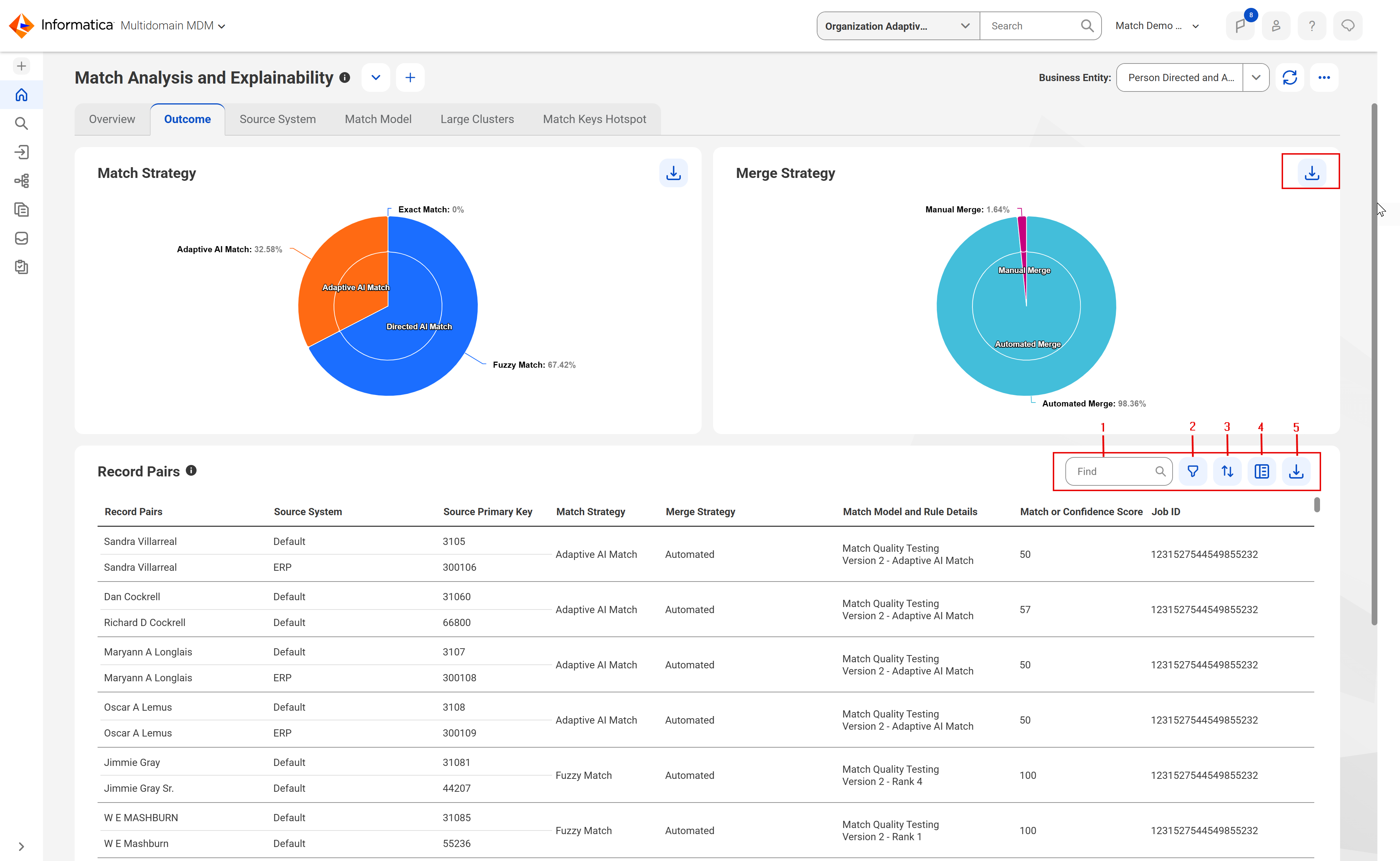
The following image displays the Record Pairs section of the Outcome tab:
1Find
2Filter
3Sort
4Show Additional Details
5Export Data
The following table lists the record pair details you can view for each record pair:
Job Detail
Description
Record
Field values of the record pairs.
Source System
Source system associated with the record pairs.
Source Primary Key
Unique identifier of the source record.
Match Strategy
Type of matching that the directed AI match rule performs, such as exact, fuzzy, or Adaptive AI.
Merge Strategy
Action to perform during the merge process. The values are Manual and Automated.
Match Model and Rule Details
Name of the match model and the directed AI match rule that the job used.
Match or Confidence Score
Score that indicates how similar the record pairs are.
Matched Date
Date when the record pairs were matched.
Match Fields
Business entity fields of the source records based on which the record pairs are matched.
The following table lists the user interface elements that you can use in the Record Pairs section:
User Interface Elements
Description
Find
Searches the record pairs based on the field value in the Records column.
Filter
Filters record pairs based on source system, match strategy, merge strategy, match model and rule details, total match score, and matched date. You can also select sections of the pie chart to apply filters.
Sort
Sorts the record pairs in ascending or descending order based on a selected column name.
Show Additional Details
Displays the details of a selected record pair in the Record Pair Details section.
Export Data
Exports record pair details to a CSV file.
Record Pair Details section
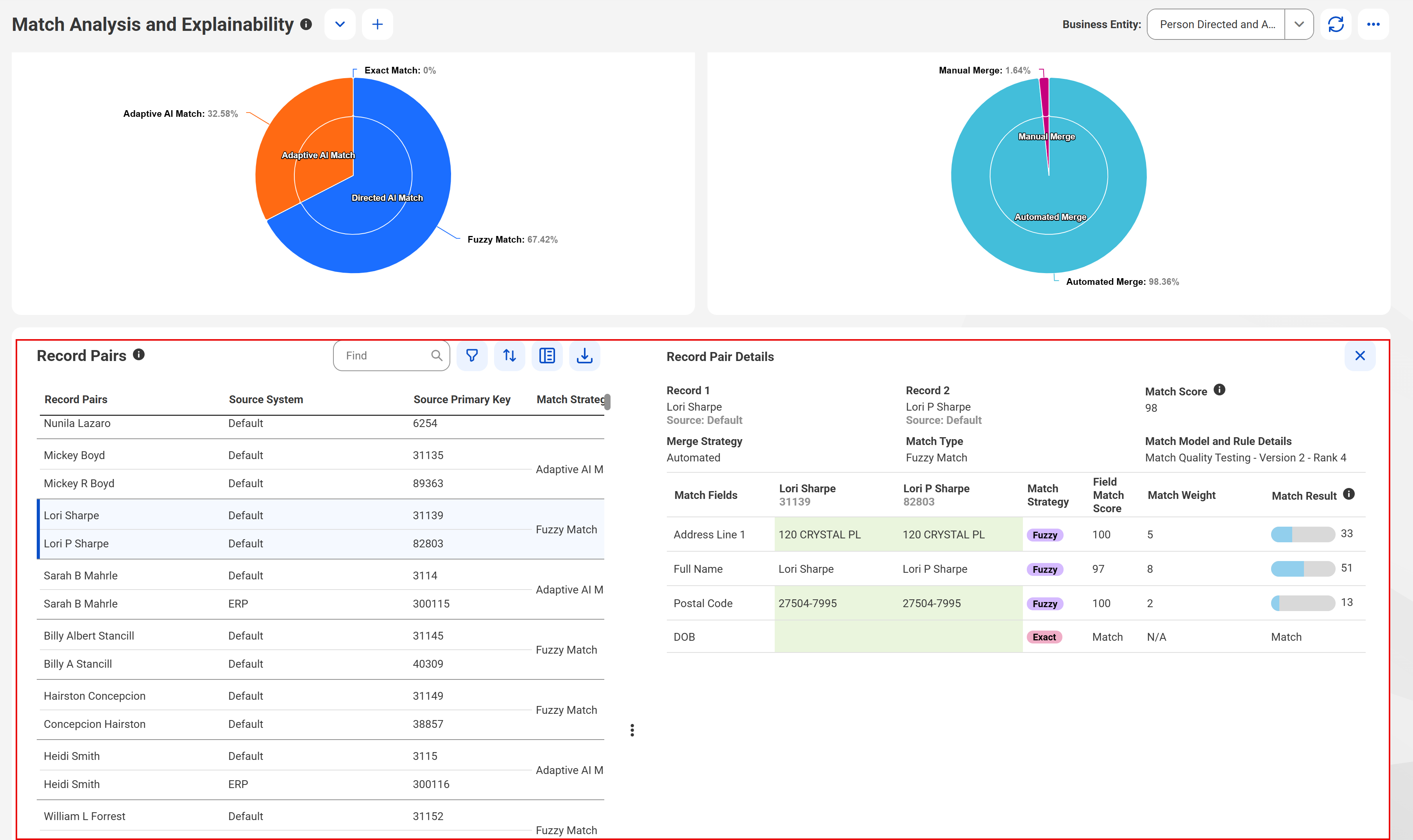
To view additional details of a record pair, select a record pair and click Show Additional Details. You can view details, such as the match fields, match status for exact matches, and match scores for fuzzy matches.
The following image shows the record details of the record pair selected in the Record Pairs section:
The following table lists the details of the selected record pair:
Record Pair Details
Description
Record 1
Name of the first source record in the selected record pair.
Record 2
Name of the second source record in the selected record pair.
Total Match Score
Score that indicates how similar the record pairs are. The value is the sum of match scores of fuzzy match fields.
Note:
A decimal value is rounded off to display the total match score.
Merge Strategy
Action to perform during the merge process. The values are Manual and Automated.
Match Type
Type of matching that the directed AI match rule uses, such as directed AI match or adaptive AI match.
Match Model and Rule Details
Name of the match model and the directed AI match rule that the job used.
Match Fields
Name of the business entity fields that the directed AI match rule uses for matching.
Match Strategy
Type of match that the directed AI match rule performs.
Match Score
Score that indicates how similar the match fields of the record pairs are. Applicable to directed AI match rules with the fuzzy match strategy.
Confidence Score
Score that indicates how similar the match fields of the record pairs are. Applicable to Adaptive AI match rules.
Contribution
Score that indicates how each match field influences prediction outcomes. Positive score indicates support for matches and negative score indicates support for non-matches.
Contribution to the Total Match Score
Match status for exact match fields, and shows the match score contribution of fuzzy match fields to the total match score.
Source System tab
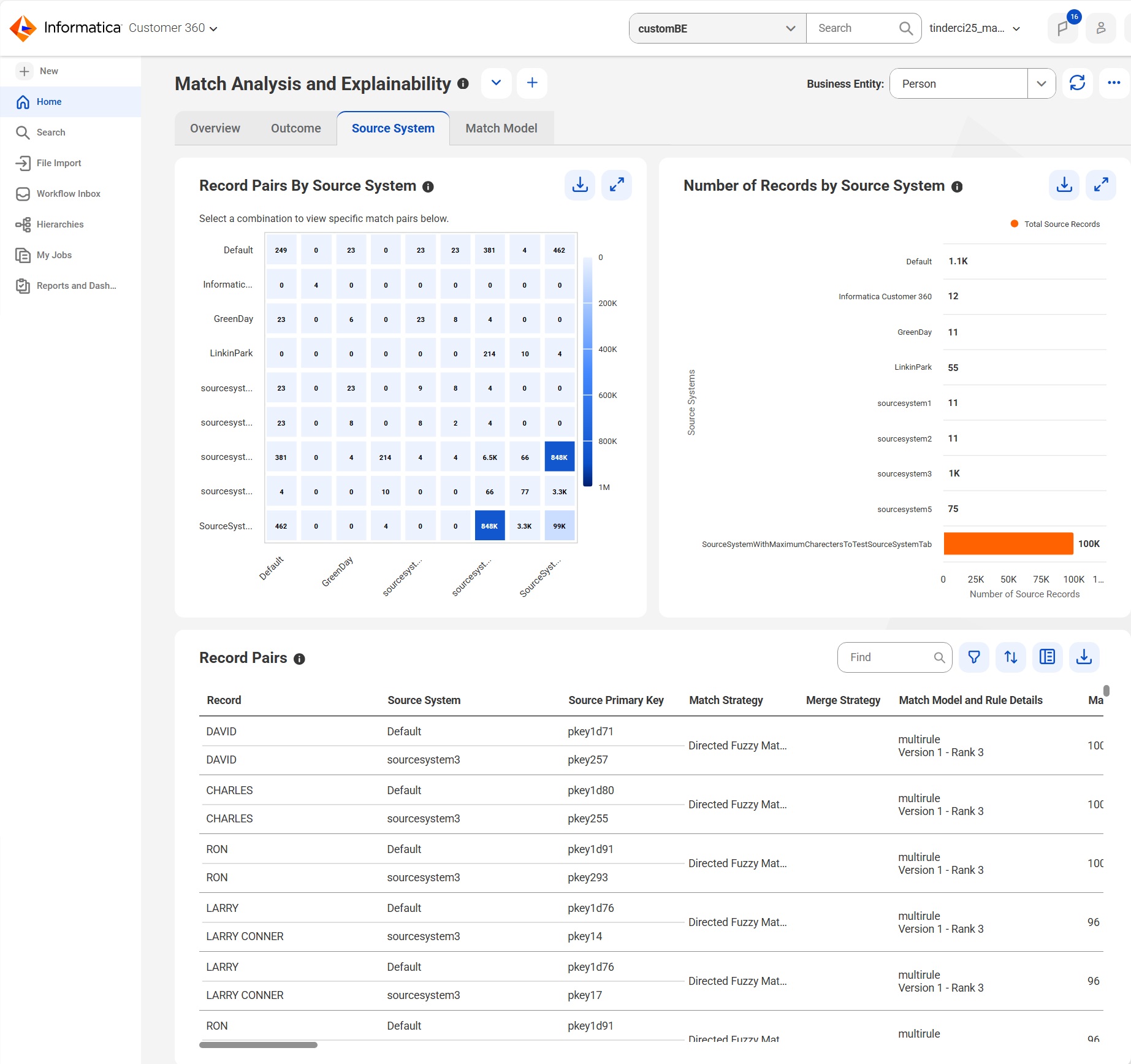
Use the Source System tab to view a graphical summary of record pairs categorized by source systems. You can view a heat map of record pairs originating from each source system or from a combination of two source systems. Additionally, view a bar chart that displays the number of source records from each source system. When you click the heat map, you can filter record pairs by source systems and then explore individual record pairs.
Note:
The Source System tab displays data after a match job has run following the October 2025 release. The data includes both the current job data and the historical data from previously run jobs.
The following image shows the Source System tab of the Match Analysis and Explainability dashboard:
The Source System tab consists of the following sections:
•Record Pairs by Source System
•Number of Records by Source System
•Record Pairs
Record Pairs by Source System
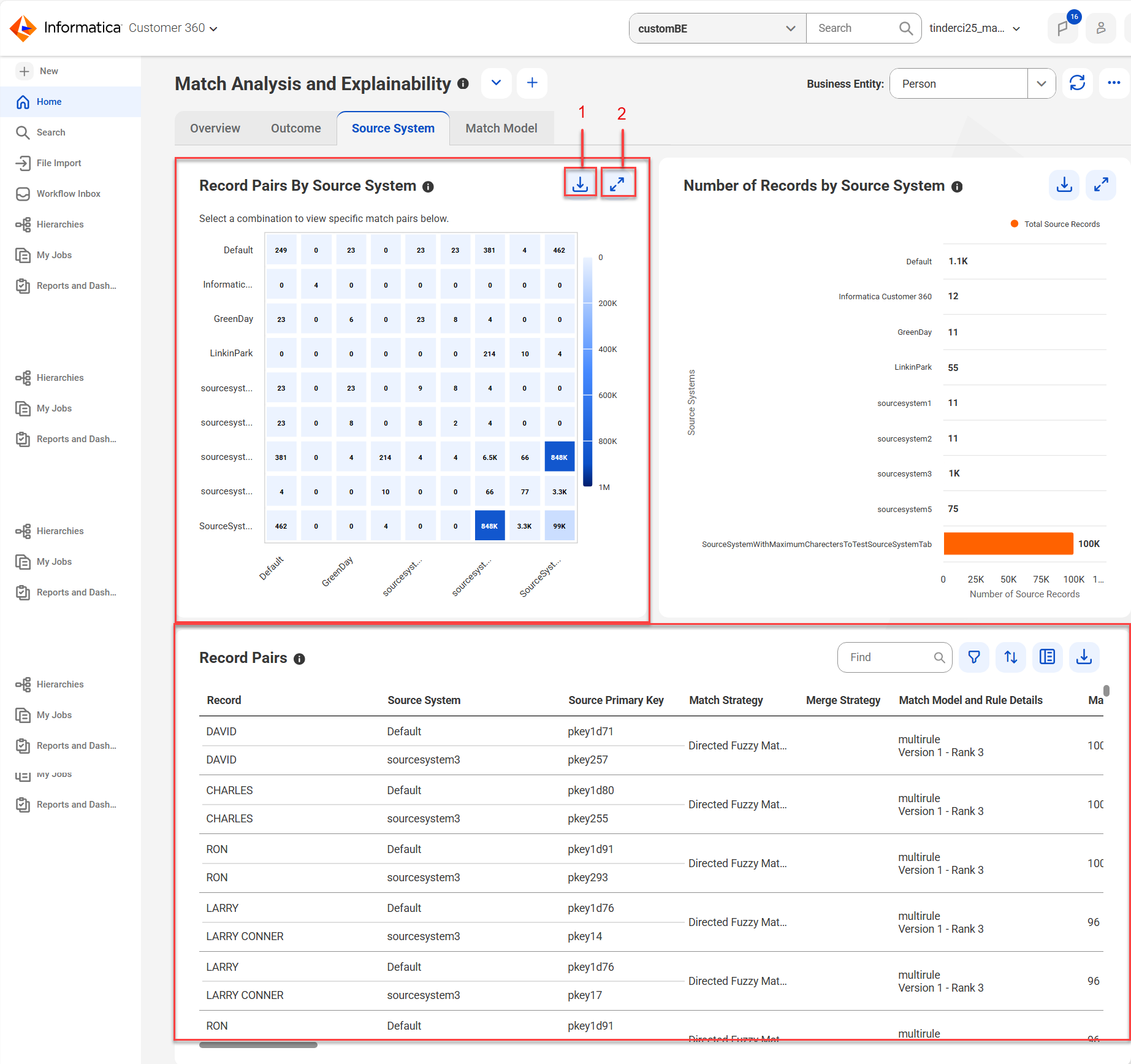
The Record Pairs by Source System section displays a heat map that represents the distribution of record pairs across source systems.
When you select a cell in the heat map that corresponds to source systems, you can view the count of record pairs and their details.
The following image shows the Record Pairs by Source System section and the corresponding record pairs in the Record Pairs section:
1Export Data
2Full Screen
The following table describes the user interface elements that you can use in the Record Pairs by Source System section:
User Interface Elements
Description
Export Data
Exports details, such as the total number of record pairs contributed by the selected source systems, to a CSV file.
Full Screen
Maximizes the Record Pairs by Source System section to view the heat map in full screen.
Number of Records by Source System
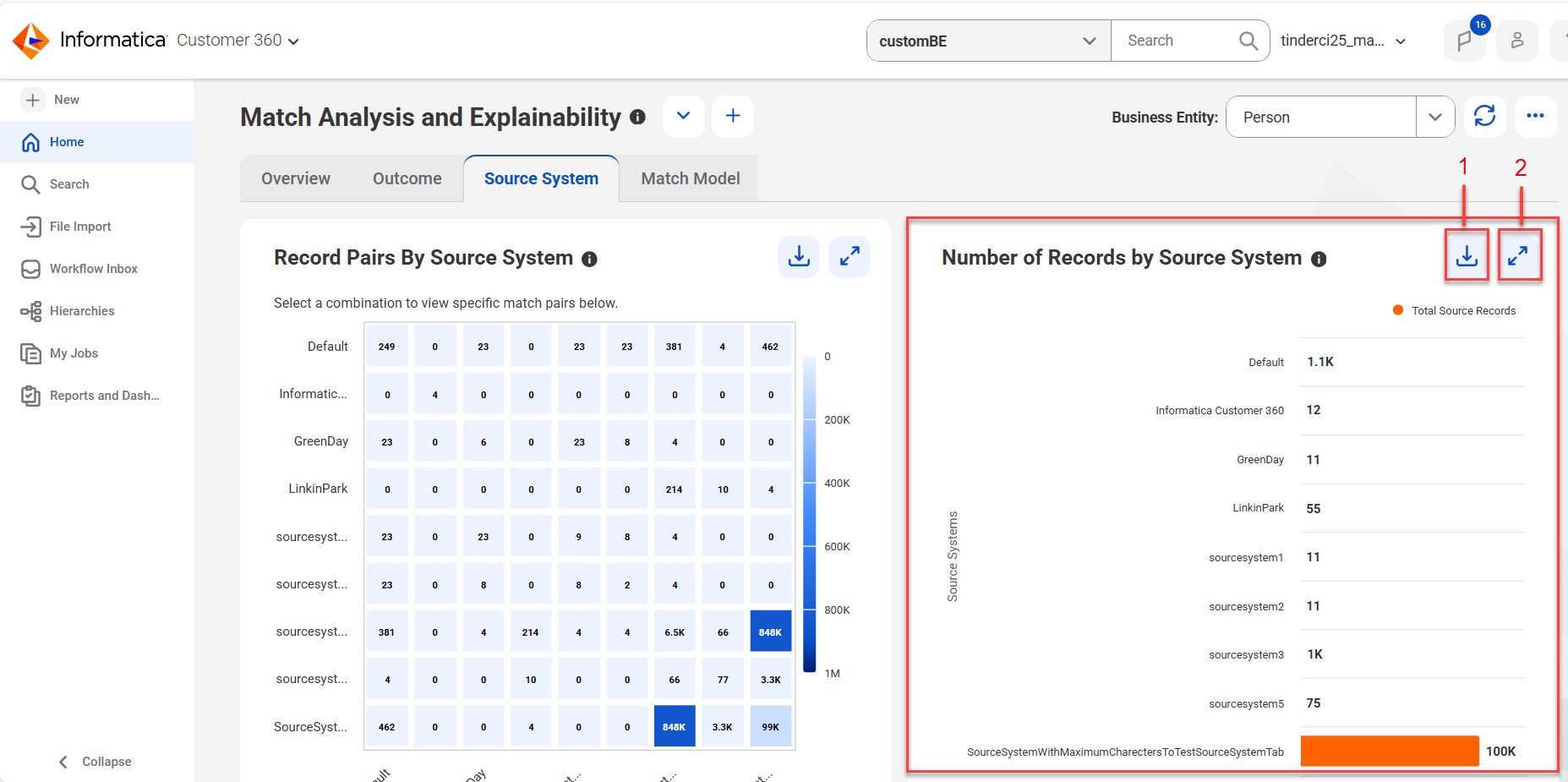
The Number of Records by source system section displays a bar chart representing the total number of records from each source system.
The following image shows the Number of Records by Source System section:
1Export Data
2Full Screen
The following table describes the user interface elements that you can use in the Number of Records by Source System section:
User Interface Elements
Description
Export Data
Exports details, such as the total number of record pairs for each source system, to a CSV file.
Full Screen
Maximizes the Record Pairs by Source System section to view the heat map in full screen.
Record Pairs
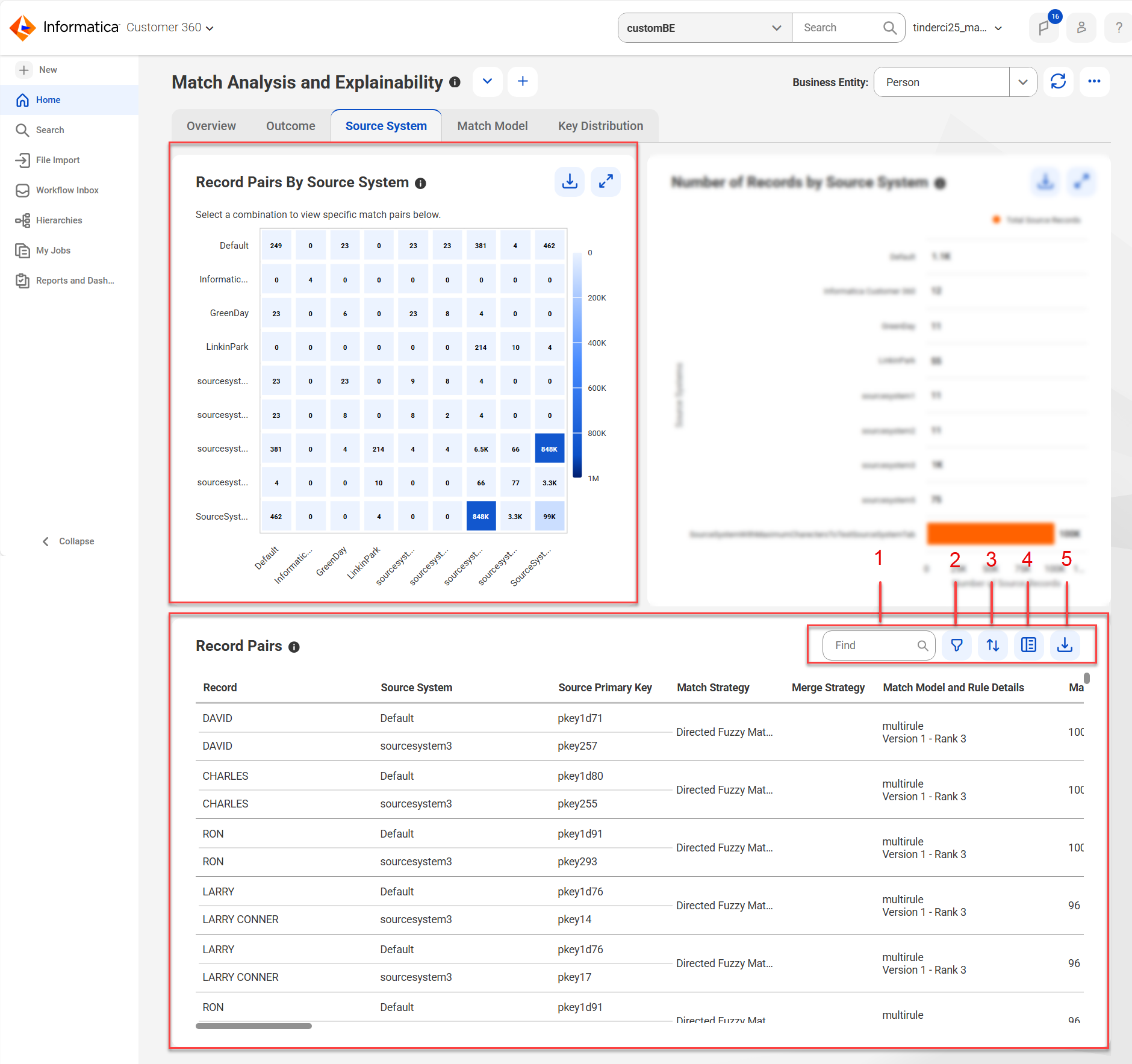
The Record Pairs section displays the details of record pairs associated with source systems.
When you select source systems in the heat map, the Record Pairs section filters the record pairs from the selected source systems.
The following image displays record pairs in the Record Pairs section for the source systems selected in the heat map:
1Find
2Filter
3Sort
4Show Additional Details
5Export
The following table describes the columns in the Record Pairs section:
Record Pair Property
Description
Record
The display name of records in the record pairs.
Source System
Source system associated with the record.
Source Primary Key
Unique identifier of the record.
Match Strategy
Type of match strategy that identified the record pair, such as exact, fuzzy, or Adaptive AI.
Merge Strategy
Type of merge strategy to use during the merge process. The values are Manual and Automated.
Match Model and Rule Details
Name of the match model and the Directed AI match rule that identified the record pair.
Match or Confidence Score
A score that indicates how similar the record pairs are.
Record Pair Creation Date
Date when the record pairs were matched.
Match Fields
Business entity fields based on which the record pairs were matched.
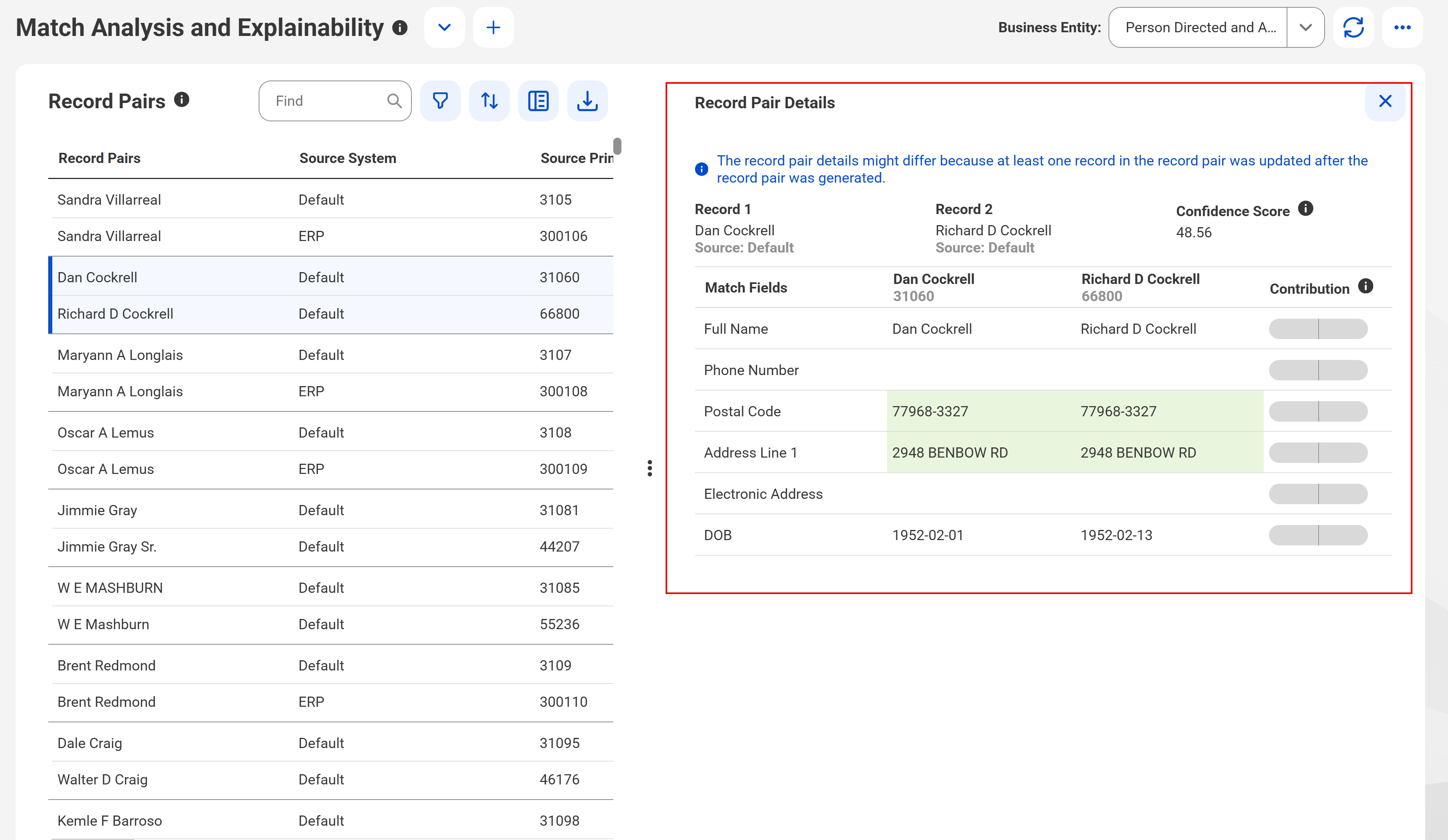
Record Pair Details
When you select a record pair, the additional details of a record pair appear in the Record Pair Details section.
The following image displays the additional details of a record pair:
The following table describes the user interface elements that you can use in the Record Pairs section:
User Interface Elements
Description
Find
Search the record pairs based on the column values.
Filter
Filter record pairs based on column values, such as source systems, match strategy, merge strategy, match model and rule details, match score, and record pair creation date.
Sort
Sort the record pairs based on the selected column.
Show Additional Details
Displays additional details, such as field match score, match weight, and match result, of a selected record pair in the Record Pair Details section.
Export Data
Export record pair details to a CSV file.
The following table describes additional details that you can view in the Record Pair Details section:
Record Pair Details
Description
Record 1
The display name of the of the first source record in the record pair and the source system to which the record belongs.
Record 2
The display name of the second source record in the record pair and the source system to which the record belongs.
Match Score
Score that indicates how similar the record pairs are. Applicable to record pairs that were identified by directed AI match rules that use fuzzy match strategy.
Confidence Score
Score that indicates how similar the record pairs are. Applicable to record pairs that were identified by adaptive AI match rules.
Contribution
Score that indicates how each match field influences prediction outcomes. Positive score indicates support for matches and negative score indicates support for non-matches.
Match Fields
Name of the business entity fields that matched the record pairs.
Merge Strategy
Type of merge strategy to use during the merge process. The values are Manual and Automated.
Field Match Score
The score assigned to match fields within a record pair based on the similarity of their values. The higher the score, the more similar the values are. Applicable to Directed AI match rules with fuzzy match strategy.
Match Weight
Indicates the weight or importance of a match field within a record pair. Match weight is a decimal number that varies based on the field type configured in the match model. Fields with higher match weight are given greater importance during the match process.
For example, if the field type selected in the match model is Person_Name, the match process assigns greater importance to the Full Name field than to the Address Line 1 field.
Match Result
Displays the weighted match score for fuzzy match fields, and displays Match as the status for exact match fields.
The weighted match score is calculated by multiplying the match weight by the field match score for each match field. For example, if the match weight for the Full Name field is 0.3 and the field match score is 96, the weighted match score would be 0.3 × 96 = 28. If the overall match score for this record pair is 100, then 28 is the weighted match score contributed by the Full Name field.
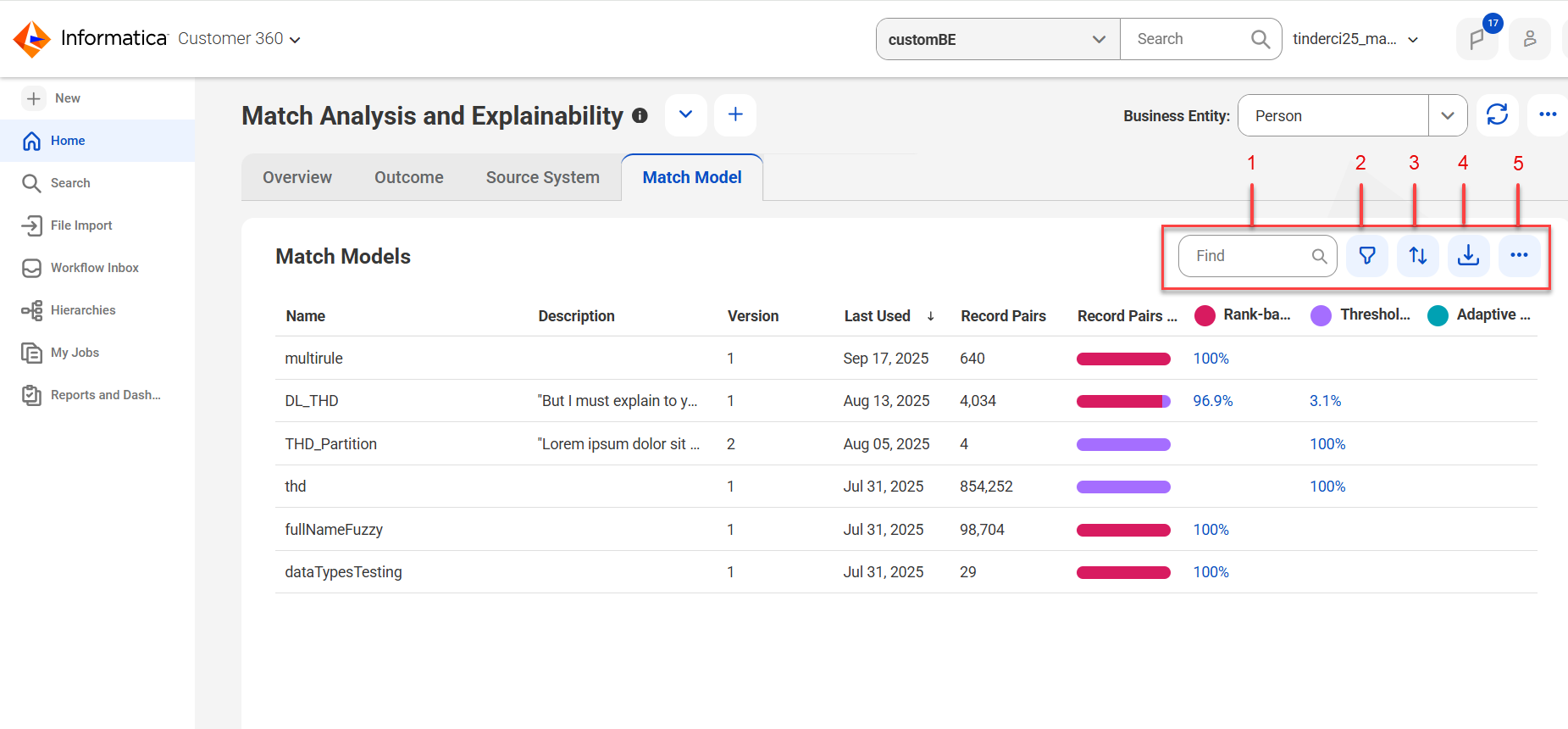
Match Model tab
You can view a summary of record pairs identified by rank-based Directed AI match rules, threshold-based Directed AI match rules, and Adaptive AI match models. You can explore and analyze record pairs identified by each Directed AI match rules.
Use the Match Model tab to explore the summary of match results and gain insights into the match process. You can also modify the match configuration to get trust match outcomes. For example, if a Directed AI match rule didn't generate any match pairs, you can consider removing it or updating its properties.
Additionally, you can click on the percentage of record pairs in each Directed AI match rule to further explore and analyze the record pairs identified by that match rule.
The following image displays the Match Model tab of the Match Analysis and Explainability dashboard:
1Find
2Filter
3Sort
4Export Data
5View Record Pairs Summary
The following table lists the details you can view in the Match Model tab:
Job Detail
Description
Name
Name of the match model that contains the Directed AI match rule.
Description
Short description to identify a Directed AI match rule.
Version
Version of the match model.
Last Used
Date when the record pairs were matched.
Record Pairs
Total number of record pairs including rank-based Directed AI rules, threshold-based Directed AI rules, and Adaptive AI Models.
Rank-based Directed AI Rules
Percentage of record pairs based on rank-based Directed AI rules.
Threshold-based Directed AI Rules
Percentage of record pairs based on threshold-based Directed AI rules.
Adaptive AI Models
Percentage of record pairs based on Adaptive AI Models.
The following table lists the user interface elements that you can use in the Match Model tab:
User Interface Elements
Description
Find
Searches based on the match model name and description.
Filter
Filters based on name, description, version, matched date, record pairs, and Directed AI match rules.
Sort
Sorts the record pairs in ascending or descending order based on a selected column name.
Export Data
Exports the details in the Match Model tab to a CSV file.
View Record Pairs Summary
Summary of total record pairs from active, deleted, and all match models.
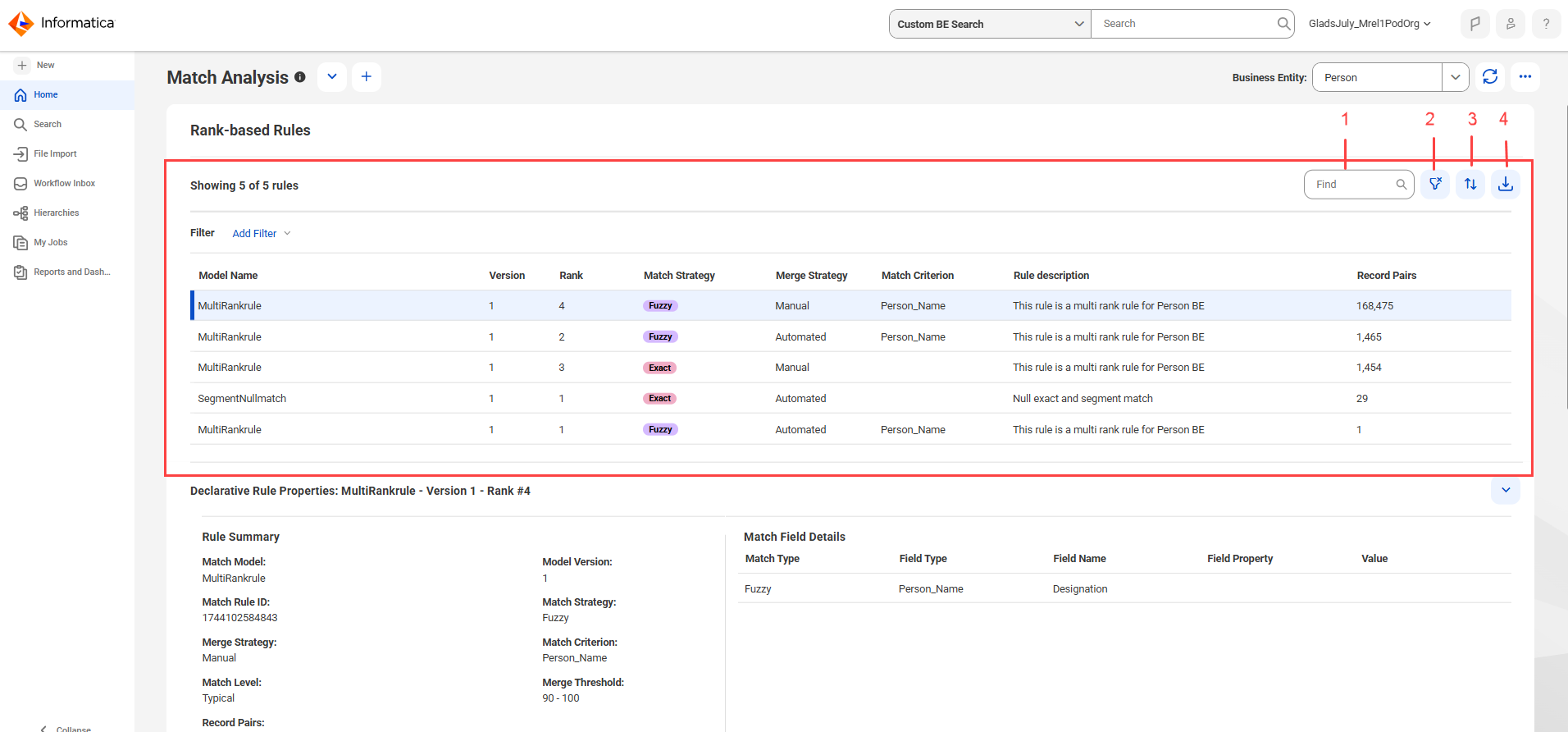
Rank-based rules
The Rank-based rules section lists the directed AI match rules that are ranked in a match model. You can view a list of directed AI match rules with their ranks, the configuration, the associated match model, and the number of record pairs they identified.
The following image displays the Rank-based Rules section of the Match Model tab:
1Find
2Filter
3Sort
4Export
The following table describes the details that the Rank-based Rules section displays:
Name
Description
Model Name
Name of the match model that contains the directed AI match rule.
Version
Version of the match model.
Rank
Execution order of the directed AI match rule in the match model.
Match Strategy
Type of match that the directed AI match rule performs.
Merge Strategy
Action to perform during the merge process. The values are Manual and Automated.
Match Criterion
Type of data to use for matching. Applicable to directed AI match rules with the fuzzy match strategy.
Rule Description
Short description to identify a directed AI match rule.
Record Pairs
Number of record pairs that the directed AI match rule identified.
The following table lists the user interface elements that you can use in the Rank-based Rules section:
User Interface Elements
Description
Find
Search the directed AI match rules based on the column values.
Filter
Filter directed AI match rules based on the column values.
Sort
Sorts the directed AI match rules in ascending or descending order based on the selected column name.
Export Data
Export details of the directed AI match rules to a CSV file. The CSV file includes properties of directed AI match rules, such as model name, version, and match criterion.
Record pairs from threshold-based rules
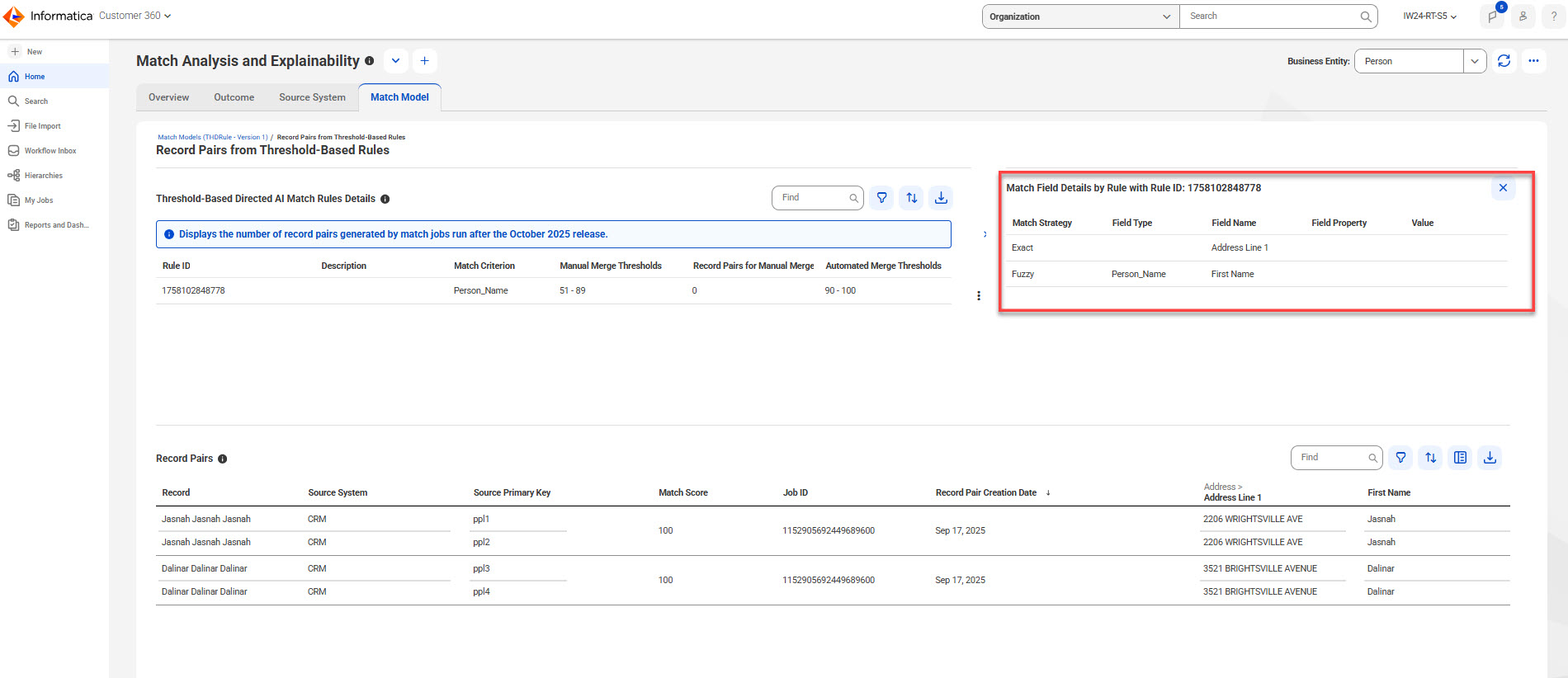
The Match Model page lists the threshold-based Directed AI match rules in a match model and the number of record pairs generated based on each rule.
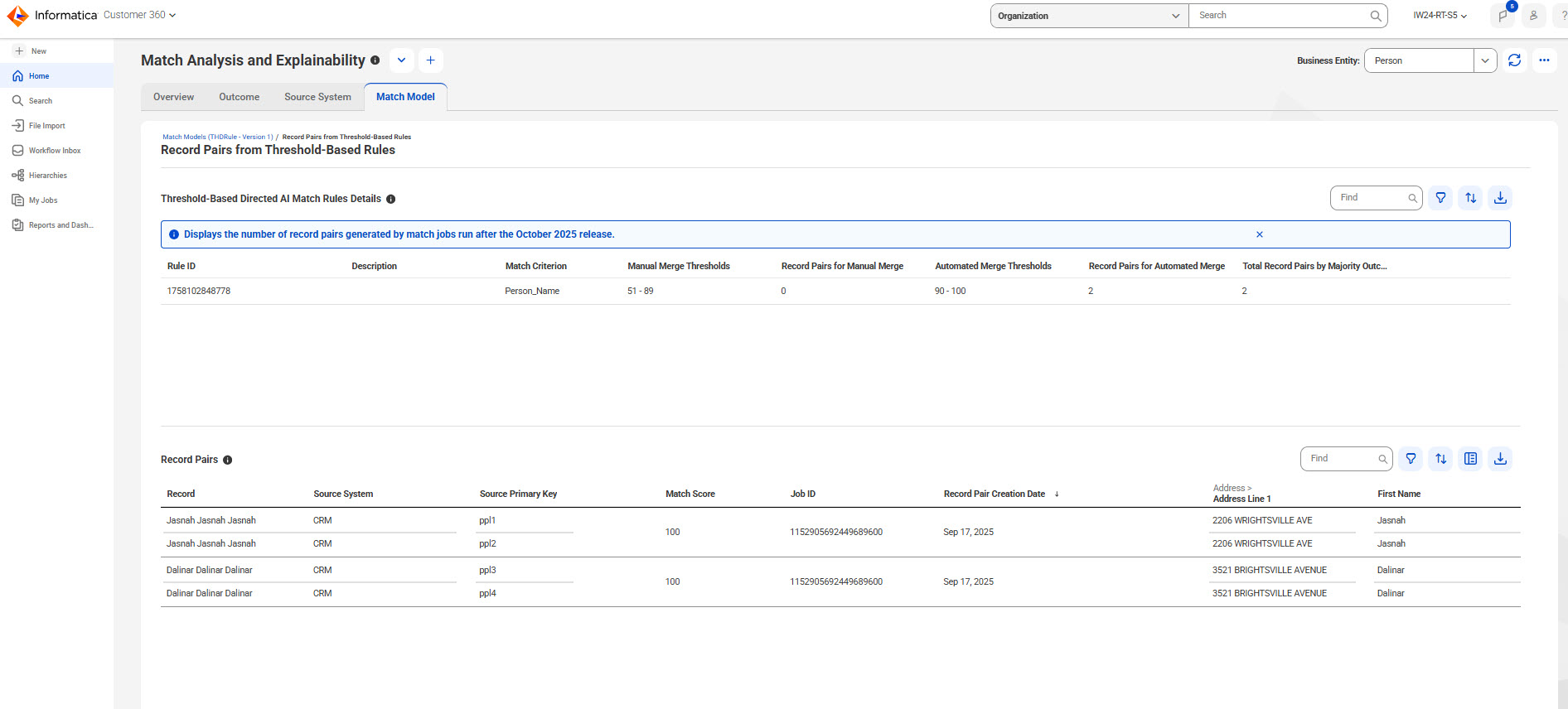
To open the Record Pairs from Threshold-Based Rules page, click the percentage value in the Threshold-based Directed Rules column in the Match Model page.
The following image displays the Record Pairs from Threshold-Based Rules page:
The Record Pairs from Threshold-Based Rules page has the following sections:
•Threshold-Based Directed AI Match Rules Details
•Record Pairs
Threshold-based Directed AI match rules details
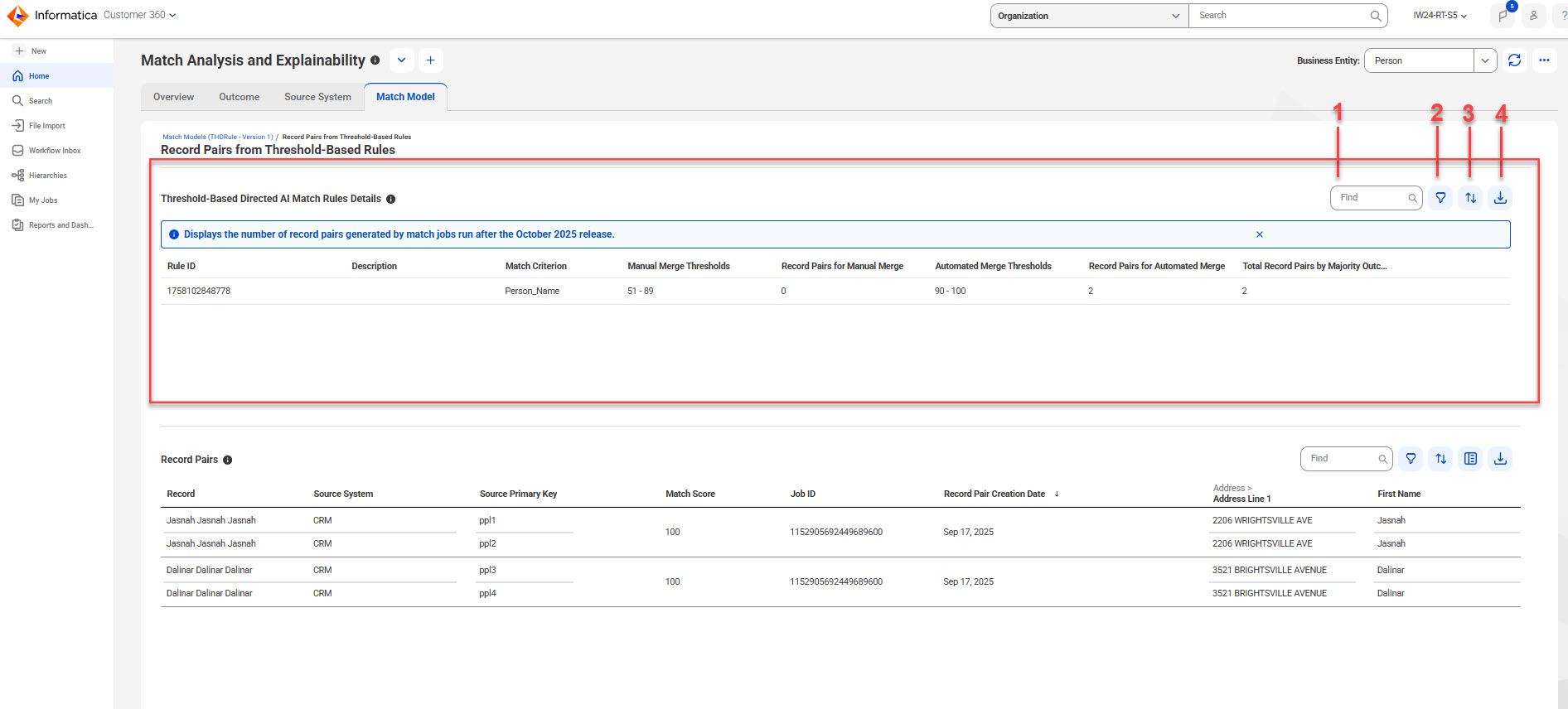
The Threshold-Based Directed AI Match Rules Details section lists the Directed AI match rules in a match model. You can view a list of Directed AI match rules, the merge thresholds for automated and manual merge strategies, the number of record pairs identified for manual and automated merges, and the total record pairs determined by the majority outcome of the rules.
The following image displays the Threshold-Based Directed AI Match Rules Details section:
1Find
2Filter
3Sort
4Export
The following table describes the user interface elements that you can use in the Threshold-Based Directed AI Match Rules Details section:
User Interface Elements
Description
Find
Search the Directed AI match rules based on the column values.
Filter
Filter Directed AI match rules based on the column values.
Sort
Sort the Directed AI match rules in ascending or descending order based on the selected column name.
Export Data
Export details of the Directed AI match rules to a CSV file.
The following table describes the rule details that the Threshold-Based Directed AI Match Rules Details table displays:
Name
Description
Rule ID
System-generated identifier of the Directed AI match rule.
Description
Short description to identify a Directed AI match rule.
Match Criterion
Type of data to use for matching. Applicable to Directed AI match rules with the fuzzy match strategy.
Manual Merge Thresholds
Merge threshold configured for the manual merge strategy.
Record Pairs for Manual Merge
Total number of record pairs identified for manual merge.
Automated Merge Thresholds
Merge threshold configured for the automated merge strategy.
Record Pairs for Automated Merge
Total number of record pairs identified for automated merge.
Record Pairs by Majority Outcome of Rules
Total number of record pairs for which the rule agreed with the majority decision.
Match field details
You can view details of a Directed AI match rule, such as the match strategy, field type, field name, field property, and value. To view the details, select a rule and click View Match Field Details.
The following image shows the match field details of a selected Directed AI match rule:
The following table describes the match field details of a selected Directed AI match rule:
Match Field Details
Description
Match Strategy
Type of match strategy that the Directed AI match rule uses, such as exact or fuzzy.
Field Type
Type of data that the match field contains. Applicable to Directed AI match rules with the fuzzy match strategy.
Field Name
Name of the business entity field that the Directed AI match rule uses for matching. Applicable to Directed AI match rules with the fuzzy match strategy.
Field Property
Additional properties configured for the match field, such as segment matching and null matching.
Value
Value to identify segment data for matching.
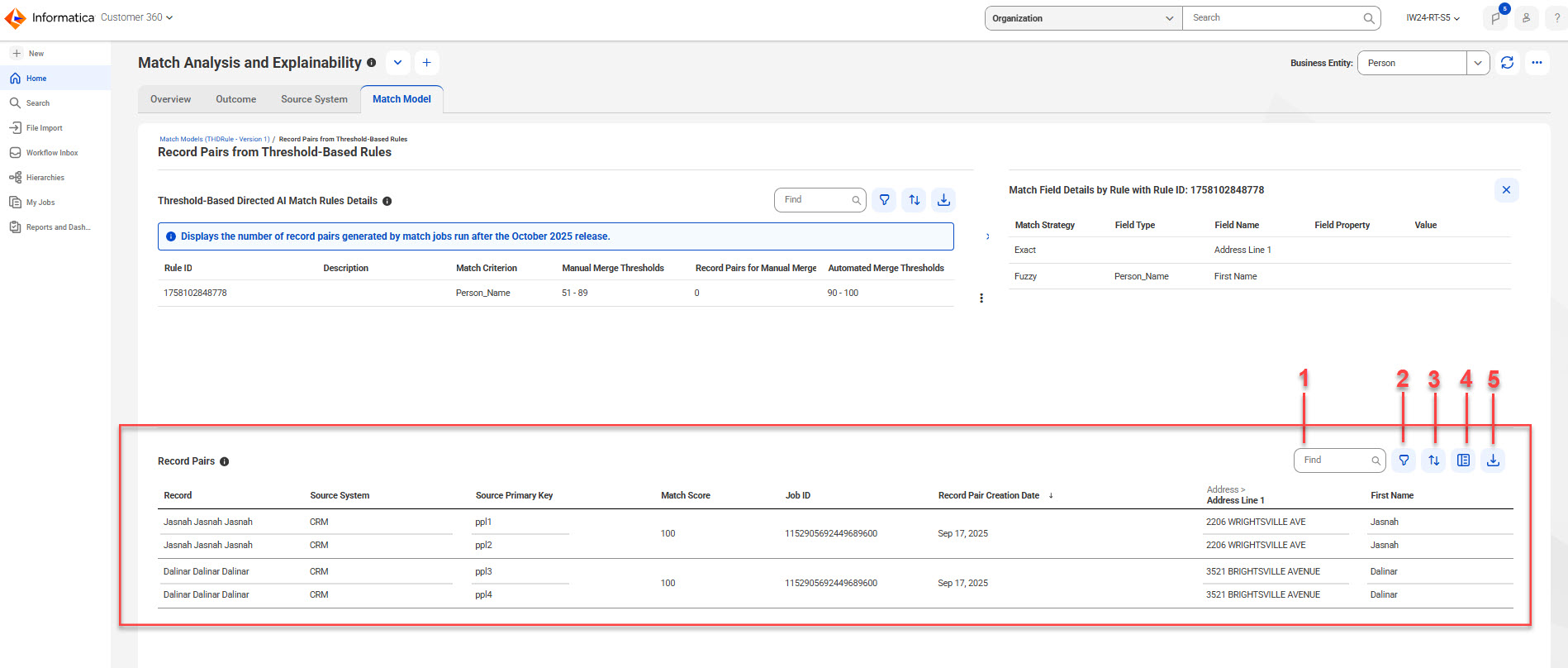
Record pairs
You can view the details of record pairs that the threshold-based Directed AI match rules generated.
When you select a rule in the Threshold-Based Directed AI Match Rules Details section, the Record Pairs section shows the record pairs associated with the selected rule.
The following image displays the Record Pairs section of the Record Pairs from Threshold-Based Rules page:
1Find
2Filter
3Sort
4Show Additional Details
5Export Data
The following table describes the user interface elements that you can use in the Record Pairs section:
User Interface Elements
Description
Find
Search the record pairs based on the field value in the Records column.
Filter
Filter record pairs based on matched date, match score, and source systems.
Sort
Sort the record pairs in ascending or descending order based on a selected column name.
Show Additional Details
Displays the details of a selected record pair in the Record Pair Details section.
Export Data
Export record pair details to a CSV file.
The following table describes the record pair details you can view for each record pair:
Record Pair Details
Description
Record
Display name of records in the record pairs.
Source System
Source system associated with the record pairs.
Source Primary Key
Unique identifier of the source record.
Match Score
Score that indicates how similar the record pairs are.
Job ID
Unique identifier of the job instance that used the Directed AI match rule to match record pairs.
Matched Date
Date when the record pairs were matched.
Match Fields
Business entity fields of the source records based on which the record pairs are matched.
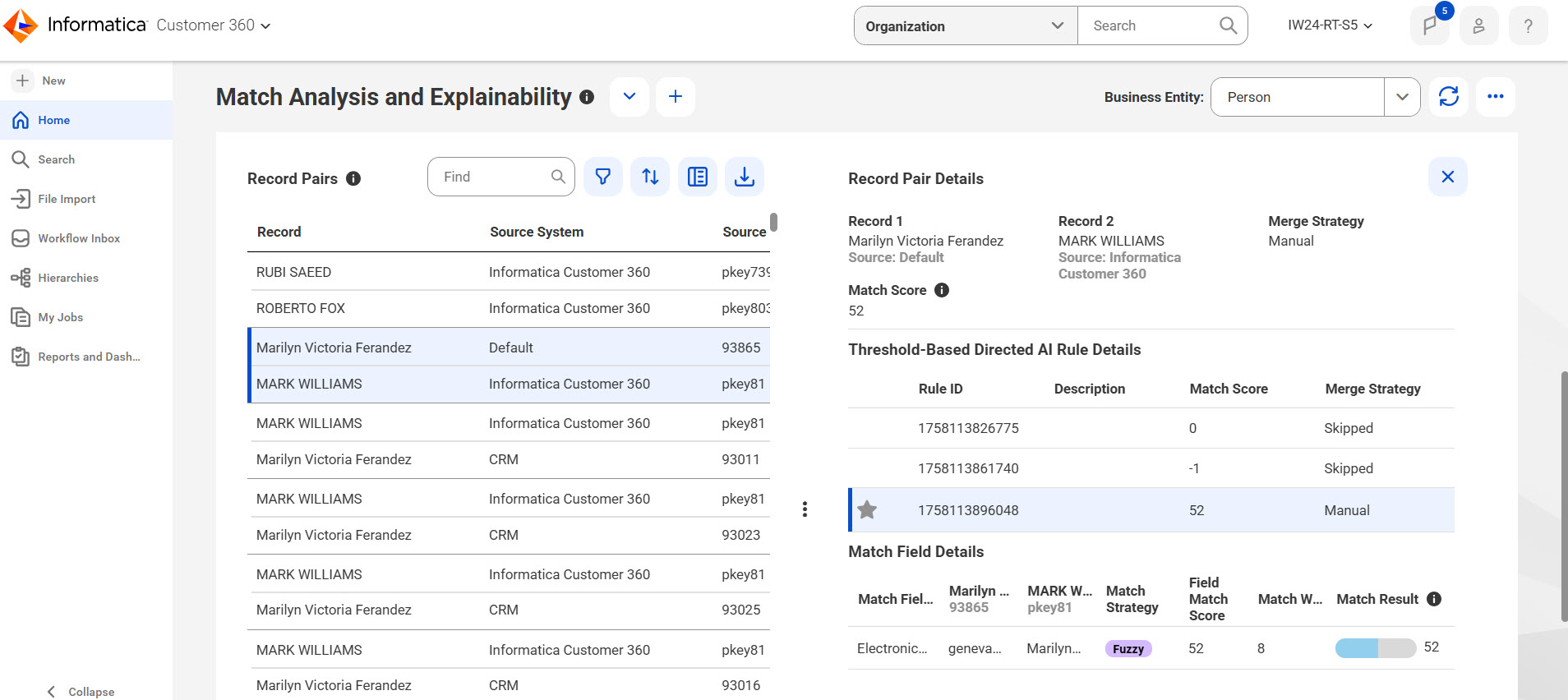
Record pair details
You can view details of record pair, such as the match fields, match status for exact matches, and match scores for fuzzy matches. To view the details, select a record pair and click Show Additional Details.
The following image shows the details of the record pairs selected in the Record Pairs section:
The following table describes the record pair details of the selected record pair:
Record Pair Details
Description
Record 1
Display name of the first source record in the selected record pair.
Record 2
Display name of the second source record in the selected record pair.
Merge Strategy
Type of merge strategy to use during the merge process. The values are Manual and Automated.
Match Score
Score that indicates how similar the record pairs are. The value is the sum of match scores of fuzzy match fields.
Note:
A decimal value is rounded off to display the total match score.
Rule ID
System-generated identifier of the Directed AI match rule that generated the record pairs.
Note:
The rule marked with the star icon indicates that the rule contributed to the total match score.
Description
Short description to identify a Directed AI match rule.
Match Fields
Name of the business entity fields that the Directed AI match rule uses for matching.
Field Match Score
The score assigned to match fields within a record pair based on the similarity of their values. The higher the score, the more similar the values are. Applicable to Directed AI match rules with fuzzy match strategy.
Match Weight
Indicates the weight or importance of a match field within a record pair. Match weight is a decimal number that varies based on the field type configured in the match model. Fields with higher match weight are given greater importance during the match process.
For example, if the field type selected in the match model is Person_Name, the match process assigns greater importance to the Full Name field than to the Address Line 1 field.
Match Result
Displays the weighted match score for fuzzy match fields, and displays Match as a status for exact match fields.
The weighted match score is calculated by multiplying the match weight by the field match score for each match field. For example, if the match weight for the Full Name field is 0.3 and the field match score is 96, the weighted match score would be 0.3 × 96 = 28. If the overall match score for this record pair is 100, then 28 is the weighted match score contributed by the Full Name field.
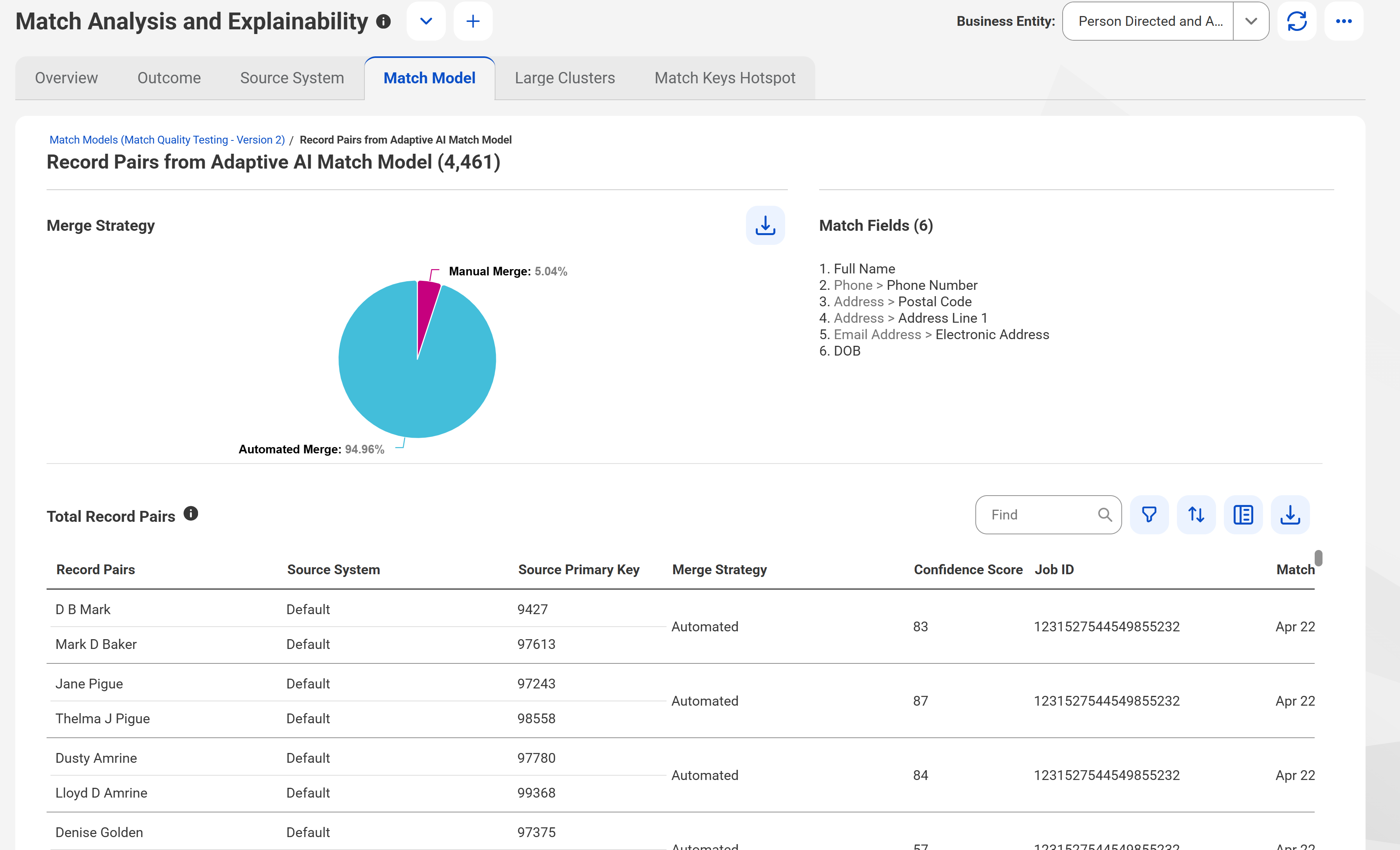
Record pairs from Adaptive AI match model
An Adaptive AI match model is trained to predict whether record pairs match. Based on the training, the model learns to make match predictions independently and identify matching record pairs.
The Record Pairs page in the Adaptive AI Match Model lists record pairs that matched based on the predictions from an Adaptive AI match model. To open the Record Pairs from Adaptive AI Match Model page, click the percentage value in the Record Pairs in the Adaptive AI Match Model column in the Match Model page.
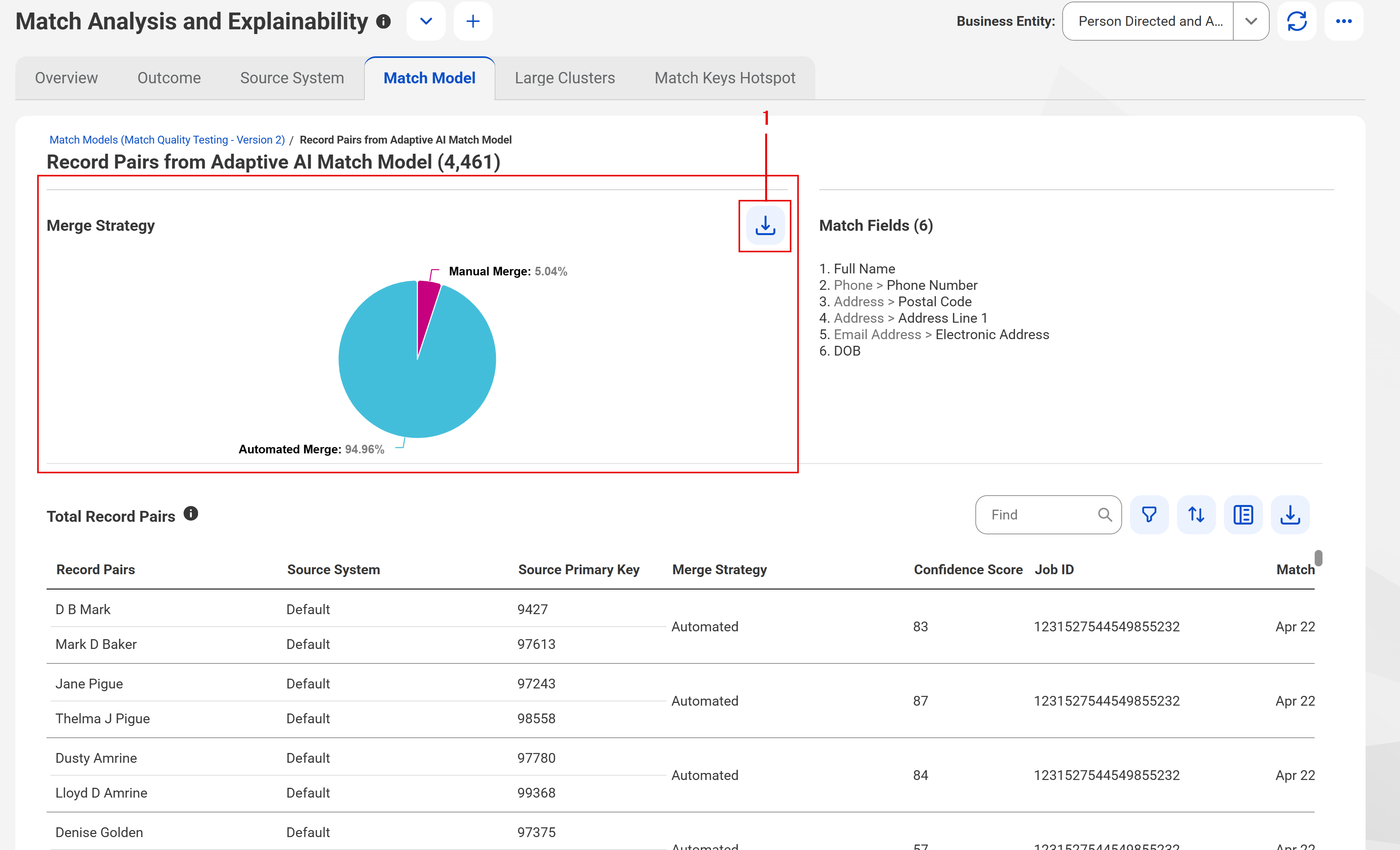
The following image displays the Record Pairs from the Adaptive AI Match Model page:
The Record Pairs from Adaptive AI Match Model page has the following sections:
•Merge Strategy
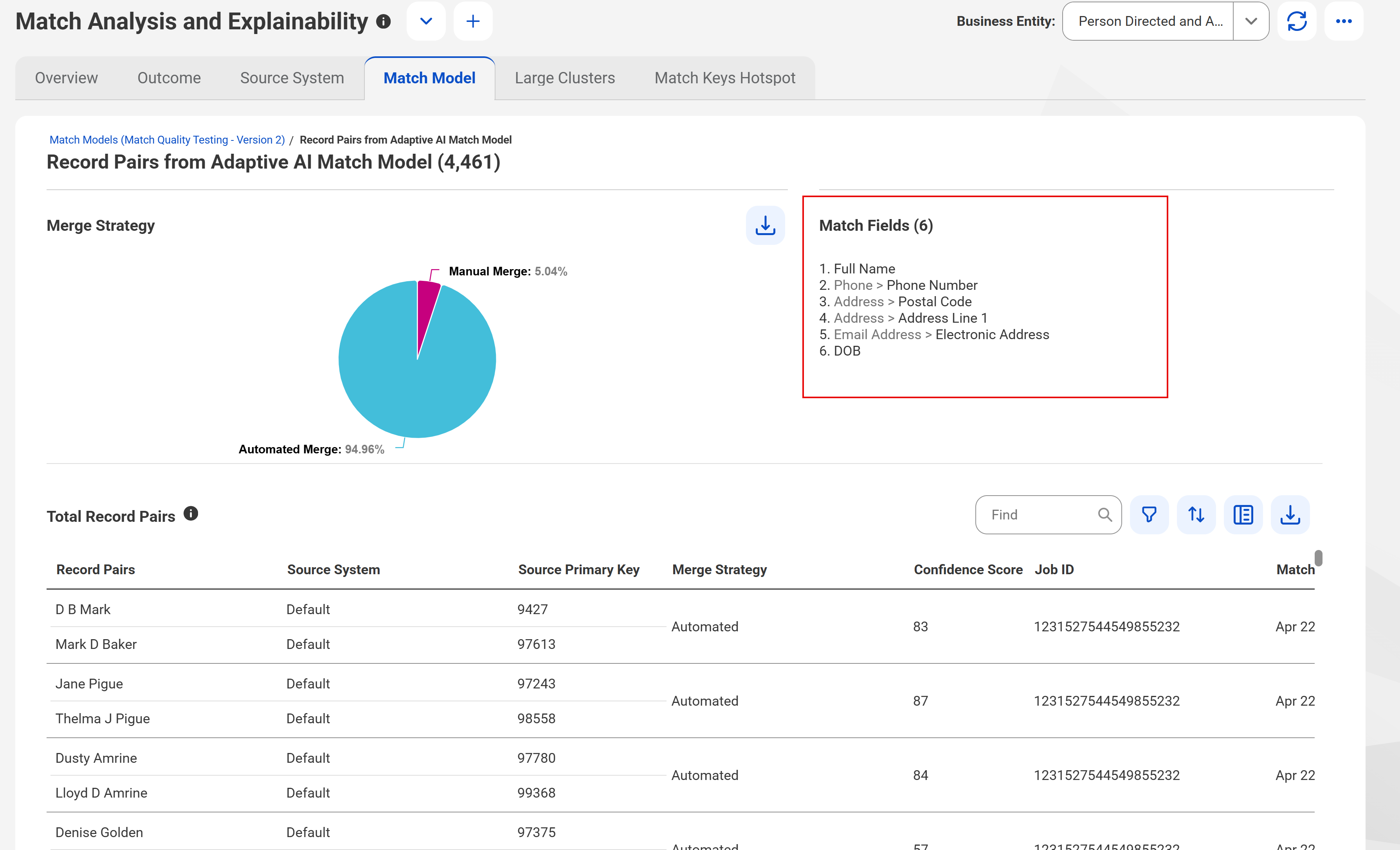
•Match Fields
•Total Record Pairs
Merge strategy
The Merge Strategy section displays a pie chart representing the number of record pairs generated based on automated and manual merge rules. Each segment of the pie chart is clickable and filters record pairs based on the selected segment.
The legend shows the percentage of record pairs for each merge strategy.
The following image shows the Merge Strategy section and the corresponding record pair in the Total Record Pairs section:
1Export Data
The following table describes the user interface element that you can use in the Merge Strategy section:
User Interface Elements
Description
Export Data
Exports details, such as the number and percentage of record pairs generated based on each merge strategy to a CSV file.
Match fields
An Adaptive AI match model uses match fields in the training process. The Match Fields section shows the match fields that were used in training the Adaptive AI match model.
The following image displays the Match Fields section in the Record Pairs from Adaptive AI Match Model page:
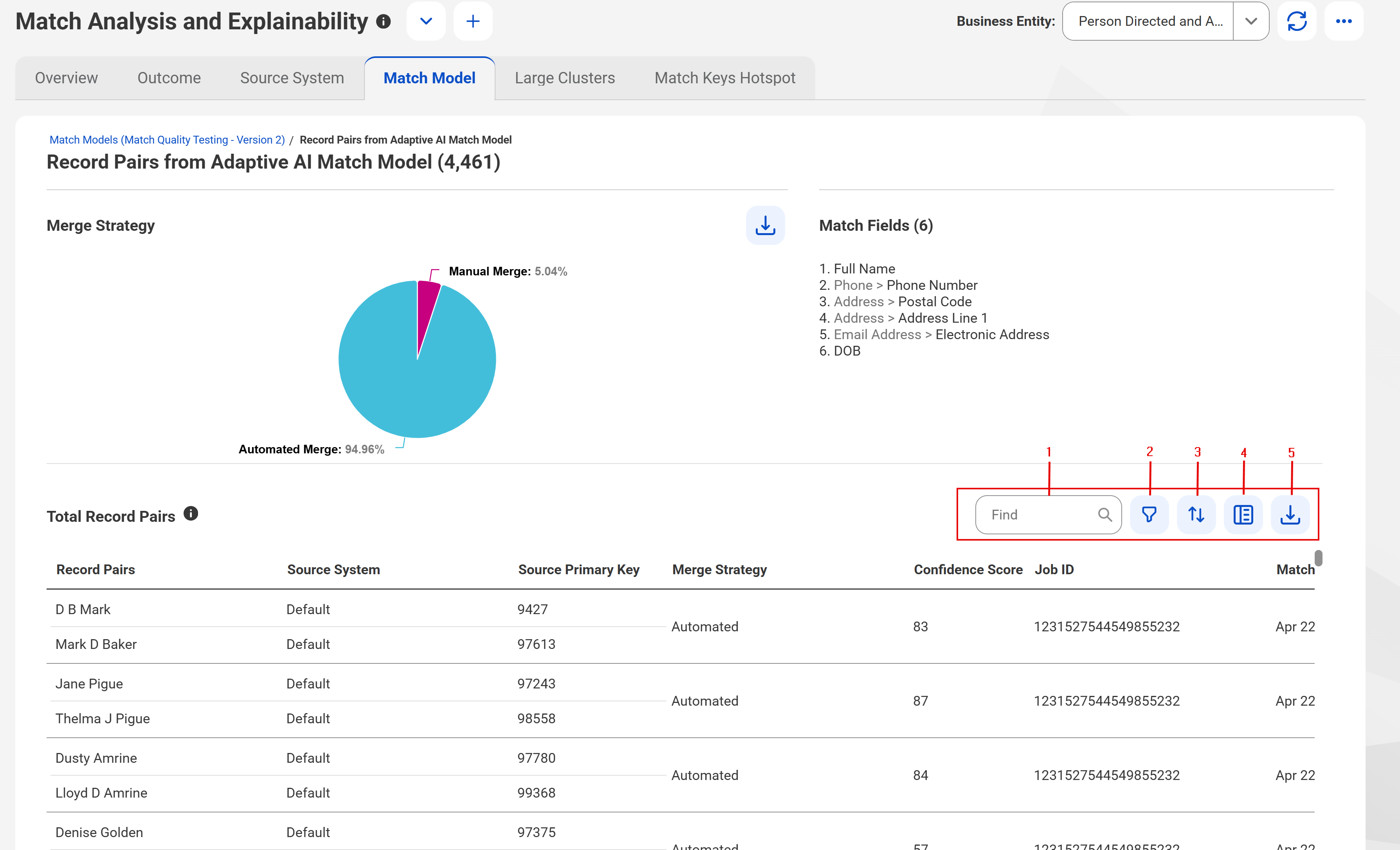
Total record pairs
The Total Record Pairs section displays record pairs predicted as matches by the Adaptive AI match model.
The following image displays the total record pairs from the Adaptive AI match model:
The following table describes the user interface elements that you can use in the Total Record Pairs section:
User Interface Elements
Description
Find
Search the record pairs based on the column values.
Filter
Filter record pairs based on source systems, confidence score, and record pair creation date.
Sort
Sort the record pairs in ascending or descending order based on a selected column name.
Show Additional Fields
Displays the additional details of a selected record pair in the Record Pair Details section.
Export Data
Export record pair details to a CSV file.
The following table describes the record pair details that the Total Record Pairs table displays:
Record Pair Details
Description
Record
The display names of records in the record pairs.
Source System
Source system associated with the record pairs.
Source Primary Key
Unique identifier of the source record.
Confidence Score
Score that indicates how similar the record pairs are.
Job ID
Unique identifier of the job instance that used the Adaptive AI match model to match record pairs.
Record Pair Creation Date
Date when the record pairs were matched.
Match Fields
Business entity fields of the source records based on which the record pairs are matched.
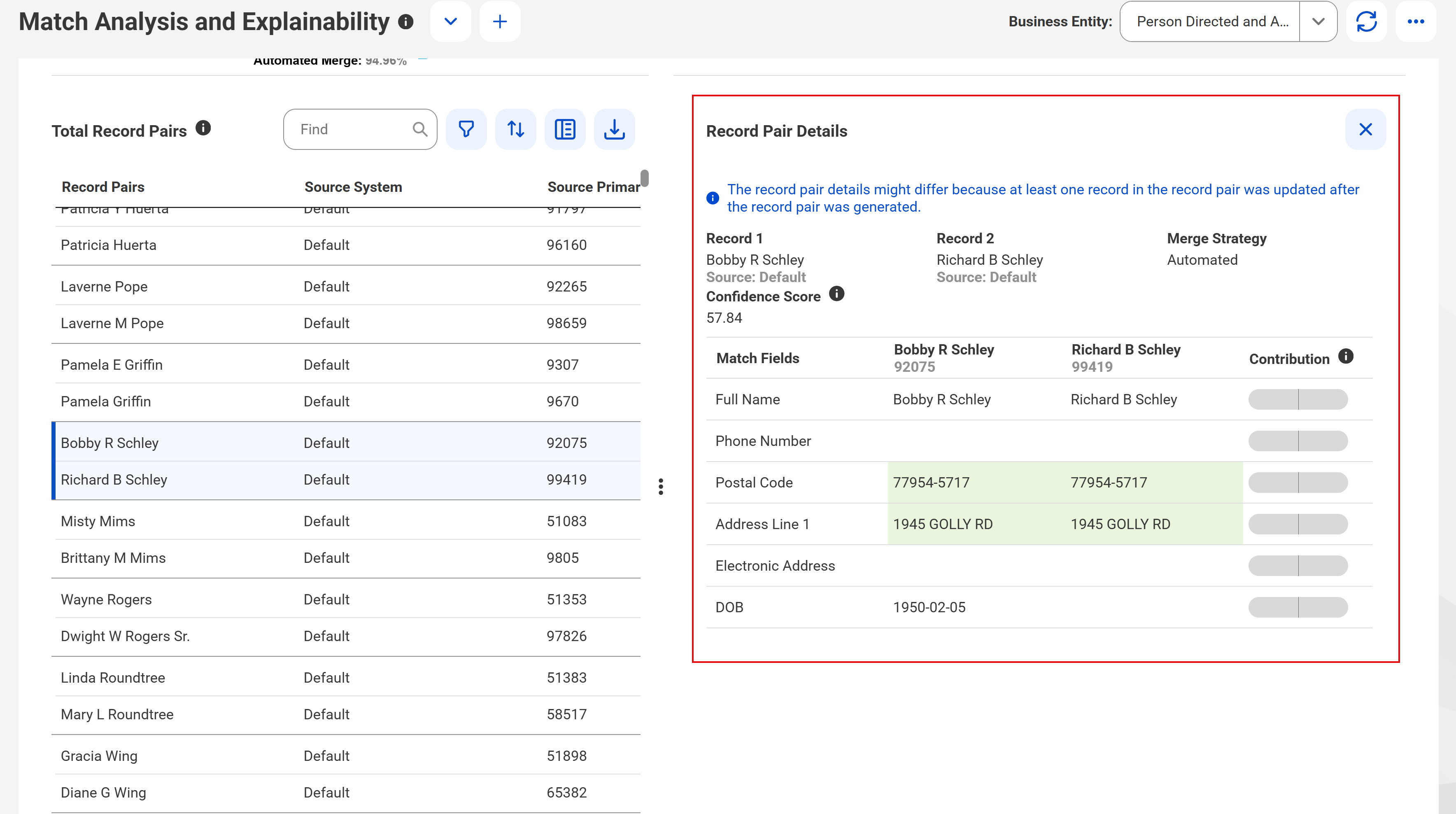
Record pair details
The Record Pair Details section displays additional details of a record pair in the Total Record Pairs table. To view additional details, select a record pair in the table.
The following image displays the additional details of a record pair in the Total Record Pairs section:
The following table describes the additional details that the Record Pairs Details section displays:
Record Pair Details
Description
Record 1
Display name of the first source record in the selected record pair.
Record 2
Display name of the second source record in the selected record pair.
Merge Strategy
Type of merge strategy to use during the merge process. The values are Manual and Automated.
Confidence Score
Score that indicates how similar the record pairs are.
Contribution
Score that indicates how each match field influences prediction outcomes. Positive score indicates support for matches and negative score indicates support for non-matches.
Match Fields
Name of the business entity fields that the Directed AI match rule uses for matching.
Match Keys Hotspot tab
Use the Match Keys Hotspot tab to identify hotspots in the data by analyzing the distribution of match keys generated for each field used in the candidate selection criteria of match models.
You can identify hotspots with a high concentration of similar match keys. When the match process uses these match keys to match records, it might result in overmatching. After you identify the hotspots, you can review the source records that contain these keys and then fine-tune the candidate selection criteria to prevent overmatching.
The bar chart displays the first five characters of each match key. You can drill down to view the sixth, seventh, and eighth characters of each key to analyze the hotspots better.
The following image shows the Match Keys Hotspot tab of the Match Analysis and Explainability dashboard:
The Match Keys Hotspot tab consists of the following sections:
•Top 20 Match Keys
•Records
Top 20 Match Keys
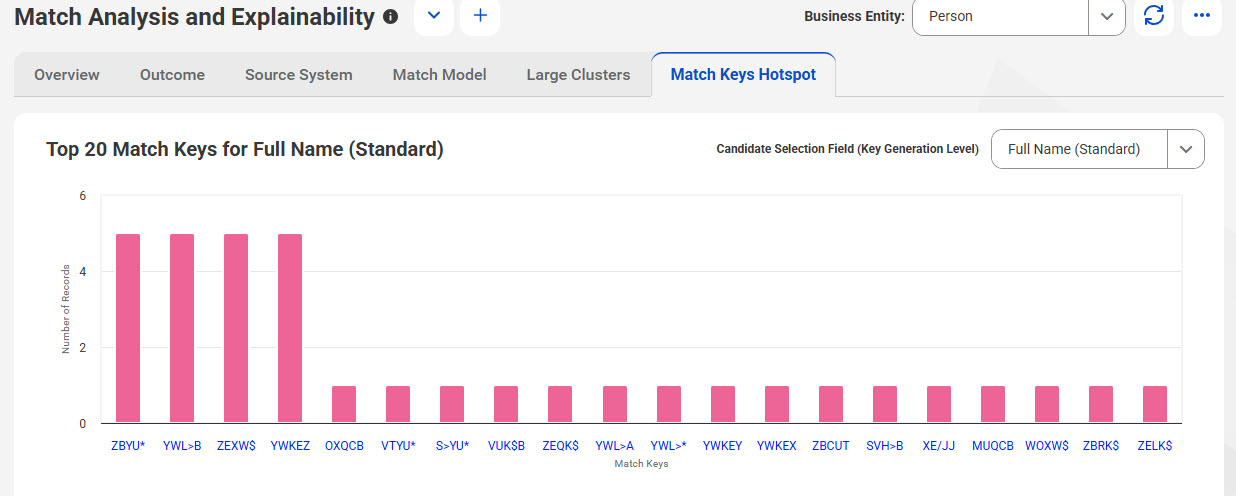
The Top 20 Match Keys section displays the top 20 match keys generated for each field used in the candidate selection criteria of match models in a bar chart. You can select the match field from the Candidate Selection Field (Key Generation Level) list.
You can also view the number of records that contain the first five characters of each match key. To analyze the hotspots better, you can drill down a match key to view the sixth, seventh and eighth characters of the match key.
The following image shows the Top 20 Match Keys section for the Full Name field with the standard key generation level:
Records
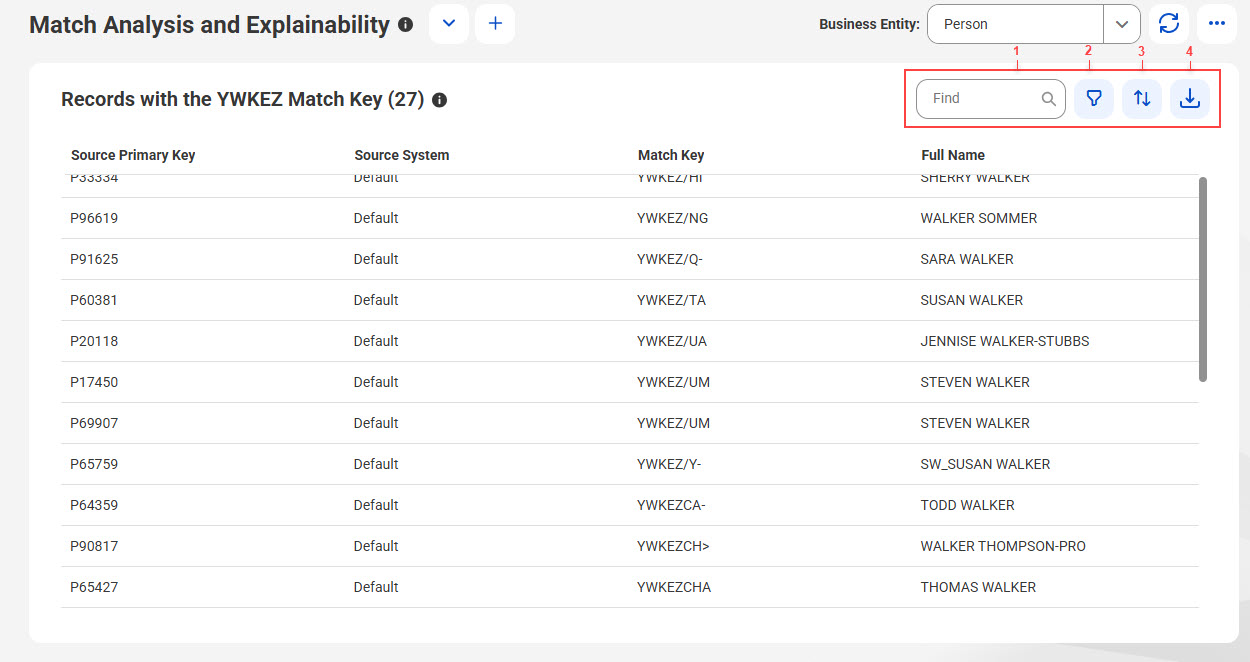
The Records section displays the source records that contain the selected match key.
When multiple records contain the same match key, the match process might consider all of them as matches, which can lead to overmatching. You can review these source records and then fine-tune the candidate selection criteria to prevent overmatching.
The following image displays the source records in the Records section for the selected match key:
1Find
2Filter
3Sort
4Export
The following table describes the details of the source records that contain the selected match key:
Record Details
Description
Source Primary Key
Unique identifier of the record.
Source System
Source system associated with the record.
Match Key
Eight characters of match keys for source records.
<Field>
Field that the candidate selection criteria uses to generate match keys.
Filter Fields
Fields that are selected as filters during the candidate selection criteria.
Large Clusters tab
Use the Large Clusters tab to identify and analyze large clusters of records that are formed during the match process. The match process identifies record pairs that are related to each other, for example, record pairs AB, BC, and AC, and groups them into a single group of related records.
If large number of records match with each other, then large clusters of records are formed. For example, consider Organizations A with 5000 employees If you configure records to match based on the organization name, phone number, and address, all the employee records of the Organization A match with each other, forming a large cluster with 5000 records. During the merge process, all record pairs in these clusters merge to form a single master record. Consequently, the merge process might create a master record for Organization A with 5000 source records.
You can use the Large Clusters tab to identify these large clusters and then fine-tune the match model configuration to prevent their formation because unmerging these source records is an expensive process.
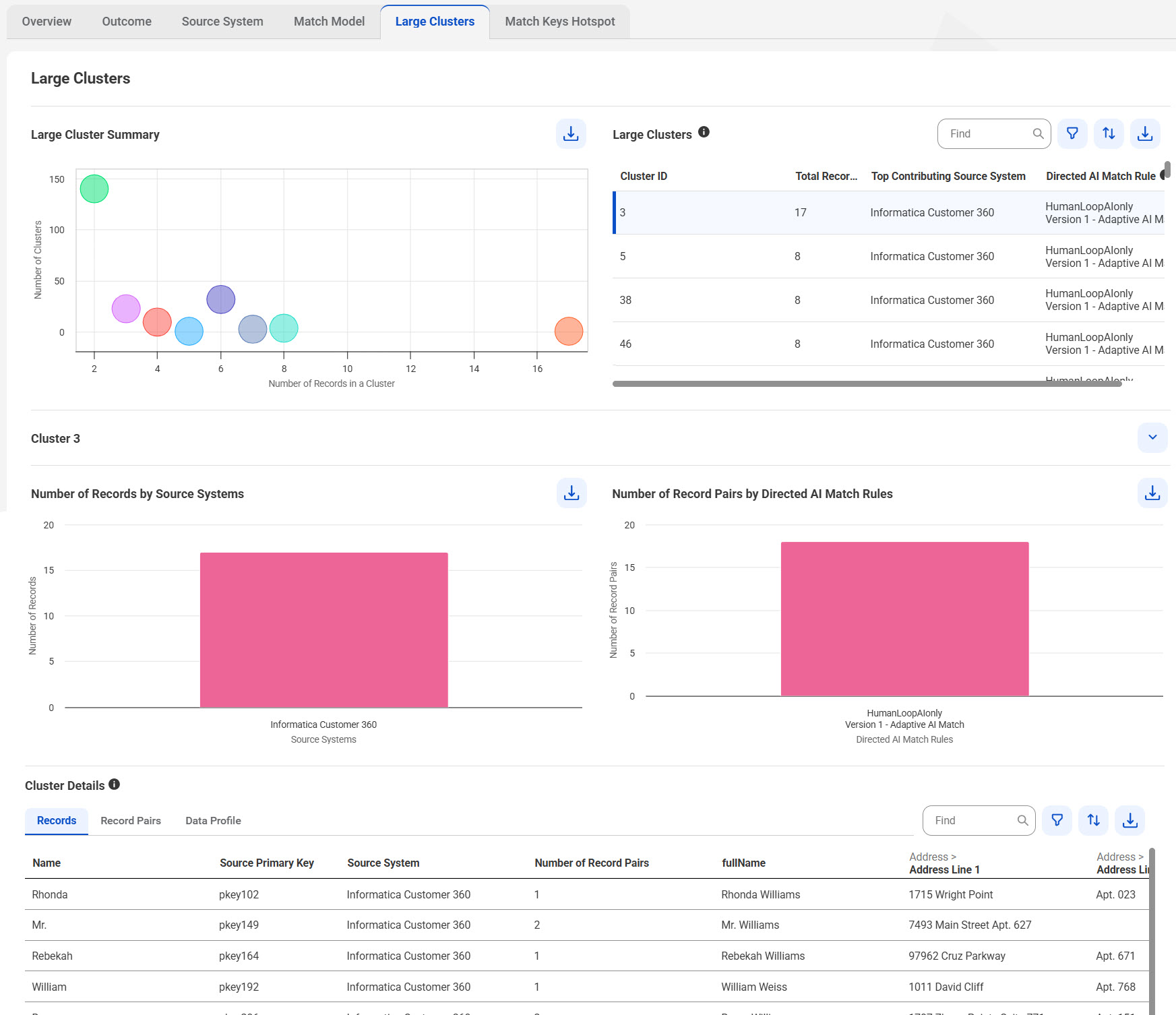
The following image shows the Large Clusters tab of the Match Analysis and Explainability dashboard:
The Large Clusters tab consists of the following sections:
•Large Cluster Summary
•Large Clusters
•Number of Records by Source Systems
•Number of Record Pairs by Directed AI Match Rules
•Cluster Details
Large Cluster Summary
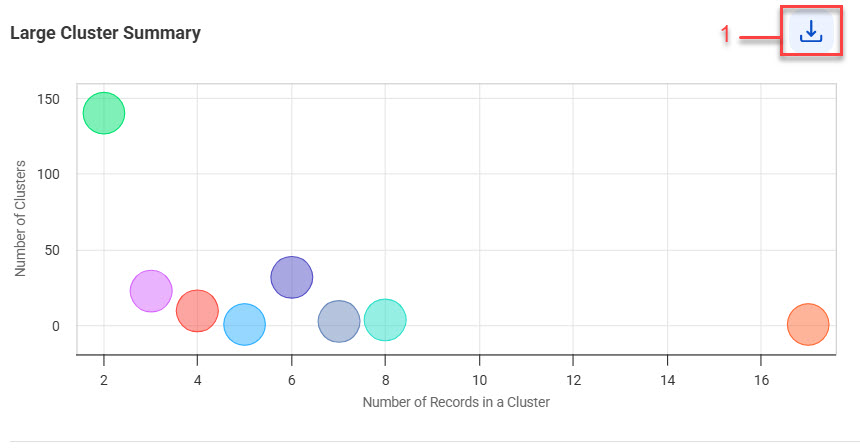
The Large Cluster Summary section displays a summary of large clusters formed by the match process along with the number of records within each cluster in a bubble chart.
You can analyze these clusters and identify the ones that contain the most number of records. The clusters are represented as bubbles in the chart. Each bubble uses a specific color to represent the number of clusters in it. For example, green-colored bubbles in the chart might represent a single cluster, whereas pink-colored bubbles might represent two clusters.
The following image shows a Large Cluster Summary section that contains a bubble chart with record clusters in different colors:
1Export Data
The following table describes the user interface elements that you can use in the Large Cluster Summary section:
User Interface Elements
Description
Export Data
Exports large clusters summary to a CSV file.
Large Clusters
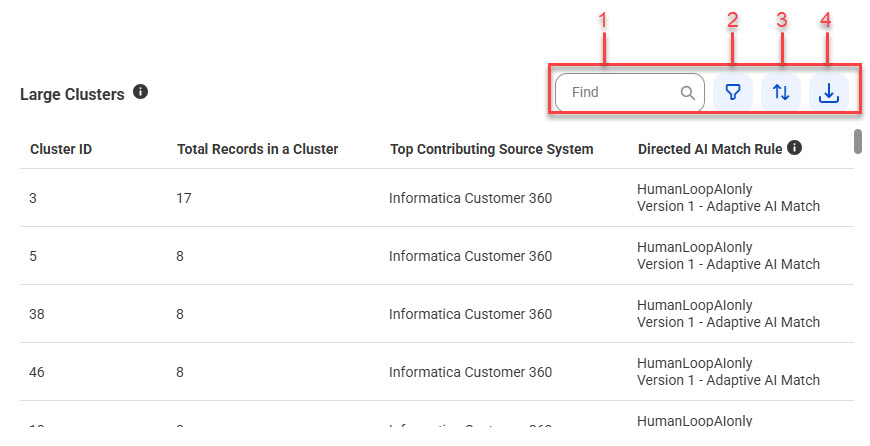
The Large Clusters section displays additional details of all the clusters that were formed by the match process in a tabular format.
You can view the additional details, such as unique identifiers assigned to the clusters, total number of source records, top source systems that contributed to the source records in the clusters, and Directed AI match rules that generated the most record pairs. You can view up to 1000 large clusters in descending order of size. You can also select a cluster in the table to view its details, such as number of records contributed by source systems, number of record pairs generated by Directed AI match rules, records and record pairs in the cluster, and data profiling details of match fields.
The following image shows the additional details of large clusters formed during the match process in the Large Clusters section:
1Find
2Filter
3Sort
4Export Data
The following table describes the user interface elements that you can use in the Large Clusters section:
User Interface Elements
Description
Find
Search the clusters based on the column values.
Filter
Filter based on the total records in a cluster, top contributing source system, and Directed AI match rule.
Sort
Sort the cluster details in ascending or descending order based on a selected column name.
Export Data
Export cluster details to a CSV file.
The following table describes the details of large clusters formed during the match process in the Large Clusters section:
Cluster Details
Description
Cluster ID
Unique identifier of the cluster.
Total Records in a Cluster
Total number of source records in a cluster
Top Contributing Source System
Top source systems that contributed the most source records to the cluster.
Directed AI Match Rule
Directed AI match rules that generated the most record pairs in the cluster.
Number of Records by Source Systems
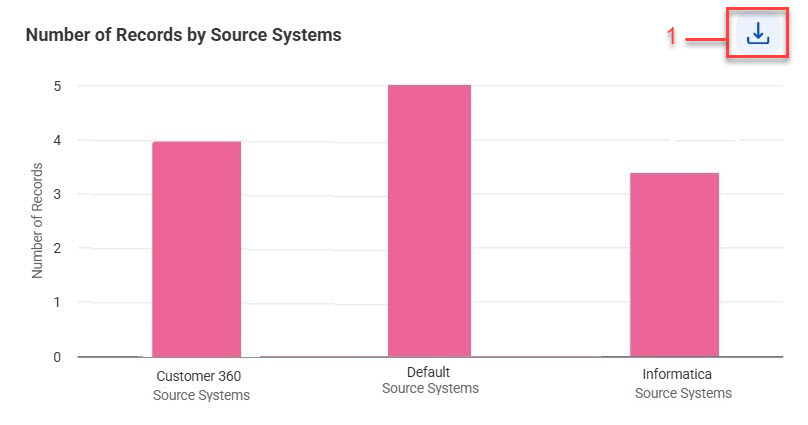
The Number of Records by Source Systems section displays a bar chart that represents the total number of records contributed by each source system in a cluster. When you select a cluster in the Large Cluster section, the Number of Records by Source Systems section filters the source systems that contributed to the records from the selected cluster.
The following image shows the Number of Records by Source System section:
1Export Data
The following table describes the user interface elements that you can use in the Number of Records by Source Systems section:
User Interface Elements
Description
Export Data
Exports the total number of records contributed by the source systems to a CSV file.
Number of Record Pairs by Directed AI Match Rules
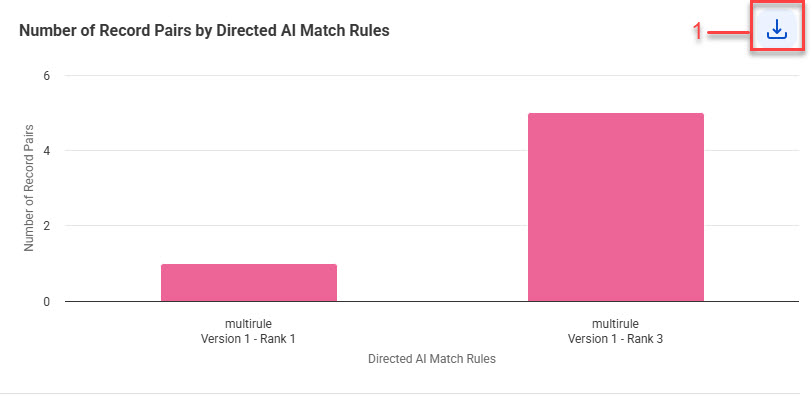
The Number of Record Pairs by Directed AI Match Rules section displays the Directed AI match rules that generated the most record pairs in a cluster. When you select a cluster in the Large Cluster section, the Number of Record Pairs by Directed AI Match Rules section filters the Directed AI match rules that generated the most record pairs from the selected cluster.
The following image shows the Number of Record Pairs by Directed AI Match Rules section:
1Export Data
The following table describes the user interface elements that you can use in the Number of Record Pairs by Directed AI Match Rules section:
User Interface Elements
Description
Export Data
Exports the total number of record pairs generated by the Directed AI match rules to a CSV file.
Cluster Details
The Cluster Details section displays details about all the source records, record pairs, and match field statistics of a cluster. You can view these details in Records, Record Pairs and Data profile sections.
You can view up to 1000 source records and record pairs. To view the cluster details, select a cluster in the Large Cluster section.
Records
The Records section displays the total number of source records in a cluster.
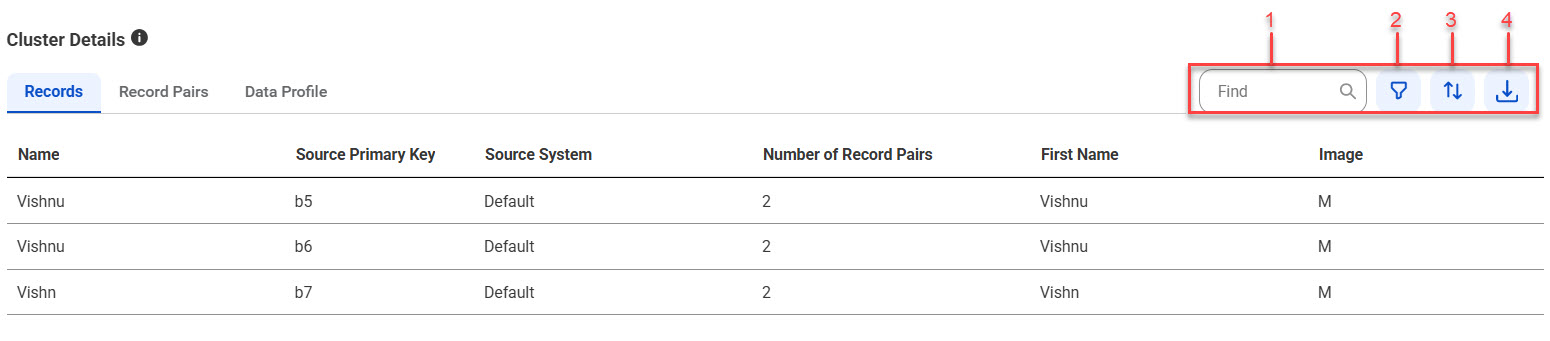
You can also view source record details, such as display name, source primary key, source system, number of record pairs that a source record formed, and the match fields used in a record. When you select a cluster in the Large Cluster section, the Records section filters the records from the selected cluster.
The following image shows the Records section that displays the source record details of a cluster:
1Find
2Filter
3Sort
4Export Data
The following table describes the user interface elements that you can use in the Records section:
User Interface Elements
Description
Find
Search the source records based on the column values.
Filter
Filter based on source system and source record name.
Sort
Sort the source records in ascending or descending order based on a selected column name.
Export Data
Export source record details to a CSV file.
The following table describes the details of the source records in a cluster:
Record Details
Description
Name
Display name of source records in the cluster.
Source Primary Key
Unique identifier of the source record.
Source System
Source system associated with the source record.
Number of Record Pairs
Total number of record pairs that the source record formed by matching with other records.
Match Fields
Business entity fields of the source records based on which the record pairs are matched.
Record Pairs
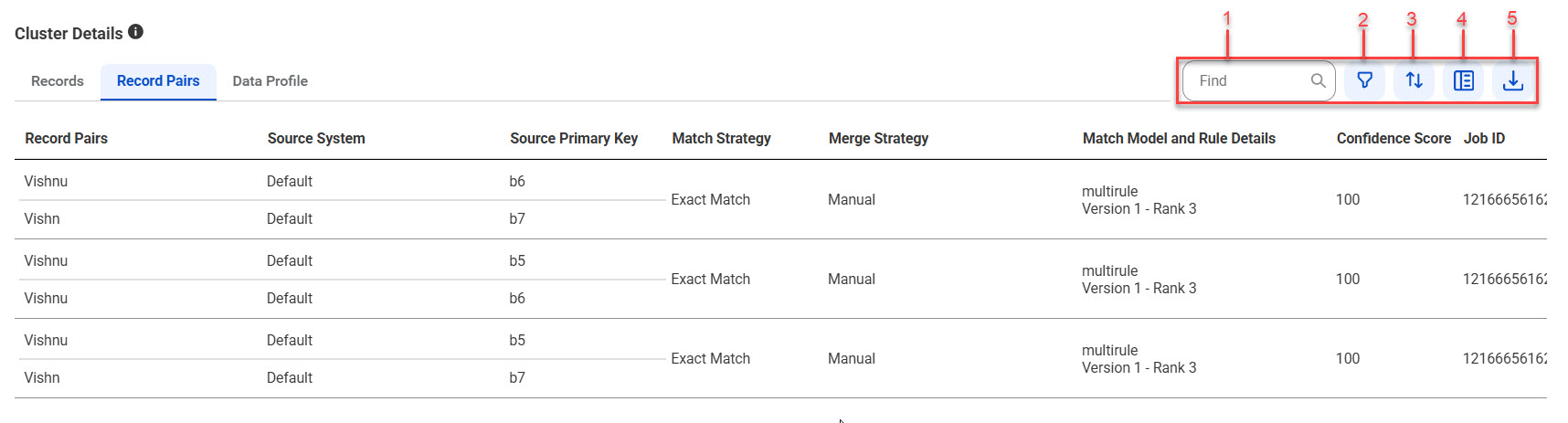
The Record Pairs section displays the details of record pairs associated with a cluster
When you select a cluster in the Large Cluster section, the Record Pairs section filters the record pairs from the selected cluster.
The following image displays record pairs of a cluster in the Record Pairs section:
1Find
2Filter
3Sort
4Show Additional Details
5Export Data
The following table describes the user interface elements that you can use in the Record Pairs section:
User Interface Elements
Description
Find
Search the record pairs based on the column values.
Filter
Filter record pairs based on column values, such as source systems, match strategy, merge strategy, population, match model and rule details, confidence score, and matched date.
Sort
Sort the record pair details in ascending or descending order based on a selected column name.
Show Additional Details
Displays the details of a selected record pair in the Record Pair Details section.
Export Data
Export record pair details to a CSV file.
The following table describes the columns in the Record Pairs section:
Record Pair Property
Description
Record Pairs
The display name of the source records in the record pairs.
Source System
Source system associated with the source record.
Source Primary Key
Unique identifier of the source record.
Match Strategy
Type of match strategy that identified the record pair, such as exact, fuzzy, or Adaptive AI.
Merge Strategy
Type of merge strategy to use during the merge process. The values are Manual and Automated.
Match Model and Rule Details
Name of the match model and the Directed AI match rule that identified the record pair.
Confidence Score
A score that indicates how similar the record pairs are.
Job ID
Unique identifier of the job instance that used the Directed AI match rule to match record pairs.
Matched Date
Date when the record pairs were matched.
Population
Population used in the match model configuration.
Match Fields
Business entity fields of the source records based on which the record pairs are matched.
Record pair details
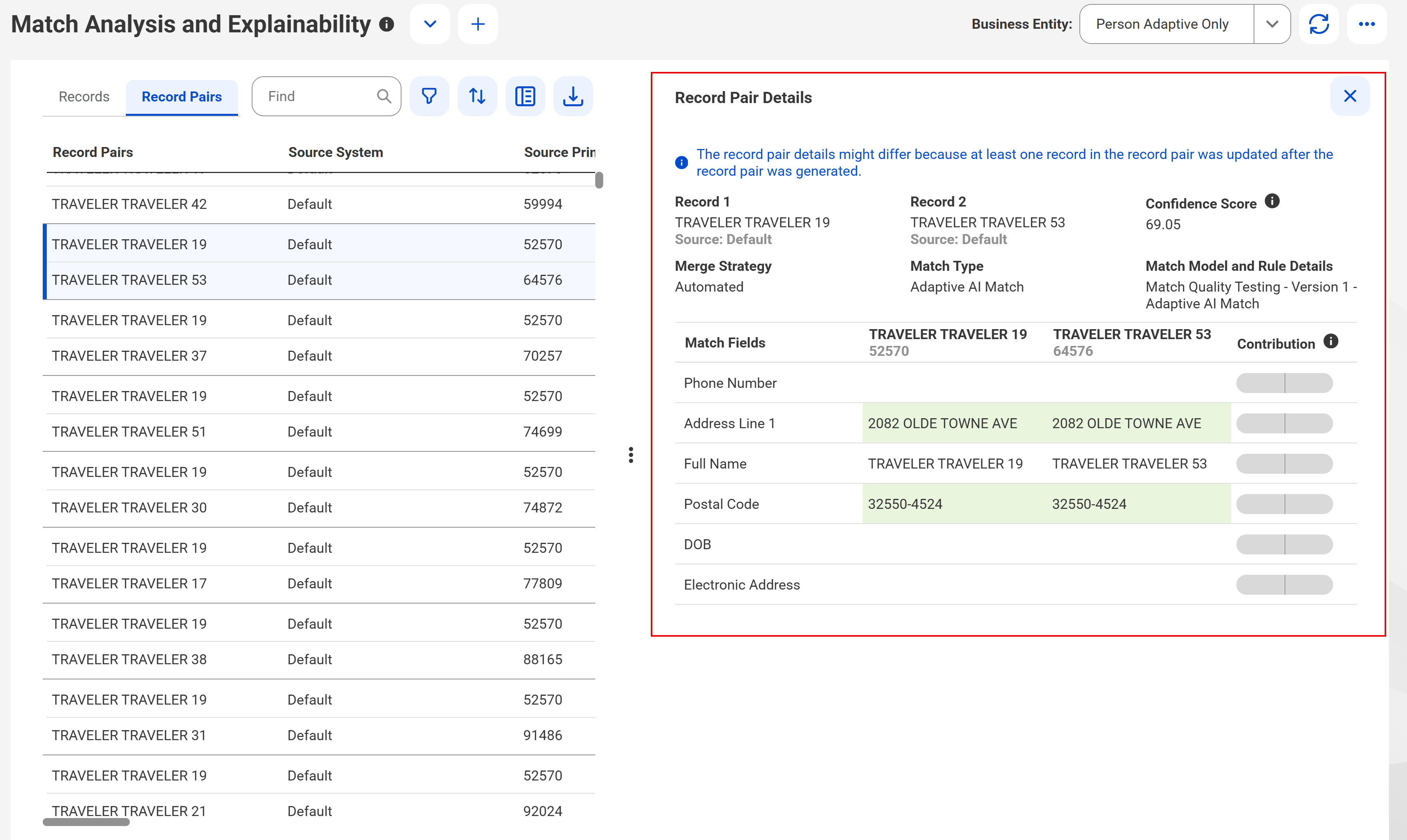
You can view details of a record pair, such as the fields that matched to form the record pair, match status for exact matches, and confidence score of the record pair. To view these details, select a record pair and click Show Additional Details.
The following image shows the details of a selected record pair in the Record Pairs section:
The following table describes the record pair details of the selected record pair:
Record Pair Details
Description
Record 1
Display name of the first source record in the selected record pair.
Record 2
Display name of the second source record in the selected record pair.
Merge Strategy
Type of merge strategy to use during the merge process. The values are Manual and Automated.
Match Strategy
Type of match strategy that the Directed AI match rule uses, such as exact or fuzzy.
Confidence Score
Score that indicates how similar the record pairs are.
Contribution
Score that indicates how each match field influences prediction outcomes. Positive score indicates support for matches and negative score indicates support for non-matches.
Match Model and Rule Details
Name of the match model and the Directed AI match rule that the job used.
Match Fields
Name of the business entity fields that the Directed AI match rule uses for matching.
Field Match Score
The score assigned to match fields within a record pair based on the similarity of their values. The higher the score, the more similar the values are. Applicable to Directed AI match rules with fuzzy match strategy.
Match Weight
Indicates the weight or importance of a match field within a record pair. Match weight is a decimal number that varies based on the field type configured in the match model. Fields with higher match weight are given greater importance during the match process.
For example, if the field type selected in the match model is Person_Name, the match process assigns greater importance to the Full Name field than to the Address Line 1 field.
Match Result
Displays the weighted match score for fuzzy match fields, and displays Match as a status for exact match fields.
The weighted match score is calculated by multiplying the match weight by the field match score for each match field. For example, if the match weight for the Full Name field is 0.3 and the field match score is 96, the weighted match score would be 0.3 × 96 = 28. If the overall match score for this record pair is 100, then 28 is the weighted match score contributed by the Full Name field.
Data Profile
You can use the Data Profile section to analyze and understand the uniqueness and completeness of record data.
For example, if you match records based on the Organization Name field, then all employee records of an organization match with each other to form a large cluster of records. The Data Profile section displays the Organization Name field with higher non-distinct values because all the records matched solely on the field value of the Organization Name field.
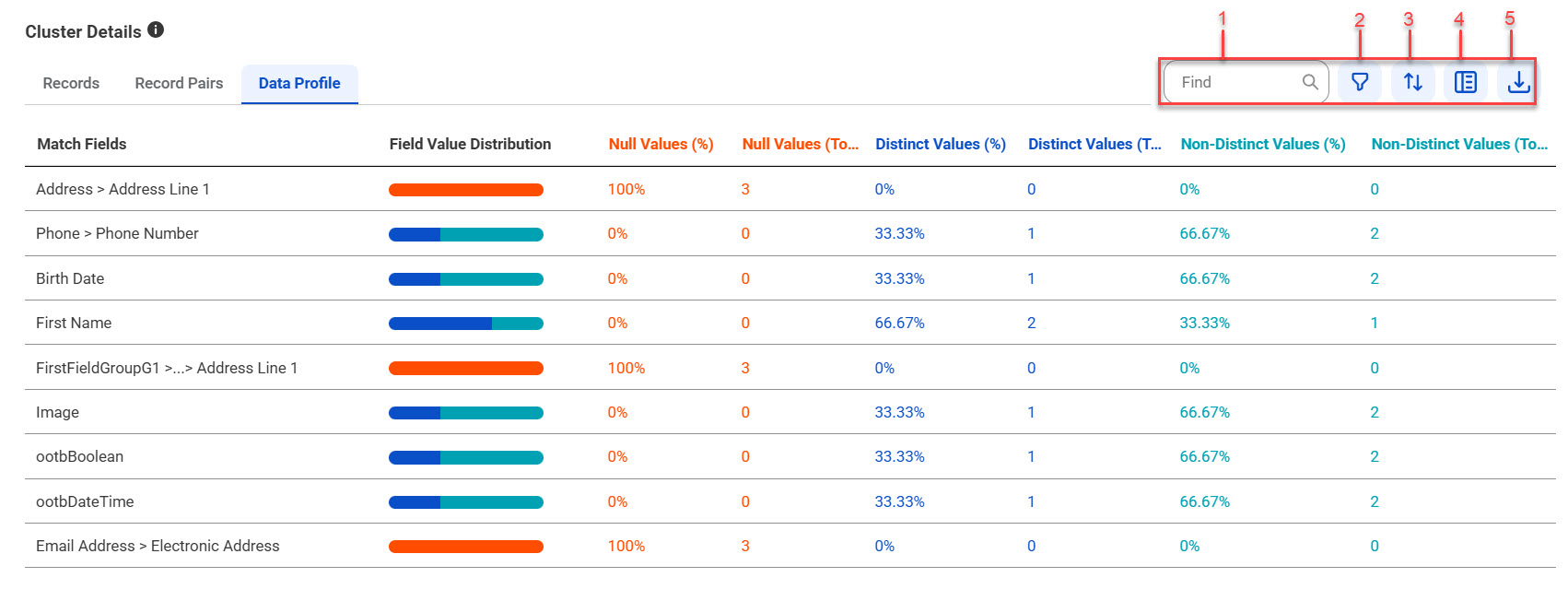
After you analyze how distinct or non-distinct these field values are, you can then fine-tune the match model configuration to enhance its effectiveness. You can analyze statistics, such as the distribution of null, distinct and non-distinct values of match fields in the Data Profile section.
The following image shows the match fields statistics in the Data Profile section:
1Find
2Filter
3Sort
4Show Additional Details
5Export Data
The following table describes the user interface elements that you can use in the Data Profile section:
User Interface Elements
Description
Find
Search the match fields based on the column values.
Filter
Filter the match fields based on the column values.
Sort
Sort the match fields in ascending or descending order based on the selected column name.
Show Additional Details
Displays the top 10 field values of a selected match field in the Top 10 Values by Match Count section.
Export Data
Export data profile statistics to a CSV file.
The following table describes the statistics you can view for each match field:
Match Field Statistics
Description
Match Fields
Business entity fields of the source records based on which the record pairs are matched.
Field Value Distribution
Displays the distribution of null, distinct and non-distinct values of a match field in a horizontal bar.
Null Values (%)
Percentage of fields with null values in the match field.
Null Values (Total)
Total number null values in the match field.
Distinct Values (%)
Percentage of fields with distinct values in the match field.
Distinct Values (Total)
Total number of distinct values in the match field.
Non-Distinct Values (%)
Percentage of fields with non-distinct values in the match field.
Non-Distinct Values (Total)
Total number of distinct values in the match field.
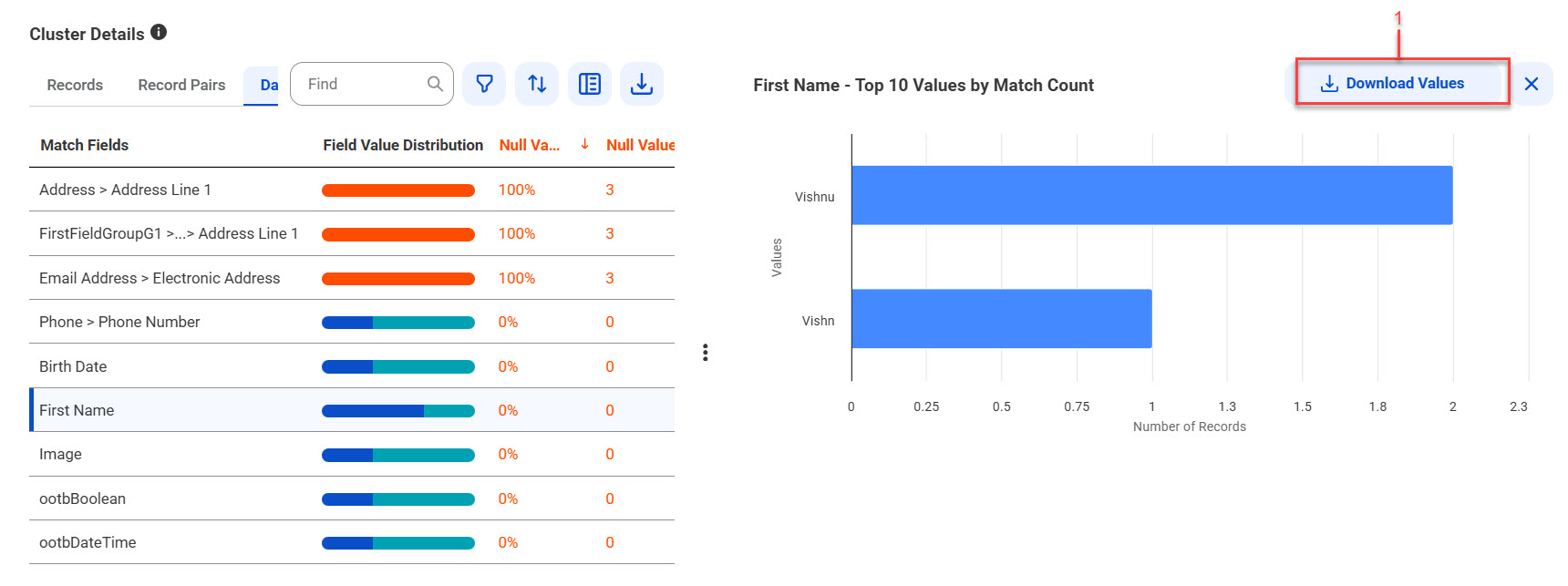
Top 10 Values by Match Count
The Top 10 Values by Match Count section displays the top 10 field values that matched the most number of records in a horizontal bar chart.
For example, if you match records based on the Organization Name field, then the top 10 field values of the Organization Name field that matched the most number of records are displayed in the chart. You can select a match field in the Data Profile section to view its top 10 field values.
The following image shows the top 10 field values of a match field in the Top 10 Values by Match Count section:
1Download Values
The following table describes the user interface elements that you can use in the Top 10 Values by Match Count section:
User Interface Elements
Description
Download Values
Download the top 10 field values of the match field to a CSV file.