Create a Source transformation in the Mapping Task wizard to read data from Mixpanel.
To configure the Source operation, perform the following steps:
1In the Source transformation, select a Mixpanel connection.
2On the Source tab, select an operation from the list of operations.
3Configure the request message for the operation. Copy the request message from the sample template, and edit the JSON based on your use case.
Configuring a request using Request Message Editor
When you create a Source transformation, configure a JSON request message for the operation that you want to perform in Mixpanel.
Use the Request Message Editor to create a request message. The request message uses the JSON format and contains request parameters exposed by the Mixpanel REST API for a specific operation. You can use the default request message for the operation, and then customize it to specify the data that you want to include.
To customize your request, copy the request message from the sample template to the Request Message Editor pane where you can edit the JSON message and add the attributes for the request. Remove unnecessary and empty tags from the request message to avoid operation failure. You can hide the optional elements to see the required elements for the request message.
To list the service accounts in a project, specify the project ID for the list-project-service-accounts operation. The following sample request message shows the project ID parameter:
{ "projectId" : 4026836 }
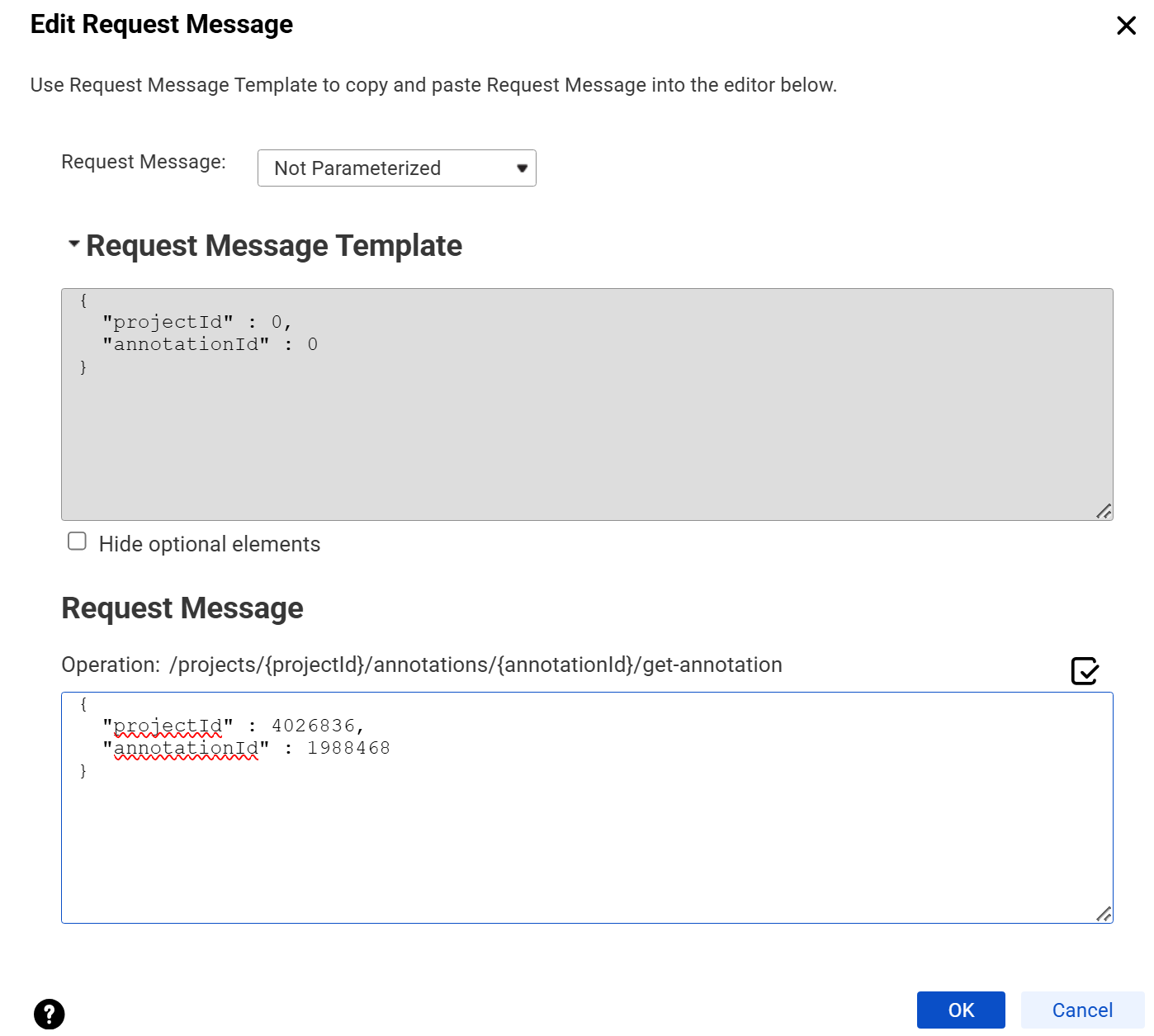
To fetch a specific annotation, specify the project ID and annotation ID parameters for the get-annotation operation. The following sample request message shows these parameters:
The following image shows the request message template and a request message configured to get an annotation in the Mapping Designer:
The request message format in Mixpanel Connector follows the service request definition in Mixpanel. Use well-formed JSON in the request message, and include the parameters that you need for your use case.
Field mapping in a Source transformation
The response message format follows the service response definition in Mixpanel. You can map response fields from a hierarchical to a relational structure of output groups and fields.
After you configure an operation for a source and specify the request message, create the relational format from the hierarchical data to include groups and fields that you want in the output.
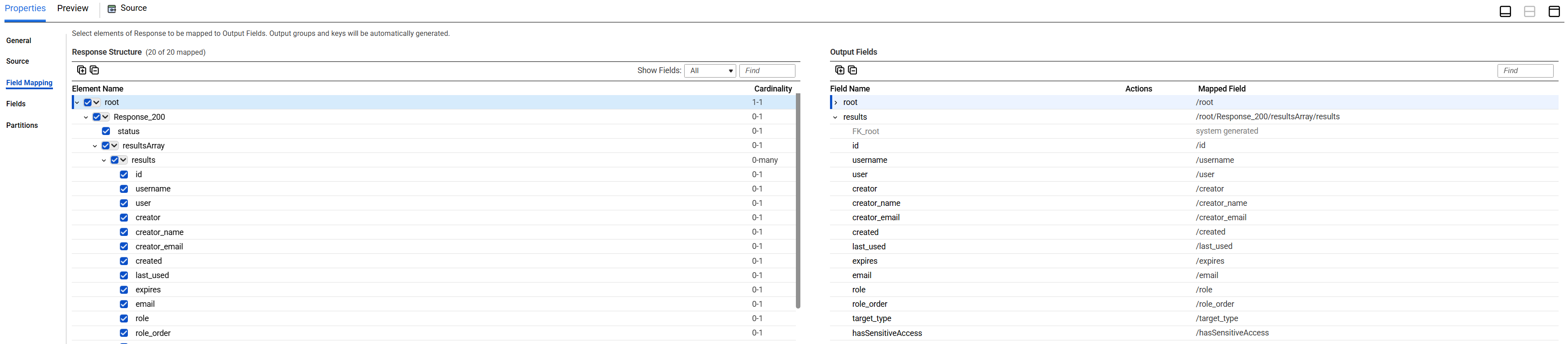
Select the elements in the response structure that you want to include as output fields. The Secure Agent converts the JSON response in the hierarchical structure to relational groups at run time.
The following image shows an example hierarchical response structure generated for the list-project-service-accounts operation, and the corresponding relational output fields for the response:
You can edit the data type, precision, and scale for the groups and fields after mapping the fields.
For more information about field mapping, see Transformations.