1Open the existing Snowflake V1 mapping that you want to switch to Snowflake Data Cloud.
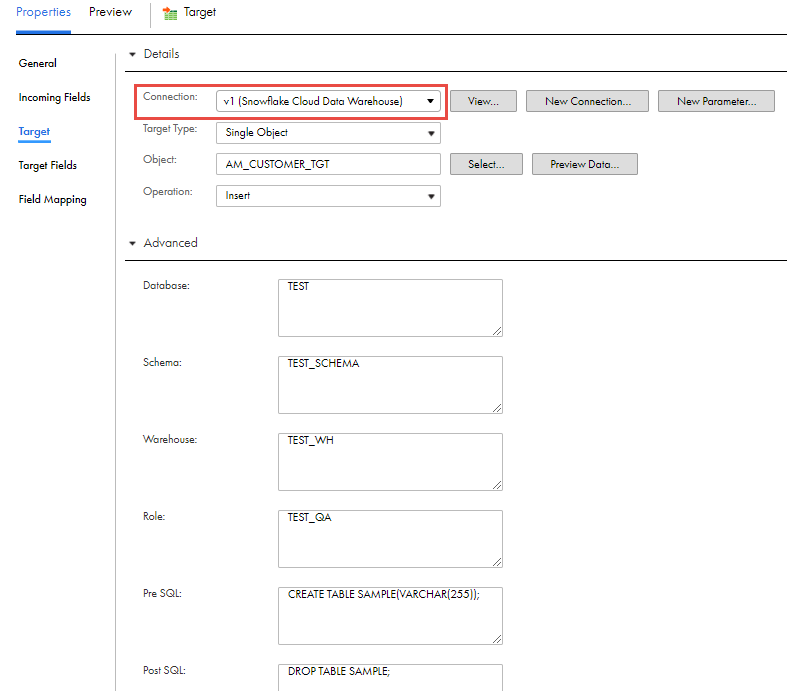
The following image shows an existing mapping that uses the Snowflake V1 connection and contains the configured advanced properties in the Target transformation:
2To reimport the Snowflake object, select the same object used in the existing Snowflake V1 mapping by using its absolute path.
For example, if the Snowflake V1 object is AM_CUSTOMER_TGT, select that same object. The Object field displays the absolute path of the selected object, such as CQA/CQA_SCHEMA/AM_CUSTOMER_TGT.
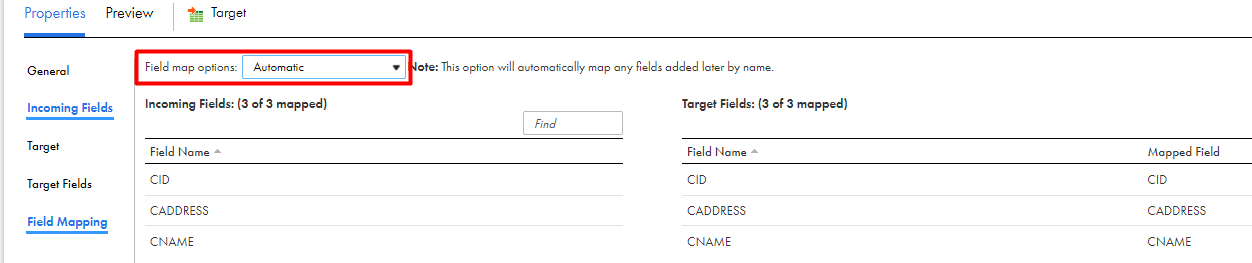
3To retain the mapped fields from the field mapping when you switch the connection, on the Field Mapping tab, choose from the following Field Map Options menu in the Snowflake V1 mapping:
- - To retain the fields automatically mapped after the switch, select Automatic.
- - To manually map the retained fields after the switch, select Manual.
Note:
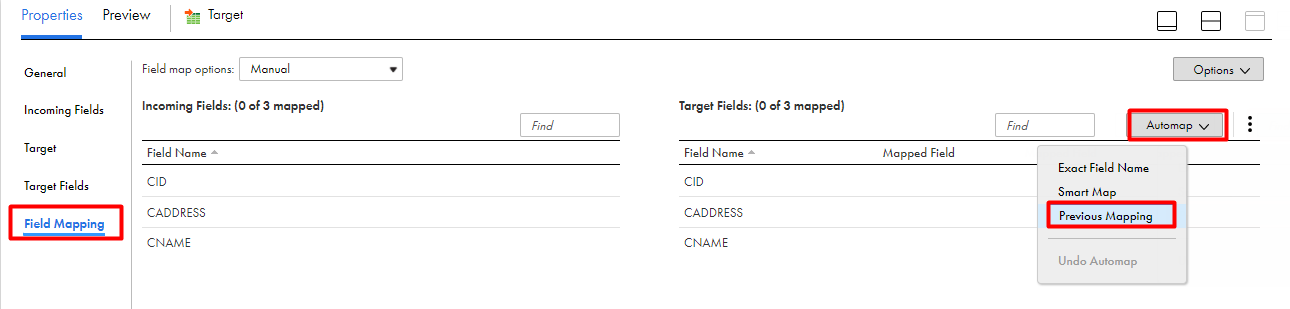
When you select manual, after switching the connection, you have the option to automap the retained fields using the previous mapping.
4To switch the connection, in the Connection field, change the connection from Snowflake V1 to Snowflake Data Cloud.
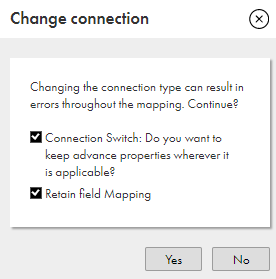
5In the Change Connection dialog box, select the following properties, and click Yes:
- - Connection switch. Switches to the connection that you select.
- - Retain field mapping. Retains the configured field mappings from Snowflake V1.
The following image shows the options that you must select:
6Reimport the same Snowflake V1 object using its absolute path in the Snowflake Data Cloud mapping.
The following image shows the switched connection with the same object referenced by its absolute path CQA/CQA_SCHEMA/AM_CUSTOMER_TGT: 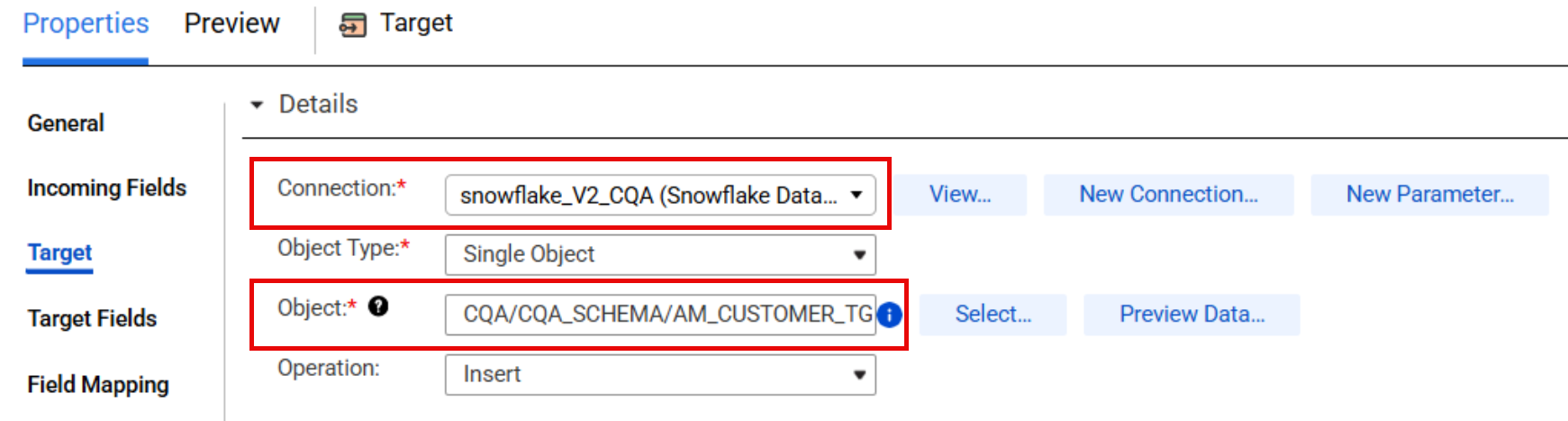
The configured target advanced properties from the Snowflake V1 mapping reflect in the Target transformation.
7If you had selected Manual on the Field Mapping tab in the Snowflake V1 mapping and you want to reflect the field mappings in Snowflake Data Cloud, on the Field Mapping tab, select Automap, and then select Previous Mapping.
Note:
If you had selected Automatic in Snowflake V1 mapping, you do not have to perform this step.
In the following image, the configured mapped fields from the Snowflake V1 mapping reflects in the Snowflake Data Cloud mapping:
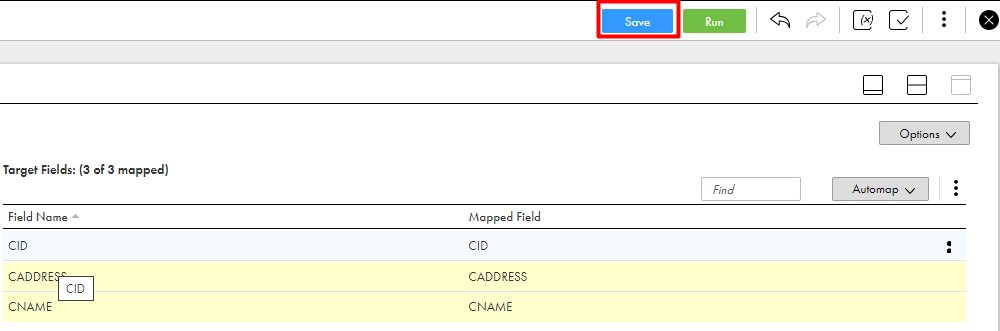
8Click Save.