Database Ingestion and Replication examples of creating a task
Let's look at some examples of configuring a database ingestion and replication task in CLAIRE Copilot
Example: Create a database ingestion task for a combined load from Oracle to Amazon S3
You want to replicate data from an Oracle database to an Amazon S3 target that's used as a data lake for big data analysis and AI initiatives.
First you need to perform a point-in-time initial load of data to the target and then switch to replicating DML changes in near real time continually to keep the target up to date. To do this, let's create a database ingestion and replication combined initial and incremental load task in CLAIRE Copilot
1Open CLAIRE Copilot.
2In the Ask CLAIRE box, type the prompt Create a database ingestion combined load task with an Oracle source and Amazon S3 target. Then click the Submit icon.
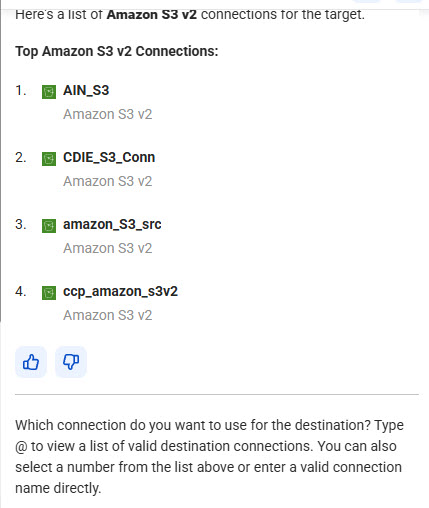
A list of Amazon S3 target connections available in your organization appears:
3Type the number associated with the Amazon S3 target connection you want to use. In this example, let's type 1 for the AIN_S3 connection.
Up to five connections are listed.
Note:
If the connection isn't listed, you can type the name of a valid Amazon S3 connection. Specify an existing connection that you have previously tested.
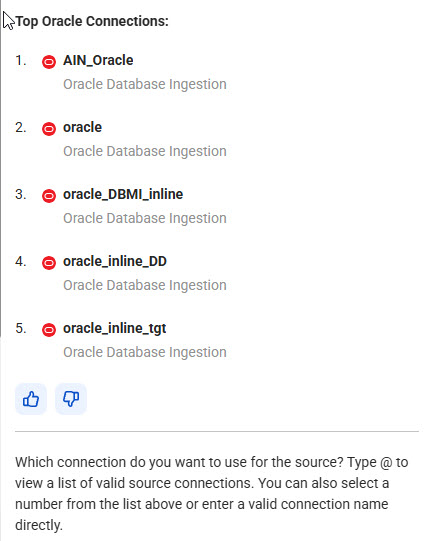
A list of Oracle source connections available in your organization appears:
4Type the number associated with the Oracle source connection you want to use. In this example, let's type 1 for the AIN_Oracle connection.
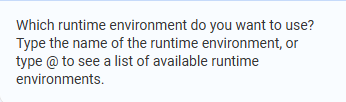
5If a request for a runtime environment appears, type @ to list runtime environments. Then click a running runtime environment and click the Submit icon.
This step is skipped if you previously set a default runtime environment for your use.
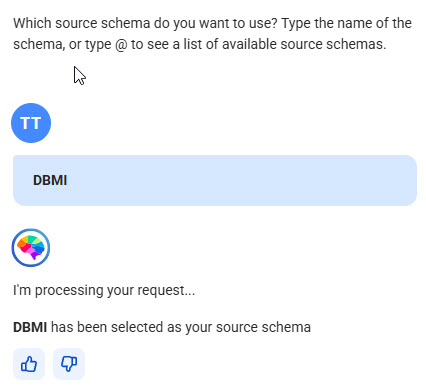
6At the request for the Oracle source schema, type @ to list the available schema and then click the one you want to use. Alternatively, type the schema name.
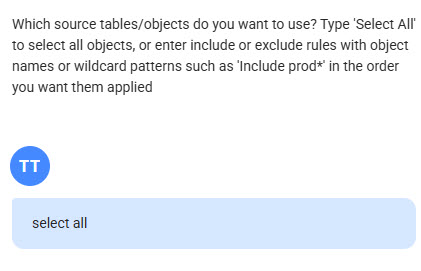
7At the request for the source tables, type "select all" to select all source tables in the selected schema, or enter the table names or name masks that include the * and ? wildcards.
In this example, let's select all tables to initially populate the data lake.
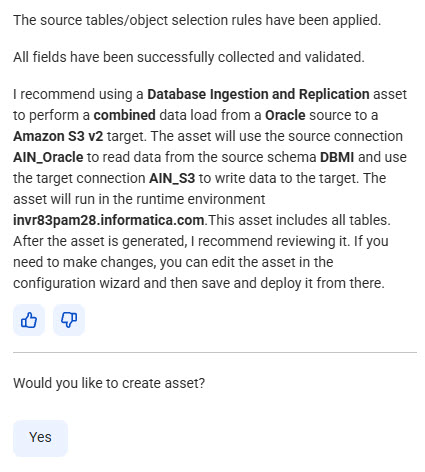
8A task summary appears. Review the summary to confirm your settings:
9To create the task asset, click Yes and click Submit.
CLAIRE Copilot generates the task and opens it in the task configuration wizard.
10Verify the task definition.
You can edit field values and set additional fields on the Task Details, Transform, and Let's Go pages. Toggle on Show Advanced Options to see all fields. However, do not change the source and target connections.
11Save the task.
12Deploy the task to create a job instance.
You can now run the job from My Jobs or another monitoring interface.
Example: Create a database ingestion task for a combined load from Oracle to PostgreSQL
You want to load data from a Oracle database to a PostgreSQL database that you use as the primary data store for analytics. You also want to keep the databases in sync to ensure up-to-date information for real-time analytics.
To do this, let's create a database ingestion and replication combined initial and incremental load task in CLAIRE Copilot. We've already gathered the source and target connection names and schema names so we'll include that information in the first prompt to streamline the process.
1Open CLAIRE Copilot.
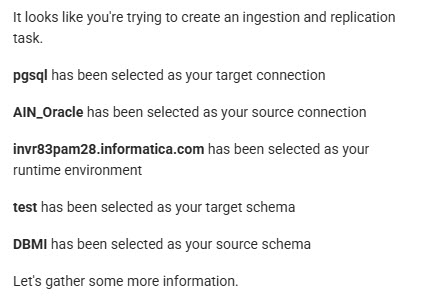
2In the Ask CLAIRE box, type the prompt Create an ingestion task that performs an initial data load and then captures ongoing changes from an Oracle source to a PostgreSQL target. Use the source AIN_Oracle connection and DBMI schema. Use the target pgsql connection and test schema. Then click the Submit icon.
A summary of task information is displayed:
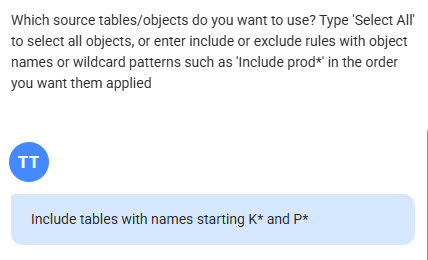
3At the prompt for selecting source tables, type "select all" for all tables in the source schema or enter table names or name masks that include the * and ? wildcards. In this example, let's include table name masks that use the * wildcard to represent one or more characters.
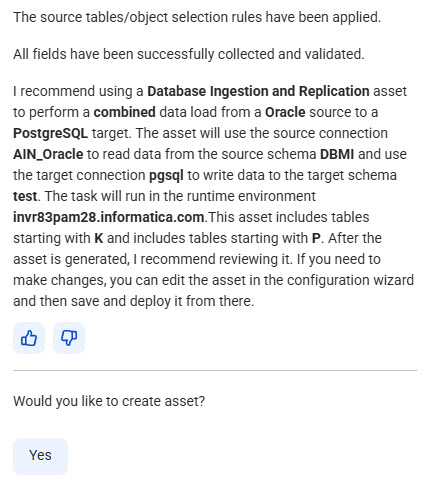
A summary of the task definition appears for your review:
4Review the summary to verify your settings:
5To create the task asset, click Yes and click the Submit icon.
CLAIRE Copilot generates the task and opens it in the task configuration wizard.
6Verify the task definition.
You can edit field values and set additional fields on the Task Details, Transform, and Let's Go pages. Toggle on Show Advanced Options to see all fields. However, do not change the source and target connections.
For example, on the Let's Go page, enter a custom name and description for the task and your project location so that you can find the task again easily.
7Save the task.
8Deploy the task to create a job.
You can now run the job from My Jobs or another monitoring interface.