Generate an expression using CLAIRE Copilot to define mapping logic in your own words or using pseudocode. You can submit a natural language prompt and CLAIRE Copilot converts it into transformation language.
CLAIRE Copilot can generate expressions in the Aggregator and Expression transformations.
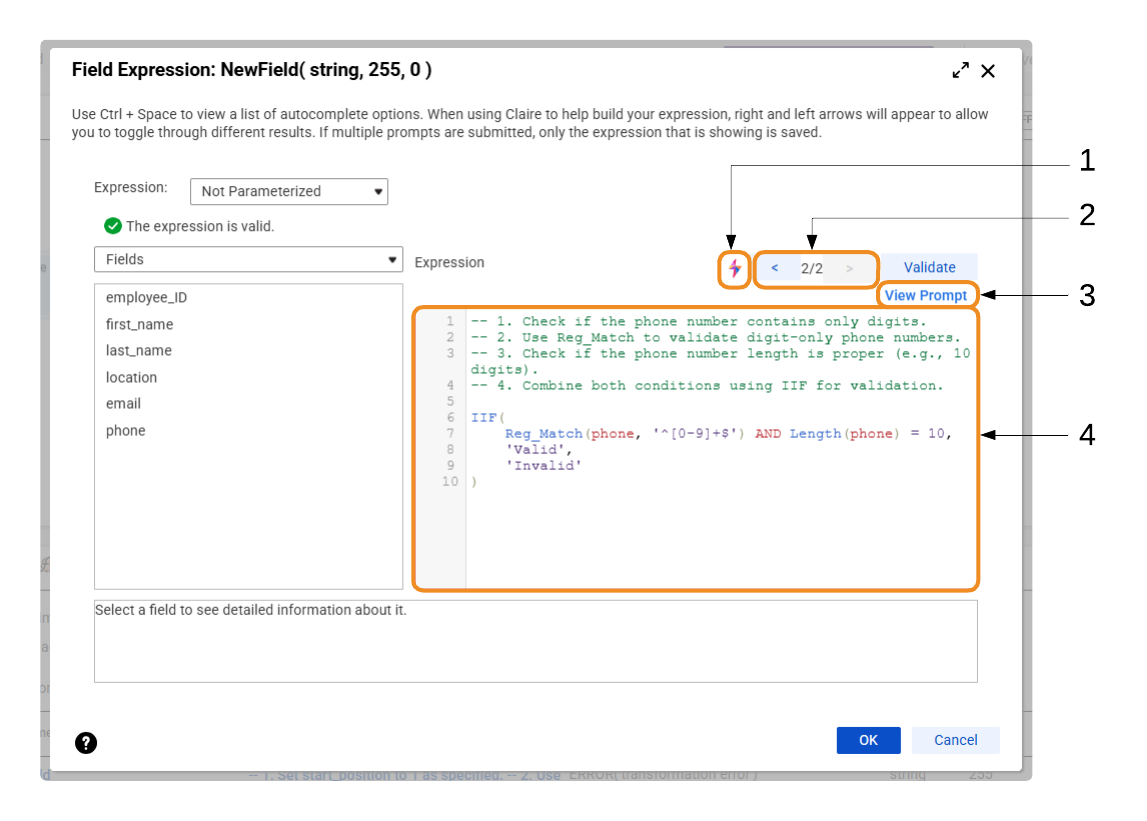
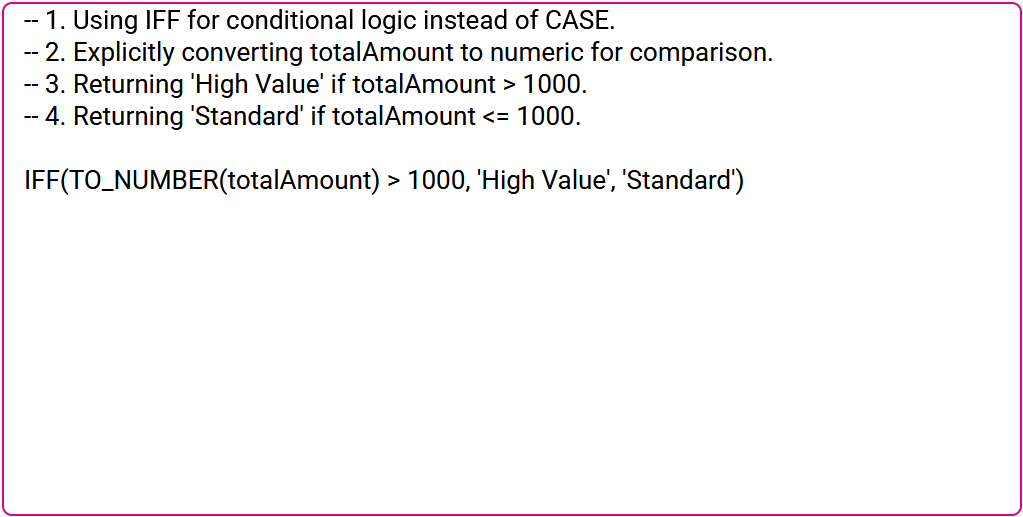
The following image shows CLAIRE Copilot in the expression editor:
1Open the Generate Expression dialog box to generate an expression using CLAIRE Copilot.
2Use the left and right arrows to view different versions of the expression.
3View the prompt that CLAIRE Copilot used to generate the current version of the expression.
4View and edit the generated expression. The expression includes comments that explain how CLAIRE Copilot generated it.
Note:
When you select OK to exit the expression editor, the current version of the expression is saved. For example, if you navigate to version 3 out of 4 and exit the editor, then version 3 is saved. The other versions are discarded.
Rules and guidelines for generating expressions
Use the following rules and guidelines when you use CLAIRE Copilot to generate an expression:
•CLAIRE Copilot doesn't create fields based on the generated expression. When you specify a field in a prompt, make sure that it exists in the mapping or create it manually.
•CLAIRE Copilot doesn't create or use user-defined functions, unconnected lookups, or in-out parameters.
•In mappings and mappings in advanced mode, CLAIRE Copilot generates expressions using functions that are common to both mapping types. For example, CLAIRE Copilot can't generate expressions that use window functions because they're available only in advanced mode.
•In mappings in SQL ELT mode that run in the Snowflake ecosystem, CLAIRE Copilot generates expressions using Snowflake functions. CLAIRE Copilot can't generate expressions in mappings in SQL ELT mode that run in other cloud ecosystems.
•For synonymous Snowflake functions, such as LENGTH and LEN, CLAIRE Copilot might generate either function.
Prompts to generate expressions
To generate an expression using CLAIRE Copilot, you can describe the expression in your own words or using pseudocode. In mappings in SQL ELT mode, CLAIRE Copilot generates expressions using cloud ecosystem functions.
Your own words
The following sample prompts show how you can describe an expression in your own words:
Write a regex to standardize phone numbers by applying formatting logic to match the pattern (XXX) XXX-XXXX.
Create a condition to route separate records by month and assign them to different targets.
Check if address1 contains USA. If yes, concatenate address1 and address2. If not, convert the mod of the ASCII code of the first letter in both the city and state to string.
Extract the month from the start date and compare it to the end date.
The following example shows a prompt in your own words:
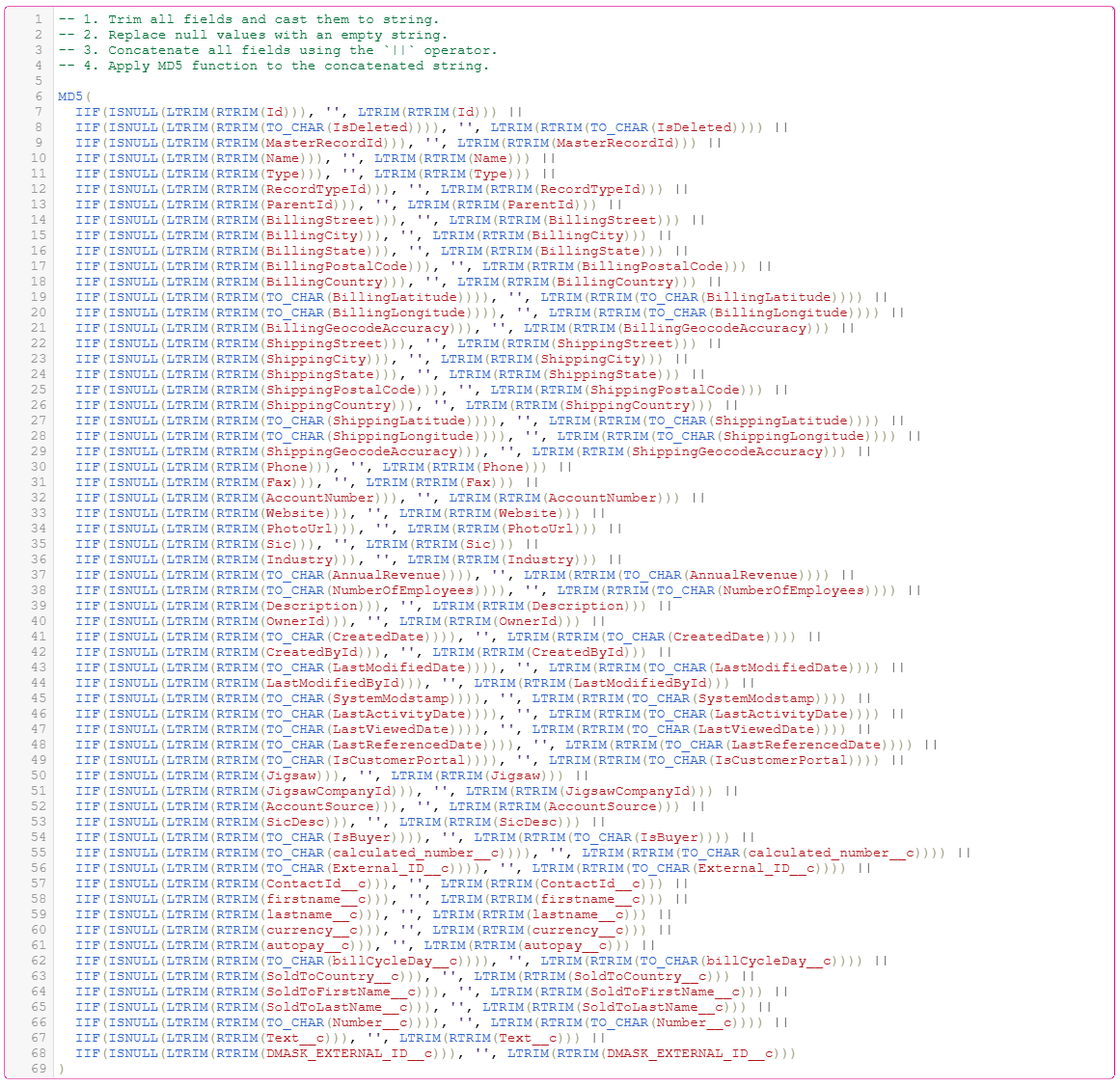
1. Cast all columns to string. Do a left or right trim. 2. Make sure all fields aren't null. 3. If there's a null, replace it with null stringConcatenate all the above using the || operator and don't use the concat function. 4. Create an MD5 function out of the concatenated value.
The following image shows the generated expression for mappings and mappings in advanced mode:
The following example shows another prompt in your own words:
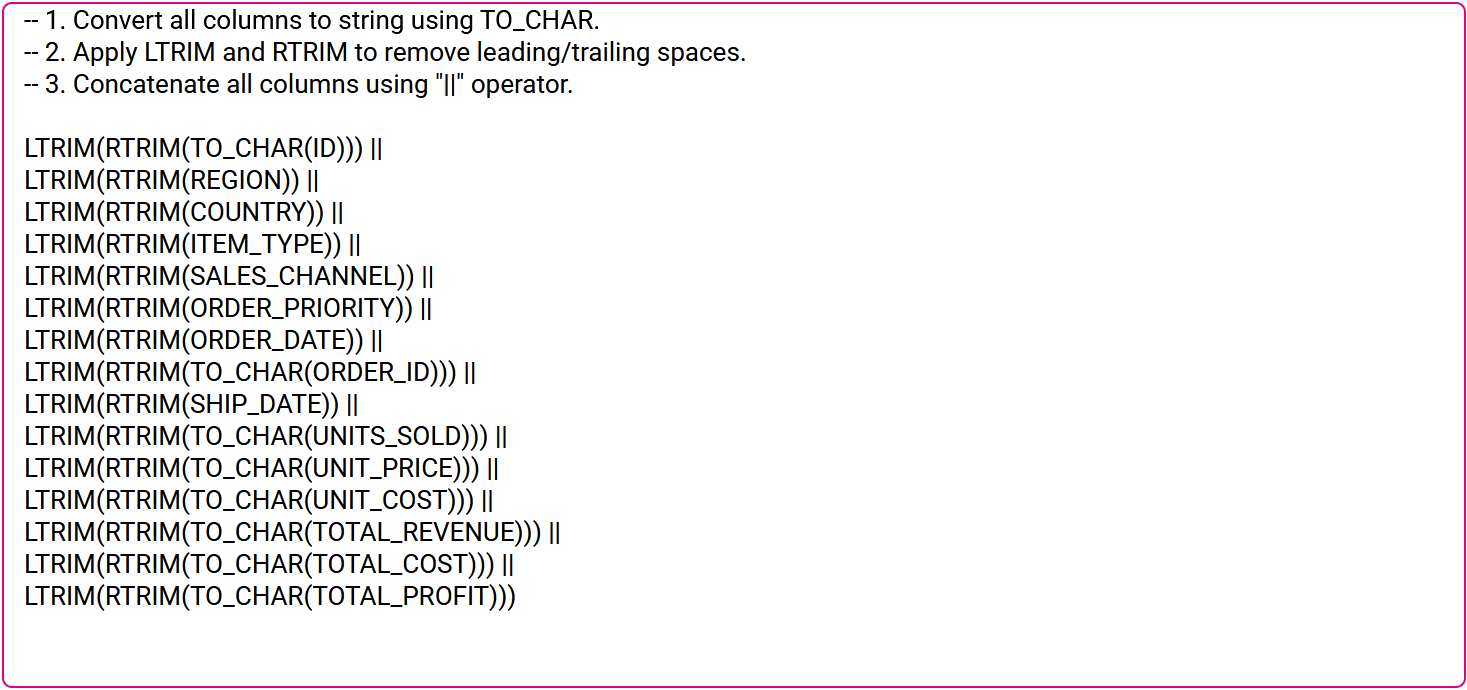
Cast all columns to string. Do a left or right trim. Join all.
The following image shows the generated expression for mappings in SQL ELT mode:
Pseudocode
The following sample prompt shows how you can describe an expression using pseudocode:
if order status is New or Processing and order date in January set order status to Fulfilled else if order date in February set order status to Delayed
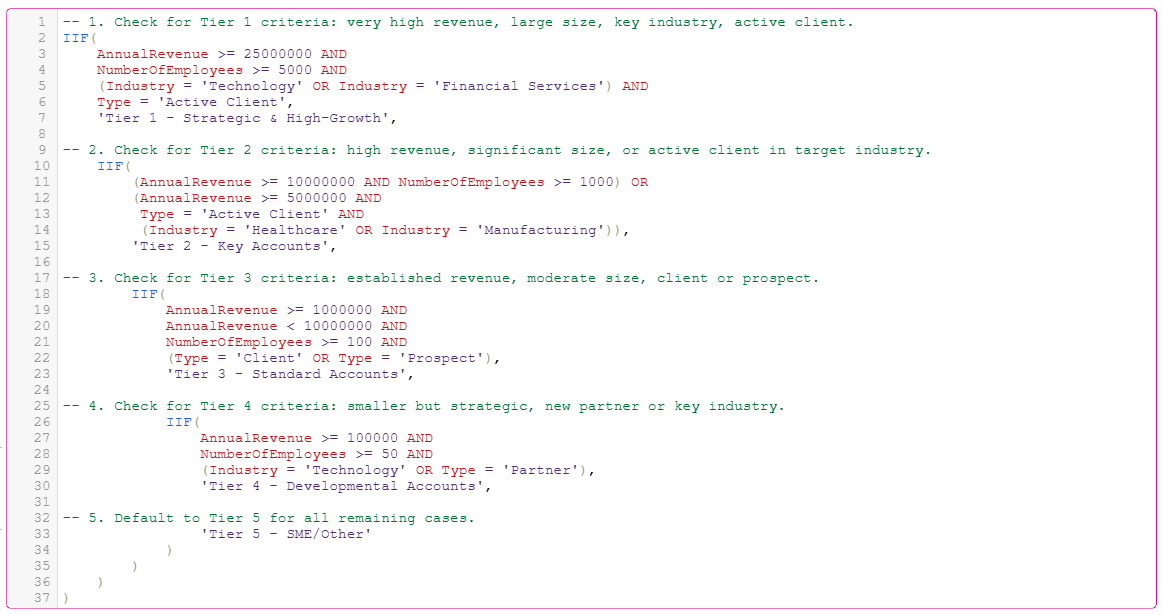
The following example shows a prompt using pseudocode:
// --- TIER 1: STRATEGIC & HIGH-GROWTH --- // Criteria: Very high revenue, large size, and an active client in a key industry. IF (Revenue >= 25,000,000 AND NumberOfEmployees >= 5,000 AND (Industry == 'Technology' OR Industry == 'Financial Services') AND Type == 'Active Client') THEN
// --- TIER 2: KEY ACCOUNTS --- // Criteria: High revenue, significant size, OR an active client in any target industry. ELSE IF ((Revenue >= 10,000,000 AND NumberOfEmployees >= 1,000) OR (Revenue >= 5,000,000 AND Type == 'Active Client' AND (Industry == 'Healthcare' OR Industry == 'Manufacturing'))) THEN
Priority_Bucket = 'Tier 2 - Key Accounts'
// --- TIER 3: STANDARD ACCOUNTS --- // Criteria: Established revenue, moderate size, typically a Prospect or long-term Client. ELSE IF (Revenue >= 1,000,000 AND Revenue < 10,000,000 AND NumberOfEmployees >= 100 AND (Type == 'Client' OR Type == 'Prospect')) THEN
Priority_Bucket = 'Tier 3 - Standard Accounts'
// --- TIER 4: DEVELOPMENTAL ACCOUNTS --- // Criteria: Smaller, but strategic as a new Partner or a small company in a key industry. ELSE IF (Revenue >= 100,000 AND NumberOfEmployees >= 50 AND (Industry == 'Technology' OR Type == 'Partner')) THEN