You can create a schedule to run a process at specified times or at regular intervals to minimize manual interventions.
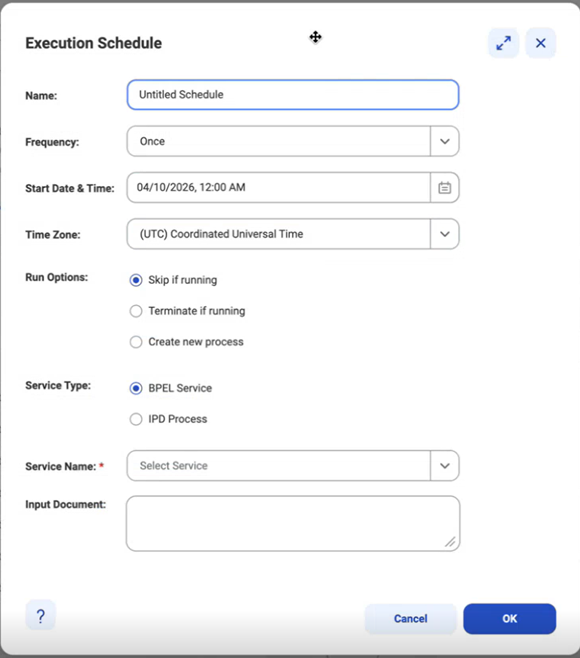
To create a scheduled process, on the Process Schedule tab, click '+' that is available at the top-right corner of the Process Schedule page. The Execution Schedule page appears:
Configure the following fields in the Execution Schedule page:
Field
Description
Name
Name of the schedule.
Each schedule name must be unique within the organization. Schedule names can contain alphanumeric characters, spaces, and the following special characters: _ . + -
Maximum length is 255 characters. Names are not case sensitive.
Frequency
Determines how often to run the process.
You can select one of the following options:
- Once. Select this to execute the process on the specified start date and time.
Tip: This option is good for running a test execution. You can then duplicate the details for a different execution schedule.
- Intraday. Process runs multiple times in a day at the time of the schedule.
- Daily. Process runs daily at the start time of the schedule.
- Weekly. Process runs on a weekly interval based on the start time of the schedule.
- Monthly. Process runs on a monthly interval based on the start time of the schedule.
Start Date and Time
The date and time when the schedule starts. Applies when you select Frequency as Once.
The date format is YYYY/MM/DD. Click the calendar button to select a start date.
The time format is hh:mm. Select the Date Chooser to enter a start time. The default is midnight (00:00).
Time Zone
Select the time zone for the schedule to use. The time zone can differ from the organization time zone or user time zone.
Run Options
Select from the following options:
- Skip if previous still running (default). Does not schedule another process instance if the previous instance did not complete.
- Terminate previous if still running. Terminates a previously scheduled execution prior to starting a new instance.
- Create new process . Schedules a new process execution regardless of the status of any prior execution.
Service Type
Specify whether the service is BPEL or IPD-based.
Service Name
Select a service name from the list based on the selected service type. You can also type the service name in the field.
Input Document
If you implement the process using Process Developer and the BPEL service type, follow one of the following steps:
- For a SOAP interface. Enter the SOAP input message data contained within the SOAP Body element. This is the XML input message used to invoke the process, and it must conform to the process's WSDL interface.
- For a REST interface. Create a SOAP wrapper for the REST service, and then follow the instructions for the SOAP interface.
POST Body
If you implement the process using Process Designer and the IPD service type, enter the JSON body of the POST message that invokes the process.
To save changes, click Ok. A new scheduled process appears on the Process Schedule page.