Prerequisites To use the AI Agent for Database Access Review and Permission Auditing recipe, the following prerequisites must be met:
• • • • Runtime Environments in Administrator.Setting up the ServiceNow Developer Instance To set up a ServiceNow developer instance, perform the following steps:
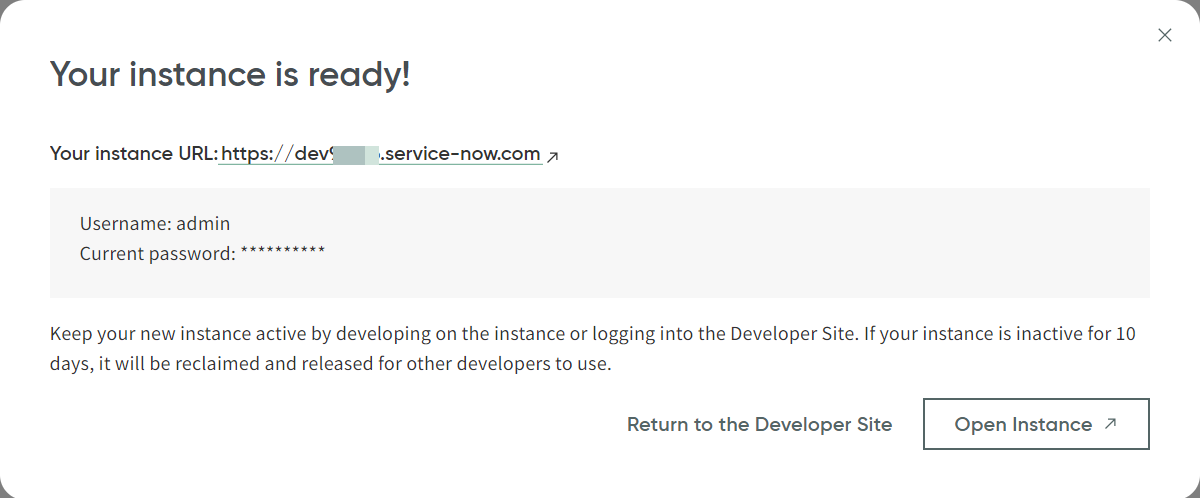
1 ServiceNow Developer Site 2 3 Request Instance or Start building .4 Request . The latest release is recommended.You will be notified when your instance is ready. You will receive the instance URL and admin login details as shown in the following image:
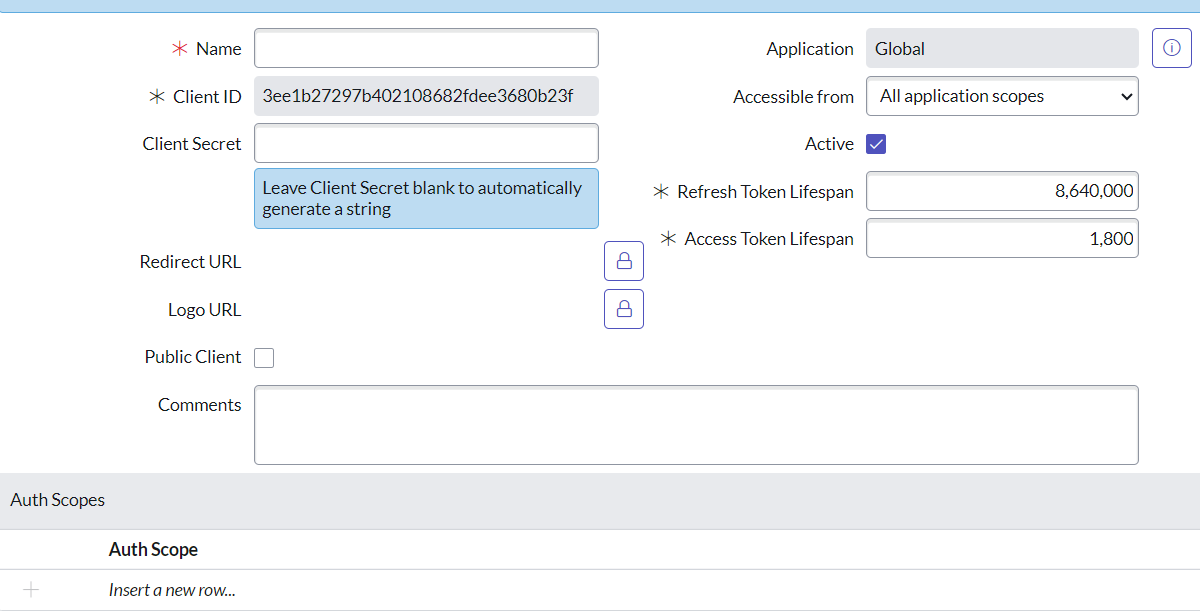
5 Open Instance to access your instance.6 Creating Client Credentials for the ServiceNow connector To authorize REST requests from the ServiceNow connector, you need to create client credentials:
1 2 Evaluate role > security_admin .3 System OAuth > Application Registry > New > Create an OAuth API endpoint for external clients .4 5 For more information, see the
ServiceNow documentation.
Generating an App Password for Email Server To configure the email server password for Gmail and Microsoft Outlook, perform the following steps:
• • App Password option and generate a new password.• Gmail App Password Generation
1 2 Google Account security 3 4 Select app and Select device fields, select or enter the appropriate app name or device for which you want to generate the app password.5 Generate .A 16-character app password will be displayed. Use this password in place of your regular Google account password in your email client or application.
Microsoft Outlook App Password Generation
1 2 Microsoft Security 3 4 Advanced security options .5 App passwords , click Create a new app password .6 Use this app password instead of your standard Microsoft account password in your email client or application.