- aOn the Start tab of the Start step, select the Secure Agent from the Run On list.
- bOn the Temp Fields tab of the Start step, enter the target organization's base URL in the temp_baseOrgUrl field. For example, if you have logged in using https://dm-us.informaticacloud.com/identity-service/home, set this field value to https://dm-us.informatica.cloud.com/saas.
- cSave and publish the process.
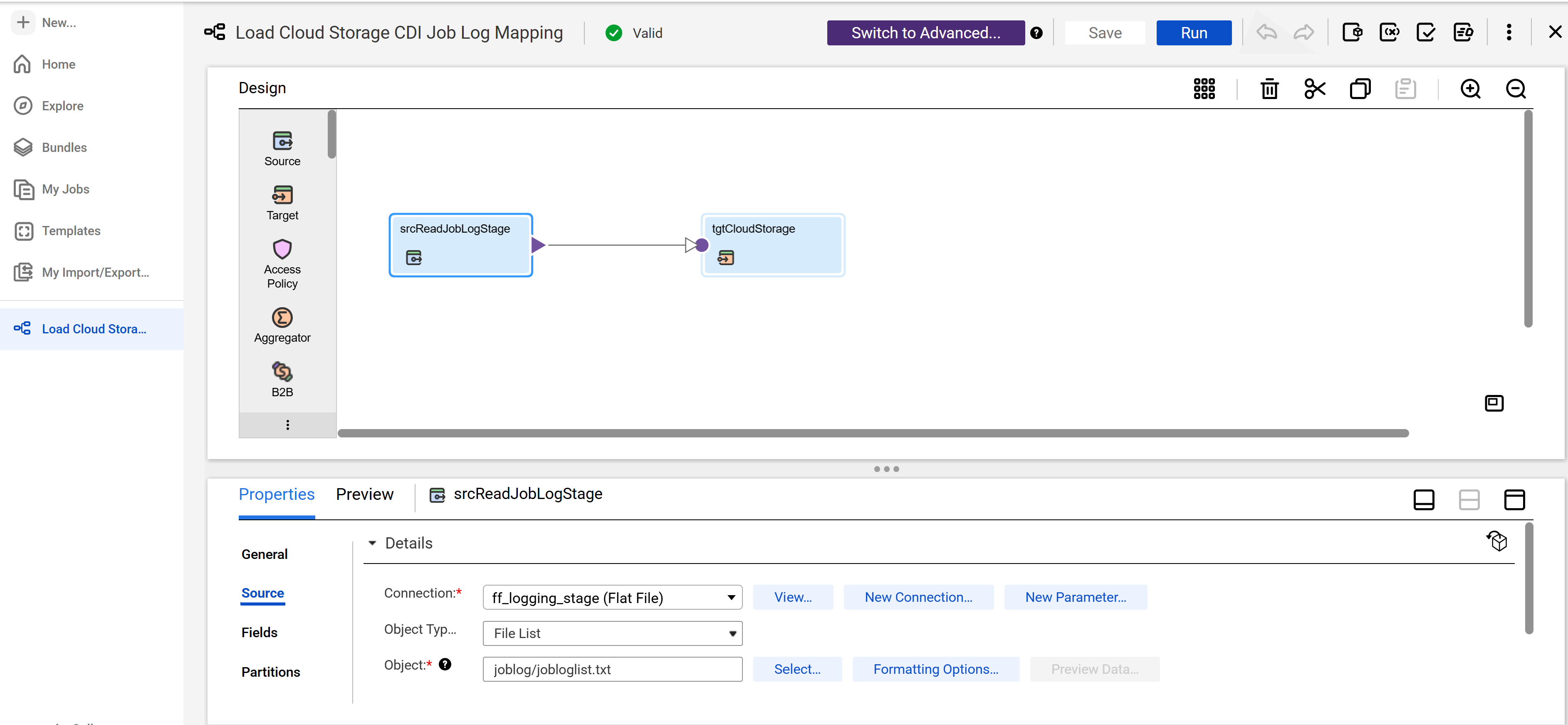
- aOn the Source tab of the srcReadJobLogStage step, select the flat file connection that points to your staging directory and the object as shown in the following image:
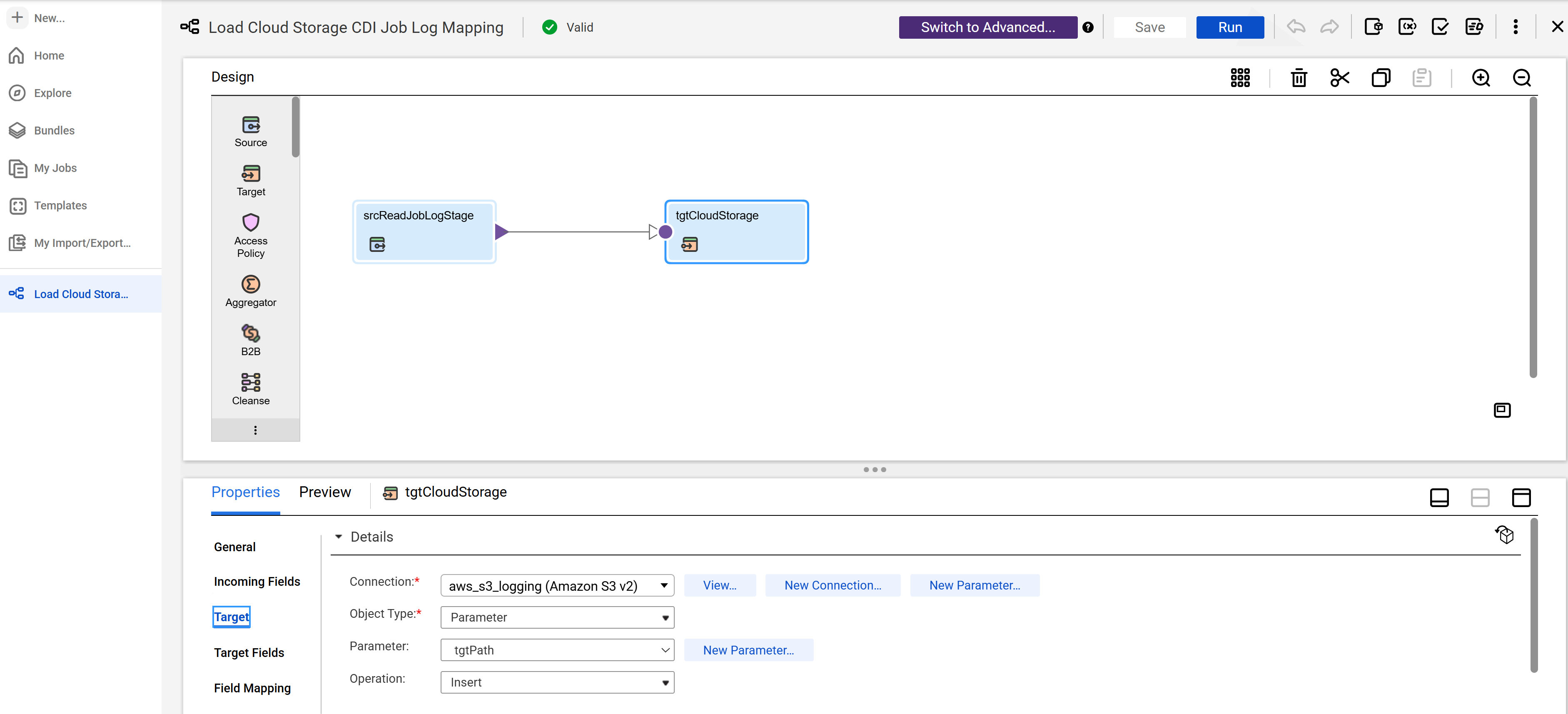
- bOn the Target tab of the tgtCloudStorage step, select the cloud storage connection that points to your cloud storage location as shown in the following image:
- cSave the mapping.
- aClick Edit.
- bFrom the Runtime Environment list, select the Secure Agent.
- cSave the mapping task.
- aOn the Start tab of the Start step, enter a valid user ID and/or group for the organization in the Allowed Users and/or Allowed Groups fields.
- bOn the IntegrationOps Task tab of the Get Job Logs step, reselect the Get CDI Job Log process and click Save.
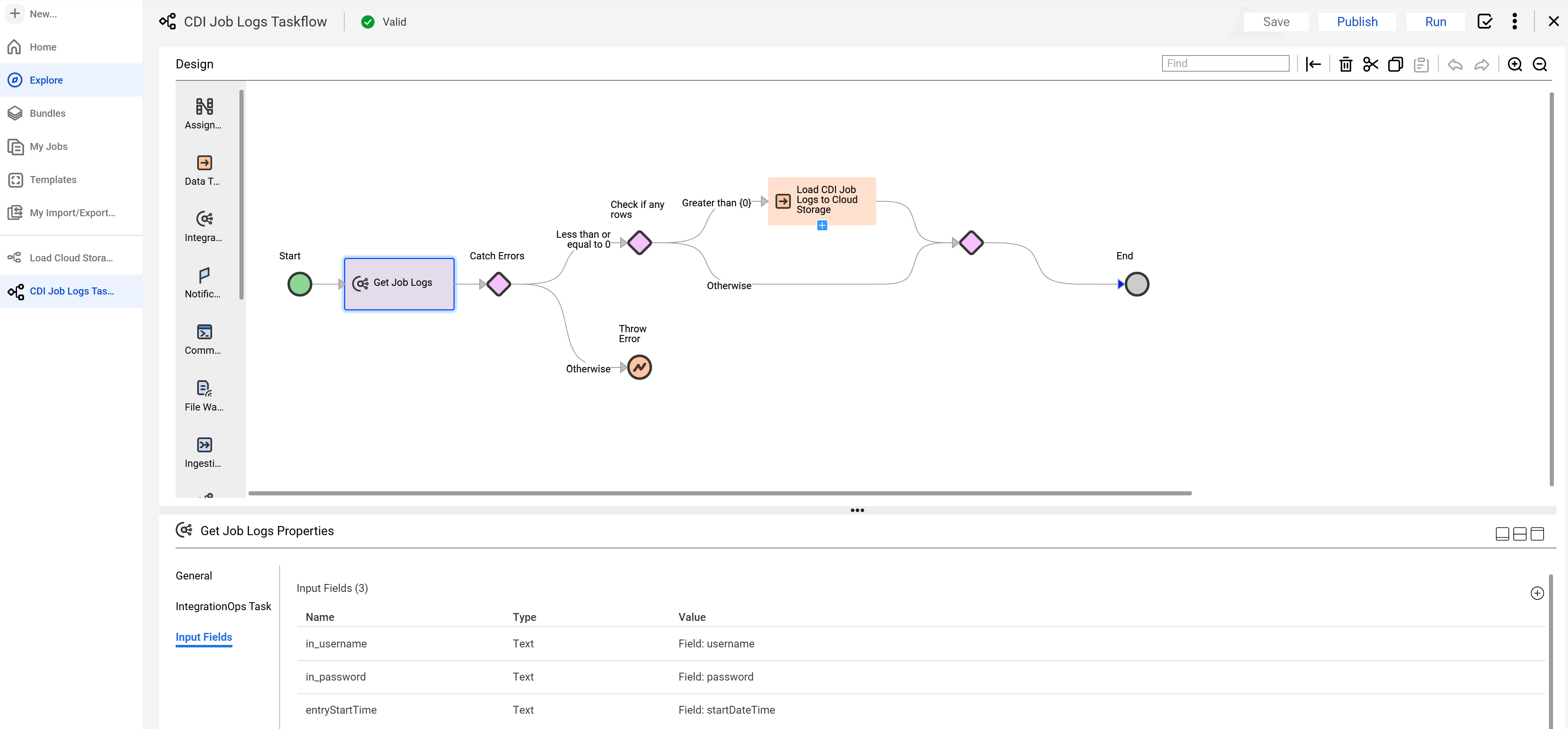
- cOn the Input Fields tab of the Get Job Logs step, add all the input fields and assign field values as shown in the following image:
- dSave and publish the taskflow.
- eTest the CDI job log using the Run Using option in Data Integration or with Postman.
- aOn the Actions menu, click Run Using.
- bProvide inputs using the following JSON format:
- cSave and run the taskflow.
- aOn the Actions menu, click Properties Details > Copy Service URL.
- bOpen Postman.
- cSelect the HTTP verb as POST and specify the generated REST service URL.
- dOn the Authorization tab, select Basic Auth and enter the user account details same as provided in the taskflow.
- eOn the Body tab, select the body type as raw and provide the following JSON snippet for the HTTPS request:
- fSend the POST request.
To test with the Run Using option, perform the following steps:
{
"username": "<user name for org to get log files>",
"password": "<password for org to get log files>",
"startDateTime": "",
"in_tgtPath": "<full path to cloud storage, including file name>"}
"username": "<user name for org to get log files>",
"password": "<password for org to get log files>",
"startDateTime": "",
"in_tgtPath": "<full path to cloud storage, including file name>"}
Note:
You can get the log files from a different organization than where you installed the package.
To test using Postman, perform the following steps:
{
"username": "<user name for org to get log files>",
"password": "<password for org to get log files>",
"startDateTime": "",
"in_tgtPath": "<full path to cloud storage, including file name>"}
"username": "<user name for org to get log files>",
"password": "<password for org to get log files>",
"startDateTime": "",
"in_tgtPath": "<full path to cloud storage, including file name>"}
You will receive the taskflow run ID as a response.