- - Generic Executor
- - Azure OpenAI Function Calling
- - Salesforce Executor
- - Azure OpenAI Agent for Salesforce
- - Query Dynamics 365
- - Update information about Snowflake tables in the Table_Metadata field.
- - Update LLM system instruction in the System_Instruction field, if required.
- - Enter the service URL that you get after publishing the Query Snowflake process in the API_URL field.
- - Update LLM system instruction in the System_Instruction field, if required.
- - Enter the service URL that you get after publishing the Query Dynamics 365 process in the API_URL field.
<root>
<temperature>0.2</temperature>
<maxOutputTokens>2500</maxOutputTokens>
<topP>0.8</topP>
</root>
<temperature>0.2</temperature>
<maxOutputTokens>2500</maxOutputTokens>
<topP>0.8</topP>
</root>
For the Generation_Config field, enter values for the following properties:
Property | Description |
|---|---|
temperature | Controls the randomness of the model's output. A lower value makes the output more deterministic, while a higher value increases randomness and creativity. For example, a temperature of 0.5 balances between deterministic and creative outputs. |
maxOutputTokens | Defines the maximum number of tokens the model can generate in its response. Setting a limit ensures that the response is concise and fits within the desired length constraints. |
topP | Determines the cumulative probability threshold for token selection. The model considers the smallest set of tokens whose cumulative probability meets or exceeds topP. For example, if topP is set to 0.1, the model considers only the top 10% most probable tokens at each step. |
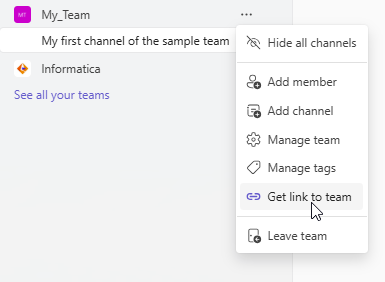
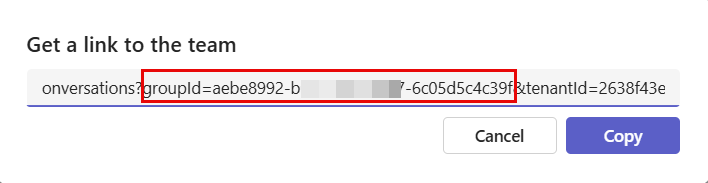
To find the team ID, perform the following steps:
- aGo to your team listed on the left side of the Teams app.
- bSelect More options > Get link to team as shown in the following image:
- cCopy the group ID value as shown in the following image:
You must copy the service URL to set up the webhook configuration in Microsoft Teams. For more information, see Step 11. Create webhook in Microsoft Teams.