You can configure Process Server connectivity with Azure Service Bus by using an AMQP connection. Microsoft Azure supports AMQP version 1.0 for its Service Bus implementation. AMQP connector uses both Service Bus queues and topics for configuration, but with some limitations.
Create AMQP connection for Azure Service Bus in Application Integration
You can connect to Azure Service Bus queue or topic using the AMQP connector in Application Integration. After you have created the Azure Service Bus connector, you can configure Process Server connectivity with Azure Service Bus by using an AMQP connection.
Ensure that the following settings are performed when you create the AMQP connection:
On Azure Portal
•Ensure that the Azure Service Bus has a queue created with the name informatica-test-queue for the test connection to be successful.
•Disable the Enable sessions option when you create a Azure Service Bus topic in Azure portal.
In Azure Service Bus Connection Properties
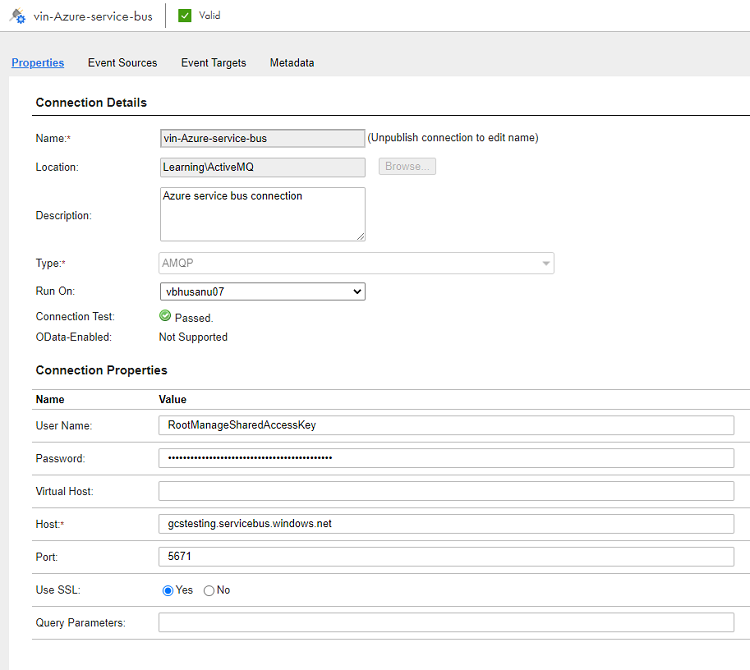
1Enter the Shared Access Policy name as the username.
2Enter the primary key as the password.
3Enter the value in the Host field in the <service bus name>.servicebus.windows.net format.
4Enter the value in the Port field as 5671 .
5Set the Use SSL field to Yes.
The following image the sample values that you must enter when you configure the following values in the Azure Service Bus Connection source properties:
Configuring the Azure Bus Service queue
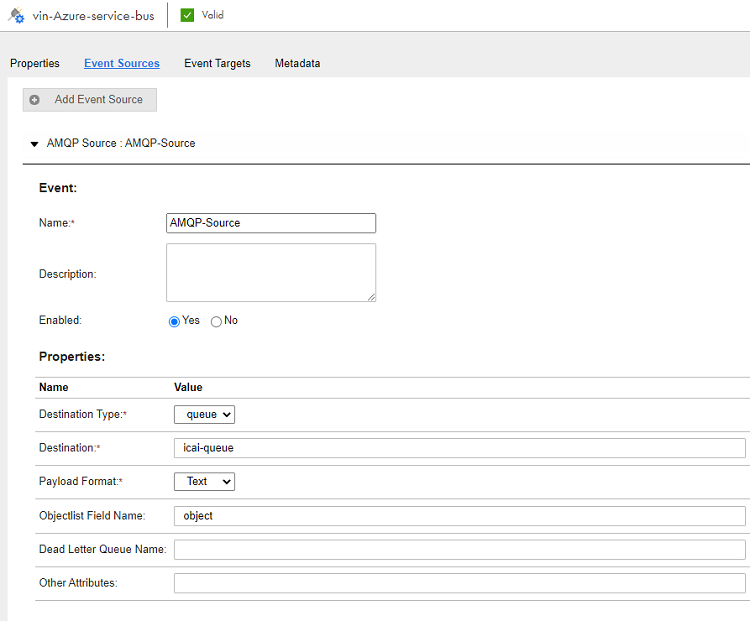
When you configure the Azure Bus Service queue, In the Destination Type field, select queue.
The following image the sample values that you must enter when you configure the the Azure Bus Service queue:
Configuring the Azure Bus Service topics
When you configure the Azure Bus Service topic, configure the following values in the event target and event source properties:
1To connect to a messaging topic, you must first create a subscription to that topic. A subscription allows you to receive messages published to the topic. In order to avoid errors in the connection, don't enable sessions for it when you create subscriptions.
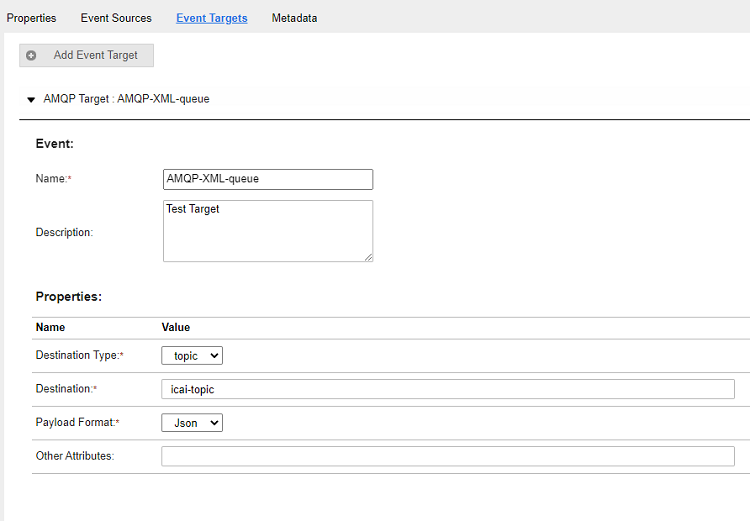
2When you configure the AMQP connection for an event target that acts as a Producer, you must select the Destination Type field, select topic as shown in the following image:
Note:
Additional details such as the queue name or subscription are not required.
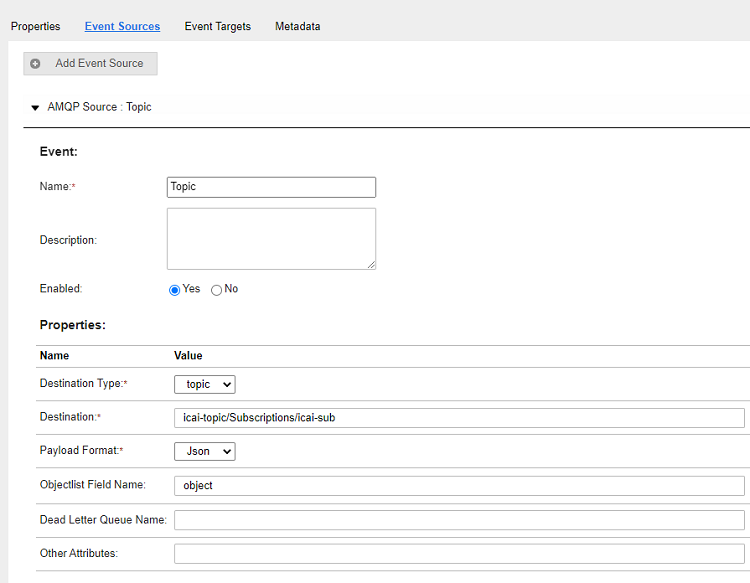
3When you configure the AMQP connection for an event source that acts as a Consumer, you must select the Destination Type field, select topic. However, you must enter the value in the Destination type in the following format: <Topic name >/Subscriptions/<Subscription name>
The following image the sample values that you must enter when you configure the AMQP connection for an event source that acts as a Consumer:
In the above image the topic name is icai-topic and the subscription name is icai-sub.