2Navigate to Entra ID > App registrations > New registration and enter a name for your application.
3For supported account types, choose the appropriate option based on your application needs. For redirect URI, select Web and enter your redirect URL.
4Click Register.
The registered application page appears.
5Go to Manage > Authentication and add the redirect URIs if you haven't already.
6To add redirect URIs, click Add a platform, select the application and enter the redirect URIs.
7In the Implicit grant and hybrid flows section, enable Access tokens and ID tokens, and click Configure.
8Go to Manage > API permissions > Add a permission and select Microsoft Graph.
9Choose Delegated permissions and select necessary permissions, such as User.Read, email, offline\_access, openid, and profile and click Add permissions.
10On the application's overview page, copy the Application (client) ID.
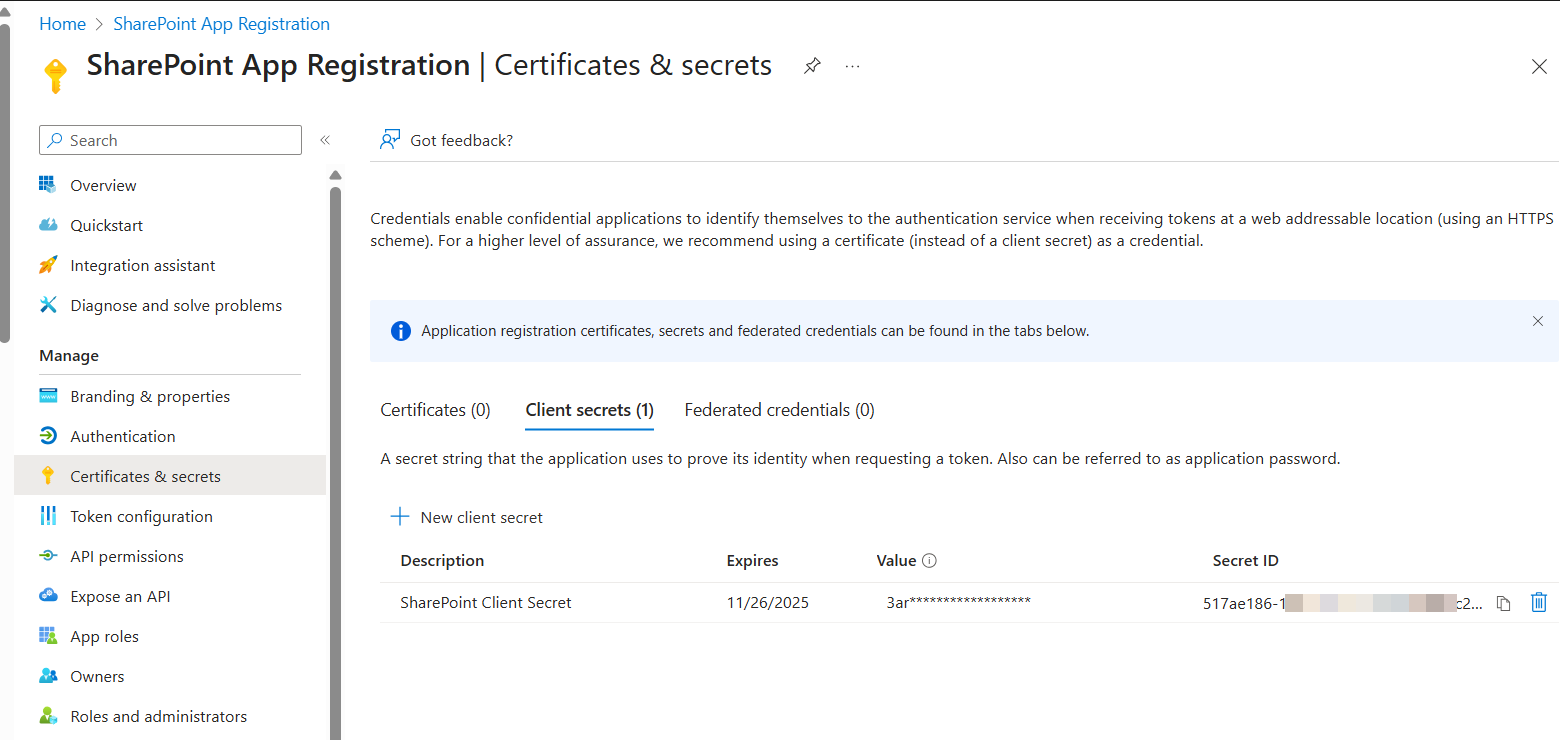
11Go to Manage > Certificates & secrets > Client secrets and click New client secret as shown in the following image:
12Enter a description and select an expiration date and click Add.
13Copy the value of the new client secret. It will not be displayed again.
14Use the client ID and client secret to connect your Microsoft SharePoint connector application.