You can create a request body with an input field with different data types, such as string or array as shown in the following image:
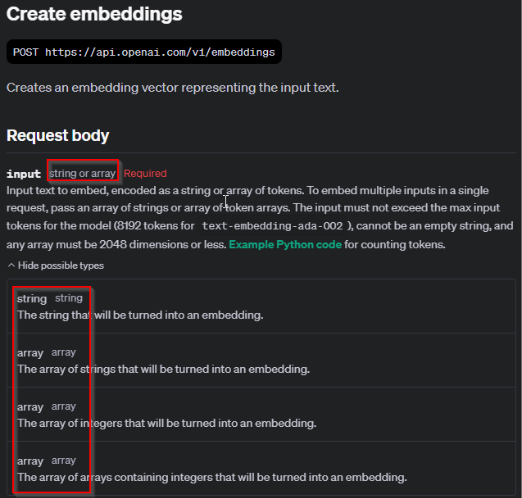
If the input field must be in string format, you do not need to add additional parameters, as shown in the following request body snippet:
<root>
<input>The food was delicious and the waiter...</input>
<model>text-embedding-3-large</model>
<encoding_format>float</encoding_format>
<dimensions>10</dimensions>
<user>userName</user>
</root>
<input>The food was delicious and the waiter...</input>
<model>text-embedding-3-large</model>
<encoding_format>float</encoding_format>
<dimensions>10</dimensions>
<user>userName</user>
</root>
However, if the input field must be in array format, you need to include additional namespaces as shown in the following request body snippet:
<root xmlns:m="urn:informatica:ae:xquery:json2xml:meta-data">
<input m:isArray="true">The food was delicious and the waiter...</input>
<model>text-embedding-3-large</model>
<encoding_format>float</encoding_format>
<dimensions>10</dimensions>
<user>userName</user>
</root>
<input m:isArray="true">The food was delicious and the waiter...</input>
<model>text-embedding-3-large</model>
<encoding_format>float</encoding_format>
<dimensions>10</dimensions>
<user>userName</user>
</root>
You can create a request body with content, tool_choice, and other fields with different data types, such as string or array or string or object, as shown in the following image:
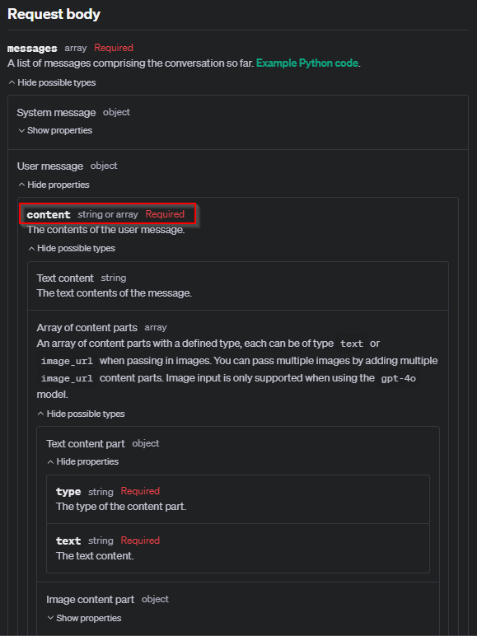
The following snippet is a sample request body with content fields of different types. You do not need to add additional namespaces in the request body.
<root>
<model>gpt-4o</model>
<messages>
<role>system</role>
<content>This is string content field</content>
</messages>
<messages>
<role>user</role>
<content>
<type>text</type>
<text>This is array content field</text>
</content>
</messages>
</root>
<model>gpt-4o</model>
<messages>
<role>system</role>
<content>This is string content field</content>
</messages>
<messages>
<role>user</role>
<content>
<type>text</type>
<text>This is array content field</text>
</content>
</messages>
</root>
You can transfer an image to OpenAI using one of the following options:
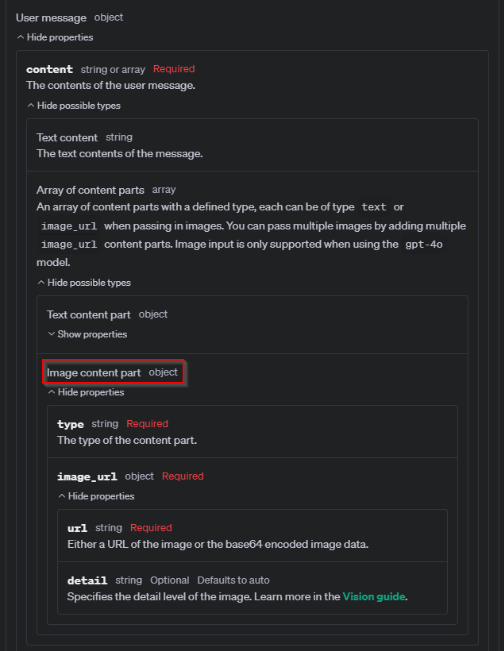
- - Use the image link as shown in the following request body example:
- - Use base64 encoded image data as shown in the following request body example:
<root>
<model>gpt-4-turbo</model>
<messages>
<role>user</role>
<content>
<type>text</type>
<text>What's in this image?</text>
</content>
<content>
<type>image_url</type>
<image_url>
<url>https://upload.wikimedia.org/wikipedia/commons/thumb/d/dd/Gfp-wisconsin-madison-the-nature-boardwalk.jpg/2560px-Gfp-wisconsin-madison-the-nature-boardwalk.jpg</url>
</image_url>
</content>
</messages>
<max_tokens>300</max_tokens>
</root>
<model>gpt-4-turbo</model>
<messages>
<role>user</role>
<content>
<type>text</type>
<text>What's in this image?</text>
</content>
<content>
<type>image_url</type>
<image_url>
<url>https://upload.wikimedia.org/wikipedia/commons/thumb/d/dd/Gfp-wisconsin-madison-the-nature-boardwalk.jpg/2560px-Gfp-wisconsin-madison-the-nature-boardwalk.jpg</url>
</image_url>
</content>
</messages>
<max_tokens>300</max_tokens>
</root>
<root>
<model>gpt-4-turbo</model>
<messages>
<role>user</role>
<content>
<type>text</type>
<text>What's in this image?</text>
</content>
<content>
<type>image_url</type>
<image_url>
<url>data:image/jpeg;base64,[base64 encode here]</url>
</image_url>
</content>
</messages>
<max_tokens>300</max_tokens>
</root>
<model>gpt-4-turbo</model>
<messages>
<role>user</role>
<content>
<type>text</type>
<text>What's in this image?</text>
</content>
<content>
<type>image_url</type>
<image_url>
<url>data:image/jpeg;base64,[base64 encode here]</url>
</image_url>
</content>
</messages>
<max_tokens>300</max_tokens>
</root>
The following snippet is a sample request body:
<root xmlns:m="urn:informatica:ae:xquery:json2xml:meta-data">
<model>gpt-4o-mini</model>
<input>Tell me a three sentence bedtime story about a frendship between Messi and Ronaldo.</input>
<background m:type="xs:boolean">true</background>
</root>
<model>gpt-4o-mini</model>
<input>Tell me a three sentence bedtime story about a frendship between Messi and Ronaldo.</input>
<background m:type="xs:boolean">true</background>
</root>
You can also use the MCP server with parameters as shown in the following snippet:
<root xmlns:m="urn:informatica:ae:xquery:json2xml:meta-data">
<model>gpt-4o-mini</model>
<input>Add the Blemish Toner Pads to my cart</input>
<temperature m:type="xs:double">0.2</temperature>
<max_output_tokens m:type="xs:int">300</max_output_tokens>
<tools m:isArray="true">
<type>mcp</type>
<server_label>shopify</server_label>
<server_url>https://your-mcp-host.com/mcp</server_url>
<headers>
<Authorization>Bearer YOUR_MCP_SERVER_KEY</Authorization>
</headers>
<allowed_tools m:isArray="true">add_to_cart</allowed_tools>
<allowed_tools m:isArray="true">checkout</allowed_tools>
</tools>
</root>
<model>gpt-4o-mini</model>
<input>Add the Blemish Toner Pads to my cart</input>
<temperature m:type="xs:double">0.2</temperature>
<max_output_tokens m:type="xs:int">300</max_output_tokens>
<tools m:isArray="true">
<type>mcp</type>
<server_label>shopify</server_label>
<server_url>https://your-mcp-host.com/mcp</server_url>
<headers>
<Authorization>Bearer YOUR_MCP_SERVER_KEY</Authorization>
</headers>
<allowed_tools m:isArray="true">add_to_cart</allowed_tools>
<allowed_tools m:isArray="true">checkout</allowed_tools>
</tools>
</root>
Create Model Response action returns the unique identifier. For example, resp_67ccd2bed1ec8190b14f964abc0542670bb6a6b452d3795b.
For other types, use parameters as shown in the following snippet:
<root xmlns:m="urn:informatica:ae:xquery:json2xml:meta-data">
<field_array m:isArray="true">
<property_1> ...</property_1>
</field_array>
<field_boolean m:type="xs:boolean">true</field_boolean>
<field_double m:type="xs:double">20.2</field_double>
<field_integer m:type="xs:int">10</field_integer>
</root>
<field_array m:isArray="true">
<property_1> ...</property_1>
</field_array>
<field_boolean m:type="xs:boolean">true</field_boolean>
<field_double m:type="xs:double">20.2</field_double>
<field_integer m:type="xs:int">10</field_integer>
</root>