Before you use an SAP IDoc connection to access data from SAP through IDocs, an administrator must perform the following tasks:
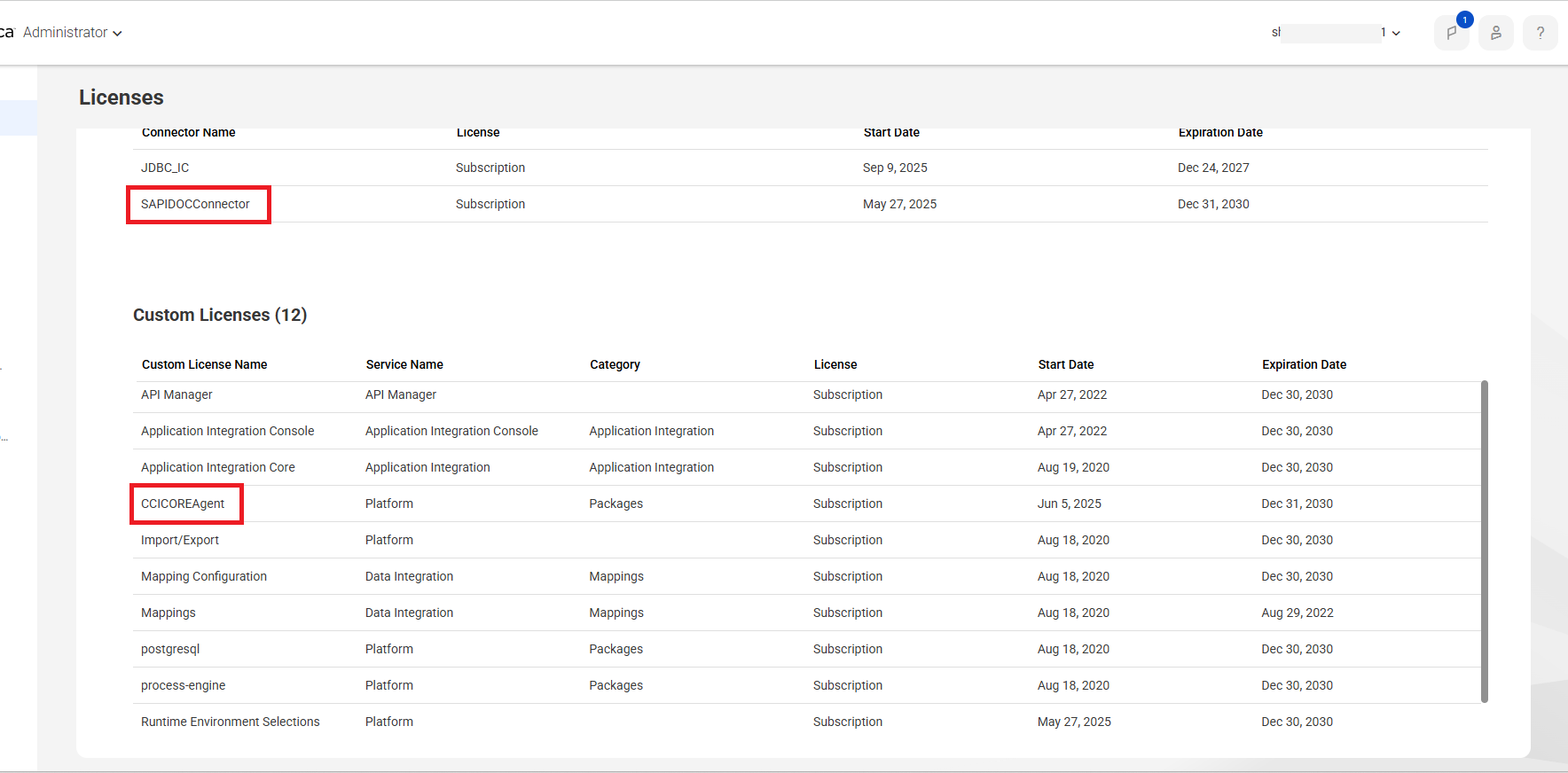
•Verify that you have the license to the SAP IDoc Connector package and CCICOREAgent package in Administrator. For more information about licenses, see Licenses in Organization Administration.
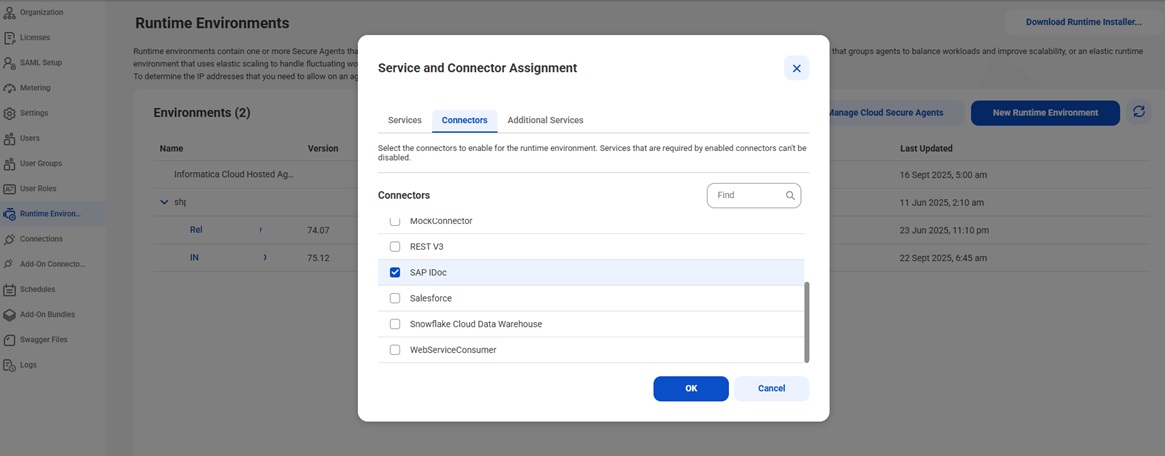
•Enable the SAP IDoc Connector when you configure the runtime environment in Administrator. For more information, see Runtime Environments.
•Restart the Process Server.
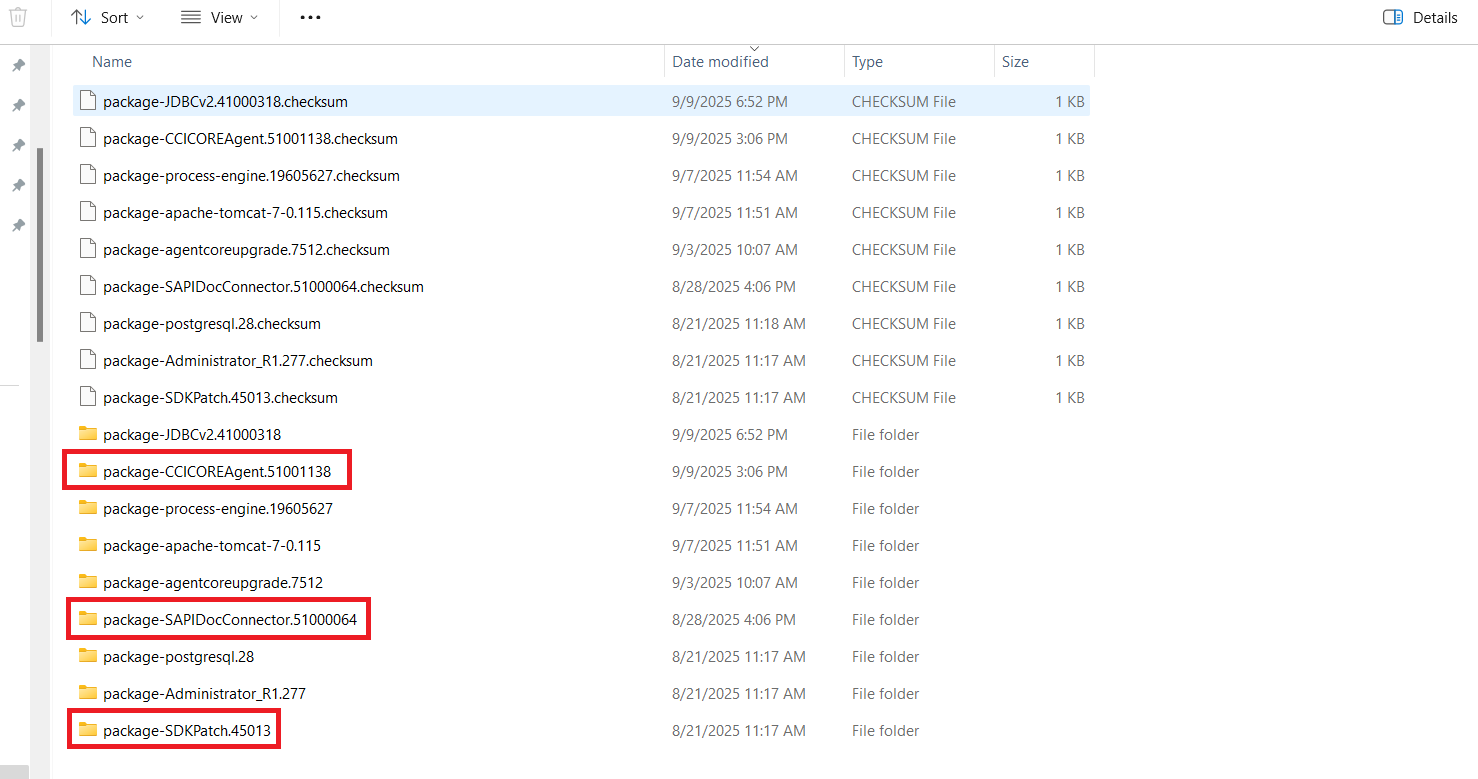
After you configure the runtime environment, the packages highlighted in the following image are available on the agent.
Downloading and configuring SAP libraries for IDoc
Download the SAP JCo libraries and configure them on the machine where the Secure Agent runs. Contact SAP Customer Support if you encounter any issues with downloading the libraries.
4Set the following permissions for each SAP NetWeaver RFC SDK library:
- Read, write, and execute permissions for the current user.
- Read and execute permissions for all other users.
- Set the SAP permissions that are on the SAP IDOC CDI connector guide and the S_IDOCDEFT Authorization Object. The S_IDOCDEFT authorization object requires the following fields for authorization:
- ACTVT: Indicates the activity being performed.
- EDI_CIM: Represents the EDI Component Interface Message.
- EDI_DOC: Refers to the EDI Document.
- EDI_TCD: Denotes the EDI Transaction Control Data.
- EDI_MES: Specifies the permitted message type.
- EDI_DIR: Indicates the direction of the IDoc (1 = outbound, 2 = inbound).
- EDI_PNR: Permitted partner number.
- EDI_PRT: Permitted partner type.
These fields are essential to access IDoc monitoring and processing within the SAP system. For more information on configuring SAP user authorization, see Configure SAP user authorization.
5Restart the Process Server. To ensure that the libraries are loaded correctly, restart the Process Server on the machine where Secure Agent is installed.