To create a mapping using CLAIRE Copilot, you can submit a complete mapping prompt to CLAIRE Copilot or you can start with a basic prompt and then fill in, add, and correct details through the conversation interface.
CLAIRE Copilot can create mappings that include the following transformations:
•Source
•Target
•Aggregator
•Expression
•Filter
•Joiner
•Lookup
•Rank
•Router
•Sorter
•Union
You can create and design mappings in the following ways:
Submit a complete mapping prompt
For best results and performance, provide all details about the mapping in the first prompt that you submit to CLAIRE Copilot.
A complete mapping prompt includes the following details:
- Source and target connection names
- Source and target object names
- Optionally, transformation details
For example, the following prompt specifies the source and target connections, source and target objects, and transformations in the mapping:
Read 'DEPT_MAIN' from Oracle connection 'Oracle_connection', group the incoming data based on field 'DEPTNAME', and create a new field named 'MIN_SALARY' that has the minimum value of the 'SALARY' field and a field named 'AVE_SALARY' which has the average salary. Write the resulting data to a table named 'DEPT_P' in the same Oracle connection.
Start with a basic prompt
If you don't have a complete mapping prompt, you can start the conversation with a basic prompt like I want to create a mapping and design the mapping in subsequent prompts by filling in, adding, and correcting details.
When you start the conversation with a basic prompt, CLAIRE Copilot asks you to provide the details it needs to create the mapping, such as source and target connections or source and target objects. If CLAIRE Copilot gives you a list of options for connections or objects to choose from, you can enter the name or number of the list item. Otherwise, you can type the name of the connection or object in the prompt text box.
You can also submit prompts to add details to the mapping or correct prior details. For example, you can submit a prompt to specify an additional filter condition for a Filter or Router transformation. Or, you can change the connection or object for the source or target.
Note:
If you previously specified a filter condition, you can't change it during the same conversation. To specify a different filter condition, start a new conversation or type Start Over.
When CLAIRE Copilot has enough information to create the mapping, it generates a brief summary that you can review. You can continue making changes to the mapping in the conversation window, or you can ask CLAIRE Copilot to create it and open it.
Note:
After CLAIRE Copilot opens the mapping, you can't edit the asset in the conversation window, but you can continue to make edits manually.
Submit a complete mapping prompt
For best results, provide all details about the mapping in the first prompt that you submit to CLAIRE Copilot. To improve the accuracy of the mappings that CLAIRE Copilot creates, provide clear and specific details that describe the data flow in the mapping.
To create a complete mapping prompt, use the following guidelines:
•Be clear and concise when you describe the use case and mapping details.
•Provide all details about source and target objects, source and target connections, and the transformations in the mapping. For each transformation, specify what the transformation does.
•Use key words for transformations and functions. For more information about the transformations, transformation capabilities, and functions; see Transformations and Function Reference.
•Start the prompt by providing source and target details. Then, provide transformation details in the same order that the transformations appear in the mapping.
•Specify only one data flow. CLAIRE Copilot can't create mappings with multiple data flows.
Create a mapping to filter and route accounts
Let's break down the following prompt:
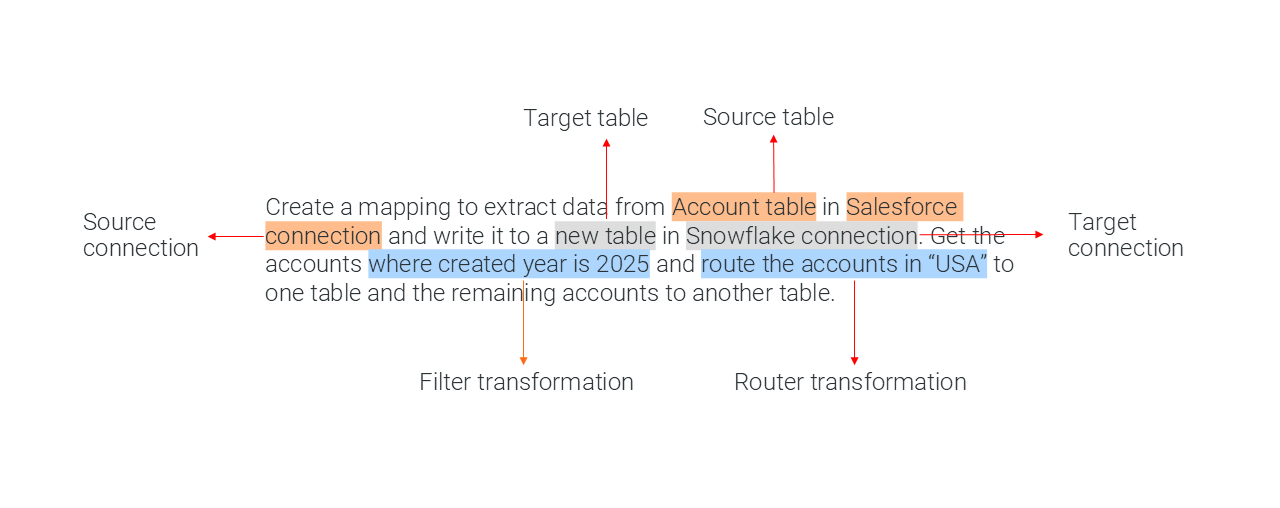
Create a mapping to extract data from Account table in Salesforce connection and write it to a new table in Snowflake connection. Get the accounts where created year is 2025 and route the accounts in “USA” to one table and the remaining accounts to another table.
The prompt provides the source and target details, including the respective source and target connections. Then, it describes the data flow in the mapping. First, the mapping filters the data by accounts that were created in 2025. Then, the mapping routes the account data to two tables.
The following table lists the key words and how they correspond to mapping elements:
Key words
Mapping element
Account table
Source object in the Source transformation
Salesforce connection
Source connection in the Source transformation
new table
Target object in the Target transformation
Snowflake connection
Target connection in the Target transformation
where created year is 2025
Filter transformation
route the accounts in "USA"
Router transformation
The following image shows each key word in the prompt:
When CLAIRE Copilot creates a mapping based on the prompt, it adds the transformations in the following order: Source, Filter, Router, and Target.
Create a mapping to transform account data
Let's break down the following prompt:
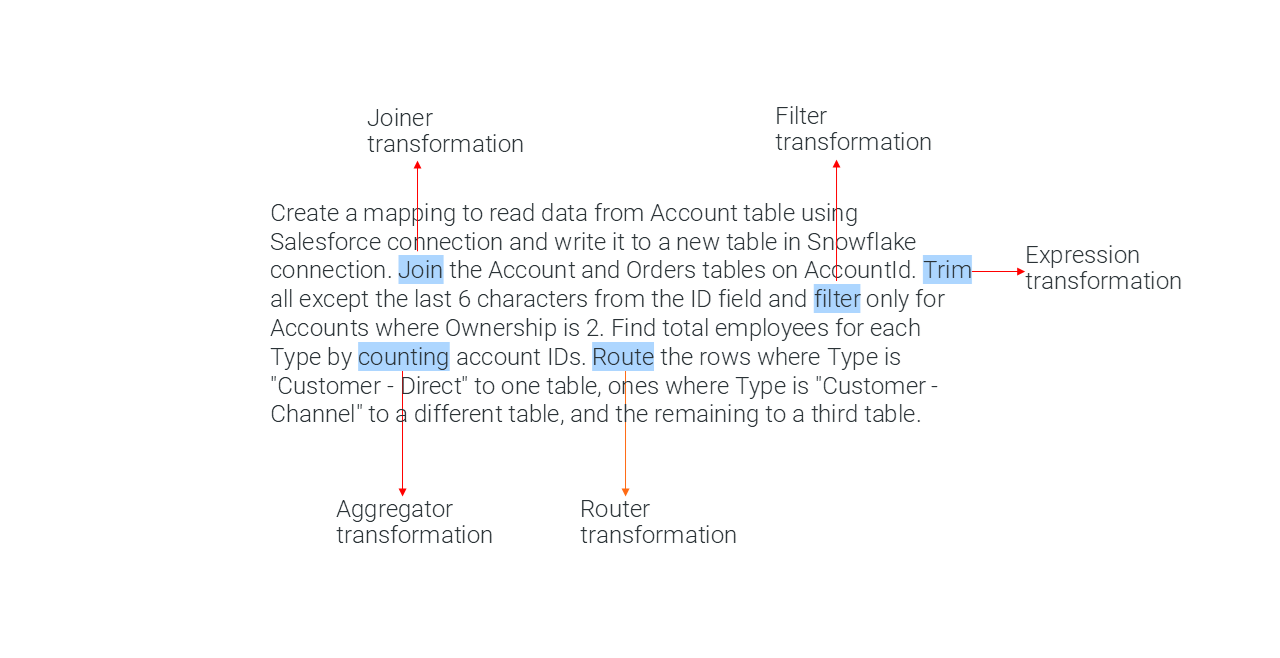
Create a mapping to read data from Account table using Salesforce connection and write it to a new table in Snowflake connection. Join the Account and Orders tables on AccountId. Trim all except the last 6 characters from the ID field and filter only for Accounts where Ownership is 2. Find total employees for each Type by counting account IDs. Route the rows where Type is "Customer - Direct" to one table, ones where Type is "Customer - Channel" to a different table, and the remaining to a third table.
The following table lists the key words and how they correspond to transformations in the mapping:
Key word
Transformation
Join
Joiner transformation
Trim
Expression transformation with the LTRIM function
filter
Filter transformation
counting
Aggregator transformation with the COUNT function
Route
Router transformation
The following image shows each key word in the prompt:
When CLAIRE Copilot creates a mapping based on the prompt, it adds the transformations in the following order: Source, Joiner, Expression, Filter, Aggregator, Router, and Target.
Combine and extract data from Snowflake
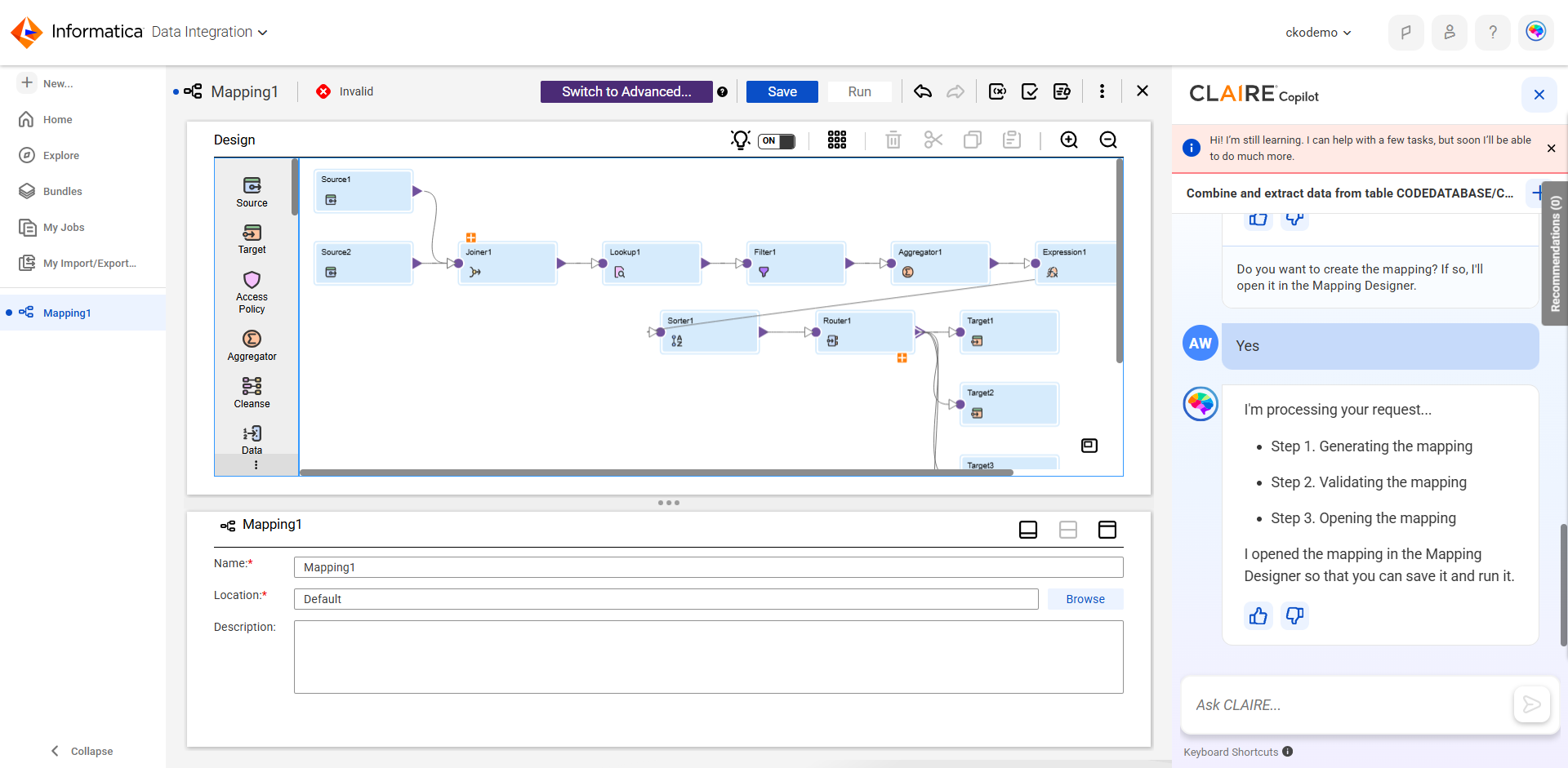
Let's ask CLAIRE Copilot to combine and extract data from Snowflake and demonstrate how the results appear in Data Integration. We'll specify the source objects, source connection, transformations, target objects, and target connection for CLAIRE Copilot to configure in the mapping.
We'll use the following prompt:
Combine and extract data from table EMPLOYEE_DETAILS and EMPLOYEE_SALES using the connection SnowflakeAnalytics2. Lookup the region name from the REGION_MASTER table based on region id. Filter only for employees in North America region. Aggregate the records by summing up the sales for each quarter for each Employee. Then create a full name for each employee and sort the data by Region. Route Q1, Q2, Q3 and Q4 records to new tables Q1_sales, Q2_sales, Q3_sales and Q4_sales respectively using the SnowflakeAnalytics2 connection.
1Enter the prompt in the conversation window.
2Click Yes.
The following image shows the response from CLAIRE Copilot and the created mapping:
3Resolve the validation errors in the mapping, if any, and then save and run the mapping.
Start with a basic prompt
Let's take a look at an example that demonstrates how you can create a mapping by starting the conversation with a basic prompt.
1You submit the following basic prompt to start the conversation:
I want to create an integration pipeline. I'll figure out my sources and targets on the fly.
CLAIRE Copilot replies with the following statement:
It looks like you're trying to create a mapping. Let's gather some more information. Here's a list of connections for the source: 1. Fabric_SalesProd 2. Snowflake_AnalyticsDev 3. OneLake_MarketingStaging 4. Snowflake_FinanceProd 5. OneLake_OperationsStaging
2You submit the following prompt:
I don't want to use any of these connections. List all Oracle connections for me.
CLAIRE Copilot replies with the following statement:
Here's a list of connections: 1. OracleSource_ProdDB 2. OracleSource_SalesDB 3. Oracle_Connection_Finance 4. OracleSource_Dev 5. OracleSource_HRData
3You submit the following prompt:
Great. I want to use OracleSource_Dev.
CLAIRE Copilot replies with the following statement:
I made a note of source connection OracleSource_Dev. I'm trying to find a source object using OracleSource_Dev.
4You submit the following prompt:
Let's use the CUSTOMERS table.
CLAIRE Copilot replies with the following statement:
I successfully validated source connection OracleSource_Dev and source object CUSTOMERS. Here's a list of connections for the target: 1. OneLake_DataHub 2. Fabric_SalesAnalytics 3. Snowflake_MarketingDB 4. Fabric_DevOps 5. OneLake_FinanceLake
5You submit the following prompt:
List all CSV file connections so I can choose a target.
CLAIRE Copilot replies with the following statement:
Here's a list of connections: 1. CSV_SalesData_Q1 2. CSV_MarketingCampaigns_2025 3. CSV_FinanceReports_Archive 4. CSV_FlatFile_Target 5. CSV_Inventory_Updates
6You submit the following prompt:
Awesome. Let's use CSV_FlatFile_Target as my target connection.
CLAIRE Copilot replies with the following statement:
I made a note of target connection CSV_FlatFile_Target. I'm trying to find a target object using CSV_FlatFile_Target.
7You submit the following prompt:
Let's create a new file called test_object.csv for the target object.
CLAIRE Copilot replies with the following statement:
I successfully validated target connection CSV_FlatFile_Target and source object test_object.csv.
Now that the mapping has a source and target, CLAIRE Copilot generates a summary of the mapping and asks you if you want to create it.
Fill in missing details
Let's take a look at an example that demonstrates how you can fill in missing details during the conversation.
1You submit the following prompt to start the conversation:
Create a mapping to read data from Account table using the "Salesforce" source connection and write it to a new table. Trim all except the last 6 characters from the Id field and Filter only for Accounts where Ownerid is “2”. Find total employees for each Type by counting account IDs.
CLAIRE Copilot replies with the following statement:
It looks like you're trying to create a mapping. Let's gather some more information. Here's a list of connections for the target: 1. Fabric_SalesProd 2. Snowflake_AnalyticsDev 3. OneLake_MarketingStaging 4. Snowflake_FinanceProd 5. OneLake_OperationsStaging
2You submit the following prompt:
Show me all Snowflake connections instead.
CLAIRE Copilot replies with the following statement:
Here's a list of connections: 1. Snowflake_ProdDB 2. Snowflake_SalesWarehouse 3. Snowflake_MarketingAnalytics 4. Snowflake_DevEnvironment 5. Snowflake_FinanceReporting
3You submit the following prompt:
Great. I know there are more Snowflake connections than the ones listed here. I want to use ‘Snowflake’ as my target connection for all my targets.
CLAIRE Copilot replies with the following statement:
I made a note of target connection Snowflake. I can't find target object [Missing] using connection Snowflake. You can check the spelling or ask me to find a different object.
4You submit the following prompt:
Let’s use Customer_Direct.
CLAIRE Copilot replies with the following statement:
I successfully validated target connection Snowflake and source object Customer_Direct.
Because you provided all missing details, CLAIRE Copilot generates a summary of the mapping and asks you if you want to create it.
Add and correct details
Let's take a look at an example that demonstrates how you can add and correct mapping details during a conversation.
1You submit the following prompt to start the conversation:
Create an integration pipeline to move records from Oracle to a flat file.
CLAIRE Copilot replies with the following statement:
It looks like you're trying to create a mapping. Let's gather some more information. Here's a list of connections for the source: 1. OracleSource_ProdDB 2. OracleSource_SalesDB 3. Oracle_Connection 4. OracleSource_DevEnvironment 5. OracleSource_HRData
2You submit the following prompt:
Let's use 3.
CLAIRE Copilot replies with the following statement:
I made a note of source connection Oracle_Connection. I'm trying to find a source object using Oracle_Connection.
3You submit the following prompt:
Check if the EMPLOYEE table is present and use it if it's there.
CLAIRE Copilot replies with the following statement:
I successfully validated source connection Oracle_Connection and source object EMPLOYEE. Here's a list of connections for the target: 1. FF_SalesData_2025 2. FF_CustomerRecords 3. FF_InventoryUpdate 4. FF_Target 5. FF_EmployeeDetails
4You submit the following prompt:
Wait, I wanted to use EMPLOYEE using FF_Source connection. Can you change the source connection?
CLAIRE Copilot replies with the following statement:
I successfully validated source connection FF_Source and source object EMPLOYEE. Here's a list of connections for the target: 1. FF_SalesData_2025 2. FF_CustomerRecords 3. FF_InventoryUpdate 4. FF_Target 5. FF_EmployeeDetails
5You submit the following prompt:
I want to insert the data into a file called "Employee_Oracle_Records" using the FF_Target connection.
CLAIRE Copilot replies with the following statement:
I successfully validated target connection FF_Target and source object Employee_Oracle_Records. All connections have been identified and updated.
Then, CLAIRE Copilot generates a summary of the mapping and asks you if you want to create it.
6You submit the following prompt:
Can you filter the records where location is 'US'?
CLAIRE Copilot updates the mapping summary and asks you again if you want to create the mapping.