You can save your search queries. The saved search can be a simple query or a complex query with multiple filters. You can type the search query, run it, and save it, or you can run a search query from the recent search suggestions and save it. Your saved searches are visible on the My Saved Searches page. The saved searches are private to the user who created them.
You can use your saved search to create a search-based widget on the Dashboard page. You can refresh the widget to see the current data that the widget specifies. You can also share a saved search with multiple users, user groups, and user roles in your organization.
Saving a search
You can save a search from the search page and reuse the search to get fresh results for the same query.
To save a search, perform the following steps:
1In the search bar, enter the search query you want to save.
2Select the Search icon to view the results on the Search Results page.
3Optionally, choose a sorting order for your search results. Use the Sort icon to set the sorting order. Your sorting order will be saved with your search.
4Optionally, apply one or more filters to your search. Use the Show Filters option to select the filters. Your filters will be saved with your search.
5Save your search.
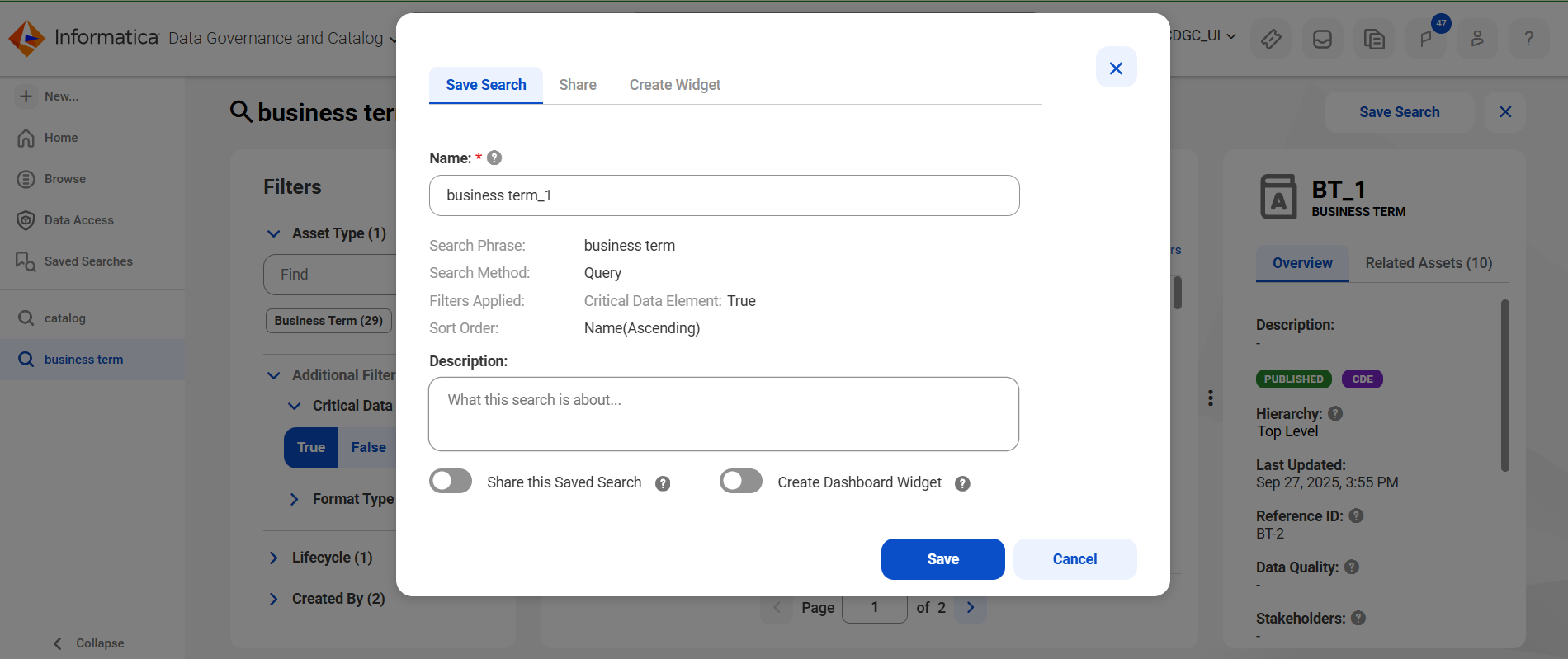
The Manage Saved Search panel appears.
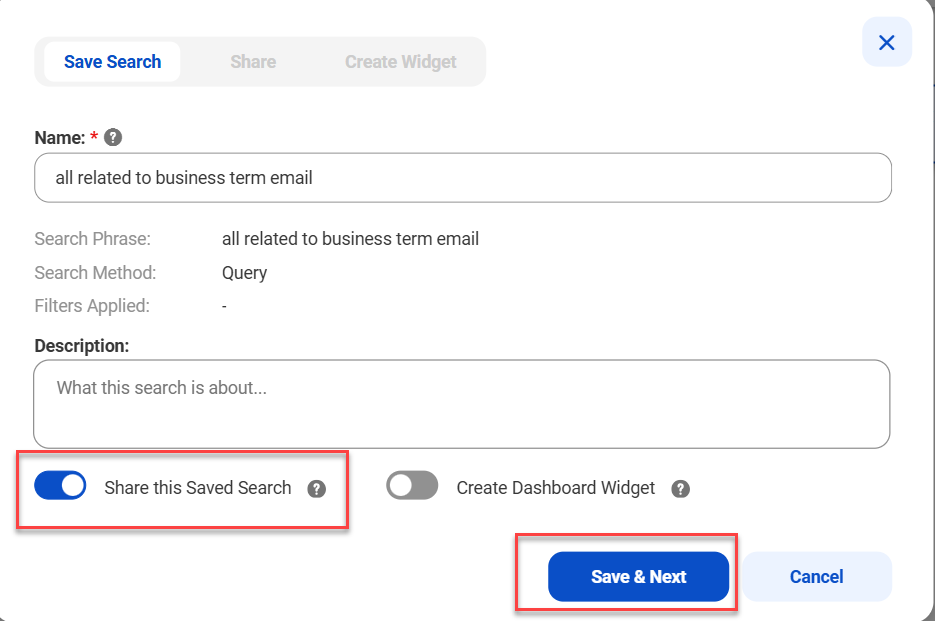
6On the Save Search tab, enter a name and optionally enter a description for the search you want to save.
7Confirm the following search details:
- The search phrase on which the query runs.
- The search method.
- Any filter that you applied to the search.
- Any sort order that you applied to the search.
Note:
The tab options also allow you to share your saved search and create a dashboard widget from the search results.
For more information, see Sharing your saved searches and Creating a dashboard widget for a saved search.
8Save your search configuration.
You can see your saved search in the Saved Searches list.
You can update a search that you saved, and you can create a search from your current search.
Creating a dashboard widget for a saved search
You can create a dashboard widget for a search that you save and use the widget to visualize the results of your search. Create the widget from a search that you saved earlier, or create the widget during the process to save your search.
To create a dashboard widget for a saved search, perform the following steps:
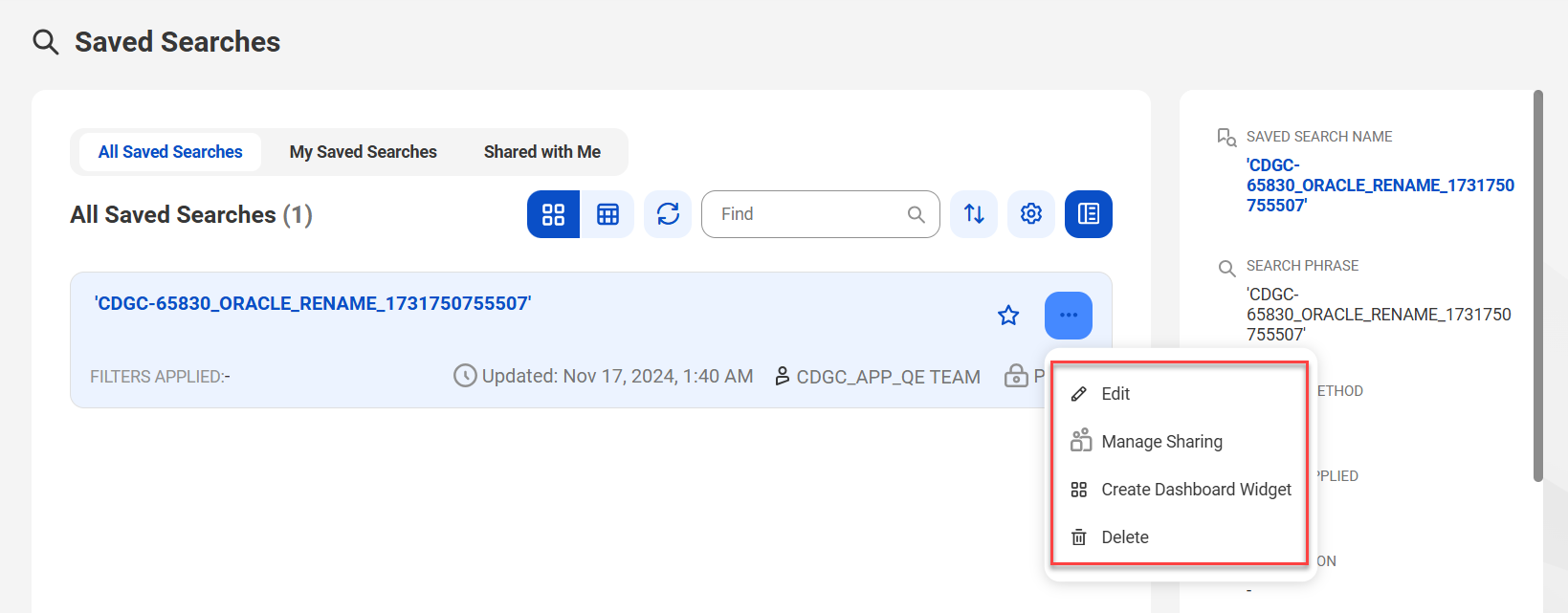
1On the Saved Searches page, click the action menu on a saved search query.
Alternatively, on a search results page click the Save Search button and select the Create Dashboard Widget option on the dialog box that appears. Then, click Save & Next.
2Select Create Dashboard Widget.
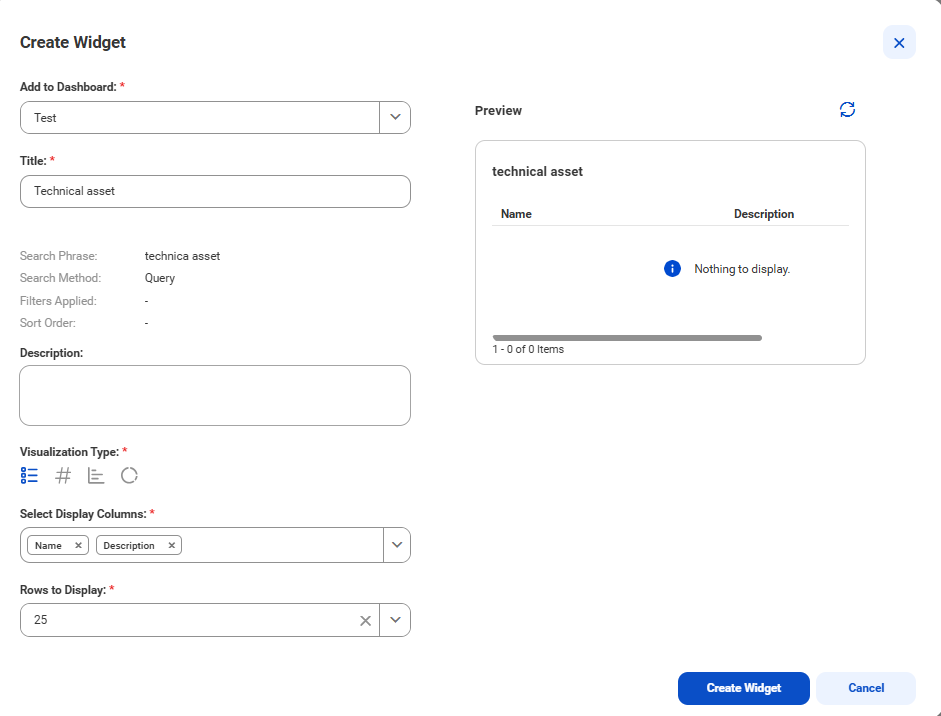
The Create Widget dialog box appears.
3Configure the widget properties.
The following table describes the properties in the Create Widget dialog box:
Field
Description
Add to Dashboard
Identifies the dashboard to which you want to add the widget. Select the dashboard from the list.
Title
Indicates the title of the widget.
Description
Provides a description for the widget. You can optionally add a description.
Visualization Type
Specifies how to display the results on the widget. You can choose one of the following visualization types:
- List. Displays the list of assets in a table.
- Count. Displays the total count of assets that match the search criteria.
- Bar chart. Displays the total count of assets that match the search criteria in a bar chart.
- Donut chart. Displays the total count of assets that match the search criteria in a donut chart.
Select Display Columns
Specifies the data attributes to display in a List widget.
Rows to Display
Specifies the number of rows to display in a List widget.
Preview
Displays a preview of the widget. Use the refresh option to update the preview if you change your configuration.
4Click Create Widget.
You can perform additional tasks on the widget on the dashboard page. If you delete the search that the widget uses, the widget appears empty on the dashboard.
Viewing your saved searches
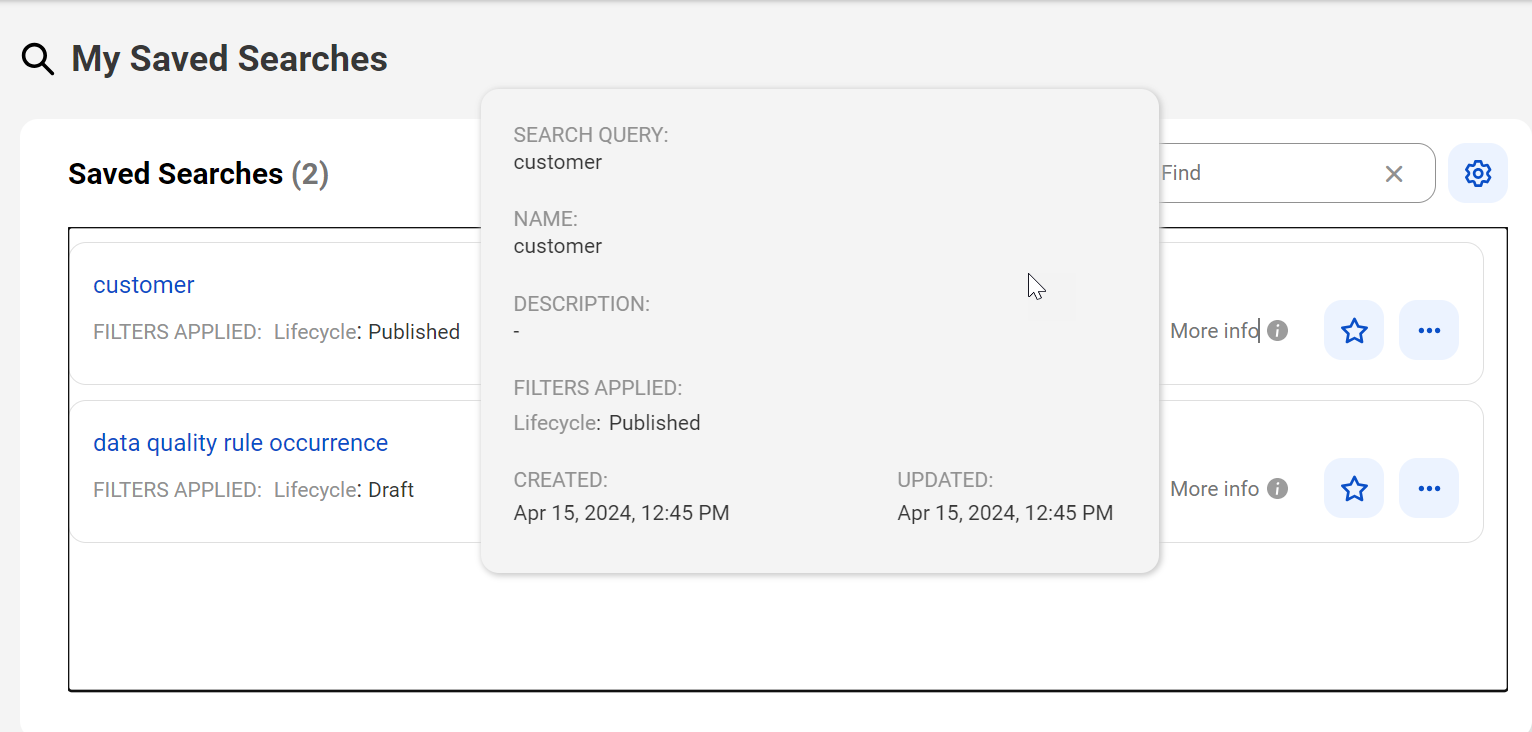
You can view all the searches you saved on the My Saved Searches page.
To view your saved searches, perform the following steps:
1Go to Home page and click Saved Searches.
My Saved Searches page opens.
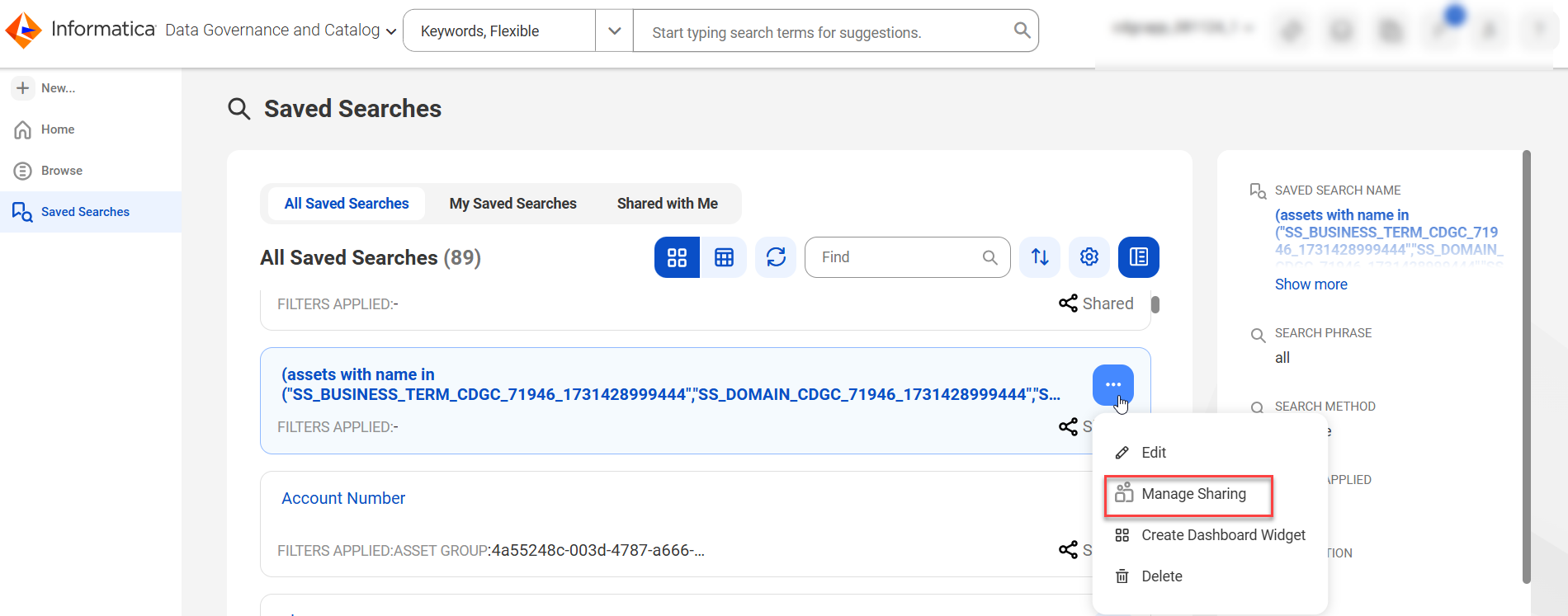
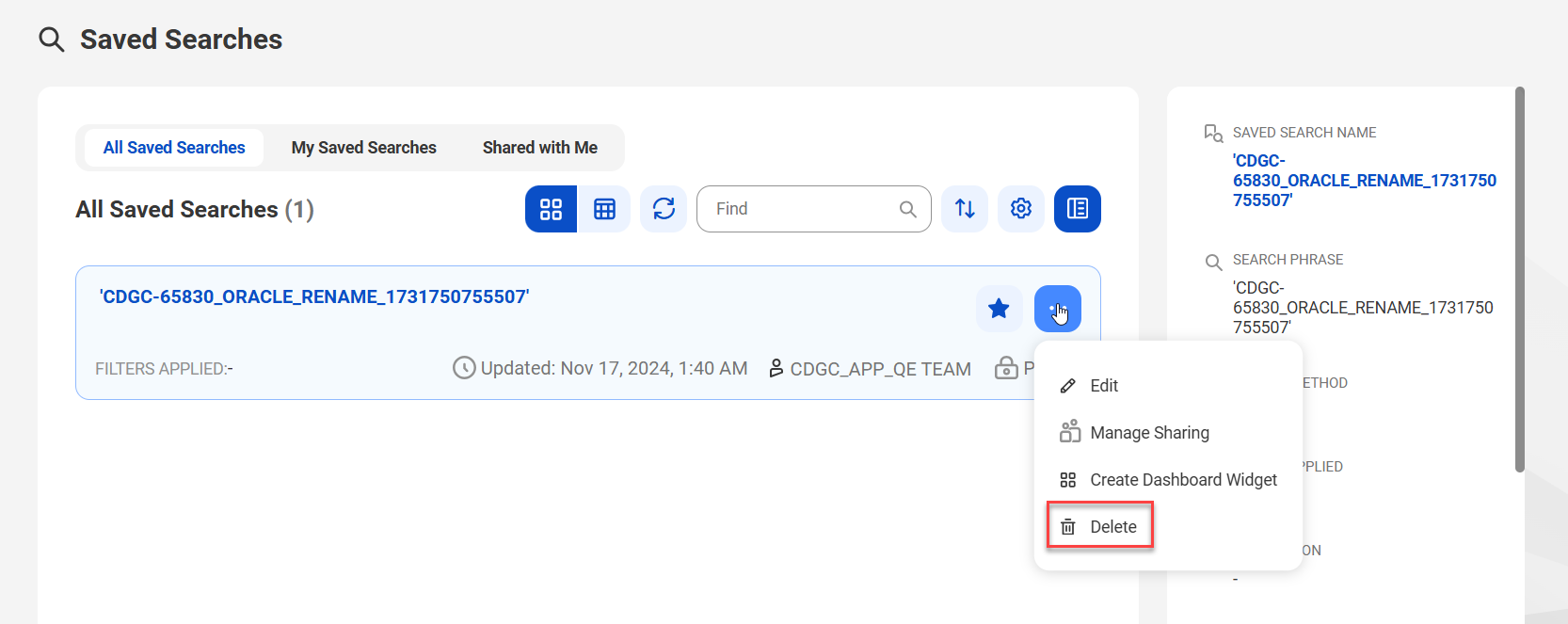
2Click the Action menu and select any of the following options:
Field
Description
Edit Saved Search
Select to edit the search you saved.
Manage Sharing
Select to share the search and assign permissions.
Create Dashboard Widget
Select to create a dashboard widget of your saved search.
Delete Saved Search
Select to remove the saved search that is no longer in use.
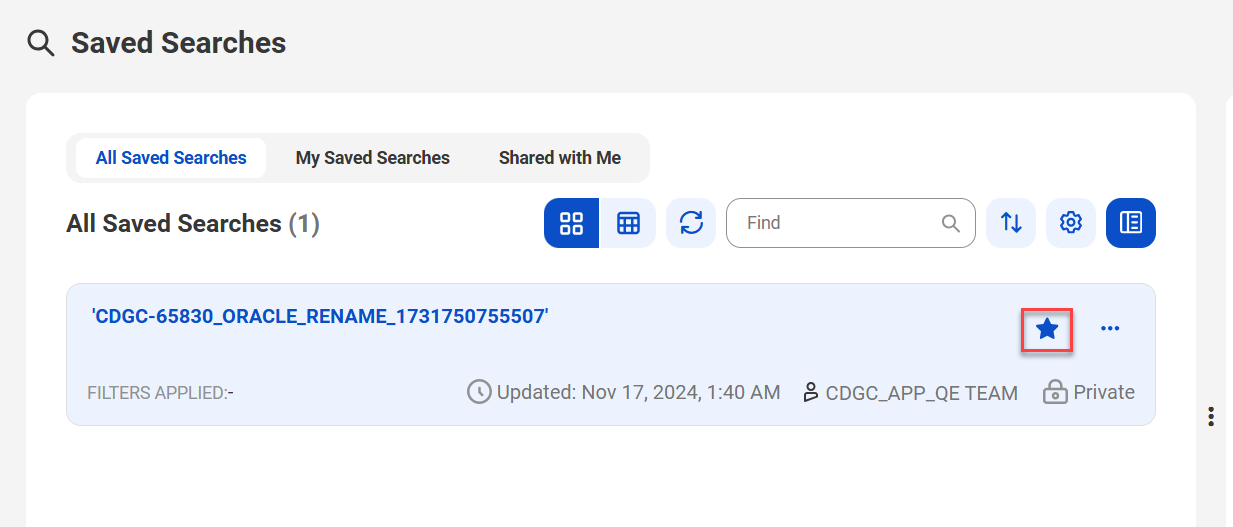
3Click the star icon to mark some searches as favorites. These saved searches appear at the top of the page. Searches that you do not favorite appear in order of most recently saved.
4Click More info to view the following details of the saved search:
Field
Description
Search Query
Name of the search query
Name
Name of the saved search
Description
Description of the saved search
Filters Applied
The filters applied to the saved search
Created
The date when the saved search was created
Updated
The date when the saved search was updated
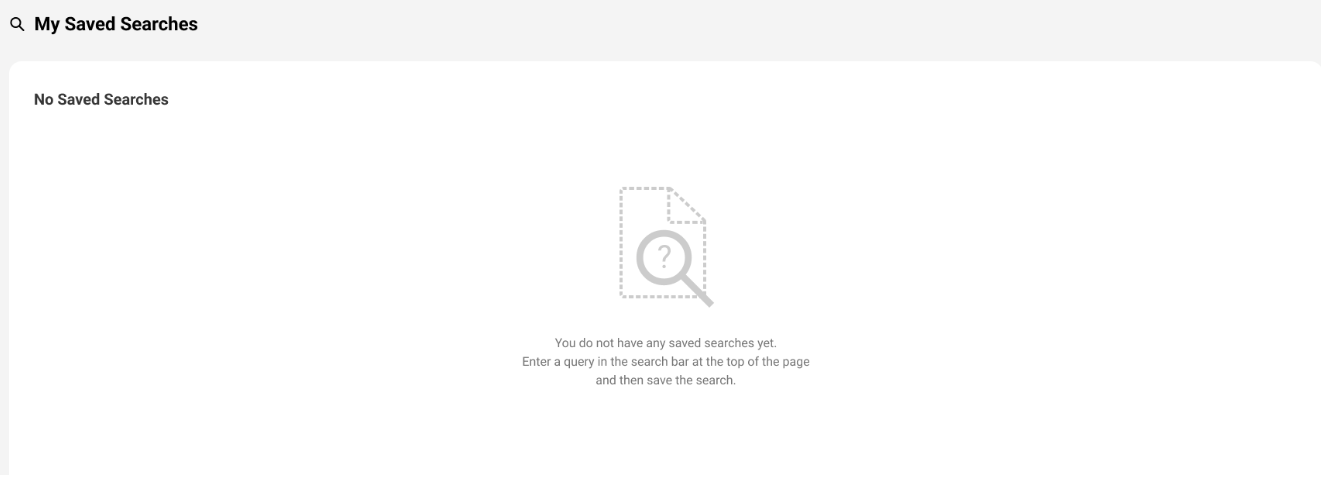
5If you don't have any saved searches, a message is displayed on the My Saved Searches page.
Sharing your saved searches
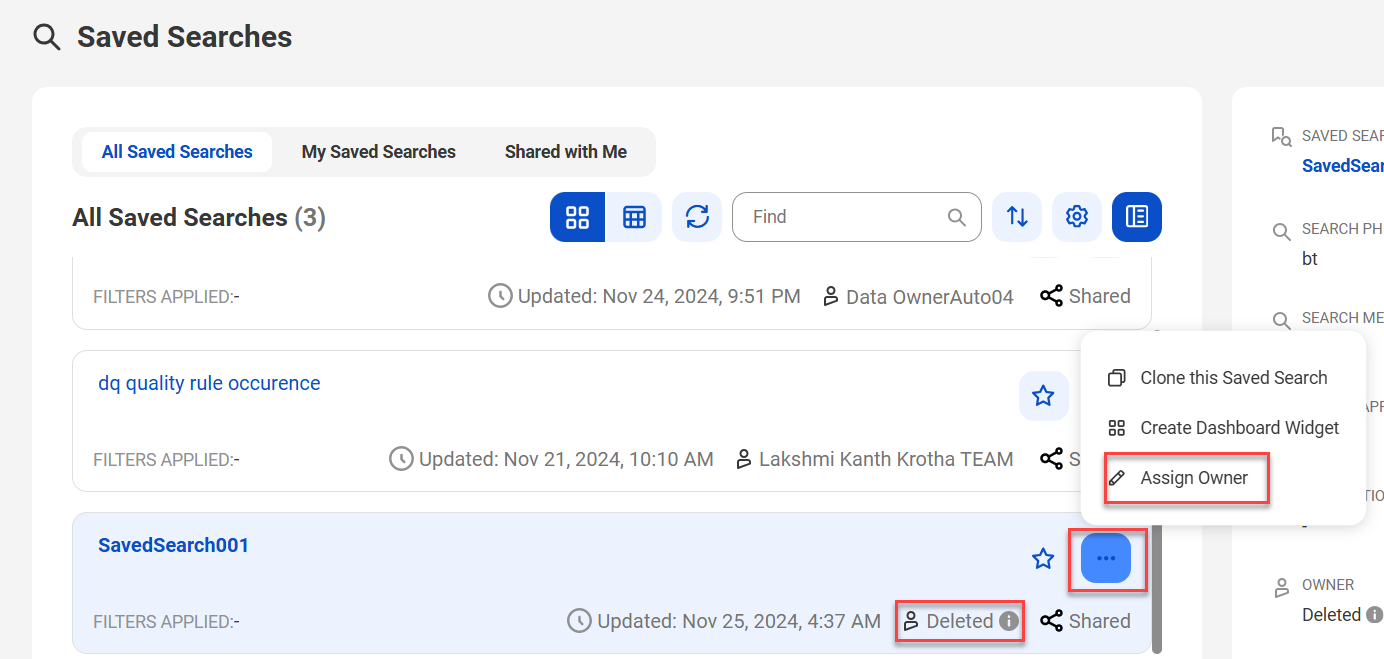
If you are the owner of a saved search, you can now share the search with different users, user groups, and user roles in your organization. If the organization administrator has enabled the Manage Access Control privilege for your user role in Administrator, you can also transfer ownership of a saved search to a different recipient if the owner is inactive.
To share a saved search, perform the following steps:
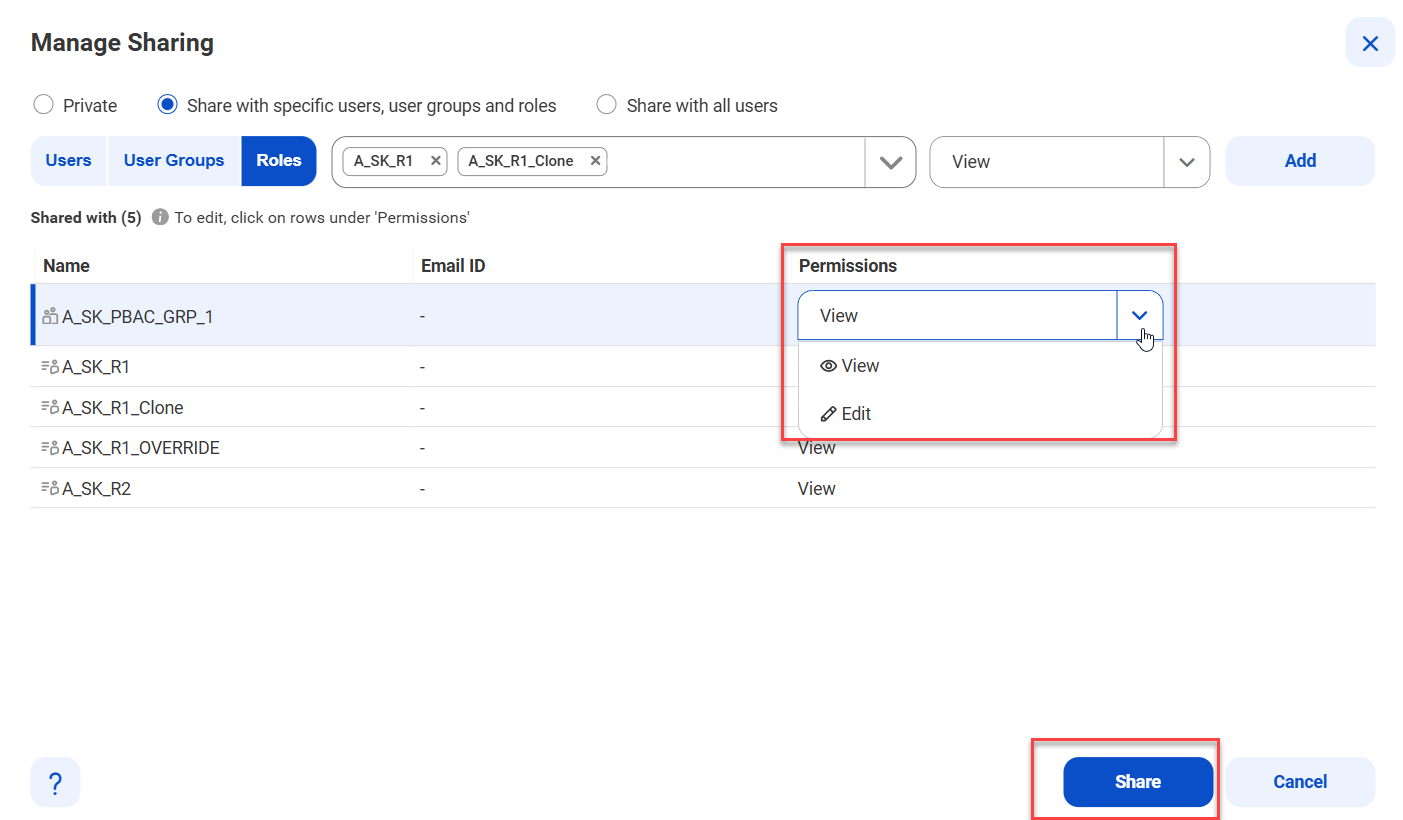
1On the Saved Searches page, click the action menu of a saved search and then click Manage Sharing.
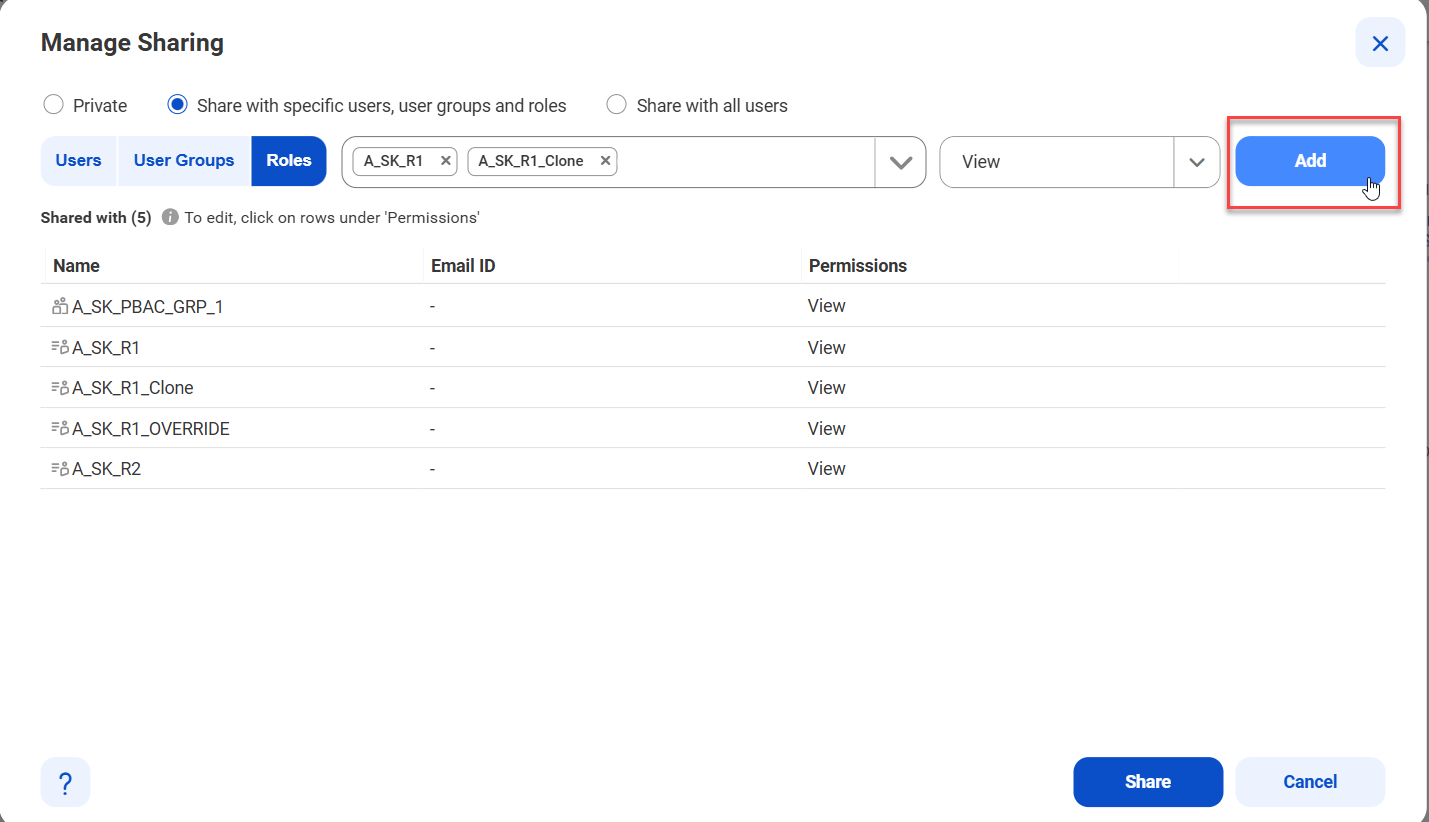
2Based on whom you want to share your search with, select the following options:
Field
Description
Private
Select to remove the saved search access for everyone with whom you shared the search.
Share with specific users, user groups and roles
Select to share the saved search with one or more users, user groups, and roles, and assign them permissions to view or edit the saved search.
Share with all users
Select to share the saved search with all users and assign them permissions to view or edit the saved search.
3Click Add.
4Review the permissions you want to assign to the users, user groups, and roles with whom you share your search. Click the value under the Permissions column. After you have reviewed everything, click Share.
5Alternatively, you can share a search when you save a search. Enable the Share this Saved Search switcher in the Save Search tab and click Save & Next.
Assigning owner to a saved search
To assign an owner to a saved search, perform the following steps:
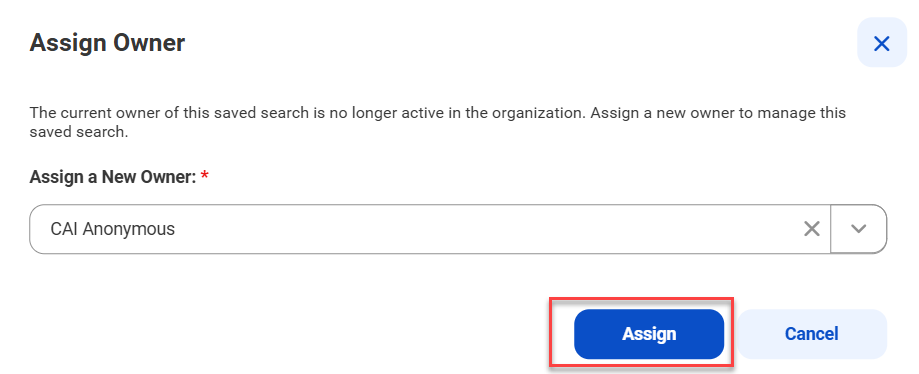
1On the Saved Searches page, click the action menu of a saved search with an inactive owner. Click Assign Owner.
2Select a new user and click Assign.
Deleting your saved searches
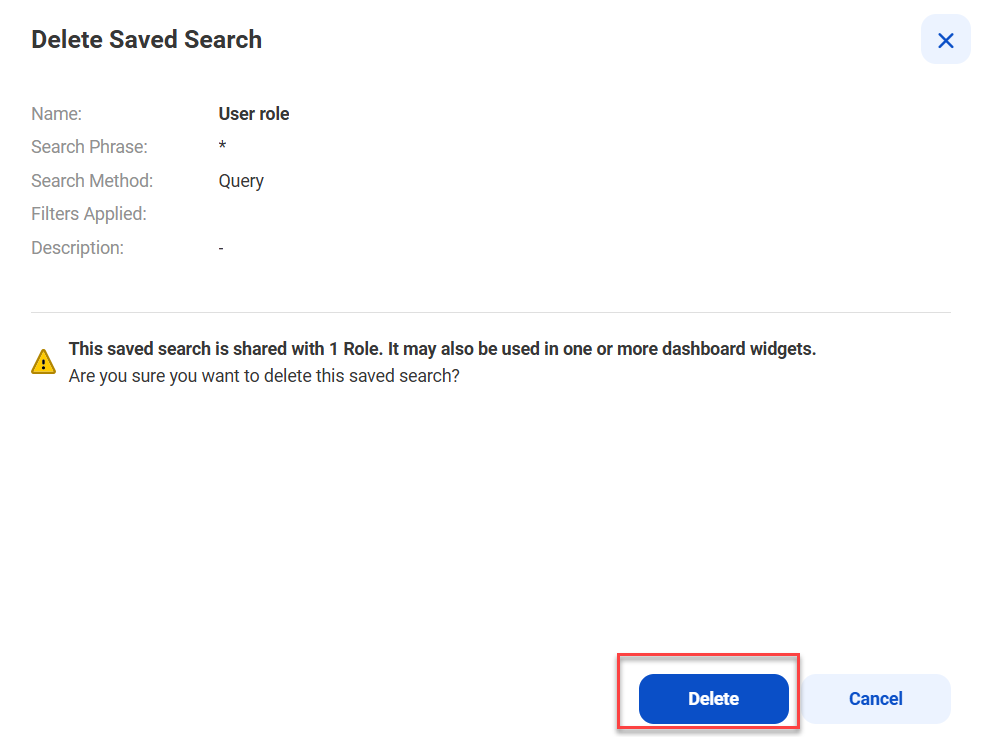
If a saved search is not relevant, you can delete the saved search only if you are the owner of the search. The recipients with whom you have shared the saved search can't delete the search.
To delete a saved search, perform the following steps:
1On the My Saved Searches page, click the Action menu for a search and then click Delete Saved Search.
2Review the impact of the saved search, and click Delete to proceed with the deletion. When you delete a saved search that is shared with one or more recipients, any widget that is created from the search will become empty.