Field | Description |
|---|---|
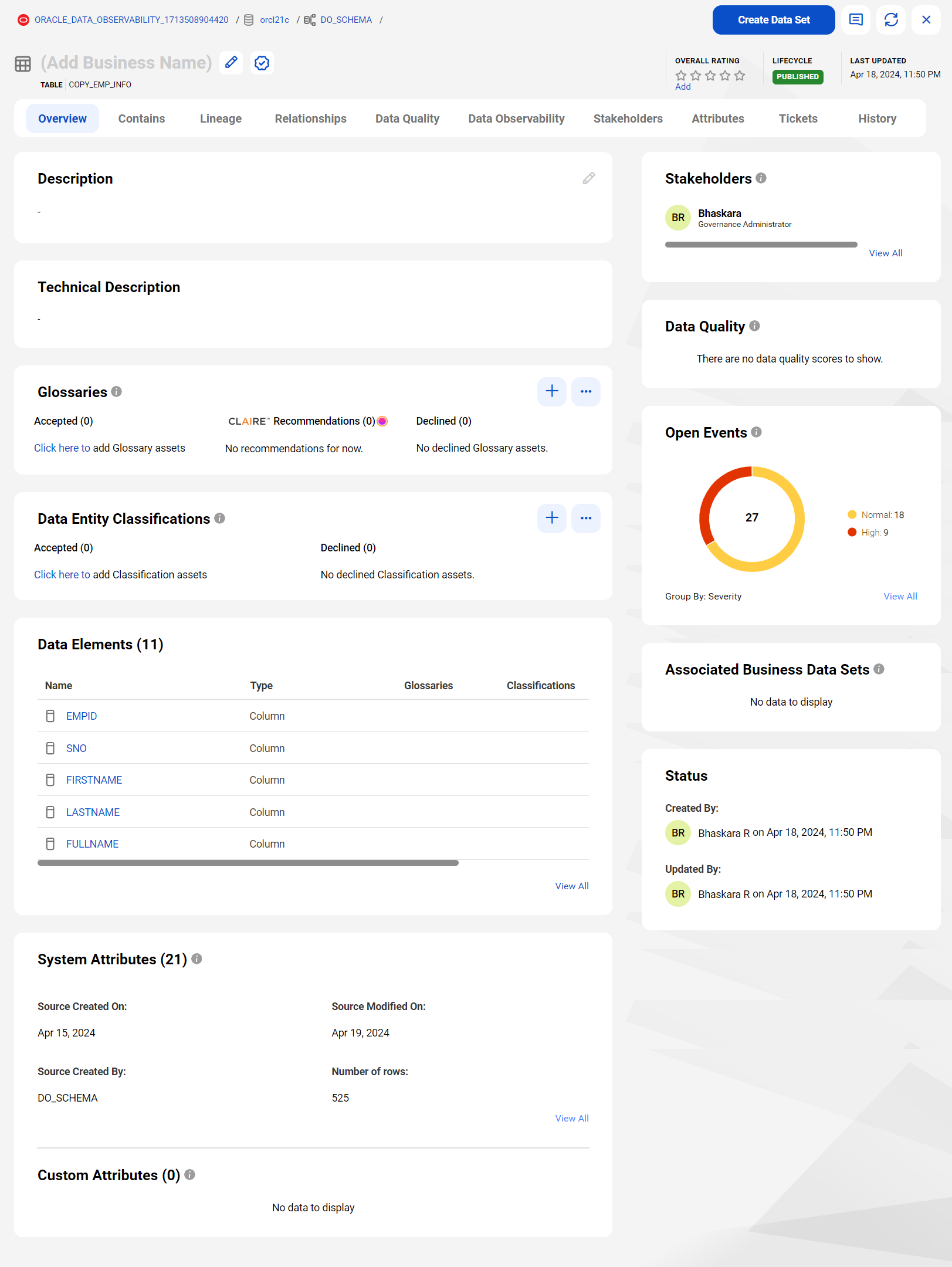
Hierarchy | The top of the page displays the hierarchical path of the technical asset. |
Name | Name of the technical asset. The name can be one of the following types:
For more information about configuring a catalog source to extract metadata from source systems, see the Catalog Source Configuration help in Metadata Command Center. For more information about curating glossaries for technical assets, see Curate glossaries for technical assets. |
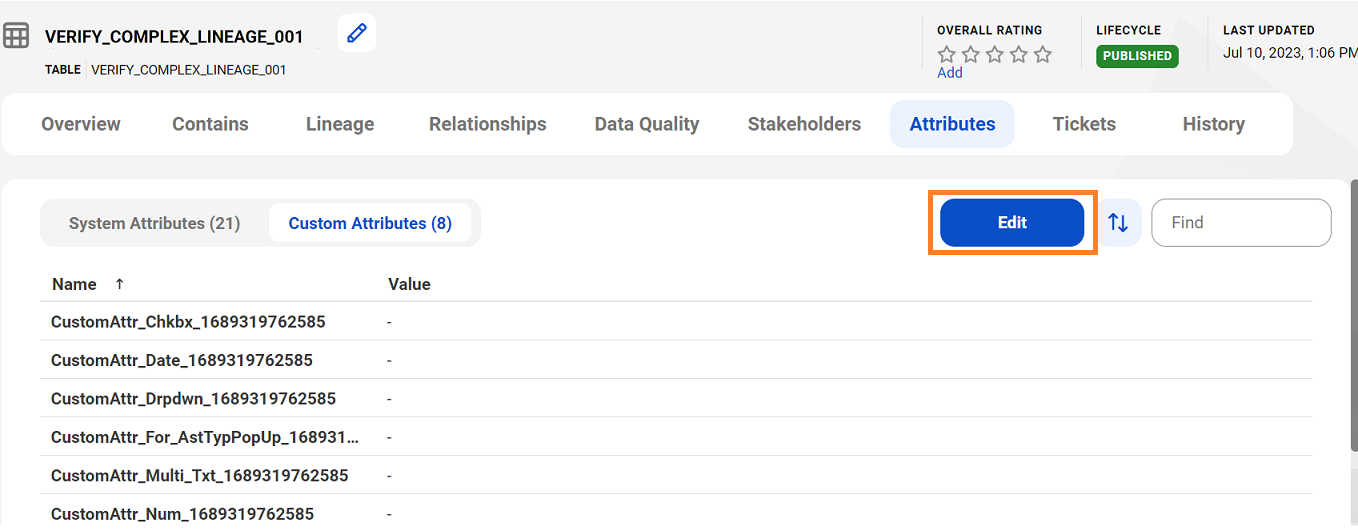
Overall Rating | Rate a technical asset to indicate your assessment of the quality of the asset. As a stakeholder, you can endorse a technical asset as trusted and reliable by certifying the asset and also decertify the technical asset if it is longer trusted and valid. You can add your comments to the asset and collaborate with other users to make collective decisions on using the data. For more information about collaborating on an asset, see Collaboration in the Asset Management help. |
Lifecycle | Stage of the asset in the production lifecycle. If the administrator has configured a workflow for creating or updating assets, the Lifecycle value displays the current stage of the asset in the workflow. |
Last Updated | Date on which the asset was last updated. |
Field | Description |
|---|---|
Description | This field appears only for technical data sets and data elements. Description of the technical asset. The size of the field should not exceed 1 MB. The description can be one of the following types:
For more information about configuring automatic association of technical assets with Glossary assets, see the Asset Management help. |
Technical Description | Technical description of the asset that Metadata Command Center extracts from the source system. This field appears only for technical data sets and data elements. For more information about configuring a catalog source to extract metadata from source systems, see the Catalog Source Configuration help in Metadata Command Center. |
Glossaries | View glossaries for the technical assets. Accept or decline glossaries that the CLAIRE engine recommends, or associate a glossary asset manually. You can hover over a glossary to view the confidence score based on which the glossary asset was recommended, accepted or rejected. Note: If a glossary asset was manually associated with the technical asset, the system doesn't display a confidence score when you hover over the glossary. This field appears only for technical data sets and data elements. For more information, see Glossary association. |
Data Element Classifications | View data element classifications for the technical assets. Accept or decline data element classifications that the data classification rule detects, or associate a data element classification manually. For more information, see Curate data classifications for technical assets. This field appears only for technical data elements only if the Data Classification capability is enabled and configured in Metadata Command Center for the catalog source. |
Data Entity Classifications | View data entity classifications for the technical assets. Accept or decline data entity classifications that the data entity rule detects, or associate a data entity classification manually. For more information, see Curate data classifications for technical assets. This field appears only for technical data sets only if the Data Classification capability is enabled and configured in Metadata Command Center for the catalog source. |
Document Classifications | View document classifications for the technical assets. Accept or decline document classifications that the document classification capability detects, or manually associate a document classification with the asset. For more information, see Curate document classifications for technical assets. This field appears only for unstructured data assets such as PDFs, text files, and Microsoft Word files. |
System Attributes | The system properties of the technical asset. |
Custom Attributes | The user configured custom attributes of the technical asset. To view all the existing custom attributes, click View All to open the Custom Attributes sub-tab on the Attributes tab. You can also modify values of the custom attributes from the Overview tab or the Attributes tab. |
Profiling statistics | To know more about the types of profiling statistics that you can view, see Data profiling statistics. This field appears for technical data elements only if the Data Profiling capability is enabled and configured in Metadata Command Center for the catalog source. |
Data Elements | The child assets of a data set. This section displays the data elements, such as columns, that constitute the data set. You can click a data element to see the details on a new technical asset page. This field appears only for technical data sets. |
Data Quality Score | Aggregated data quality scores for the technical asset. The percentage value displays the overall score for the data elements that comprise the asset. The Rules Against Target section display the aggregate quality measurement of the data sets and data elements against the defined threshold and target values. Click View rules against target breakdown to see the data quality rules that specify the threshold and target values. This field appears only for technical data sets and data elements. |
Data Marketplace | Details of an asset's presence in Data Marketplace. If an asset is added to a data collection in Data Marketplace, you can view the details of the data collection. For more information, see the following topics:
|
Open Events | Open events for the data observability anomalies identified for the technical asset. |
Stakeholders | Users responsible for the technical asset or interested in the asset. |
Asset Groups | One or more asset groups assigned to the asset. Asset groups allow users access to a set of assets in the organization. You can assign asset groups to an asset if you are the stakeholder of the asset or if your organization administrator has granted you the Manage Access permission on the asset through access policies in Metadata Command Center. |
Associated Business Data Sets | The business data sets that are associated with the technical data set. This field appears only for technical data sets and data elements. For information about creating data sets from technical assets, see the Asset Management help. |
Reference Data | Code values and attributes from Reference 360 linked to the data element. The Reference Data field appears only for data elements, and you can view the Reference Data tab only if you have the View Reference Data permission. |
Created By | User that created the technical asset along with the date and time of creation. |
Updated By | User that last updated the technical asset along with the date and time on which it was last updated. |
Linked Lineage | The links that are generated for this catalog source as a result of linking it with another catalog source in Metadata Command Center. For more information about linking catalog sources to generate lineage, see the Administration help in Metadata Command Center. You can view the links for a catalog source only if you are a stakeholder for the catalog source. Click this link to view all the links generated for this catalog source and to curate those links to view complete lineage. For more information about curating the catalog source links, see the Asset Management help. This panel appears only for catalog sources. |
Field | Description |
|---|---|
Name | Name of the constituent data element. Shows if the constituent data element is part of a Primary or Secondary key. |
Business Name | Business name of the data element. |
Type | Type of the constituent data element. |
Glossaries | Glossary assets that are associated with the constituent data elements. You can use the Curate button to associate a data element with glossary assets. You can hover over a glossary to view the confidence score based on which the glossary asset was recommended, accepted or rejected. Note: If a glossary asset was manually associated with the technical asset, the system doesn't display a confidence score when you hover over the glossary. For more information, see Glossary association. |
Classifications | Data classifications associated with the constituent data elements. You can use the Curate button to associate a data element with data classifications. For more information, see Curate data classifications for technical assets. |
CLAIRE Recommendations | Automatically recommended glossary assets for the data element. |
Profiling statistics | Null, distinct, and non-distinct values for the data element. For more information, see Data profiling statistics. |
Source Data Type | Source data type of the data element. |
Inferred Data Type | The data type that was inferred for the data element. |
Description | Description of the constituent data element as it appears in the source system. |
Technical Description | Technical description of the constituent data element as it appears in the source system. |
Sensitivity | Sensitivity level of the constituent data element. |
Hierarchy | Hierarchy of the constituent data element. |
Custom Attributes | Custom attributes of the constituent data element. |
Field | Description |
|---|---|
Name | Name of the related asset. |
Type | Type of the related asset. |
How It Is Related | Relationship between the assets and the technical asset that you have opened. Hover the mouse over the arrows to see if the relationship is a direct, indirect, inbound or outbound. The term "this asset" refers to the technical asset that is open. |
Filter | Description |
|---|---|
Asset Type | Select one or more values to view related assets of specific asset types. |
Defined Group | Specify whether you want to view related business or technical assets. You can select one of the following values:
|
Direction | View related assets of a particular origin. You can select the following values:
|
Lifecycle | The lifecycle status of the published asset. |
Relationship Type | View assets of a particular direction. You can select the following values:
|
Dimension | Explanation |
|---|---|
Validity | Aggregate score of the data elements with respect to valid and meaningful data. |
Accuracy | Aggregate score of the data elements with respect to accurate and useful data. |
Completeness | Aggregate score of the data elements with respect to data that is complete and usable. |
Timeliness | Aggregate score of the data elements with respect to data that is sufficiently recent for use. |
Consistency | Aggregate score of the data elements with respect to data that is consistently and regularly entered. |
Rules | Explanation |
|---|---|
Good | Aggregate scores that are higher than the target value across each dimension for the data elements. |
Acceptable | Aggregate scores that are higher than the threshold value but lower than the target value across each dimension for the data elements. |
Not Acceptable | Aggregate scores that do not meet the data quality threshold across each dimension for the data elements. |
Field | Description |
|---|---|
Name | Name of the rule occurrence. |
Dimension | Data quality dimension for which the data quality rule is run. |
Latest Score | Aggregate score from the latest rule run. |
Date | Date of the latest rule run. |
Total Rows | Total number of rows in the data element for which the rule is run. |
Invalid Rows | Number of invalid rows in the data element for which the rule is run. |
Primary Data Element | Data element on which the data quality rule is run. This data element is the input port for the rule in the integrated data quality system. The data quality score is always generated for the primary data element. |
Secondary Data Element | Secondary input port for the data quality rule that is run on the Primary Data Element. |
Description | Description of the rule occurrence. |
Related Rule Template | Rule template for which the rule is run. |
Field | Description |
|---|---|
Name | Name of the event that data observability creates when it detects an anomaly in the source data. |
Metric | Metric type against which the anomaly was identified and the event was created. |
Asset | Source data within which the anomaly was identified. Note: The Asset field appears for data sets and catalog sources. |
Severity | Severity level of the event that data observability identified. |
Last Detected | Timestamp that indicates when the anomaly was identified during the catalog source job. |
Status | Current state of the event. |
Field | Description |
|---|---|
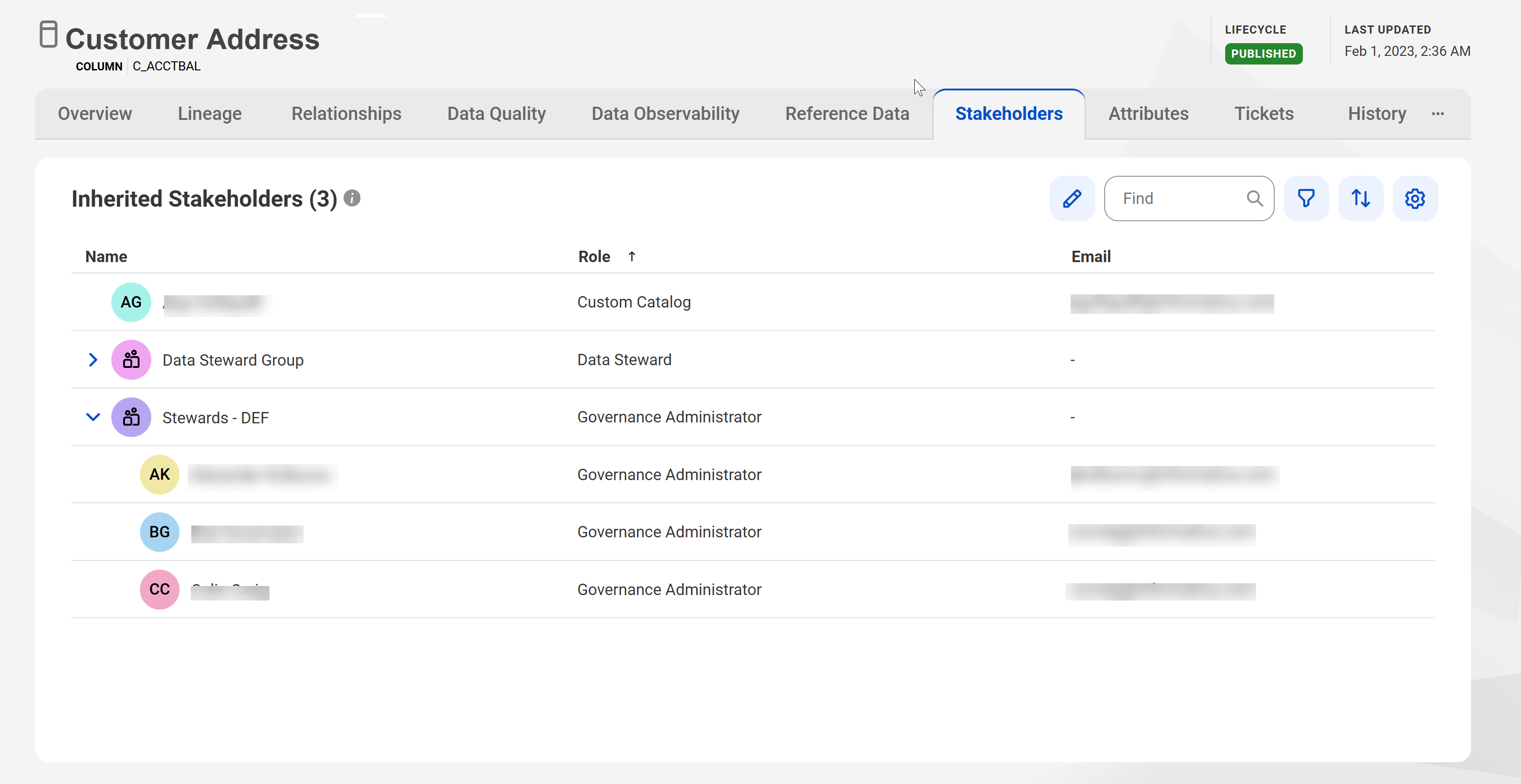
Name | Name of the stakeholder. |
Role | The role that is assigned to the stakeholder. |
User Origin | The origin of the users. For example, when a user logs in using SSO, the value for this field is displayed as SAML. |
Email | The email ID of the user. |
Field | Description |
|---|---|
Name | Name of the ticket. |
Description | Description of the ticket. |
Type | Type of ticket. |
Status | Status of the change ticket. |
Current Task Owner | The stakeholders who are assigned to the tasks in the ticket. |
Field | Description |
|---|---|
Date | Created and last updated dates of the asset. |
Event Type | Type of event that is performed on the asset. Event Types include the following:
|
Action | Actions performed on the asset: Actions on assets include the following:
|
Current Attributes | Recently changed attributes of the asset. |
Previous Attributes | Earlier attributes of the asset. |
Changed By | User who performed any action on the asset. |
Asset Name | Name of the asset. |
Asset Path | Origin path of the asset. |
Asset Type | Type of the asset. |
From Asset Type | Source asset type for which the change is applicable. This is applicable when the event type is Relationship. |
To Asset Type | Target asset type for which the change is applicable. This is applicable when the event type is Relationship. |