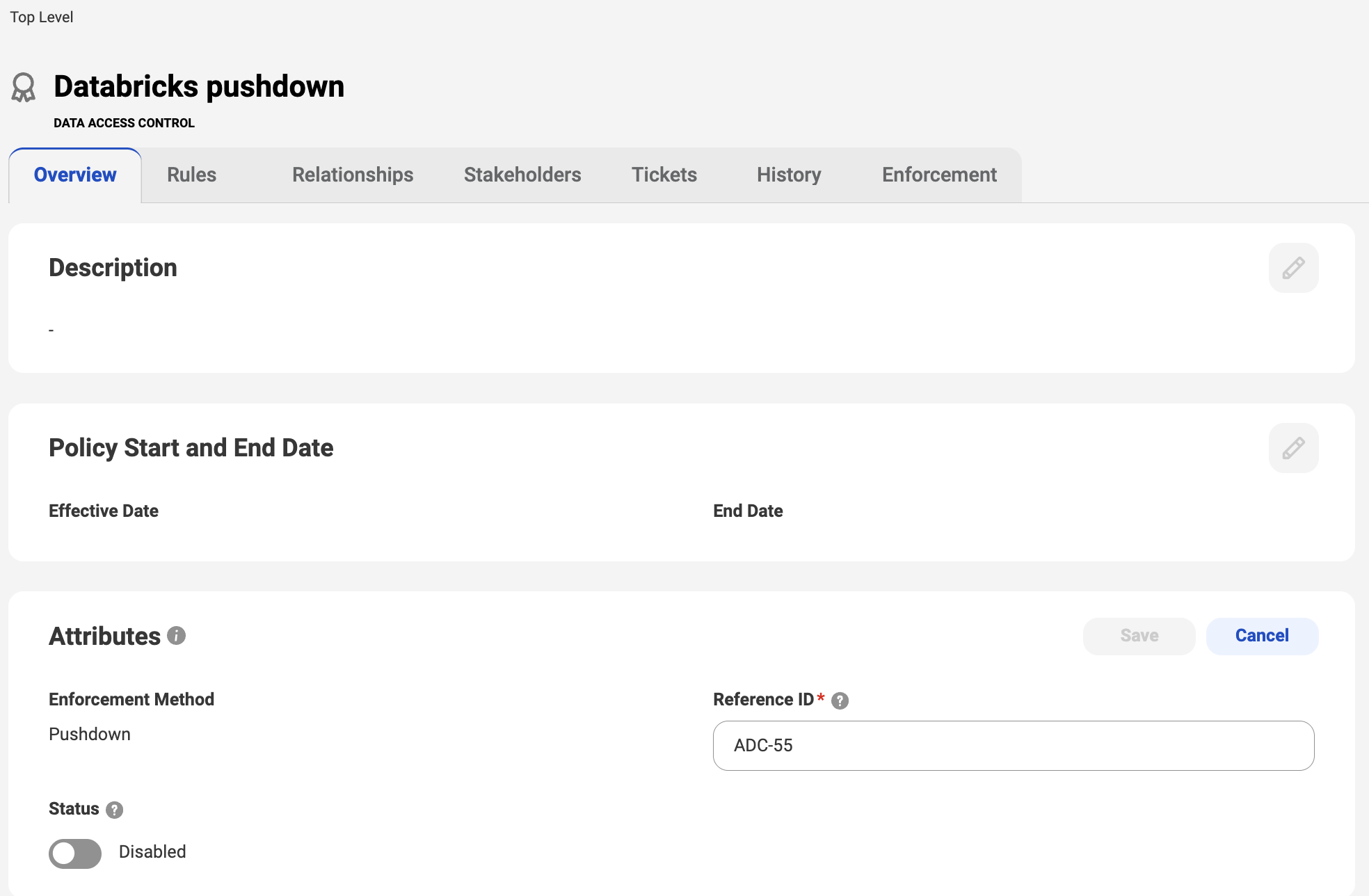
When you work with a data access asset, you can add conditions to it, and modify it using a series of tabs.
Data access assets have the following tabs:
•Overview. Basic information about the asset.
•Rules. Data access rules associated with a data access policy.
•Relationships. The relationships that the asset has with other assets.
•Stakeholders. Stakeholder assignments.
•Tickets. Change request tickets that users have created for an asset.
•History. Changes that users have made to the asset.
•Enforcement. Whether Data Governance and Catalog is applying any data access policies to the asset in your source system through pushdown enforcement.
The following image shows the tabs visible on a data access control policy:
For more information about the tabs available for data access assets, see View technical assets in the Data Governance and Catalog help.
Data access policy selection
Before creating data access policies on the Data Access Management page, select which type of policy best fits each of your use cases.
You can create the following types of policies:
•Data access control policies grant groups of users read, write, or delete access to tables or views in a specific source system. Data Governance and Catalog pushes these policies into your cloud data platform. The data source enforces the policy directly.
Data access control policies best serve use cases that require provisioning data for analytics in native cloud data platforms. In those platforms, you use native access controls and tools where some groups only require read access to entire tables or views of data while other groups require write access.
•Data filter policies restrict or limit which records Data Governance and Catalog delivers to users.
Data filter policies best serve the following types of use cases:
- Complying with data privacy regulations such as HIPAA, GDPR, or data transfer regulations by limiting which records users can access
- Provisioning data for analytics in which the analysts have access to only some of the data
•Data de-identification policies transform data in ways that you specify to de-identify sensitive data. The de-identified data might be tokenized to maintain the original format, generalized to a common year or month, or truncated to keep only minimal contents visible, making it useful for analysis.
Data de-identification policies best serve the following types of use cases:
- Complying with data privacy regulations such as HIPAA or GDPR while still being able to use the de-identified data for analysis
- Provisioning data for analytics in which the analysts aren't allowed to have access to raw, un-redacted data
Examples
The following examples show which type of data access policy to use in different business scenarios.
The Operations team at your financial organization needs write access to any customer data in accordance with financial regulations. Your organization's anti-money laundering (AML) department needs read access to customer data to ensure that no customers are laundering money through your organization. All of your customer data is stored in a Snowflake source system. Data access control policies best serve this use case because you can write policies that Data Governance and Catalog pushes directly into your Snowflake instance. For tables containing customer data, the data access policies can grant write access to the Operations team while granting read access to the AML department.
You have customers in Western Europe and the Middle East. Your organization stores customer data in data centers in Dublin, Ireland and Riyadh, Saudi Arabia. Data filter policies best serve this use case because you can write policies that ensure that European customer data is only accessed and processed within the European Union and Saudi Arabian customer data is only accessed and processed within Saudi Arabia. These data filter policies prevent your organization from running afoul of data sovereignty regulations included in the GDPR and the PDPL.
The compliance department at your healthcare organization wants to perform analytics on patient data to determine what percentage of patients are overdue for more than one preventative health screening. The patient data includes patient ID numbers, contact information, and medical history. Data de-identification policies best serve this use case because you can write policies that replace patient ID numbers with tokens, redact all contact information, and leave medical history untouched. Using the tokenized patient ID numbers, your compliance department can determine how many preventative health screenings each patient is overdue for without being able to identify any individual patient. These data de-identification policies prevent your organization from running afoul of data privacy regulations such as HIPAA.
Creating data access policies
You create data access policies to control access to tables or views in source systems and to filter or de-identify data in other assets. The steps for creating data access policies are mostly the same, regardless of which type of data access policy you create.
1To display the Data Access Management page, click Data Access in the left navigation.
2Click the tab for the type of data access policy that you want to create.
You can create the following types of data access policies:
- Data access control policies
- Data filter policies
- Data de-identification policies
3To open the data access policy creation page, click the plus sign.
4Enter the following properties for the data access policy:
Property
Description
Name
Name of the data access policy.
Description
Description of the data access policy.
Enforcement Method
The enforcement method for the data access policy.
- Select Data Integration/Data Marketplace to have Data Access Management use this data access policy to protect data in Data Integration mappings and Data Marketplace orders.
- Select Pushdown to have Data Access Management push down the data access policy into your cloud data platform.
Note:
Not all enforcement methods are available for all types of data access policies.
Precedence Tier
The precedence tier of which this data access policy is a part.
You organize data de-identification policies in precedence tiers. You don't organize data access control policies and data filter policies in precedence tiers.
Reference ID
Unique identifier for the data access policy.
Status
The status of the data access policy.
Ensure that the data access policy is enabled if you want it to be active immediately after you publish it.
Effective Date
The effective date of the data access policy.
End Date
The end date of the data access policy.
Asset Groups
The asset groups to which the data access policy is assigned.
Stakeholders
The stakeholders for the data access policy.
Note:
Add stakeholders to ensure that you have access to this data access policy when you configure a workflow.
5Click Create.
The overview page for the data access policy appears.
You can now add rules to this policy.
If you don't have a workflow configured, this data access policy automatically changes to published status.
If you do have a workflow configured, this data access policy changes to draft status.
For more information about designing workflows, see Workflows in the Metadata Command Center help.
Adding a condition to a data access policy
After you create a data access policy, you can add one or more conditions to it to further refine when the policy applies. This is optional. Only data de-identification policies and data filter policies with an enforcement method of "Data Integration/Data Marketplace" have conditions. The steps for adding a condition to a data access policy are mostly the same, regardless of the type of data access policy.
1To display the Data Access Management page, click Data Access in the left navigation.
2Click the tab for the type of data access policy that you want to view.
3Click a data access policy.
4Click the Conditions tab.
5Click the plus sign.
The Add Condition page appears.
6Click New Row.
7Select a contextual attribute, such as User Group or User Context.
8Select an operator, such as is any of or is null.
Note:
Don't create a data access policy with the User Group condition "is null" because it is unlikely to ever apply.
9Specify a value.
10Add additional values as needed.
11Click Save.
You can add rules to this data access policy. The type of rules that you add depends on the type of data access policy.
Editing data access policies
You can edit data access policies to modify the way that they control access to tables or views in source systems and to filter or de-identify data in other assets. You can also enable or disable a data access policy.
1To display the Data Access Management page, click Data Access in the left navigation.
2Click the tab for the type of data access policy that you want to edit.
3Click the data access policy that you want to edit.
4Click the tab that contains the attributes you wish to change.
5Click the pencil icon or click the three-dot icon in a section of the tab and select Edit.
6Review the tab configuration and make any change you require.
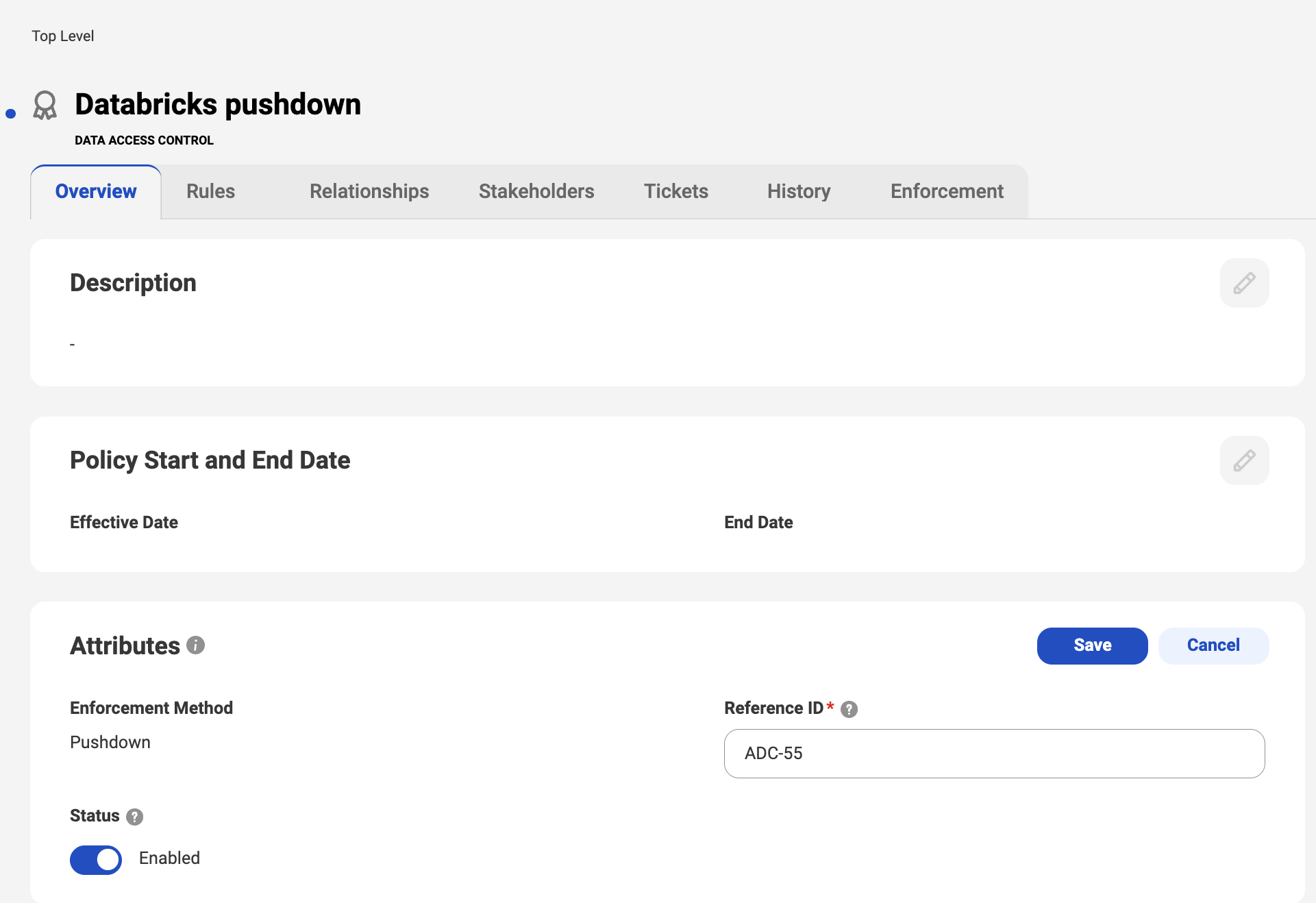
7To enable or disable a data access policy, move the Status toggle and click Save in the Attributes section of the Overview tab.
Enabling or disabling a policy determines whether Data Governance and Catalog enforces the data access policy. When you disable a policy, you revoke the data protections in that policy.
Note:
If workflow is not active for data access assets, enabling a data access asset activates it while disabling it deactivates it. If workflow is active, then saving a change to the status triggers a workflow approval process and the status of the asset changes only after a stakeholder approves the change.
8Save the data access policy.
If you don't have a workflow configured, your changes take effect immediately. If you have a workflow configured, your changes go through the workflow.
For more information about designing workflows, see Workflows in the Metadata Command Center help.
Editing data access rules
You can edit data access rules to modify the way that they control access to tables or views in source systems and to filter or de-identify data in other assets.
1To display the Data Access Management page, click Data Access in the left navigation.
2Click the tab for the type of data access rule that you want to edit.
3Open a data access policy and select the Rules tab.
4 Click a data access rule.
The Rule Overview page appears.
5Click the three-dot icon and select Edit.
The Rule tab opens.
Note:
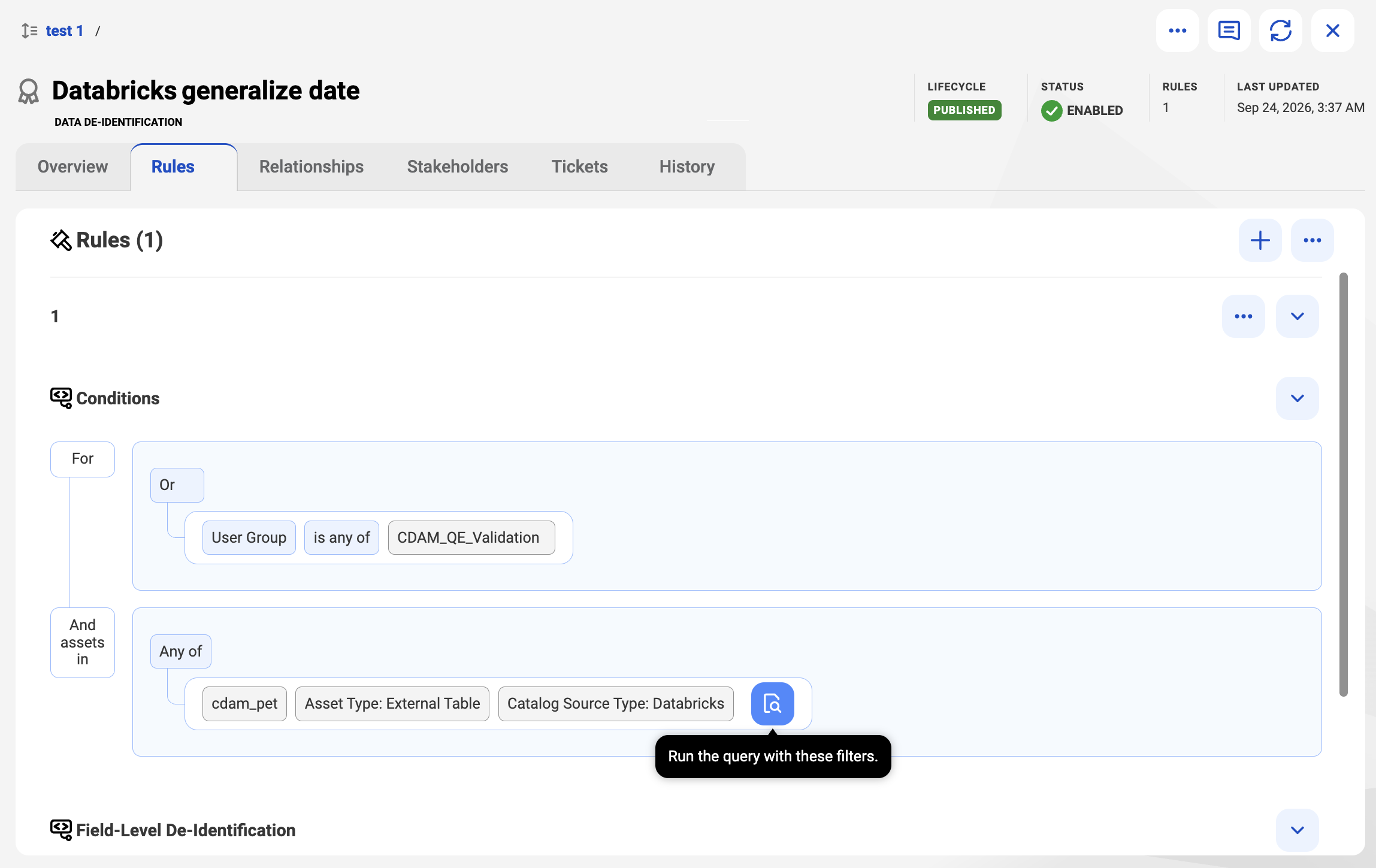
For rules that are part of data access policies that use pushdown enforcement, you can click the Run the query with these filters button to see to see which data the rule currently includes and protects.
6Edit the rule's conditions as needed.
7Edit the rule's actions as needed.
8Click Save.
If you don't have a workflow configured, your changes take effect immediately. If you have a workflow configured, your changes go through the workflow.
For more information about designing workflows, see Workflows in the Metadata Command Center help.