1Open the data set for which you want to create a profile.
2On the Data Profiling tab, perform one of the following actions:
- - To create a profile for a data set for the first time, click Create Profile.
- - To create an additional profile for a data set, click the action menu and select Create Profile > New Profile.
The New Data Profile page appears.
3In the General Information area, enter a name and an optional description for the profile.
4In the Profile Settings area, enter the following properties for the data profile:
Property | Description |
|---|---|
Sampling Type | Defines the set of rows on which data profiling runs. Choose one of the following options:
|
No of Rows to Limit | Required if you select Limit N Rows as the sampling type. Specifies the number of rows on which data profiling runs. |
Sampling Query | Required if you select Custom Query as the sampling type. Enter a custom SQL query to define the set of rows on which data profiling runs. For example: WHERE LAST_NAME LIKE 'P%' |
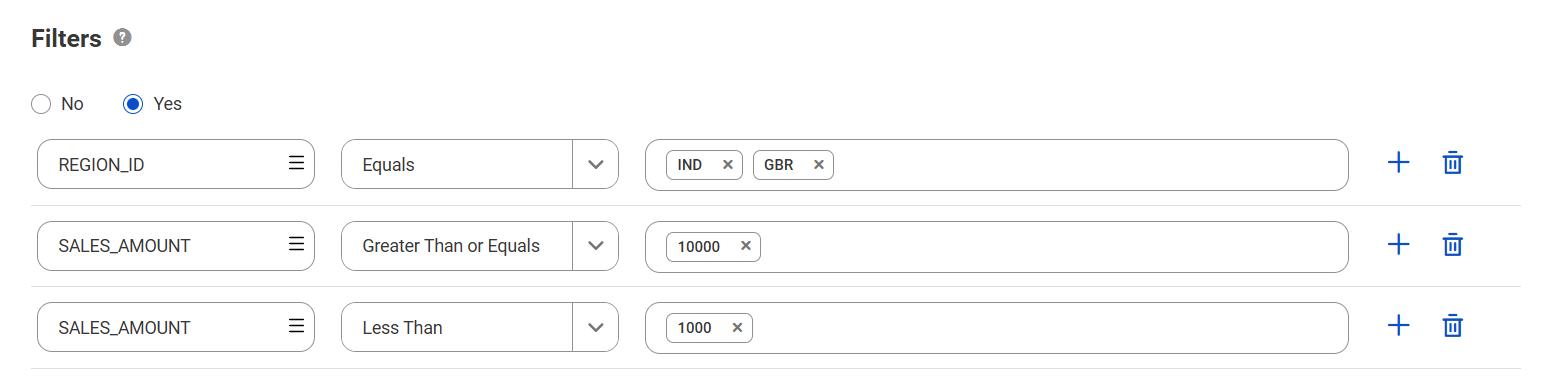
5Optionally, in the Filters area, select Yes to define one or more filters that the profile can apply to the data.
You can define filter conditions as follows:
- aChoose a data element and an operator, and then enter one or more filter values. Multiple values within the filter have an OR relationship.
- bClick Add to define an additional filter. The filters you define have an AND relationship.
The following image shows three filters:
6In the Data Elements area, click Add to choose the data elements that you want to include in the profile.
Note:
You can choose up to 50 data elements.
7Click Next.
8Add one or more rules to the profile.
9Click Save to save the profile, or click Save and Run to save the configuration and run the profiling job.