You can run data profiling after you create and run a catalog source job to extract metadata from the source system in Metadata Command Center.
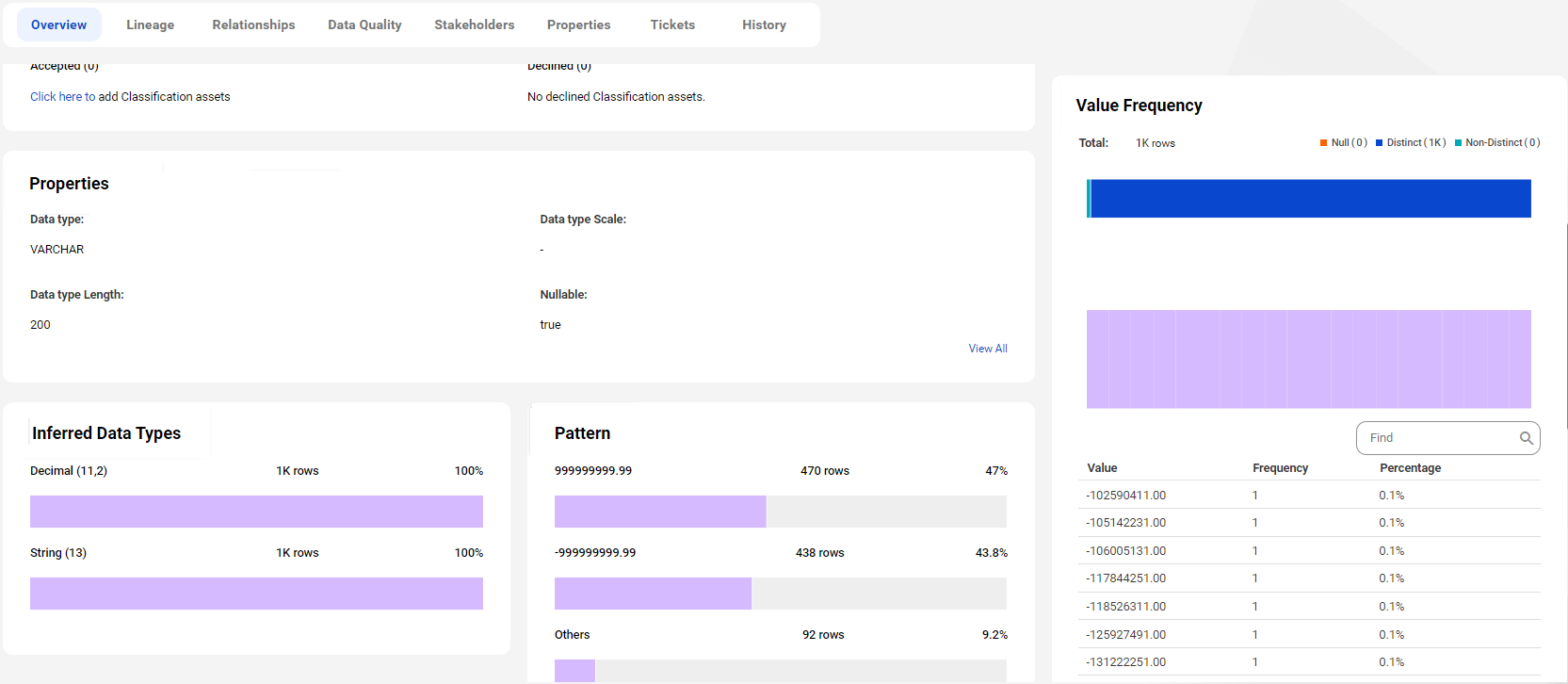
After you run data profiling, the scope of profiling statistics that appear in Data Governance and Catalog depends on the data profiling parameters that you set when you configured the catalog source. For each column that you select, you can view statistics such as the characteristics, value frequencies, inferred data types, and patterns.
The following image shows the data profiling statistics that appear for a column in the Overview tab in Data Governance and Catalog:
If you associate one or more rules with the columns, you can retrieve more detailed profiling results.
To view advanced column statistics for a data set, go to the Data Profiling tab and create a data profile for the data set in Data Governance and Catalog.
Profile for complex data sets
You can also create and run a data profiling task to view advanced statistics for columns from multiple tables. To perform these actions, link a business data set with a source mapplet and then create a data profile for the business data set. The source mapplet is part of a transformation in Data Integration that takes input from multiple tables.
For information on how to create a business data set and associate it with a source mapplet, see Creating data sets from technical assets in the Asset Management guide.
The following image shows a source mapplet that uses the Joiner transformation to join data from the ORDER_HEADER and ORDER_ITEM tables from different catalog sources. The output ports of the source mapplet are mapped to business data elements in the ORDER_DS business data set. The ORDER_TOTAL_AMT manual data element is created and mapped to a calculated field from the source mapplet.
Rules for profiling columns
When you create a profile, you can select columns and associate them with rules from the following asset types:
•Rule specification, cleanse, parse, and verifier assets.
•Passive mapplets that are composed of Data Masking or Expression transformations.
After you add columns and rules to the profile, you can run a profiling task to view detailed profiling statistics for each column associated with the profile.
Data profiling statistics
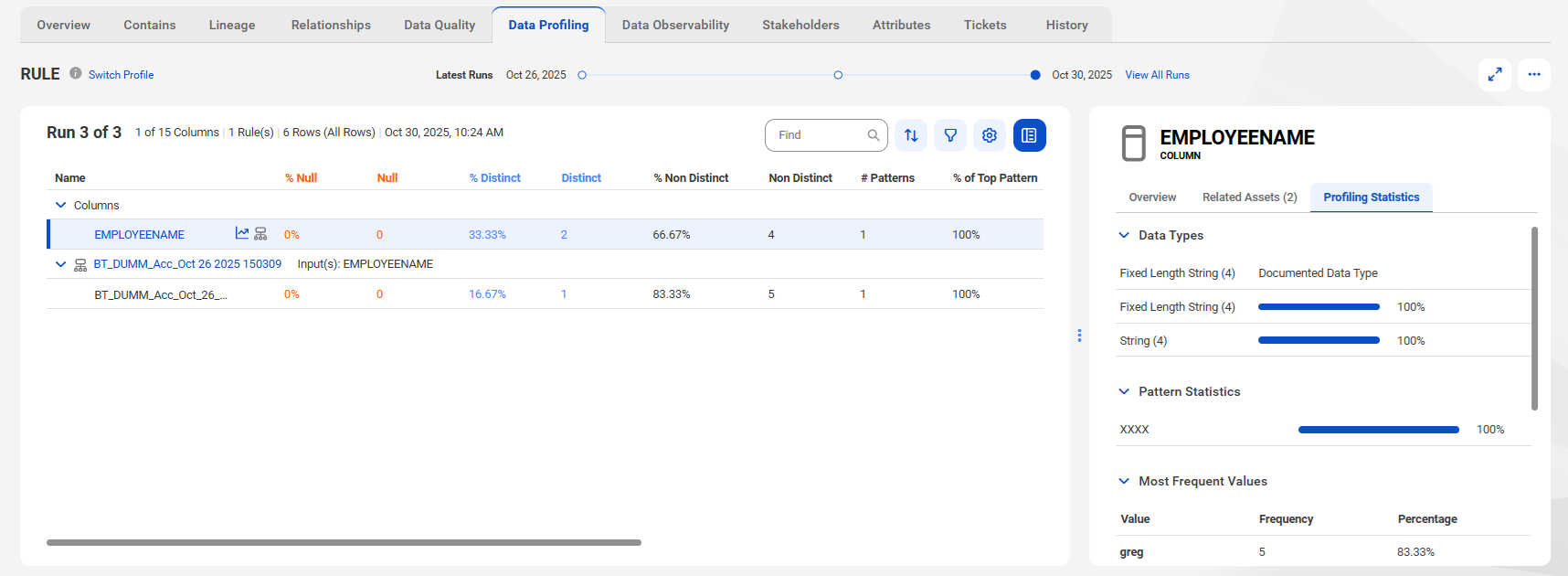
The profiling results are calculated based on the associated rules. The following image shows the data profiling statistics that appear for a data set in the Data Profiling tab in Data Governance and Catalog:
You can define data profiling operations in Data Governance and Catalog and in the Data Profiling service in Intelligent Data Management Cloud (IDMC). The service that you choose for data profiling depends on the requirements of your data project and your organization. You can add data quality assets to your profiling jobs in both services.