You can view the results for a profiling job after you run the profiling task. The profile results include the characteristics of columns such as value frequency, patterns, and data types.
The page with the profile results contains a header area that includes the profile name and a scale that indicates the last ten job instances. To view a summary for a job instance, hover over the point corresponding to the job instance.
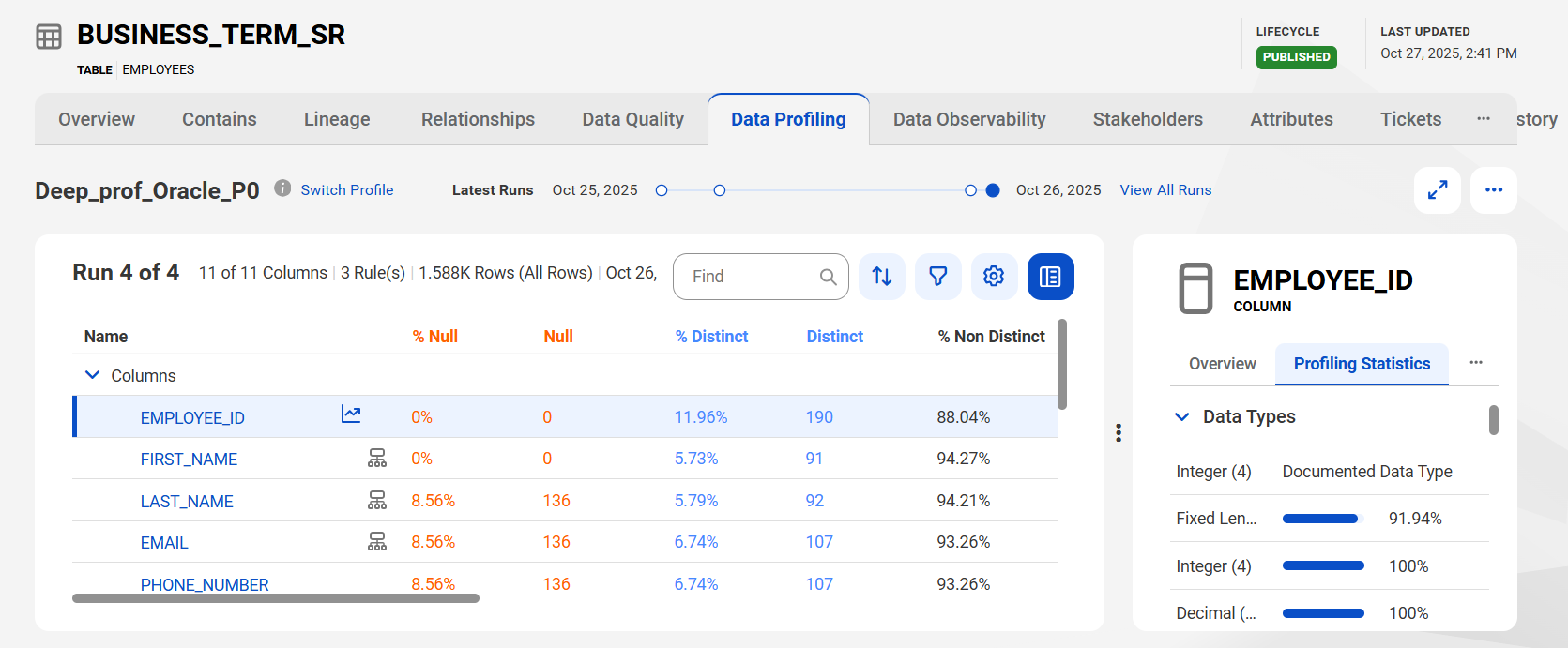
The following image shows the results of data profiling on a data set:
You can view the following information:
•Run number
•Number of columns and rules associated with the profile
•Number of profiled rows and the row sampling type
•The date and time on which the profile ran
Use the sort option to sort the column statistics in ascending or descending order. You can search for results or apply filters to see relevant results. To add or remove a column statistic, right-click the name and then select or clear the column statistic.
Profile statistics
The profile statistics for each column appear in the profile results table. The table also displays rule statistics for the output values obtained from each rule.
The column statistics appear in a collapsible section. You can hover over the Rule icon to view the name of the rule associated with the column.
Note:
The icon changes when columns have multiple rule associations.
The following table describes the statistics that you can view after you run a profile:
Property
Description
Null
The number of null values in the column or the rule output.
% Null
The percentage of null values in the column or the rule output.
% Distinct
The percentage of distinct values in the column or the rule output.
Distinct
The number of distinct values in the column or the rule output.
% Non-distinct
The percentage of non-distinct values in the column or the rule output.
Non-distinct
The number of non-distinct values in the column or the rule output.
# Patterns
The number of patterns in the column or the rule output.
% of Top Pattern
The percentage of values with the most frequent pattern in the column or the rule output.
Maximum Length
The length of the longest value in the column or the rule output.
Minimum Length
The length of the shortest value in the column or the rule output.
Minimum Value
The lowest value in the column or the rule output.
Maximum Value
The highest value in the column or the rule output.
Blank
The number of empty values in the column or the rule output.
% Blank
The percentage of empty values in the column or the rule output.
When you select a column, a detailed view of the profile results for the column data appears in the Preview pane. The detailed view includes statistics such as data types, pattern statistics, numeric column statistics, most frequent values, and trends.
Note:
You can add or remove associated rules using the action menu. Also, you can use the action menu to go to the Job Monitoring page to view profiling jobs.
After you run a profile, you can perform the following tasks:
•Drill down on the profile results for data that you select. Select a value, data type, or pattern to view relevant data in the Data Preview area.
•Export a part of the profile results or the complete results to a Microsoft Excel file.
Note:
You can choose to include data from one or more columns or rules.