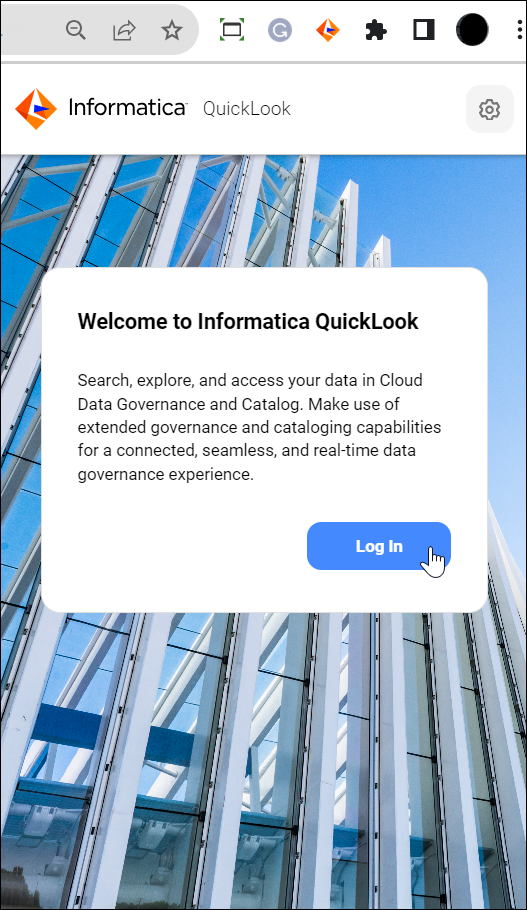
Log in to the Informatica QuickLook browser extension with your Intelligent Data Management Cloud™ (IDMC) credentials. If you are already logged in to the Data Governance and Catalog web instance, the QuickLook browser extension automatically logs you in.
To launch the browser extension, open a web page in the browser. You can't launch the extension unless a browser page is open. If you have a web page that is already open, refresh the web page to launch the browser extension.
You can start searching for assets in the Informatica QuickLook browser extension only after you log in.
1On the browser toolbar, click the Informatica QuickLook logo.
2Click Log In.
A new window opens and you are redirected to the IDMC Log In page for the configured region URL.
3Enter your IDMC user name and password or log in using Single Sign-On (SSO).
4Click Log In.
Note:
Similarly, if you log out of the Data Governance and Catalog instance linked to the extension, the QuickLook browser extension logs you out.
After you log in, you can start searching for assets.