Use an Application Integration system service action to call a Data Marketplace API.
What is Application Integration?
Application Integration is an event-driven and service-oriented IDMC offering that encompasses event processing, service orchestration, and process management.
How to use Application Integration to call a Data Marketplace API
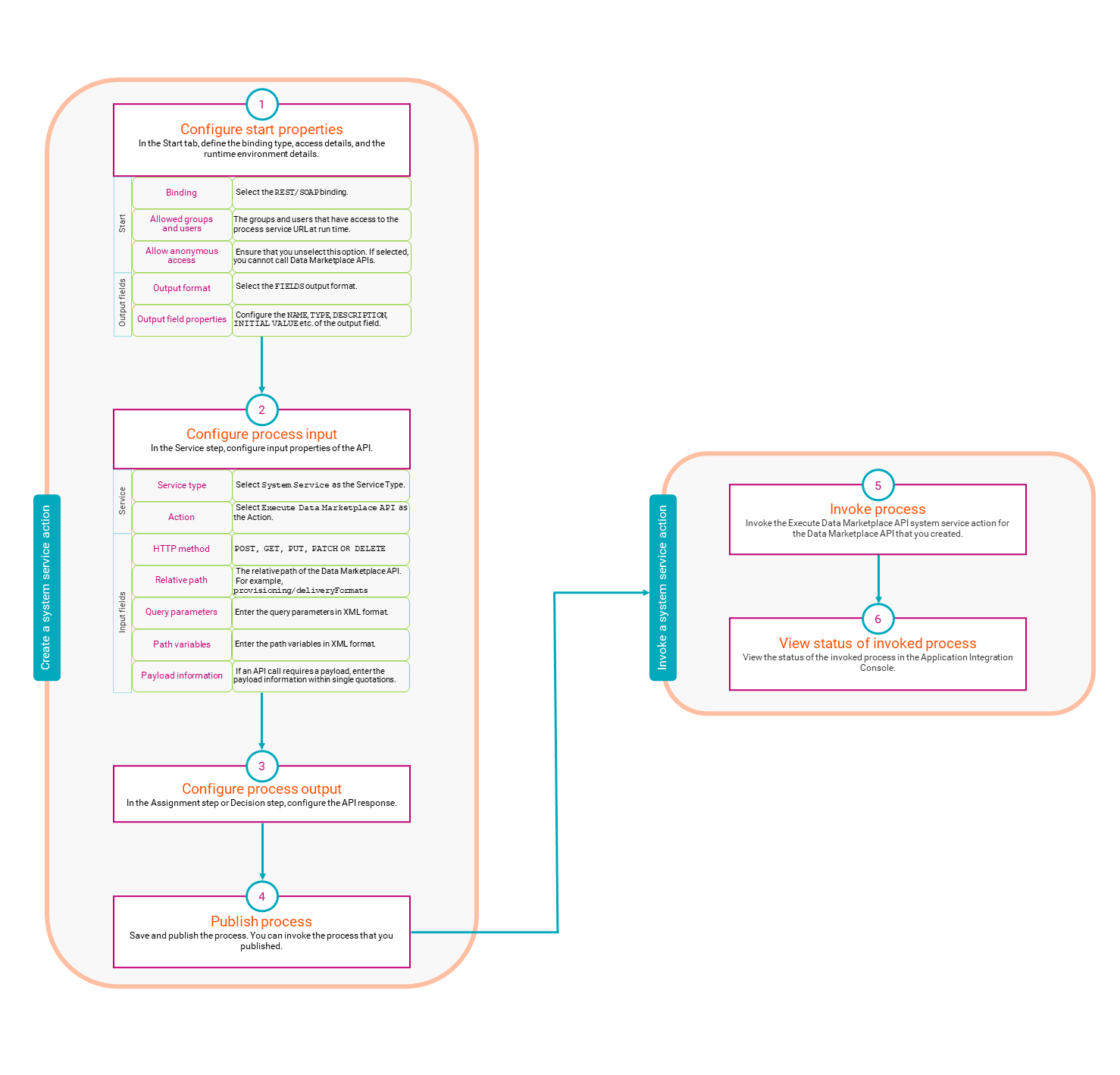
The following image shows the overall process of using Application Integration to call a Data Marketplace API:
To call a Data Marketplace API via Application Integration, perform the following steps:
1In Application Integration, create an Execute Data Marketplace API type system service action.
2Invoke the system service action that you created to call the Data Marketplace API.
Note:
You require Informatica Processing Units (IPUs) to use Application Integration. For more information about how to calculate your IPU usage, see https://network.informatica.com/docs/DOC-19140.
If you want to use JWT authentication to call a Data Marketplace API, you must use a different base URL. For more information, see Send Requests.
Note:
When you use an Application Integration process to invoke an API, consider the following:
•The number of items that you can create or modify per API call depends on the cloud provider where the IDMC POD is hosted. The following table shows the number of items that you can create or modify per API call on each cloud provider:
Cloud provider
Number of items
Amazon Web Services
30
Microsoft Azure
10
•You can call a maximum of 100 APIs per minute.
Create a system service action
Before you can call a Data Marketplace API, you must design an Execute Data Marketplace API type system service action in Application Integration.
Start properties
In Application Integration, define the binding type and access details for the system service action that you want to create.
The following table describes how to configure the Start properties for a system service action to call a Data Marketplace API:
Property
Description
Binding
If you want to run the process by using a service URL, select REST/SOAP as the binding type
Allowed Groups
Specify which user groups can access the process service URL at run time.
Allowed Users
Specify which users can access the process service URL at run time.
Allow anonymous access
Ensure that you do not select the Allow anonymous access property.
If you select Allow anonymous access, you cannot call Data Marketplace APIs.
For more information about the Start properties, see the Start Properties topic in the Design help in Application Integration.
Input Field properties
Define the service properties and input properties for the system service action that you want to create.
The following table describes how to configure the Service properties for a system service action to call a Data Marketplace API:
Property
Description
Service Type
Select System Service as the service type.
Action
Select Execute Data Marketplace API as the action.
The following table describes how to configure the Input Field properties for a system service action to call a Data Marketplace API:
Property
Description
HTTP Method
Enter one of the following methods to invoke the Data Marketplace API:
- GET
- PUT
- PATCH
- POST
Relative Path
Enter the relative path of the API that you want to invoke.
You can use an API endpoint to discover the relative path. Consider the following examples:
- For the API endpoint /api/v1/integration/categories, the relative path is categories.
- For the API endpoint /api/v1/integration/provisioning/deliveryFormats, the relative path is provisioning/deliveryFormats.
- For the API endpoint /api/v1/integration/orders/<orderId>/fulfill, the relative path is orders/<orderId>/fulfill.
Query parameter
If the Data Marketplace API that you want to invoke requires you to specify query parameters, you can enter the query parameters in XML format.
The following example shows how you must enter the query parameters:
For more information about the Input Field properties, see the Input Field Properties topic in the Design help in Application Integration.
Output Field properties
In the Start step of a new process in Application Integration, you can define the properties of the output fields.
The following table describes how to configure the Output Field properties for a system service action to call a Data Marketplace API:
Property
Description
Output Format
Specify whether you want the output field to represent one or more fields of the response, or the entire contents of the response.
Select on of the following output formats:
- If you want the output field to represent one or more fields of the response, select the Fields output format.
- If you want the output field to represent the entire contents of the response, select the Whole Payload output format.
To call a Data Marketplace, Informatica recommends that you select the Fields output format.
Name
Enter the name of the output field.
Type
Specify the type of the output field.
Select on of the following field types:
- Date
- Date Time
- Time
- Integer
- Text
If the preceding types don't meet your requirements, select the More types option to reveal additional field types. In the Edit Type dialog box, you can select a field type that is listed under one of the following category:
- Simple Types
- Custom Types
- Connection defined Types
Description
Enter the description for the output field.
Initial Value
Enter the initial value for the output field.
For more information about the Output Field properties, see the Output Field Properties topic in the Design help in Application Integration.
Before you can configure the API response in an Assignment step or a Decision step, ensure that you have defined the output field properties of the process in the Start step. For more information about an Assignment step or a Decision step, see Adding Process Steps topic in the Design help in Application Integration.
For more information about how you can design system service action, see the Execute Data Marketplace API topic in the Design help in Application Integration.
Invoke a system service action
To make a REST API call, invoke the Execute Data Marketplace API system service action that you designed for the Data Marketplace API.
For more information, see the Invoke help in Application Integration.
Download templates to design a system service action
Informatica provides templates that you can use to design a system service action.
For more information, see the Knowledge Base article 000198575.