The Create Asset Page layout defines which attributes appear on a New Asset page for an asset in Data Governance and Catalog. You can customize these pages according to the asset type and your requirements.
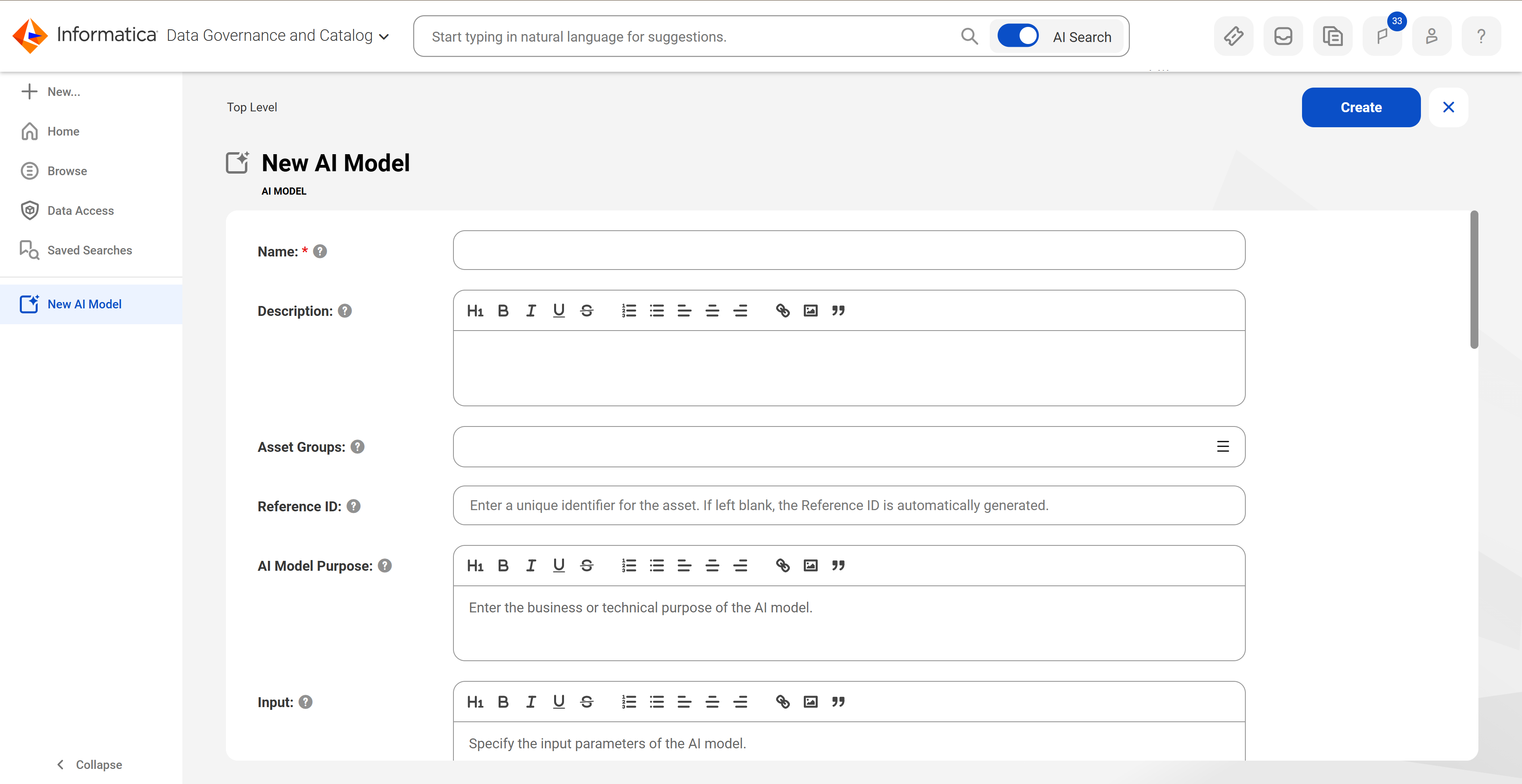
The following image shows the New Asset page for an AI Model asset in Data Governance and Catalog:
For Create Asset Page layouts, you can perform the following customizations:
•Create a new layout for the New Asset page, or clone an existing layout to make changes.
•Show, hide, and rearrange the order of panels, and split a panel into multiple columns.
•Show, hide, and rearrange the position of attributes within a panel. You can't hide attributes that are marked as required.
•Save a unique name for each layout and save it with a particular configuration.
•Assign one or more layouts to users with specific roles, to users that are part of specific user groups, or to all users in your organization.
•Control the visibility of an asset type's predefined layout.
•When you publish a new required attribute, Metadata Command Center automatically adds it to every published Create Asset Page layout.
Creating a custom layout for an asset's create page
Create a custom layout for what a user sees when they create an asset in Data Governance and Catalog. You organize an asset's attributes into panels and control which users see the layout.
Your user role requires the Asset Page Customization privilege in Administrator. For more information on feature privileges, see the Introduction and Getting Started help.
You can create multiple page designs for an asset's Create Asset Page and assign each design to different users or groups. Users who don't have a custom designed page, use the predefined layout.
1In Metadata Command Center, navigate to the Customize page, and go to the Assets and Pages tab.
2In the Business Assets list, select the asset type for which you want to create an asset page layout.
3On the Details: Asset Name panel, click Create→ New Layout.
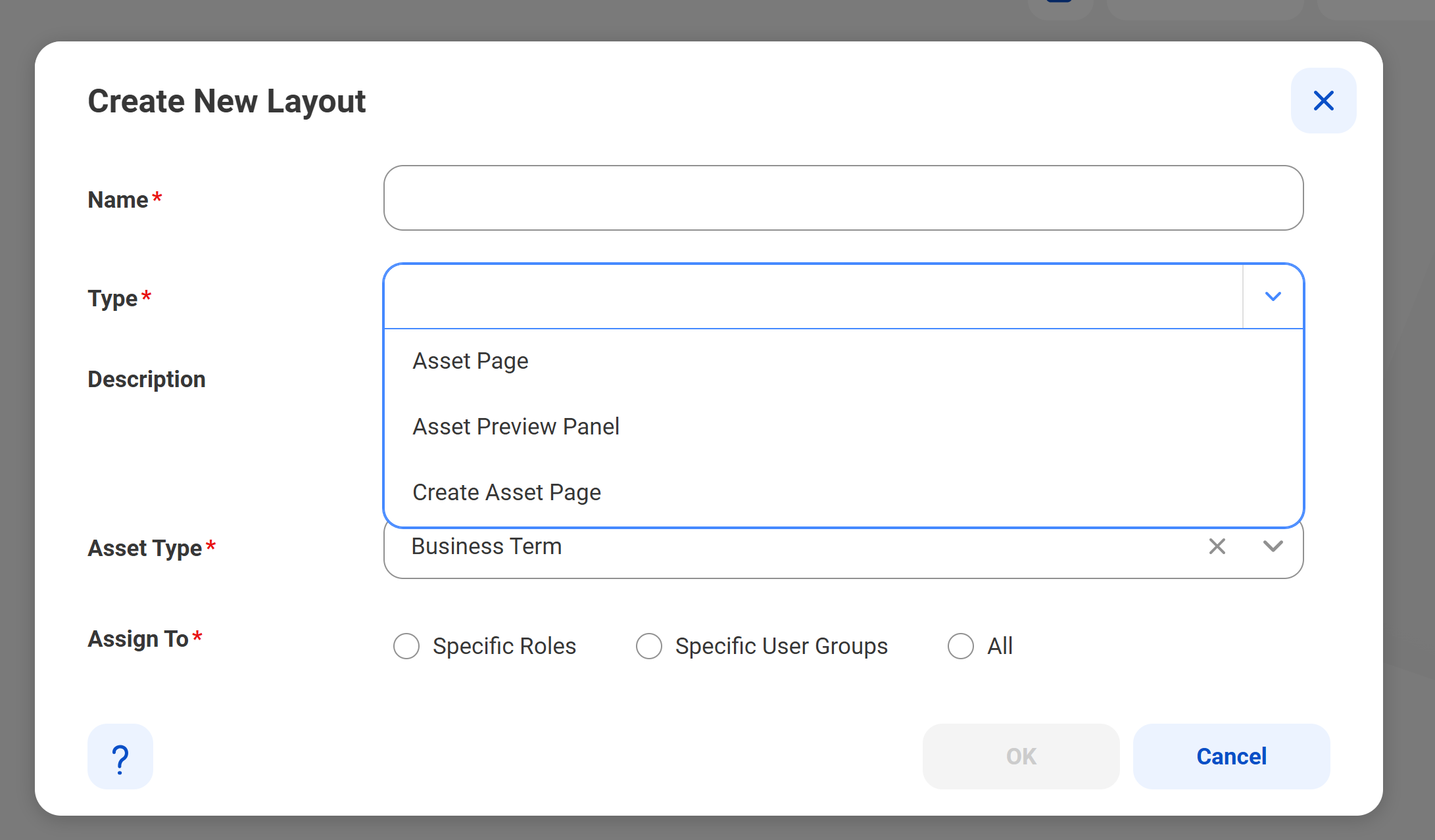
The Create New Layout dialog box appears.
4Define the properties of the layout.
The following table describes the properties of the Create New Layout dialog box:
Property
Description
Name
Enter a name for the page layout. Enter a name that you can identify from the list of page layouts for the asset type.
Type
Select Create Asset Page from the list.
Description
Description of the page layout.
Asset Type
Select the business or technical asset type for which you want to configure the page layout.
Assign To
Specify the users to which you want to assign the page layout. When you assign a custom layout to a user or user role, you hide the predefined layout of the asset pages from them.
Select one of the following values:
- Specific roles. Assign the layout to users with specific roles. In the Roles field that appears, select the user roles.
- Specific user groups. Assign the layout to users that are part of specific user groups. In the User Groups field that appears, select the user groups.
- All. Assign the layout to users of all roles in your organization.
Note:
Only user roles that have the Read permission for the asset type appear in this list. Users require the Readpermission for the asset type so that they can see the layout.
5Click OK.
A layout canvas with the name you provided opens.
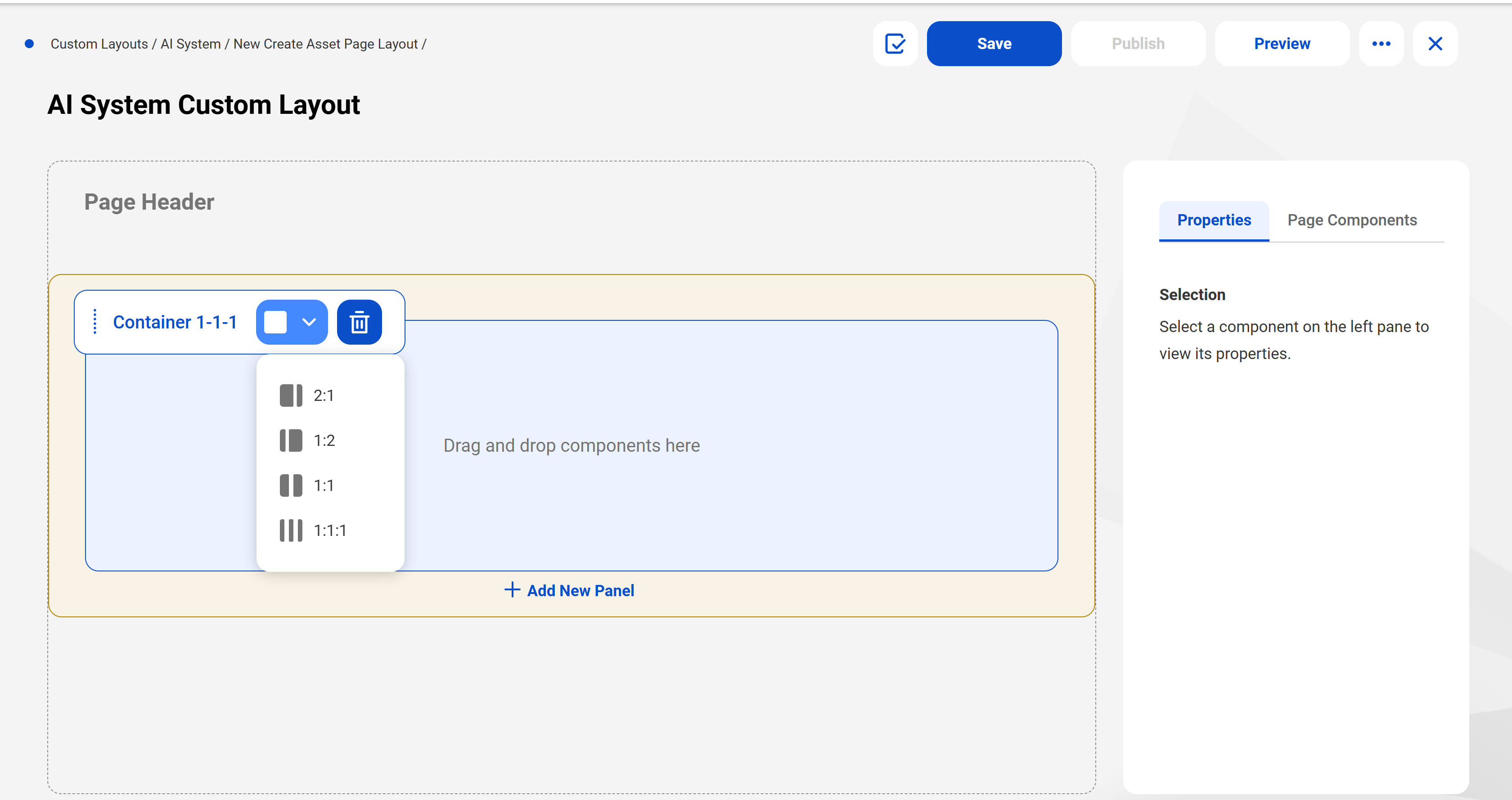
6In the canvas, click Add New Panel and select a Container size to add a panel. The container allows you to specify the ratio of the panels as they appear to a Data Governance and Catalog user.
For each panel, you can select one of the following size options: 1, 2:1, 1:2, 1:1, or 1:1:1.
The Container menu appears.
7Remove any non-mandatory attributes that you don't want to appear on the New Asset page in Data Governance and Catalog.
Depending on the type of asset, when you create a custom create page, Metadata Command Center loads a predefined layout.
Note:
You can't remove the required attributes for a panel.
8To check the layout for errors, click Validate .
9To see how the layout appears to users, click Preview.
10Click Save.
11Click Publish, to publish the layout to users in Data Governance and Catalog.
The custom layout is available in the Create Asset Page layout menu and appears to the users and groups to which you assigned the layout.
Modifying, cloning, and deleting a custom layout for a Create Asset Page
In the Customize page, you can perform various activities to a Create Asset Page layout. On the Assets and Pages tab, select an asset type to modify, clone, or delete its customized layouts.
Your user role requires the Asset Page Customization privilege in Administrator. For more information on feature privileges, see the Introduction and Getting Started help.
You can change the panel sizes and attributes or hide the visibility of the predefined layout. You can also clone a layout to use as a starting point for a new one, or delete a layout that you no longer need.
1In Metadata Command Center, navigate to the Customize page, and go to the Assets and Pages tab.
2In the Business Assets list, select the asset type whose Create Asset page layout you want to modify, clone, or delete.
3In the Details: Asset Name panel, click Layouts.
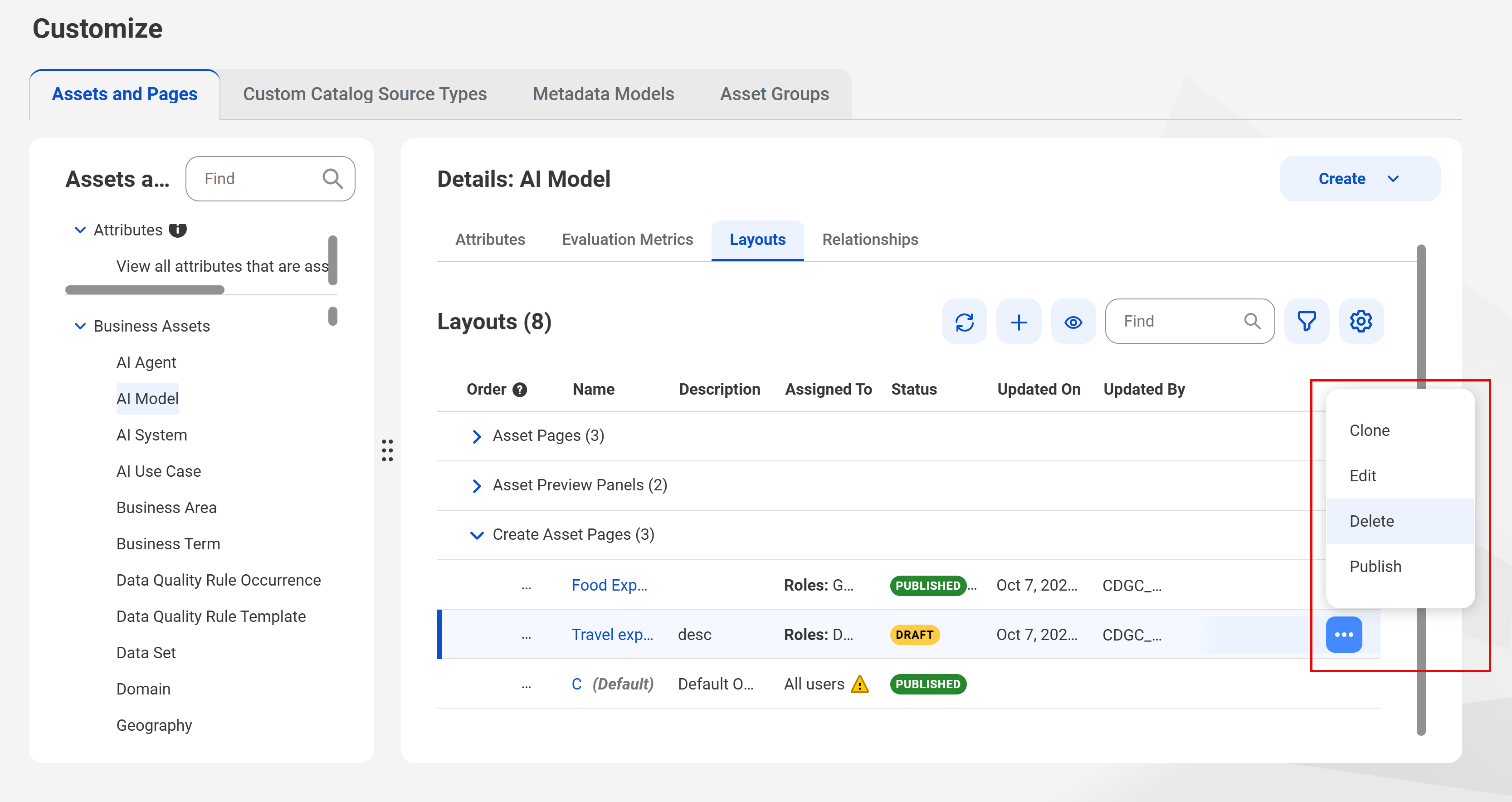
4Expand the Create Asset Pages menu, and click the Action menu.
The Action menu for a custom layout appears.
5Depending on the action you want to perform, click Edit, Clone, or Delete.
If you click Edit, the layout's edit page appears. If you click clone, the Clone Layout dialog box appears. If you click Delete, a confirmation message appears for you to accept or decline.
You can observe the following results for the activities you perform:
•Edit. The modified layout is available to the users and groups assigned to it the next time they open the New Asset page for the asset type in Data Governance and Catalog.
•Clone. The cloned layout appears in the list of Create Asset Pages for the asset type. You can assign it to users or groups independently of the original layout.
Note:
The deleted layout no longer appears in the list of layouts in Create Asset Pages. Users who were assigned to the deleted layout revert to another assigned layout or the Predefined Layout.