You can define the layout of the Browse page that a Data Governance and Catalog user views to explore assets.
When a Data Governance and Catalog user opens the Browse page, they can view how the catalog is structured and explore data by asset type. They can also easily drill down to see the child assets associated with the asset. However, you might want to hide certain settings or present a different layout for specific roles and users in their organization. You can create and save these layouts and they then appear listed in Layouts on the Browse page of Data Governance and Catalog. Users can switch between these layouts.
Creating a custom layout for the Browse page
You can modify the layout of the Browse page, save it with a unique name and then assign the layout to specific roles and user groups or to all users in your organization. When a Data Governance and Catalog user opens the Browse page, they can view the Browse page as per the various layouts that are assigned to their user role or user group.
Your user role must have the Asset Page Customization privilege in IDMCAdministrator. For more information on feature privileges, see the Introduction and Getting Started help.
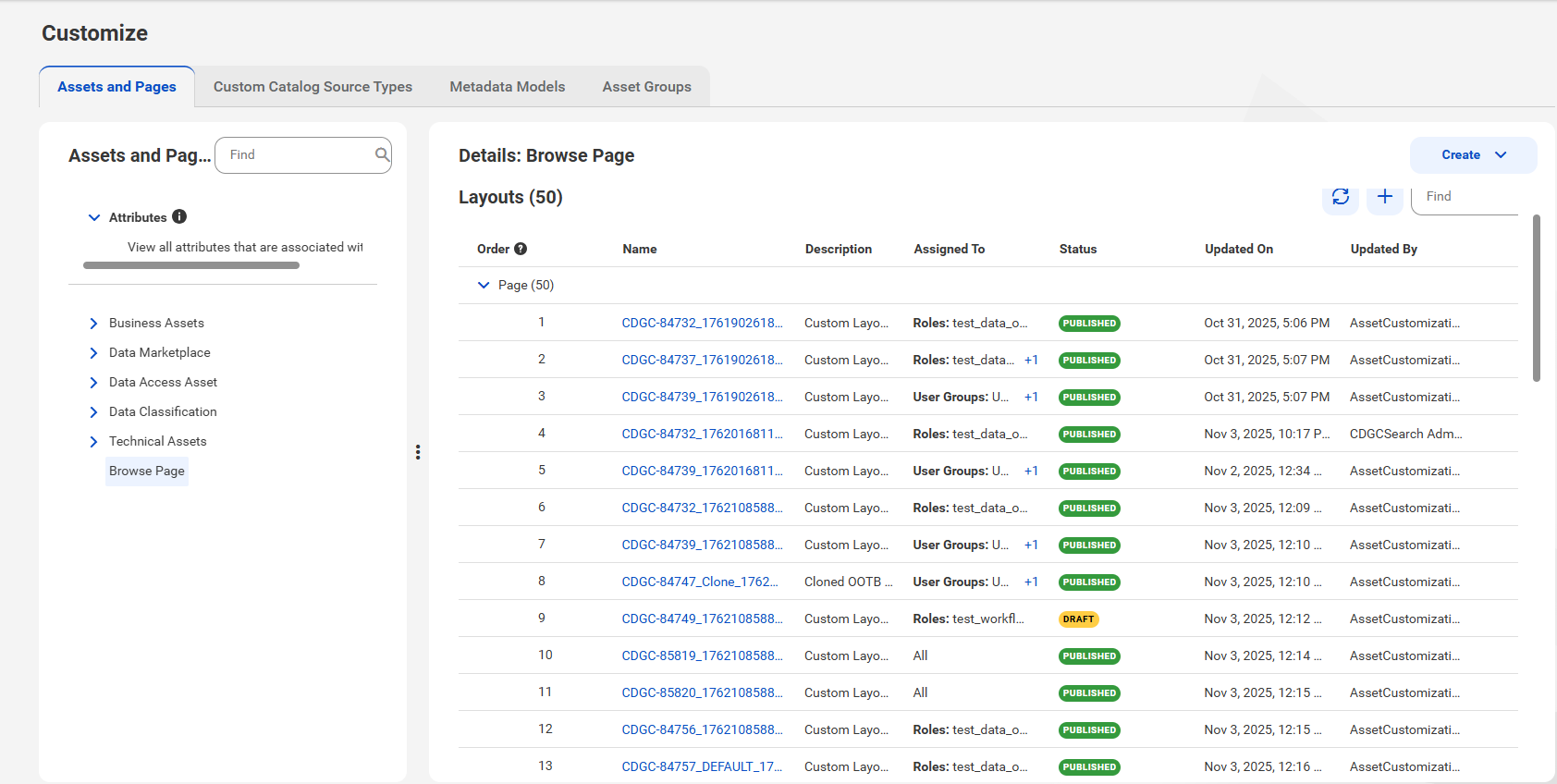
1In Metadata Command Center, navigate to the Customize page and click Assets and Pages.
2From the Assets and Pages list, click Browse Page.
The Details pane shows the layouts that are configured for the Browse page.
3Click the Add icon to create a new layout.
Alternatively, you can click Create > New Layout to create a new Browse page layout.
4Enter values for the following layout properties:
Property
Description
Name
Identifiable name for the layout.
Type
The type of layout. By default Browse Page is selected.
Description
Description of the layout.
Assign to
Specify the users to whom you want to assign the layout.
Select one of the following values:
- Specific roles. Assign the layout to users with specific roles. In the Roles field that appears, select the user roles.
- Specific user groups. Assign the layout to users that are part of specific user groups. In the User Groups field that appears, select the user groups.
- All. Assign the layout to users of all roles in your organization.
5Click OK.
A blank layout canvas opens.
6On the layout canvas, add tabs that you want to include in the layout.
7Click the Validate icon to check if the layout is configured correctly. Fix the issues that appear in the Validation Errors panel.
8At any time, click Preview to visualize with sample data how the page will appear to Data Governance and Catalog users.
9Click Save to save the Browse page layout.
10Click Publish to make the saved layout available to users.
The layout is now available in Data Governance and Catalog to all the specified users. Users in multiple groups or roles see all the layouts assigned to each of their groups and roles.
Modifying, cloning and deleting a custom layout for the Browse page
You can modify an existing Browse page layout to make changes to the page. If you want to create a layout that is similar to an existing layout, you can clone a layout and modify it. If a layout is no longer needed, you can delete it.
Your user role must have the Asset Page Customization privilege in IDMCAdministrator. For more information on feature privileges, see the Introduction and Getting Started help.
You cannot modify or delete a predefined layout.
1In Metadata Command Center, navigate to the Customize page, and go to the Assets and Pages tab.
2From the Assets and Pages list, click Browse Page.
The Details pane shows the layouts that are configured for the Browse page.
3To modify an existing layout, click the layout or select Edit from the Actions menu.
4To clone a layout, select Clone from the Actions menu. You can now modify the layout and save it with a new name.
5To delete a layout, click Delete from the Actions menu.
The layout is deleted. If this layout was configured as default by a Data Governance and Catalog user, the first layout in the list becomes the default layout.