View the details of data access synchronization and agent jobs on the System Jobs tab on the Monitor page in Metadata Command Center. Data access synchronization jobs identify changes in data access policies that have a pushdown enforcement method. This prepares the changes for the Secure Agent to push to your cloud data platform. Data access agent jobs identify the actions pushed to your cloud data platform.
To view detailed logs for each task in the job, click the job name on the System Jobs tab on the Monitor page. The Overview page displays more details about the job and its tasks. Download the Job Monitor Logs to view detailed logs for each task in the job.
Overview
The Overview page lets you monitor the job completion status, the execution duration of the job, the status of the individual tasks associated with the job, and more.
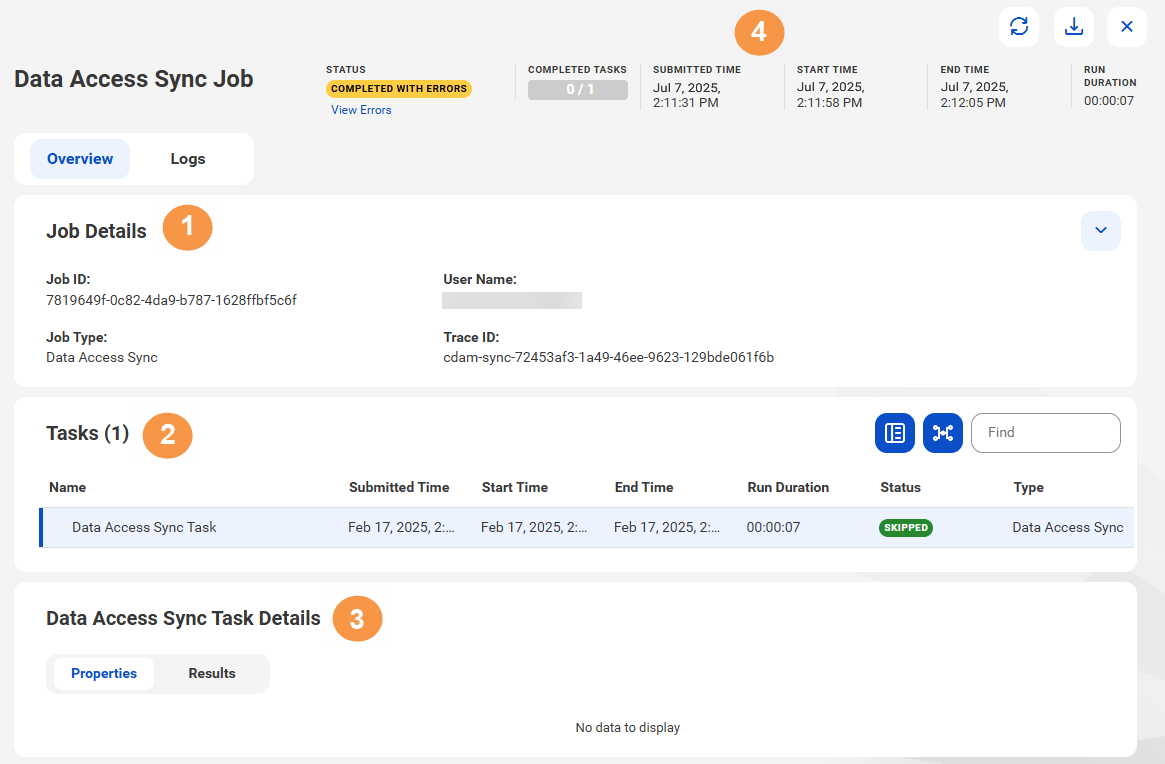
The following image shows an example of a data access synchronization job Overview page and its panels:
1. Job Details
Expand the Job Details panel to view the primary details about your job.
The following table describes the job details:
Job Detail
Description
Job ID
Unique ID of the job.
Job Type
Type of job for data access assets.
User Name
Name of the user that triggered the job. This is a system-generated user name.
Trace ID
Unique ID for the data access synchronization job. Informatica Global Customer Support uses this for in-depth troubleshooting.
2. Tasks
View or download tasks associated with the job.
You can hover the mouse over any task and click the Download Task Log icon to download logs or the View Task Log icon to view logs.
The following table describes the task details:
Task Detail
Description
Name
Name of the task.
Submitted Time
Time at which the task was submitted.
Start Time
Time at which the task started.
End Time
Time at which the task ended.
Run Duration
Amount of time that the task takes to execute.
Status
Status of the task. It could be any of the following statuses:
- Success
- Completed
- Skipped
- Running
- Failed
Note:
A status of Skipped indicates the process ignored the task. This occurs when there were no changes to data access policies, users, or data access assets to protect. A skipped task results in a job status of Completed with Errors.
Type
Type of task for the data access synchronization job.
3. Task Details
Select a task in the Task Details panel to view the following information about the selected task in the Audit Export Details panel:
- Properties. This tab displays additional information about the task and any error messages.
- Results. This tab appears blank because data access synchronization and data access agent jobs don't use it.
4. Menu
The menu on the top of the Overview page displays information about the job.
The following table describes the overview details:
Job Detail
Description
Status
Status of the job. It could be any of the following statuses:
- Success
- Completed
- Completed with Errors
- Running
- Failed
If the job fails or completes with errors, click the View Errors link that appears next to the status to go to the Logs page. Adjust the filter to include the "Information" and "Debug" levels.
Completed Tasks
Progress bar that shows the completion status of the tasks in the job.
Submitted Time
Time at which the job was submitted.
Start Time
Time at which the job started.
End Time
Time at which the job ended.
Run Duration
Total amount of time that the job takes to run, including the running of the tasks associated with the job.
You can click the Refresh icon to refresh the page. Click the Download Job Logs icon to download logs for the entire job as a CSV file. You can download logs for jobs regardless of the job status.
Logs
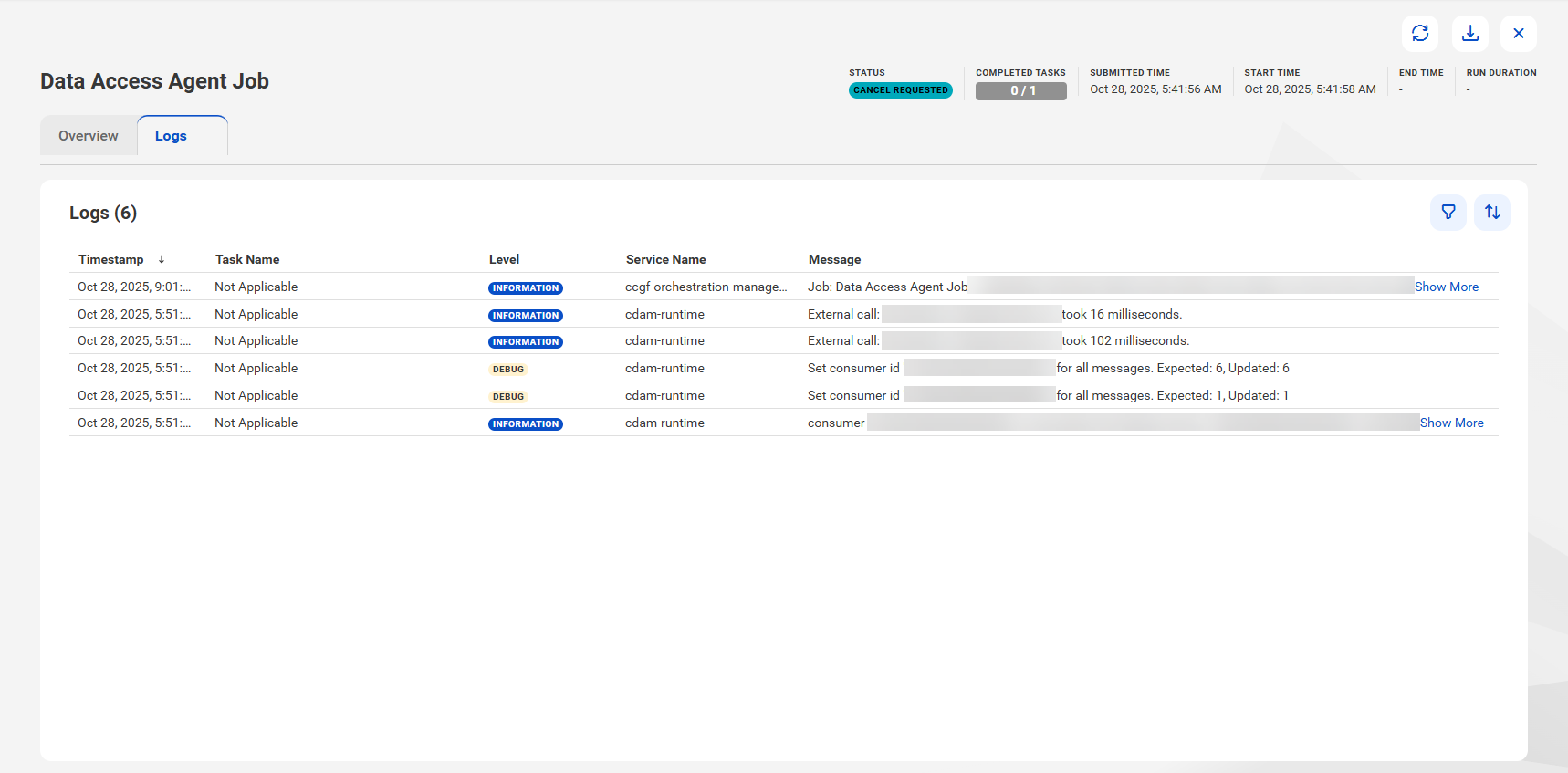
The Logs page displays a detailed log for each task that was run in the job.
The following image shows an example of a data access synchronization job Logs page and its panels:
You can perform the following actions on the Logs page:
•Filter task logs by the task name, level, or message ID, click the Filter icon. To do this, click Add Filter. The level represents the level of the log and is categorized as Information, Warning, Error, Debug, or Fatal.
•View all the errors at a glance for a job that fails. To do this, filter the logs by level and include all levels.