1To associate users or user groups as stakeholders with technical assets extracted from the catalog source, perform the following steps:
- aOn the Associations page, click Stakeholders.
- bSelect Assign Stakeholders.
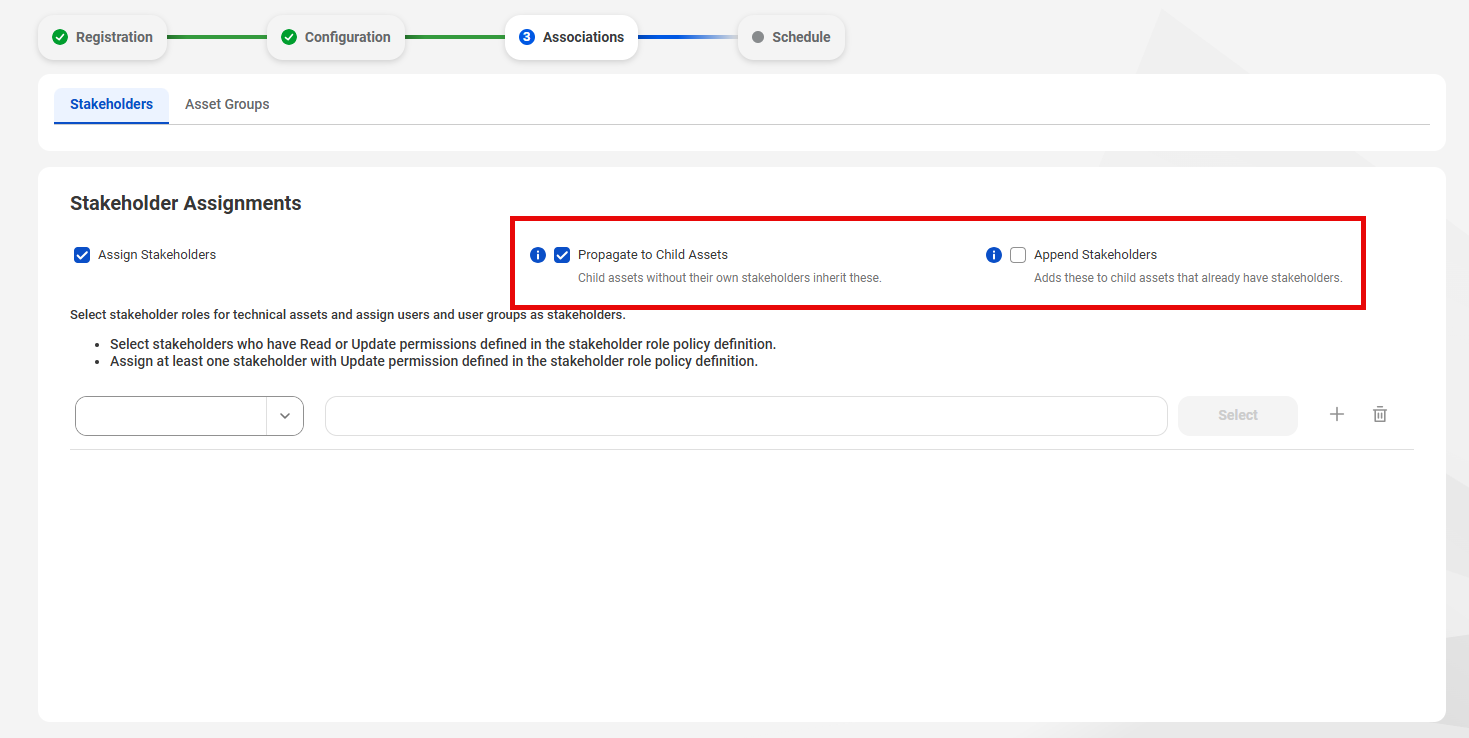
- cBy default, propagation is enabled in a technical hierarchy. You can also select from following options to control how a parent asset in the catalog source propagates stakeholders to its child assets:
- ▪ Propagate Stakeholders. Allows child assets without stakeholders to inherit the stakeholders of the parent asset. You can disable this option after parent assets propagate to child assets to remove the propagated stakeholders from the child assets
- ▪ Append Stakeholders. Allows child assets that already have Assigned stakeholders to inherit stakeholders from a parent asset. You can disable this option to replace the inherited stakeholders with the stakeholders you assign.
- d Select a stakeholder role.
- eClick Select to add users and user groups from the stakeholder role as stakeholders for the technical assets.
- fSelect one or more users or user groups to assign as stakeholders for the technical assets, and click OK.
- gTo assign users or user groups from another stakeholder role, click Add and then repeat the steps.
The options for stakeholder propagation appear.
Note:
You can't enable Append Stakeholders without enabling Propagate Stakeholders.
The Add Users & User Groups dialog box displays a list of users and user groups assigned to the selected stakeholder role.

Only the selected users and user groups belonging to the specified stakeholder role are granted the permissions to technical assets.
2To assign asset groups to technical assets extracted from the catalog source, perform the following steps:
- aOn the Associations page, click Asset Groups.
- bSelect Assign Asset Groups.
- cClick Select.
The Select Asset Groups dialog box displays the list of asset groups.
If you enabled an access policy that includes an asset group, you can only view assets that belong to that asset group.
3Select the asset groups to which you want to assign technical assets extracted from the catalog source, and click OK.

4Choose to save and run the job or to schedule a recurring job.
- - To save and run the job, click Save and then Run.
- - To schedule a recurring job, click Next to open the Schedule page.