1Log in to Informatica Intelligent Cloud Services.
The My Services page appears.
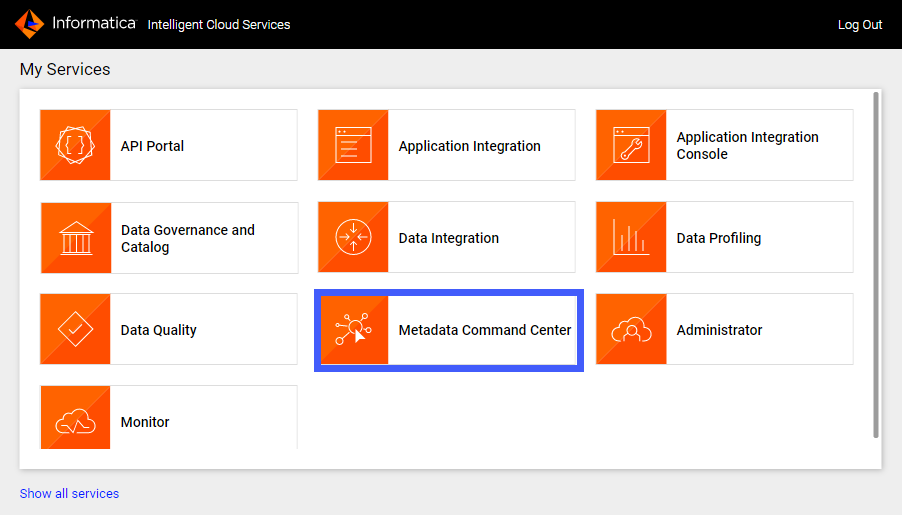
2Click Metadata Command Center.
The following image shows the Metadata Command Center box on the My Services page:
The Metadata Command Center home page appears.
3Click New.
4Select Catalog Source from the list of asset types.
5Select Fivetran Platform from the list of catalog source types.
The following image shows the Fivetran Platform catalog source type:

6Click Create.
The New Catalog Source page opens.
The following image shows the Registration tab on the New Catalog Source page:

7In the General Information section, enter a name and an optional description for the catalog source.
8In the Connection Information area, enter the Fivetran Platform connection information.
The following table describes the connection properties that you can specify:
Property | Description |
|---|---|
Fivetran Input Mode | The connection mode to connect and collect Fivetran Platform metadata.
Note: For automatic connection assignments, the Repository+API mode is recommended. |
Fivetran Repository Connection | Select the connection created in Administrator that points to a source that contains Fivetran Platform metadata. You can select one of the following connections:
|
Fivetran Base64-encoded API key | Enter the Base64- encoded API key to securely authenticate and authorize Fivetran Platform API access. You can find the key is in the API Key tab in your Fivetran Platform profile. |
9Click Next.