When you configure the Databricks catalog source, you define the settings for the metadata extraction capability and other optional capabilities.
The metadata extraction capability extracts source metadata from external source systems. You can also configure other capabilities that the catalog source includes.
You can save the catalog source configuration at any point after you enter the connection information. After you save the catalog source, you can choose to run the catalog source job. To run the job once, click Run. To run metadata extraction and other capabilities on a recurring schedule, configure schedules on the Schedule tab.
Configure metadata extraction
When you configure the Databricks catalog source, you choose a runtime environment, define filters, and enter configuration parameters for metadata extraction.
Before you configure metadata extraction, configure runtime environments in the IDMC Administrator.
1In the Connection and Runtime area, choose a serverless runtime environment or the Secure Agent group where you want to run catalog source jobs.
Note:
Serverless runtime environment options are available if the catalog source works with a serverless runtime environment.
2Choose to retain, delete, or deprecate objects that are deleted from the source system in the catalog with the Metadata Change Option.
- Retain. Retains objects that are deleted from the source system in the catalog. If you update or add a filter, the catalog retains objects extracted from the previous job and extracts additional objects that match the current filter. Objects deleted from the source system are not deleted from the catalog. Enrichments added on deleted objects and relationships are retained.
- Delete. Deletes metadata from the catalog based on objects deleted from the source system and changes you make to the filter. Enrichments added on deleted objects and relationships are also permanently lost. Objects renamed in the source system are removed and recreated in the catalog.
- Deprecate. When objects are deleted from the source system, the catalog changes the lifecycle of the imported objects to Obsolete. The lifecycle of objects also changes to Obsolete when you add exclusion filters or reduce the scope so that objects extracted in earlier jobs are no longer included. For example, the first job includes the sales schema. The second job also includes the sales schema, but excludes the sales.transactions table. In this case, the second job marks the sales.transactions object as Obsolete, even though the first job includes it. This does not impact enrichments applied to deprecated objects and relationships. Objects renamed in the source system are removed and recreated in the catalog. When you run the catalog source job again for other capabilities such as data classification, relationship discovery, or glossary association, the job doesn't consider obsolete objects. Obsolete objects remain in the catalog until they are purged when you run a Purge Obsolete Objects job on the Explore page.
Note:
You can also change the configured metadata change option when you run a catalog source.
3In the Filters area, define one or more filter conditions to apply for metadata extraction:
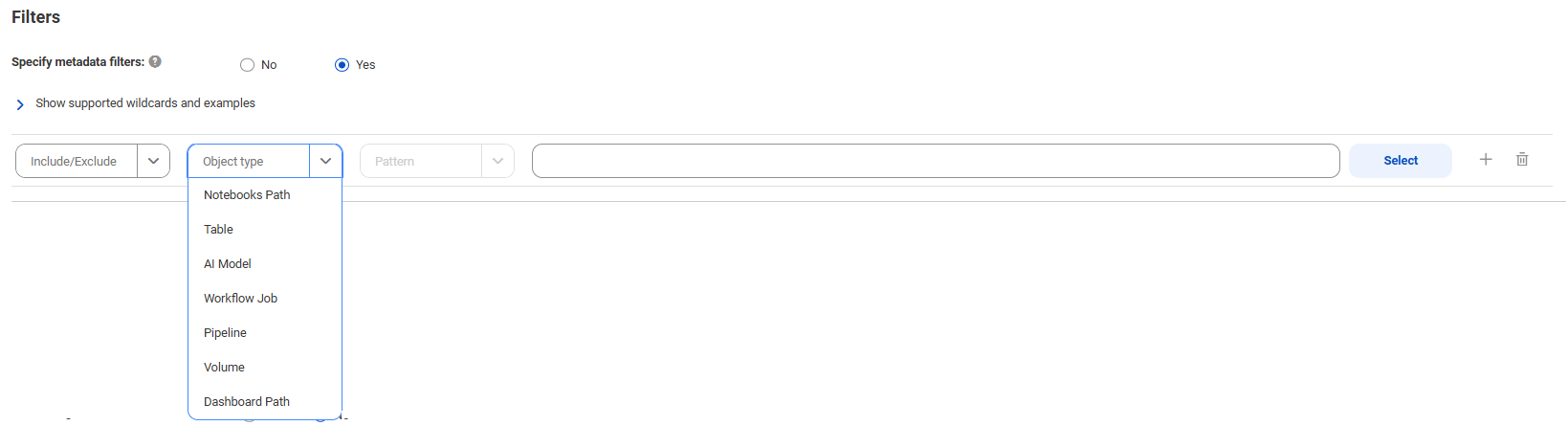
aSelect Yes to view filter options.
bFrom the Include/Exclude list, choose to include or exclude metadata based on the filter parameters.
cFrom the Object type list, select Notebooks Path, Table, AI Model, Workflow Job, Pipeline, Volume, or Dasboard Path depending on the object that you want to extract metadata from.
The following list describes the object types:
▪ Notebooks Path filters Databricks notebooks.
▪ Table filters Databricks Unity Catalog assets.
▪ AI Model filters Databricks Unity Catalog AI Models.
The following image shows the filter condition options:
dFrom the Filter criteria list, select Pattern.
eClick Select.
fIn the Select values dialog box, enter the path and click OK.
Each pattern can contain wildcards. Use a question mark to represent a single character. For example, A? matches A1, Ab. Use an asterisk to represent multiple characters or empty text. For example, A* matches A, Ab, ABC. For object hierarchies, use relevant separators, such as a dot for Table object type and '/' for Notebooks Paths object type. When you enter values for filters, enclose them in double quotes if you include spaces before or after a string value.
The Notebooks Path that you enter in the value field is relative to the Notebook Workspace Path that you enter in the Databricks parameters.
Filters are case-insensitive.
Examples:
▪ To include or exclude metadata from the 'customers' table located in the 'db_schema' schema that belongs to the 'catalog_dept' catalog, select Table as the object type and enter catalog_dept.db_schema.customers in the value field.
▪ To include or exclude metadata from tables with names that start with 'cust' located in schemas with names that start with 'db_sch' and belong to catalogs with names that start with 'catalog_dep', select Table as the object type and enter catalog_dep*.db_sch*.cust* in the value field.
▪ To include or exclude all metadata from all notebooks located in the workspace path, select Notebooks Path as the object type and enter * in the value field.
▪ To include or exclude all metadata from notebooks with names that start with 'Cust' followed by a single character located in the workspace path '/Users/username@domain.com/Deltalake_Notebooks', select Notebooks Path as the object type and enter /username@domain.com/Deltalake_Notebooks/Cust? in the value field.
▪ To include or exclude the notebook named Cust_Notebook located in the workspace path '/Users/username@domain.com/Deltalake_Notebooks', select Notebooks Path as the object type and enter /username@domain.com/Deltalake_Notebooks/Cust_Notebook in the value field.
▪ To include or exclude all the jobs with names that start with 'Job1' followed by a single character, select Workflow Job as the object type and enter Job1? in the value field.
▪ To include or exclude all the jobs with names that start with 'Job1', select Workflow Job as the object type and enter Job1* in the value field.
▪ To include or exclude all pipelines with names that start with 'Pipeline1' followed by a single character, select Pipeline as the object type and enter Pipeline1? in the value field.
▪ To include or exclude metadata from all AI Models in the 'db_schema' schema in the 'catalog_dept' catalog source, select AI Model as the object type and enter catalog_dept.db_schema.* in the value field.
▪ To include or exclude metadata from the 'iris_classifier_model' AI Model in the 'db_schema' schema in the 'catalog_dept' catalog source, select AI Model as the object type and enter catalog_dept.db_schema.iris_classifier_model in the value field.
▪ To include or exclude all volumes from 'hawk_qe_schema' schema that belongs to 'hawk_qe_catalog' catalog, select Volume as the object type and enter /Volumes/hawk_qe_catalog/hawk_qe_schema/* in the value field.
▪ To include or exclude all volumes named 'hawk_external_volume' located in 'hawk_qe_schema' schema that belongs to 'hawk_qe_catalog' catalog, select Volume as the object type and enter /Volumes/hawk_qe_catalog/hawk_qe_schema/hawk_external_volume in the value field.
▪ To include or exclude all volumes with names that start with 'hawk_' located in 'hawk_qe_schema' schema that belongs to 'hawk_qe_catalog' catalog, select Volume as the object type and enter /Volumes/hawk_qe_catalog/hawk_qe_schema/hawk_* in the value field.
▪ To include or exclude volumes from 'files1' folder located in 'hawk_qe_schema' schema that belongs to 'hawk_qe_schema' catalog, select Volume as the object type and enter /Volumes/hawk_qe_catalog/hawk_qe_schema/hawk_external_volume/files1 in the value field.
▪ To include or exclude metadata from all dashboards located in the workspace path, select Dashboard Path as the object type and enter * in the value field.
▪ To include or exclude metadata from all dashboards located in the Users directory, select Dashboard Path as the object type and enter /Users/* in the value field.
▪ To include or exclude metadata from all dashboards with names that start with 'Dashboard1' followed by a single character located in the /Users/username@domain.com workspace path, select Dashboard Path as the object type and enter /Users/username@domain.com/Dashboard1? in the value field.
▪ To include or exclude metadata from 'Dashboard1' dashboard located in the /Users/username@domain.com workspace path, select Dashboard Path as the object type and enter /Users/username@domain.com/Dashboard1 in the value field.
gOptionally, to define an additional filter with an OR condition, click the Add icon.
4Optional. In the Configuration Parameters area, enter properties to override default content values and job parameters.
Note:
Click Show Advanced to view all configuration parameters.
The following table describes the properties that you can enter for Databricks Parameters:
Parameter
Description
Lineage from Unity
Select one of the following metadata extraction options for Databricks Unity Catalog:
- Disabled. Default option. Doesn't extract lineage from Unity Catalog.
- Enabled for filtered assets. Extracts lineage from assets selected in filter conditions. For external tables included in the input filter, the lineage extends to or from the source file on which the external table was created. For assets not selected in the filter conditions, reference assets are created.
- Enabled for all assets. Extracts complete lineage including referenced resources.
As Databricks Unity Catalog provides lineage details one step at a time, you can only retrieve a single step for each asset. To show the full end-to-end flow, you must include every technical asset in the lineage path.
Notebooks Workspace Path
Absolute path to the Databricks Notebooks that you want to extract on the remote workspace host.
Extract Tags
Specify whether you want to include tags assigned to the objects that you extract.
Notebooks Python Modules Path
Advanced parameter. The absolute path to the Python user modules of Databricks Notebooks located on the Secure Agent machine.
Databricks Environment Initialization File Path
Advanced parameter. The absolute path to the Python code file that defines the mount points and other environment properties related to the Databricks source. Specify the file path to resolve mount points when you extract metadata from the Databricks source.
Python Default Variables Values
Python default variable values for Databricks notebooks. Use [VARIABLES], [FUNCTIONS], or [GLOBAL] sections in the form of [SECTION NAME] before you specify a variable.
Notebooks Preload Paths
Advanced parameter. The paths to the Databricks workspace folders with the notebooks that you want to preload.
The paths are relative to the Notebooks Workspace Path.
If you don’t enter any paths, all the notebooks added in Notebook Workspace Path parameter get preloaded.
The following table describes the properties that you can enter for Databricks Volumes Parameters:
Property
Description
Extract Group Elements from Hierarchical Files
Select one of the following options to extract group or leaf elements from hierarchical files:
- Yes. Extracts group elements from hierarchical files with the complete hierarchy of hierarchical fields. You can view the hierarchy of hierarchical files in the Hierarchy tab of assets in Data Governance and Catalog.
- No. Extracts only leaf elements from hierarchical files without the complete hierarchy of hierarchical fields.
You can extract group elements from hierarchical files for the following file types:
- AVRO. Extracts and groups hierarchical files and hierarchical fields.
- Parquet. Extracts and groups hierarchical files and hierarchical fields.
- JSON. Extracts and groups hierarchical files and hierarchical fields.
- XML. Extracts and groups elements and attributes. For XML file types, a maximum depth of 1000 elements is permitted within a single element in the hierarchy.
- XSD. Extracts and groups elements and attributes.
If you modify the Extract Group Elements from Hierarchical Files field and run the catalog source again, the asset page doesn't display the hierarchical elements in the correct hierarchy groups. If you modify the property value, purge the catalog source before you run it again.
Enable Extension-Based File Type Detection
Select one of the following options to detect file types by file extensions or by parsing the file contents:
- Yes. Detects file types by file extensions.
- No. Parses the file contents to detect file types.
Note:
You can detect file types by file extensions for the following file types:
- CSV
- TSV
- TXT
- XML
Use First Row as Header of Delimited Files
Select one of the following options to use the first row as the header or detect headers automatically for delimited files:
- Yes.
Detects column headers based on the following rules:
- Duplicate headers get suffixed with ‘#’ followed by a number, for example, ABC#1, ABC#2. The detection is not case-sensitive.
- Empty column header values appear as UnknownColumn<position>, for example UnknownColumn2.
- The header row in the file is detected even if it has a different number of columns than the data rows.
- No. Detects headers automatically for delimited files.
Headers of Delimited Files
Specify values to determine headers of delimited files. Separate multiple values by commas. If any value from the list is found in the first row of the delimited file, then the first row is used as the header.
Note:
This parameter appears only if you choose No for the Use First Row as Header of Delimited Files parameter.
Treat Files Without Extension As
Select one of the following options to identify files without an extension:
- Parquet
- Avro
- JSON
Enter File Delimiter
Specify the file delimiter if the file from which you extract metadata uses a delimiter other than the following list of delimiters:
- Comma(,)
- Horizontal tab ( \t)
- Semicolon (;)
- Colon (:)
- Pipe symbol (|)
Enclose the delimiter in single quotes, such as '$'. Use a comma to separate multiple delimiters.
Note:
Adding a custom delimiter overrides the default list of delimiters. If you specify a delimiter, characters from the default list are not considered as delimiters.
Files to be excluded during partition discovery
Specify the regular expression of the files that you want to exclude during partition discovery.
Enclose each regular expression in double quotes such as, ".*json","Customer.csv","Parquet.*". Use a comma to separate multiple regular expressions.
Treat Unrecognized Files As
Choose how to handle files with unrecognized formats during metadata extraction. Select one of the following options:
- Structured files. Treats all files with unrecognized formats as structured files.
- Unstructured files. Treats all files with unrecognized formats as unstructured files.
Unrecognized Files Override
Enter one or more file paths as exceptions to override whether the specific unrecognized files should be treated as structured or unstructured files.
You can use the path-based overrides to apply different treatment rules to different files within the same catalog source.
The following table describes the properties that you can enter for Databricks Volumes Partitioned File Configuration:
Property
Description
Custom Partition Detection Configuration File
Select a configuration file in the JSON format to specify the pattern of the non-hive style custom partitions in your source system.
Note:
The system automatically detects partitions if the date format of the partition key is in any of the following formats: For example, the system interprets dd-MM-yyyy as the partition format and extracts Customer as a hierarchical file instead of a folder in the following partition pattern:
The system doesn't automatically detect partitions with other patterns, such as MM-dd-yyyy. If the pattern is different, you need to define it in JSON format. For example, {"CustomPartitionPatterns": ["MM-dd-yyyy"]}
To detect the epoch time format, define it in JSON format as: {"CustomPartitionPatterns": ["@"]}
Partitioned Pruning Configuration Options
Select a configuration file in the JSON format. In the file, specify additional information to identify partitions for determining the relevant schema in your source system.
Enable Partition Detection
Select Yes or No.
Enable Partition Pruning
Select Yes or No.
The following table describes the property that you can enter for additional settings:
Note:
The Additional Settings section appears when you click Show Advanced.
Property
Description
Expert Parameters
Enter additional configuration options to be passed at runtime. Required if you need to troubleshoot the catalog source job.
Caution:
Use expert parameters when it is recommended by Informatica Global Customer Support.
5 Click each tab to enable and configure additional capabilities for the catalog source.
Python default variables values
Provide Python default variables values when your script uses values that are not defined in the code.
Ensure that the Python default variables values include either both VARIABLES and FUNCTIONS sections or a GLOBAL section.
To escape special characters such as \n or \t, use the backslash (\). For example, to define E:\file\tgtParameterized.csv, enter E:\\file\\tgtParameterized.csv
Variables
Use the following syntax: <VariableName>=<VariableExpression>
Note:
A variable name doesn't require quotes if it contains only standard alphanumeric characters. If a variable name contains special characters, use double quotes.
A sample variable section can have the following structure:
[VARIABLES] a = 42 b = 7 c = a < b ? a + 7 : b - 7 // It's 49 d = e(1,2) + 1 // Expression use call to function. "User::table" = 'table' || "User::tableSuffix" // It's a string table concatenated with the value of User::tableSuffix variable
Functions
Use the following syntax: <FunctionCallSignature>=<FunctionExpression>
Consider the following rules and guidelines when you define functions:
•A function name doesn't require quotes if it contains only standard alphanumeric characters.
•Enclose a function name in double quotes if it contains special characters.
•Define the list of arguments within parentheses.
•Use a question mark for each function argument.
•Ensure that arguments consist of question marks separated by commas.
A sample function section can have the following structure:
[FUNCTIONS] a(?) = 1 a(?,?) = 2 b(?) = a(1) + 1 // Expression use call to another function. c(?,?) = d + 2 // Expression use reference to variable.
You can provide additional sections to match functions. To match an overloaded function, provide placeholders for its arguments. You can also reference matched function arguments inside the matched section.
A sample custom function section can have the following structure:
In the first example, the substring 'bcde' matches the regular expression pattern 'b.*'. The function replaces the matched substring with the replacement string 'f'. As a result, the modified string returned by the function is 'af'.
In the second example the substring 'id20' matches the regular expression pattern 'id(\d+)'. The function replaces the entire matched substring with the captured digits '20'. As a result, the modified string returned by the function is 'graph_20'.
StringLengthLimit(str, limit, hashSize)
Limits the length of the input string based on a specified limit. If the length of the string exceeds the limit, the function appends a hash of the remaining characters using the Hash function, where 'hashSize' specifies the size of the hash.
For example:
- StringLengthLimit('abcc', 3, 2) -> 'a26'
- StringLengthLimit('abcc', 4, 2) -> 'abcc'
In the first example, the input string 'abcc' is longer than the specified limit of 3 characters and it is truncated to 'a'. The remaining characters are replaced with the hash value '26'.
In the second example, the function does not modify or truncate the input string because its length matches the specified limit of 4 characters. The function returns the original string 'abcc'.
StringLengthLimit(str, limit)
Limits the length of the input string based on the specified limit. If the length of the string exceeds the limit, the function appends a hash of the remaining characters using the Hash function with a default hash size of 8 characters.
For example: StringLengthLimit('abcdabcdabcd', 10) -> 'abE340600C'
In this example, the function limits the length of the input string 'abcdabcdabcd' based on the specified limit of 10 characters.
RegexpMatch(pattern, str)
Tests whether the input string matches a specified pattern. For example: RegexpMatch('[A-Za-z]+','Abcd') -> TRUE
In this example, the function returns 'TRUE' because the input string 'Abcd' contains alphabetic characters that satisfy the pattern of one or more occurrences of alphabetic characters specified by [A-Za-z]+.
Upper(str)
Converts the characters in a given input string to uppercase.
For example: Upper('Abc') -> 'ABC'
Lower(str)
Converts the characters in a given input string to lowercase.
For example: Lower('aBC') -> 'abc'
Date(text,format)
Returns objects that represent a date in a specified format. For example: Date('2017-10-31', 'yyyy-MM-dd')
Note:
The function follows the conventions and patterns provided by the SimpleDateFormat class in Java 8.
Contains/ ContainsIgnoreCase(stack, needle)
Checks if a given "needle" string is present within a "stack" string.
Examples:
- Contains('abc', 'ab') -> TRUE
- Contains(' abc', 'AB') -> FALSE
- ContainsIgnoreCase(' abc', 'AB') -> TRUE
- Contains('stack', 'needle') -> FALSE
In the examples, TRUE means that the function contains a given substring and FALSE means that it doesn't.
Global
You can use a GLOBAL section. It contains both variables and function definitions. If you use a GLOBAL section, don't add the VARIABLES or FUNCTIONS sections.
Use the following syntax: DefaultVariable = 'DefaultValue'
Note:
A sample global section can have the following structure:
Note:
A variable name doesn't require quotes if it contains only standard alphanumeric characters. If a variable name contains special characters, use double quotes.
Simple expression
Use the Simple Expression Language to define a value for a variable or a function call. The Simple Expression Language allows you to use values from already defined variables and functions, as well as variables from the current job context.
You can use the following case-sensitive literals:
•Integer: 42
•String: 'str'
•String with quoted single quote: 'str\''
•Boolean: true, false
You can use the following features and functionalities of the Simple Expression Language:
Use comments to provide additional information about Python default variables values. You can use the following comment types:
•Single line: // comment
•Multi line: /* comment */
Note:
Comments don't affect the job.
Configure lineage discovery
Enable the lineage discovery capability and use CLAIRE to build complete lineage by recommending endpoint catalog source objects to assign to reference catalog source connections.
1Click the Lineage Discovery tab.
2Select Enable Lineage Discovery.
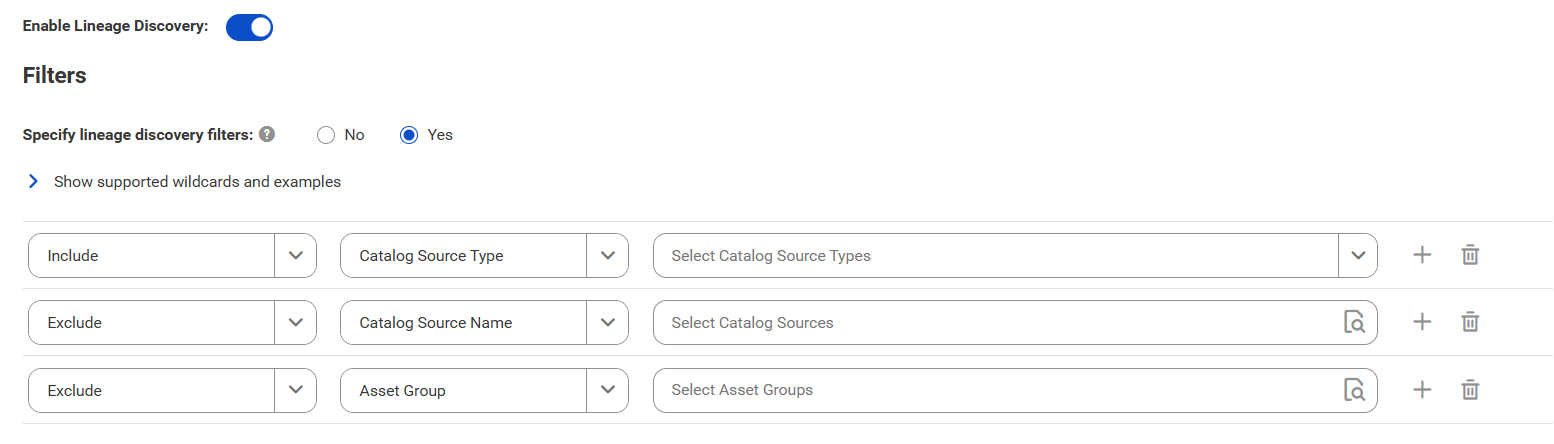
3In the Filters area, define one or more filter conditions to apply for lineage discovery.
To define filters, you can choose to select catalog source types, asset groups, or enter a catalog source name or search from a list of catalog sources.
aSelect Yes to view filter options.
bFrom the Include/Exclude list, choose to include or exclude catalog sources for lineage discovery based on the filter parameters.
cFrom the filter type list, select catalog source type, catalog source name, or asset group.
dIn the filter value field, select the required catalog source types, or click the Search button and select catalog sources or asset groups.
Filters can contain the asterisk wildcard to represent multiple characters or empty text.
The filter options appear.
Examples:
▪ To include or exclude all Oracle catalog sources, select Catalog Source Type as the filter type and select Oracle in the filter value field.
▪ To include or exclude the 'Oracle_Retail' catalog source, select Catalog Source Name as the filter type and search for the catalog source or enter Oracle_Retail in the filter value field.
▪ To include or exclude all catalog sources with names that start with 'Oracle', select Catalog Source Name as the filter type and search for the catalog source or enter Oracle* in the filter value field.
▪ To include or exclude all catalog sources with names that end with 'Retail', select Catalog Source Name as the filter type and search for the catalog source or enter *Retail in the filter value field.
▪ To include or exclude all catalog sources with names that contain 'Ret', select Catalog Source Name as the filter type and search for the catalog source or enter *Ret* in the filter value field.
▪ To include or exclude all catalog sources that are part of the 'Financial Group' asset group, select Asset Group as the filter type and search Financial Group in the filter value field.
Note:
You can't add more than one include or exclude filter for the same filter type.
eOptionally, to define an additional filter with an AND condition, click the Add icon.
For more information about lineage discovery, see Lineage discovery.
Configure data profiling and quality
Enable the data profiling capability to evaluate the quality of metadata extracted from the Databricks source system.
1Click the Data Profiling and Quality tab.
2Expand Data Profiling and select Enable Data Profiling.
Note:
Ensure that you have permissions on all the staging connections that you use in your data profiling configuration. You can't run the job if you don't have permissions on the connections that you use. Select connections that you have access to, or ask the administrator to grant the necessary permissions on the connections that you want to use.
3In the Connection and Runtime area, choose the Secure Agent group where you want to run catalog source jobs.
4Optionally, in the Filters area, specify additional filters in addition to metadata filters:
aSelect Yes.
bFrom the Include/Exclude list, choose to include or exclude metadata based on the filter parameters.
cFrom the Object type list, select Catalog.Schema.
dEnter the path to the object as the filter value.
Examples:
▪ You extracted metadata from all objects from the ‘Schema1’ schema in the ‘Catalog1’ catalog and now you want to run a profile on the ‘Table1’ table in the schema. Select Table from the Object type list and then enter the catalog name followed by the schema name and the table name in the input field. For example, Catalog1.Schema1.Table1
▪ You extracted metadata from all objects from a schema and now you want to run a profile on multiple tables in the schema. Select Table from the Object type list. Click Select and then enter the catalog name, schema name and table name separated by dots. Click Add to enter additional tables.
To include or exclude multiple objects, click the Add icon to add filters with the OR condition.
5In the Parameters area, configure the parameters.
The following table describes the parameters that you can enter:
Parameter
Description
Modes of Run
Determine the type of data that you want the data profiling task to collect.
Choose one of the following options:
- Keep signatures only. Collects only aggregate information such as data types, average, standard deviation, and patterns.
- Keep signatures and values. Collects both signatures and data values.
Profiling Scope
Determine whether you want to run data profiling only on the changes made to the source system since the last profile run or on the entire source system.
Choose one of the following options:
- Incremental. Runs the profile only on the changed or updated metadata in the source system since the last profile.
- Full. Runs the profile on the entire metadata that is extracted based on the filters applied for extraction.
Sampling Type
All Rows. Runs the profile on all rows in the metadata.
Custom Query. Runs the profile on a specified percentage of rows. For example, TABLESAMPLE (BUCKET 10 OUT OF 50), TABLESAMPLE (5 PERCENT), LIMIT 2, or TABLESAMPLE (5000 ROWS).
Maximum Precision of String Fields
The maximum precision value for profiles on string data type.
Text Qualifier
The character that defines string boundaries. If you select a quote character, profiling ignores delimiters within the quotes. Select a qualifier from the list.
Default is Double Quote.
6Expand Data Quality and select Enable Data Quality.
Note:
You can click Use Data Profiling Parameters to use the same parameters as in the Data Profiling section.
Note:
Ensure that you have permissions on all the staging and flat file connections that you use in your data quality configuration. You can't run the job if you don't have permissions on the connections that you use. Select connections that you have access to, or ask the administrator to grant the necessary permissions on the connections that you want to use.
7In the Connection and Runtime area, choose the Secure Agent group where you want to run catalog source jobs.
8In the Parameters area, configure the parameters.
The following table describes the parameters that you can enter:
Parameter
Description
Data Quality Rule Automation
Enable the option to automatically create or update rule occurrences for data elements in the catalog source.
Choose one of the following options:
- Apply on Data Elements linked with Business Dataset. Creates rule occurrences for all data elements that are linked with business data sets in the catalog source.
- Apply on all Data Elements. Creates rule occurrences for all data elements in the catalog source.
Data Quality Remediation
Enable the option to specify a flat file connection to store the list of failed rows so that users can remediate poor data quality scores.
Choose one of the following options:
- No. Doesn't enable the Create Data Quality Failure Ticket option.
- Yes. Shows a list of flat file connections where you write failed rows to customer-managed locations.
Data Quality Failure Ticket
Specify whether you want to create data quality failure tickets for poor data quality scores based on the threshold defined for the rule occurrence in Data Governance and Catalog.
Choose one of the following options:
- No. Doesn't automatically create data quality failure tickets when the data quality scores are poor.
- Yes. Automatically creates data quality failure tickets based on the data quality threshold values you define in Data Governance and Catalog, and notifies you when a data quality score is below the threshold.
Note:
You must configure a workflow event for the data quality failure and enable the event in Metadata Command Center.
Cache Result
Specify how you want to preview the rule occurrence results. Select Agent Cache if you want to generate a cache file in the runtime environment and to preview the cached results faster in subsequent data preview runs. The results are cached for seven days by default after the first run in the runtime environment. Select No Cache if you don't want to cache the preview results and view the live results.
Run Rule Occurrence Frequency
Specify whether you want to run data quality rules based on the frequency defined for the rule occurrence in Data Governance and Catalog.
Sampling Type
All Rows. Runs the data quality task on all rows in the metadata.
Custom Query. Runs the data quality task on a specified percentage of rows. For example, TABLESAMPLE (BUCKET 10 OUT OF 50), TABLESAMPLE (5 PERCENT), LIMIT 2, or TABLESAMPLE (5000 ROWS).
Maximum Precision of String Fields
The maximum precision value for profiles on string data type.
Text Qualifier
The character that defines string boundaries. If you select a quote character, the data quality task ignores delimiters within the quotes. Select a qualifier from the list.
Default is Double Quote.
Configure data observability
Enable the data observability capability to receive anomaly notifications for metadata extracted from the source system.
To include profiling anomalies, enable data profiling for the catalog source. For accurate results, set the Profiling Scope option to Full in the Data Profiling and Quality configuration.
1Click the Data Observability tab.
2Select Enable Data Observability.
3In the Parameters area, enter a value to specify the minimum number of catalog source job runs required to start detecting anomalies. For example, if you enter a value of 5, then the job starts to detect anomalies from the sixth run.
Note:
This option does not apply to anomalies that require a minimum of two runs to generate.
4Specify the maximum number of anomaly events to generate for each catalog source run. Default is 1000.
5Optionally, in the Asset Filters area, enable filters to run data observability on specific assets.
- Specify volume filters if you want to extract volume anomaly data for specific metadata extracted.
- Specify data profiling filters if you want to override the data profiling filter and extract profiling anomalies for assets based on a different filter.
6To add a volume filter, perform the following steps:
aSelect Yes to view filter options.
bFrom the Include/Exclude list, choose to include or exclude metadata.
cEnter a value to specify the object location.
For example, you want to observe volume metrics of a specific table from the schema extracted. Enter the schema name followed by the table name in the input field.
Example: Schema_Name.Table_Name
dTo include or exclude multiple objects, click the Add icon to add filters with the OR condition.
7To add a data profiling filter, perform the following steps:
aSelect Yes to view filter options.
bFrom the Include/Exclude list, choose to include or exclude metadata.
cFrom the Specify data profiling filters list, select an object type.
dEnter a value to specify the object location.
For example, you ran a profile on multiple schemas, and now you want to generate profiling anomalies on a specific schema. Enter the schema name in the input field.
eTo include or exclude multiple objects, click the Add icon to add filters with the OR condition.
8Optionally, in the Metric Filter area, specify filters to generate events based on specific metrics. If you don't include a filter, the job detects both profiling and other anomalies applicable to the catalog source.
aSelect Filter conditions.
bFrom the Include Metric list, choose to include or exclude a metric.
cFrom the All Metrics list, select a metric for which you want to generate events.
dFrom the Sensitivity list, select the sensitivity of the anomaly.
eFrom the Select detection rules list, select rules that you apply to detect anomalies.
The following table describes the detection rules that you can select:
Option
Description
Static Data
Detects the following anomalies:
- Percentage variation. If percentage values other than 0% or 100% remain constant for three or more profile runs, any subsequent change generates a Percentage Variation anomaly.
- Count variation. A change in a value that is usually constant indicates that there is an anomaly.
100% or 0% Change Detection
Detects the following anomalies:
- Drop from maximum. A drop from 100% to a lower value generates a Drop from Maximum anomaly.
- Surge from minimum. A spike from 0% to any higher value generates a Surge from Minimum anomaly.
Standard Deviation
Detects the following anomalies:
- Drop in transition. A drop from a value that has been decreasing at a constant rate to a significantly lower value generates a Drop in Transition anomaly.
- Surge in transition. A spike from a value that has been increasing at a constant rate to a significantly higher value generates a Surge in Transition anomaly.
- Deviation. If the percentage values of a record change with each profile run, the algorithm calculates an expected range based on the changes observed in each profile run. A new value that falls outside of this expected range generates a Deviation anomaly.
Breaking Trends
Detect the following types of count-based anomalies:
- Drop. A drop in a value that has been increasing to a lower value generates a Drop anomaly.
- Surge. A spike in a value that has been decreasing to a higher value generates a Surge anomaly.
Configure data classification
Enable the data classification capability to identify and organize data into relevant categories based on the functional meaning of the data.
1Click the Data Classification tab.
2Select Enable Data Classification.
3Choose one of the following options:
- Generated Data Classifications. CLAIRE automatically generates data classifications for the data elements.
- Data Classification Rules. Choose from predefined or custom data classifications.
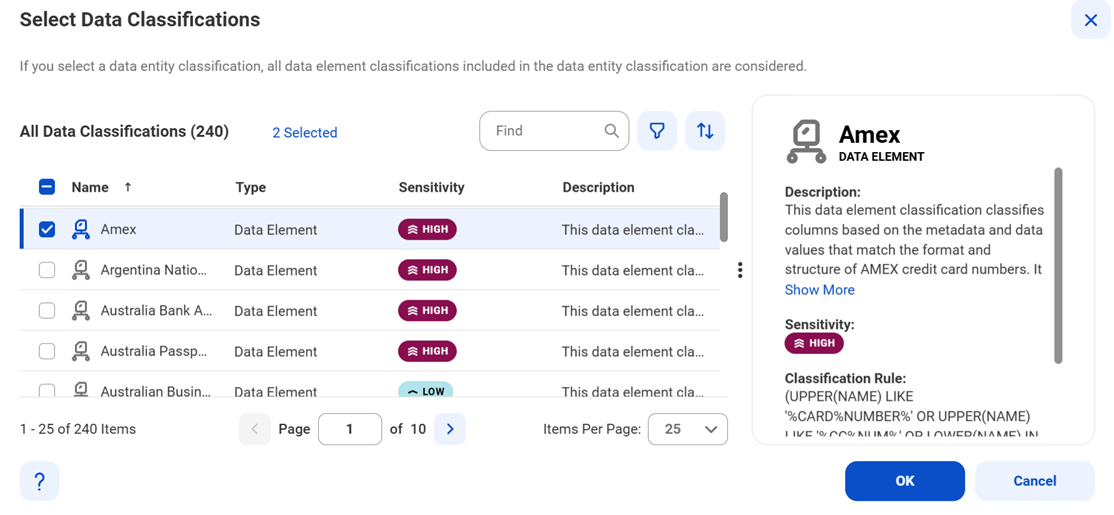
1Click Add Data Classification. The Select Data Classifications dialog box appears.
2Select the data classifications that you want to use.
3Click OK.
Configure relationship discovery
Enable the relationship discovery capability to identify pairs of similar columns and relationships between tables within a catalog source.
Before you configure relationship discovery, you need to import a relationship inference model. For more information about importing a relationship inference model, see Import a relationship inference model.
1Click the Relationship Discovery tab.
2Select Enable Relationship Discovery.
3In the Column Similarity area, select the Relationship Inference Model.
The relationship inference models that you imported appear in the Relationship Inference Model field.
4Specify the Confidence Score Threshold that indicates whether the predictions made by the model for column similarity are acceptable. Specify a score from 0 to 1 to set a threshold limit. If the score is higher than the specified limit, Metadata Command Center automatically assigns a matching glossary term to the data element.
Note:
A Confidence Score Threshold lower than 0.4 might result in a large number of false positives.
5In the Joinable Tables Relationship area, specify the Containment Score Threshold to identify joinable table relationships within the catalog source. This score is an indicator of the data overlap between any two given columns which determines whether the tables are joinable.
A higher score means that the data in the objects is more similar and a lower score means lesser overlapping data between the two objects. A Containment Score Threshold lower than 0.4 might result in a large number of false positives.
Configure glossary association
Enable the glossary association capability to associate glossary terms with technical assets, or to get recommendations for glossary terms that you can manually associate with technical assets in Data Governance and Catalog.
Metadata Command Center considers all published business terms in the glossary while making recommendations to associate your technical assets.
1Click the Glossary Association tab.
2Select Enable Glossary Association.
3Select Enable auto-acceptance to automatically accept glossary association recommendations.
4Specify the Confidence Score Threshold for Auto-Acceptance to set a threshold limit based on which the glossary association capability automatically accepts the recommended glossary terms.
Note:
Specify a percentage from 80 to 100. If the score is higher than the specified limit, the glossary association capability automatically assigns a matching glossary term to the data element.
5Select Enable Below-threshold Recommendations to receive glossary association recommendations below the auto-acceptance threshold. If you enable auto-acceptance, you can enable below-threshold recommendations to receive glossary recommendations below the auto-acceptance threshold.
6Specify the Confidence Score Threshold for Recommendations to set a threshold based on which the glossary association capability makes recommendations
If you enable auto-acceptance, specify a percentage from 80 to the selected auto-acceptance threshold. You can accept or reject the recommended glossary terms that fall within this range in Data Governance and Catalog.
If you disable auto-acceptance, specify a percentage from 80 to 100 inclusive.
7Choose to automatically assign business names and descriptions to technical assets. You can then choose to retain existing assignments and only assign business names and descriptions to assets that don't have assignments, or allow overwrite of existing assignments.
By default, existing assignments are retained.
8Optional. Choose to ignore specific parts of data elements when making recommendations. Select Yes and enter prefix and suffix keyword values as needed.
Click Select to enter a keyword. You can enter multiple unique prefix and suffix keywords. Keyword values are case insensitive.
9Optional. Choose specific top-level business glossary assets to associate with technical assets. Selecting a top-level asset selects its child assets as well. Select Top-level Glossary Assets and specify the assets on the Select Assets page.
10Optional. Choose to use abbreviations and synonym definitions from lookup tables for accurate glossary association. Select Yes to enable, and then click Select to upload a lookup table.