1Log in to Intelligent Data Management Cloud.
The My Services page appears.
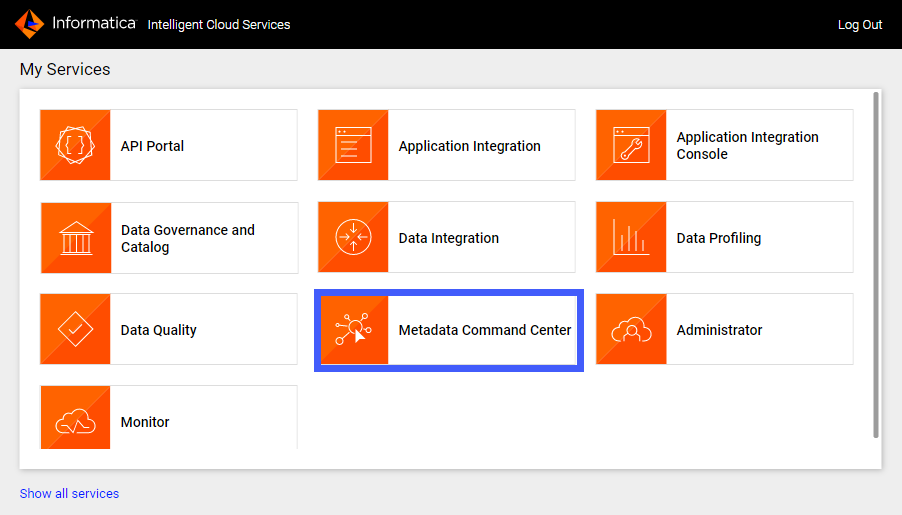
2Click Metadata Command Center.
The Metadata Command Center box appears on the My Services page.
The Metadata Command Center home page appears.
3Click New.
4Select Catalog Source from the list of asset types.
5Select dbt Cloud from the list of catalog source types.
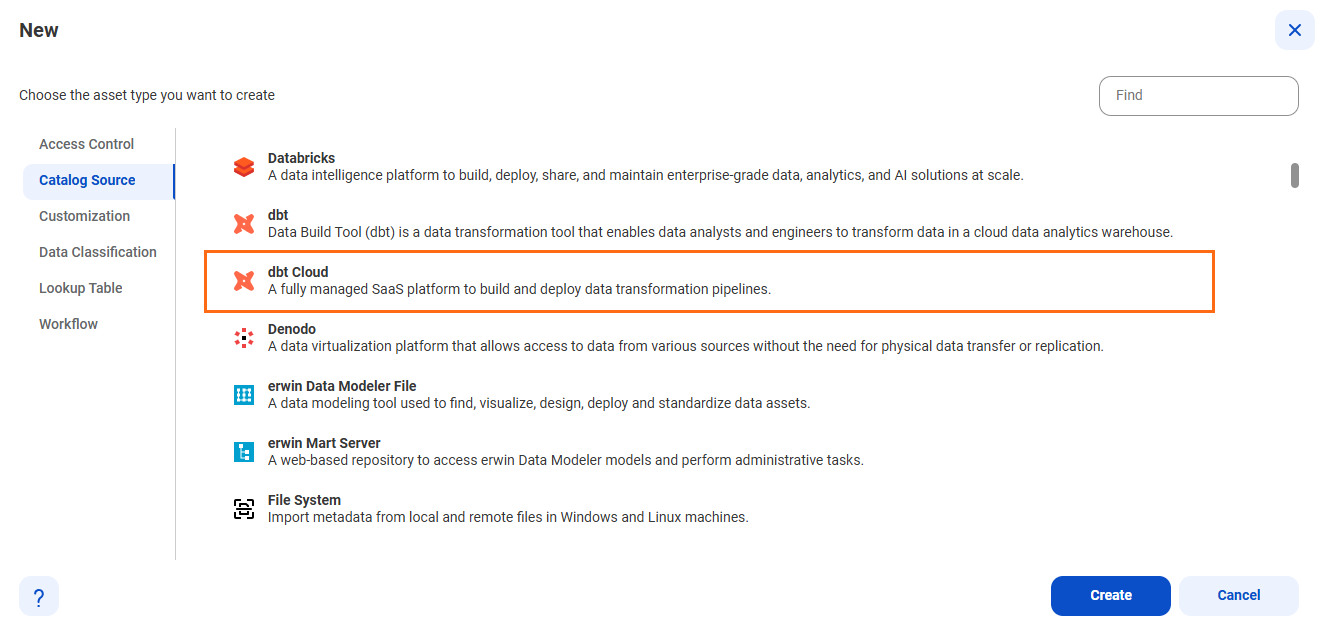
6Click Create.
The New Catalog Source page opens.
7In the General Information section, enter a name and an optional description for the catalog source.
Note:
You can rename a catalog source after you create it, but to apply the change to all associated objects you must rerun the metadata extraction job.
After you save the catalog source, you can update the description in Metadata Command Center and Data Governance and Catalog. The update appears only in the service in which you update it.
8In the General Information section, enter a name and an optional description for the catalog source.
Note:
You can rename a catalog source after you create it, but to apply the change to all associated objects you must rerun the metadata extraction job.
After you save the catalog source, you can update the description in Metadata Command Center and Data Governance and Catalog. The update appears only in the service in which you update it.
9In the Connection Information area, select the connection that you created in Administrator.
Note:
To create or edit a catalog source, you need permissions on the connection to the source system. Select a connection that you have access to, or ask the administrator to grant the necessary permissions to the connection that you want to use.
10In the Job Runs Time Range option, select the time range for jobs to process.
11In the Job Filter option, define the dbt Cloud job filter to include jobs to process.
Each pattern can contain wildcards. Use a question mark (?) to represent a single character. For example, A? matches A1 and Ab. Use an asterisk (*) to represent multiple characters or empty text. Use a double asterisk (**) to indicate one or more recursive folder levels. Recursive filter patterns can increase job processing time as data volume grows. Use a forward slash (/) as the path separator. Filters are not case-sensitive.
Examples:
- - To include the my_job job, located in the my_project project, in the acc1 account, enter /acc1/my_project/my_job in the value field.
- - To include the my_job job, located in projects with names that start with my_proj in the acc1 account, enter /acc1/my_proj*/my_job in the value field.
- - To include jobs with names that end with _job, located in the my_project project, in the acc1 account, enter /acc1/my_project/*_job in the value field.
- - To include the my_job job, located in the my_project project, in accounts with names that start with acc, enter /acc*/my_project/my_job in the value field.
- - To include the my_job job located in the my_project project in all accounts with names that start with acc followed by exactly one character, enter /acc?/my_project/my_job in the value field.
- - To include the 1234 run of the my_job job, located in the my_project project, in the acc1 account, enter /acc1/my_project/my_job/1234 in the value field.
12Click Next.