When you configure the Microsoft Azure Data Lake Storage Gen2 catalog source, you define the settings for the metadata extraction capability and other optional capabilities.
The metadata extraction capability extracts source metadata from external source systems. You can also configure other capabilities that the catalog source includes.
You can save the catalog source configuration at any point after you enter the connection information. After you save the catalog source, you can choose to run the catalog source job. To run the job once, click Run. To run metadata extraction and other capabilities on a recurring schedule, configure schedules on the Schedule tab.
Configure metadata extraction
When you configure the Microsoft Azure Data Lake Storage Gen2 catalog source, you choose a runtime environment, define filters, and enter configuration parameters for metadata extraction.
1In the Connection and Runtime area, choose a serverless runtime environment or the Secure Agent group where you want to run catalog source jobs.
Note:
Serverless runtime environment options are available if the catalog source works with a serverless runtime environment.
2Choose to retain, delete, or deprecate objects that are deleted from the source system in the catalog with the Metadata Change Option.
- Retain. Retains objects that are deleted from the source system in the catalog. If you update or add a filter, the catalog retains objects extracted from the previous job and extracts additional objects that match the current filter. Objects deleted from the source system are not deleted from the catalog. Enrichments added on deleted objects and relationships are retained.
- Delete. Deletes metadata from the catalog based on objects deleted from the source system and changes you make to the filter. Enrichments added on deleted objects and relationships are also permanently lost. Objects renamed in the source system are removed and recreated in the catalog.
- Deprecate. When objects are deleted from the source system, the catalog changes the lifecycle of the imported objects to Obsolete. The lifecycle of objects also changes to Obsolete when you add exclusion filters or reduce the scope so that objects extracted in earlier jobs are no longer included. For example, the first job includes the sales schema. The second job also includes the sales schema, but excludes the sales.transactions table. In this case, the second job marks the sales.transactions object as Obsolete, even though the first job includes it. This does not impact enrichments applied to deprecated objects and relationships. Objects renamed in the source system are removed and recreated in the catalog. When you run the catalog source job again for other capabilities such as data classification, relationship discovery, or glossary association, the job doesn't consider obsolete objects. Obsolete objects remain in the catalog until they are purged when you run a Purge Obsolete Objects job on the Explore page.
Note:
You can also change the configured metadata change option when you run a catalog source.
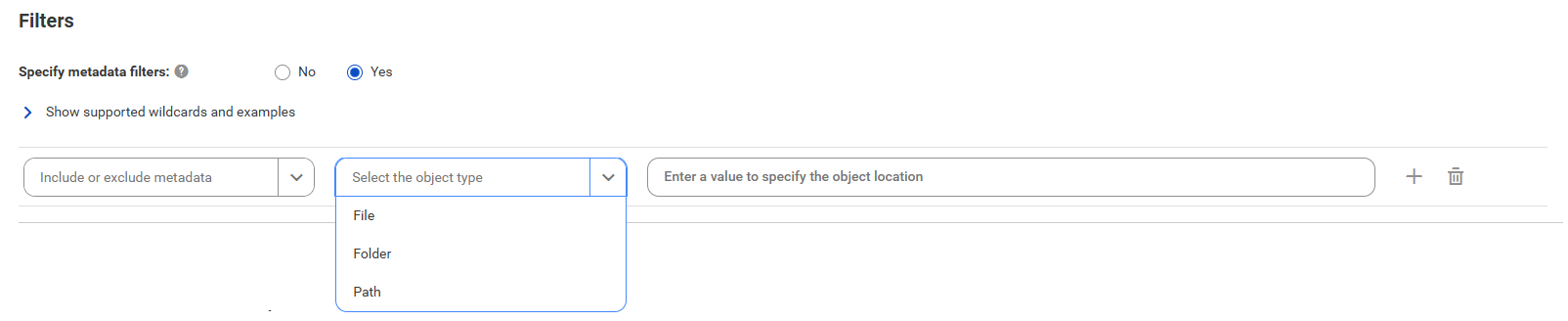
3In the Filters area, define one or more filter conditions to apply for metadata extraction.
To define filters, you can either select an object type and enter the path to the object as the filter value, or select an object from a list of objects available in the source system.
aSelect Yes to view filter options.
bFrom the Include/Exclude list, choose to include or exclude metadata based on the filter parameters.
cPerform one of the following steps:
▪ From the Object type list, select an object type, depending on the object that you want to extract metadata from. Enter the path to the object as the filter value.
▪ In the filter value field, click the Search button and select an object from a list of objects available in the source system.
The Object type field updates based on the selected object.
If you select an object type and then click the Search button, the list of objects includes all object types, but you can only select objects that match the selected object type.
You can edit the filter value after you select an object from the list.
Note:
You can only search for object types that work with the search functionality. If you don't see the Search button for the selected object, enter the object path as the filter value.
Note:
If the object metadata is available in Data Governance and Catalog, a check mark appears next to the object.
Note:
To select an object, you need to have permissions on the connection to the source system.
dTo define an additional filter with an OR condition, click the Add icon.
4Optionally, in the Configuration Parameters area, enter properties to override default context values and job parameters.
The following table describes the properties that you can enter for Catalog Source Configuration Options:
Parameter
Description
Extract Group Elements from Hierarchical Files
Select one of the following options to extract group or leaf elements from hierarchical files:
- Yes. Extracts group elements from hierarchical files with the complete hierarchy of hierarchical fields. You can view the hierarchy of hierarchical files in the Hierarchy tab of assets in Data Governance and Catalog.
- No. Extracts only leaf elements from hierarchical files without the complete hierarchy of hierarchical fields.
You can extract group elements from hierarchical files for the following file types:
- AVRO. Extracts and groups hierarchical files and hierarchical fields.
- Parquet. Extracts and groups hierarchical files and hierarchical fields.
- JSON. Extracts and groups hierarchical files and hierarchical fields.
- XML. Extracts and groups elements and attributes. For XML file types, a maximum depth of 1000 elements is permitted within a single element in the hierarchy.
- XSD. Extracts and groups elements and attributes.
If you modify the Extract Group Elements from Hierarchical Files field and run the catalog source again, the asset page doesn't display the hierarchical elements in the correct hierarchy groups. If you modify the property value, purge the catalog source before you run it again.
Enable Extension-Based File Type Detection
Select one of the following options to detect file types by file extensions or by parsing the file contents:
- Yes. Detects file types by file extensions.
- No. Parses the file contents to detect file types.
Note:
You can detect file types by file extensions for the following file types:
- CSV
- TSV
- TXT
- XML
Use First Row as Header of Delimited Files
Select one of the following options to use the first row as the header or detect headers automatically for delimited files:
- Yes.
Detects column headers based on the following rules:
- Duplicate headers get suffixed with ‘#’ followed by a number, for example, ABC#1, ABC#2. The detection is not case-sensitive.
- Empty column header values appear as UnknownColumn<position>, for example UnknownColumn2.
- The header row in the file is detected even if it has a different number of columns than the data rows.
- No. Detects headers automatically for delimited files.
Headers of Delimited Files
Specify values to determine headers of delimited files. Separate multiple values by commas. If any value from the list is found in the first row of the delimited file, then the first row is used as the header.
Note:
This parameter appears only if you choose No for the Use First Row as Header of Delimited Files parameter.
Treat Files Without Extension As
Select one of the following options to use to identify files without an extension:
- Parquet
- Avro
- JSON
Enter File Delimiter
Specify the file delimiter if the file from which you extract metadata uses a delimiter other than the following list of delimiters:
- Comma (,)
- Horizontal tab ( \t)
- Semicolon (;)
- Colon (:)
- Pipe symbol (|)
Enclose the delimiter in single quotes, such as '$'. Use a comma to separate multiple delimiters.
Note:
Adding a custom delimiter overrides the default list of delimiters. If you specify a delimiter, characters from the default list are not considered as delimiters.
Files to be excluded during partition discovery
Specify the regular expression of the files that you want to exclude during partition discovery. Use a comma to separate multiple regular expressions.
For example, enter ".*json","Customer.csv","Parquet.*".
Treat Unrecognized Files As
Choose how to handle files with unrecognized formats during metadata extraction. Select one of the following options:
- Structured files. Treats all files with unrecognized formats as structured files.
- Unstructured files. Treats all files with unrecognized formats as unstructured files.
Note:
On a serverless runtime environment, unrecognized files are treated as structured files.
Unrecognized Files Override
Enter one or more file paths as exceptions to override whether the specific unrecognized files should be treated as structured or unstructured files.
You can use the path-based overrides to apply different treatment rules to different files within the same catalog source.
The following table describes the properties that you can enter for Partitioned File Configuration:
Parameter
Description
Custom Partition Detection Configuration File
The configuration file in JSON format to detect custom partitions in the source system. The configuration file defines the pattern of the non-Hive style custom partitions.
Note:
The system automatically detects partitions if the date format of the partition key is in any of the following formats: For example, the system interprets dd-MM-yyyy as the partition format and extracts Customer as a hierarchical file instead of a folder in the following partition pattern:
The system doesn't automatically detect partitions with other patterns, such as MM-dd-yyyy. If the pattern is different, you need to define it in JSON format. For example, {"CustomPartitionPatterns": ["MM-dd-yyyy"]}
To detect the epoch time format, define it in JSON format as: {"CustomPartitionPatterns": ["@"]}
Partitioned Pruning Configuration Options
The configuration file in JSON format for partition pruning. The configuration file contains additional information to identify partitions and determine the relevant schema in the source system.
Enable Partition Detection
Specify if you want to enable partition detection.
Enable Partition Pruning
Specify if you want to enable partition pruning.
Default is Yes.
Note:
Applicable if you enable partition detection.
5Configure additional capabilities for the catalog source by clicking on the tabs.
Filter guidelines and examples
You can add metadata extraction filters when you configure the catalog source. To create a filter, you can use choose from file names, folder names, or paths.
Consider the following rules and guidelines when you enter filter values:
•Filters are case-sensitive.
•Use an asterisk to represent multiple characters in a folder name, file name, and a single folder level in a folder hierarchy. For example, A* matches A, Ab, ABC.
•For file filters, specify only the file name.
•If a file name contains an asterisk, the filter considers it as a wildcard and not a special character. To ignore an asterisk as a wildcard, enclose it in double quotes (“) in the filter.
•Use a forward slash as a separator in path hierarchies. You can add a path in folder and path filters.
•Use an asterisk as a path placeholder in folder and path filters. For example, folder1/*/folder3. Here, the filter includes all folders under folder1.
•Use two asterisks to indicate zero or more levels of folders in folder and path filters. The pattern with two asterisks is recursive. The processing time is longer as the data volume increases.
Important:
It is recommended that you either use only a path filter or use a combination of a folder and a file filter.
Examples
You can include or exclude metadata from folders, files, or paths.
Folder filters
Folder filters apply to folders included in the source system.
For example:
- To include or exclude metadata from 'Folder2' located inside 'Folder1', select Folder as the object type and enter Folder1/Folder2 in the value field.
- To include or exclude metadata from 'Folder2' located in any folder under 'Folder1', select Folder as the object type and enter Folder1/*/Folder2 in the value field.
- To include or exclude metadata from 'Folder2' located two levels under 'Folder1', select Folder as the object type and enter Folder1/*/*/Folder2 in the value field.
- To include or exclude metadata from 'Folder2' located at any level under 'Folder1', select Folder as the object type and enter Folder1/**/Folder2 in the value field. This is a recursive search, and therefore the processing time can be longer.
File filters
File filters apply to the files included in folders that you filter. The file filter is recursive. If you don’t provide any folder filters, the file filters apply to the entire folder hierarchy.
For example:
- To include or exclude metadata from all files with the name 'File1.csv' located in the source directory, select File as the object type and enter File1.csv in the value field. Metadata Command Center recursively searches for files that match the filter criteria in all folders in the source directory.
- To include or exclude metadata from all files with names that start with 'File' and end with 'ame.csv', select File as the object type and enter File*ame.csv in the value field.
- To include or exclude metadata from all files with names that end with 'File.csv', select File as the object type and enter *File.csv in the value field.
- To include or exclude metadata from all files with the name 'File' and files that start with the name 'File' followed by one or more characters, select File as the object type and enter File* in the value field.
- To include or exclude metadata from all files with names that contain the word 'File', select File as the object type and enter *File* in the value field.
- To include or exclude metadata from all files with the name 'Fi*le.csv', select File as the object type and enter Fi”*”le.csv in the value field.
Path filters
Path filters apply to the files and folders in the path that you filter. The path filter is non-recursive. If you provide only the file or folder names, the path filters apply to the first level files or directories.
For example:
- To include or exclude metadata from files and folders with names that start with 'Item1' in the first level directory, select Path as the object type and enter Item1* in the value field.
- To include or exclude metadata from the 'File1' file in the 'Folder1' folder, select Path as the object type and enter Folder1/File1 in the value field.
- To include or exclude metadata from files or folders with names that contain the word ‘Subfolder’ in the ‘Folder1’ folder, select Path as the object type and enter Folder1/*Subfolder* in the value field.
- To include or exclude metadata from files or folders with the name 'File1' in any subfolder of the 'Folder1' folder, select Path as the object type and enter Folder1/*/File1 in the value field.
- To include or exclude metadata from all files and subfolders in the 'Folder1' folder, select Path as the object type and enter Folder1/* in the value field.
- To include or exclude metadata from files or folders with the name ‘File1’ located at any level in the ‘Folder1’ folder, select Path as the object type and enter Folder1/**/File1 in the value field. This is a recursive search, and therefore the processing time can be longer.
Configure data profiling and quality
Enable the data profiling capability to evaluate the quality of metadata extracted from the Microsoft Azure Data Lake Storage Gen2 source system.
1Click the Data Profiling and Quality tab.
2Expand Data Profiling and select Enable Data Profiling.
Note:
Ensure that you have permissions on all the staging connections that you use in your data profiling configuration. You can't run the job if you don't have permissions on the connections that you use. Select connections that you have access to, or ask the administrator to grant the necessary permissions on the connections that you want to use.
3In the Connection and Runtime area, choose the Secure Agent group where you want to run catalog source jobs.
4Optionally, in the Filters area, specify additional filters in addition to metadata filters:
aSelect Yes to view filter options.
bFrom the Include/Exclude list, choose to include or exclude metadata based on the filter parameters.
cFrom the Object type list, select File or Folder.
dEnter the path to the object as the filter value.
Filters can contain the following wildcards:
▪ Question mark. Represents a single character.
▪ Asterisk. Represents multiple characters.
Examples:
▪ File: You extracted metadata from a folder that contains multiple files and now you want to run a profile on a specific file. Select File from the Object type option and select Named from the Filter Criteria option, and then enter the file name in the input field.
▪ Folder: You extracted metadata from a folder that contains multiple folders and now you want to run a profile on a specific folder. Select Folder from the Object type option and select Named from the Filter Criteria option, and then enter the folder name in the input field.
To include or exclude multiple objects, click the Add icon to add filters with the AND condition.
5In the Parameters area, configure the parameters.
The following table describes the parameters that you can enter:
Parameter
Description
Modes of Run
Determine the type of data that you want the data profiling task to collect.
Choose one of the following options:
- Keep signatures only. Collects only aggregate information such as data types, average, standard deviation, and patterns.
- Keep signatures and values. Collects both signatures and data values.
Profiling Scope
Determine whether you want to run data profiling only on the changes made to the source system or on the entire source system.
Choose one of the following options:
- Incremental. Includes only source metadata that is changed or updated since the last profile run.
- Full. Includes the entire metadata that is extracted based on the filters applied for extraction.
Sampling Type
You can run the data profiling task on all rows for a Microsoft Azure Data Lake Storage Gen2 source system.
Elastic Runtime Environment
Select an elastic runtime environment for complex file types, including Avro and Parquet.
Note:
To run a profile on an Avro or Parquet files, use a secure agent configured with an advanced cluster. The same agent can also process delimited files. If the agent has no advanced cluster capabilities, the data profiling task runs profiles only on delimited files. For more information about advanced clusters, see Advanced Clusters help.
Staging Connection
The staging connection where data profiling results are stored temporarily during the profile run.
Applicable for data profiling on complex file types.
When you create a staging connection in Administrator, use the same client secret that you used to create a source connection object.
Maximum Precision of String Fields
The maximum precision value for profiles on string data type.
Text Qualifier
The character that defines string boundaries. If you select a quote character, profiling ignores delimiters within the quotes. Select a qualifier from the list.
Note:
Default is Double Quote.
Code Page for Delimited Files
Select a code page that the Secure Agent can use to read and write data. Use this option to ensure that profile results for assets with non-English characters don't include junk characters. Default value is UTF-8.
Choose one of the following options:
- MS Windows Latin 1. Select for ISO 8859-1 Western European characters.
- UTF-8. Select for Unicode and non-Unicode characters.
- Shift-JIS. Select for double-byte characters.
- ISO 8859-15 Latin 9 (Western European).
- ISO 8859-2 Eastern European.
- ISO 8859-3 Southeast European.
- ISO 8859-5 Cyrillic.
- ISO 8859-9 Latin 5 (Turkish).
- IBM EBCDIC International Latin-1.
Escape character for delimited files
You can specify an escape character if you need to override the default escape character. An escape character ignores a delimiter character in an unquoted string if the delimiter is part of the string value.
If you specify an escape character, the data profiling task overrides the default escape character that the Metadata Extraction job detects and considers the specified escape character. It then reads the delimiter character as a part of the string value. If you don't specify an escape character, the data profiling task considers the default escape character that the Metadata Extraction job detects and reads the delimiter character as a part of the string value.
Read Multiple Line JSON Files
By default, the data profiling job reads each JSON schema as a single line. Select Yes to read input that spans across multiple lines.
6Expand Data Quality and select Enable Data Quality.
Note:
You can click Use Data Profiling Parameters to use the same parameters as in the Data Profiling section.
Note:
Ensure that you have permissions on all the staging and flat file connections that you use in your data quality configuration. You can't run the job if you don't have permissions on the connections that you use. Select connections that you have access to, or ask the administrator to grant the necessary permissions on the connections that you want to use.
7In the Connection and Runtime area, choose the Secure Agent group where you want to run catalog source jobs.
8In the Parameters area, configure the parameters.
The following table describes the properties that you can enter:
Parameter
Description
Data Quality Rule Automation
Enable the option to automatically create or update rule occurrences for data elements in the catalog source.
Choose one of the following options:
- Apply on Data Elements linked with Business Dataset. Creates rule occurrences for all data elements that are linked with business data sets in the catalog source.
- Apply on all Data Elements. Creates rule occurrences for all data elements in the catalog source.
Cache Result
Specify how you want to preview rule occurrence results.
Select Agent Cache if you want to generate a cache file in the runtime environment and to preview the cached results faster in subsequent data preview runs. The results are cached for seven days by default after the first run in the runtime environment.
Select No Cache if you don't want to cache the preview results and view the live results.
Run Rule Occurrence Frequency
Specify whether you want to run data quality rules based on the frequency defined for the rule occurrence in Data Governance and Catalog.
Sampling Type
You can run the data quality task on all rows for a Microsoft Azure Data Lake Storage Gen2 source system.
Elastic Runtime Environment
Select an elastic runtime environment for complex file types, including Avro and Parquet.
Staging Connection
The staging connection where data quality results are stored temporarily during the execution.
Applicable for data quality on complex file types.
Maximum Precision of String Fields
The maximum precision value for profiles on string data type.
Text Qualifier
The character that defines string boundaries. If you select a quote character, profiling ignores delimiters within the quotes. Select a qualifier from the list.
Note:
Default is Double Quote.
Code page for delimited files
Select a code page that the Secure Agent can use to read and write data. Use this option to ensure that rule results for assets with non-English characters don't include junk characters. Default value is UTF-8.
Choose one of the following options:
- MS Windows Latin 1. Select for ISO 8859-1 Western European characters.
- UTF-8. Select for Unicode and non-Unicode characters.
- Shift-JIS. Select for double-byte characters.
- ISO 8859-15 Latin 9 (Western European).
- ISO 8859-2 Eastern European.
- ISO 8859-3 Southeast European.
- ISO 8859-5 Cyrillic.
- ISO 8859-9 Latin 5 (Turkish).
- IBM EBCDIC International Latin-1.
Escape character for delimited files
You can specify an escape character if you need to override the default escape character. An escape character ignores a delimiter character in an unquoted string if the delimiter is part of the string value.
If you specify an escape character, the data quality task overrides the default escape character that the Metadata Extraction job detects and considers the specified escape character. It then reads the delimiter character as a part of the string value. If you don't specify an escape character, the task considers the default escape character that the Metadata Extraction job detects and reads the delimiter character as a part of the string value.
Read Multiple Line JSON Files
By default, the data quality job reads each JSON schema as a single line. Select Yes to read input that spans across multiple lines.
Configure data observability
Enable the data observability capability to receive anomaly notifications for metadata extracted from the source system.
To include profiling anomalies, enable data profiling for the catalog source. For accurate results, set the Profiling Scope option to Full in the Data Profiling and Quality configuration.
1Click the Data Observability tab.
2Select Enable Data Observability.
3In the Parameters area, enter a value to specify the minimum number of catalog source job runs required to start detecting anomalies. For example, if you enter a value of 5, then the job starts to detect anomalies from the sixth run.
Note:
This option does not apply to anomalies that require a minimum of two runs to generate.
4Specify the maximum number of anomaly events to generate for each catalog source run. Default is 1000.
5Optionally, in the Asset Filters area, enable filters to run data observability on specific assets.
- Specify volume filters if you want to extract volume anomaly data for specific metadata extracted.
- Specify data profiling filters if you want to override the data profiling filter and extract profiling anomalies for assets based on a different filter.
6To add a volume filter, perform the following steps:
aSelect Yes to view filter options.
bFrom the Include/Exclude list, choose to include or exclude metadata.
cEnter a value to specify the object location.
For example, you want to observe volume metrics of a specific table from the schema extracted. Enter the schema name followed by the table name in the input field.
Example: Schema_Name.Table_Name
dTo include or exclude multiple objects, click the Add icon to add filters with the OR condition.
7To add a data profiling filter, perform the following steps:
aSelect Yes to view filter options.
bFrom the Include/Exclude list, choose to include or exclude metadata.
cFrom the Specify data profiling filters list, select an object type.
dEnter a value to specify the object location.
For example, you ran a profile on multiple schemas, and now you want to generate profiling anomalies on a specific schema. Enter the schema name in the input field.
eTo include or exclude multiple objects, click the Add icon to add filters with the OR condition.
8Optionally, in the Metric Filter area, specify filters to generate events based on specific metrics. If you don't include a filter, the job detects both profiling and other anomalies applicable to the catalog source.
aSelect Filter conditions.
bFrom the Include Metric list, choose to include or exclude a metric.
cFrom the All Metrics list, select a metric for which you want to generate events.
dFrom the Sensitivity list, select the sensitivity of the anomaly.
eFrom the Select detection rules list, select rules that you apply to detect anomalies.
The following table describes the detection rules that you can select:
Option
Description
Static Data
Detects the following anomalies:
- Percentage variation. If percentage values other than 0% or 100% remain constant for three or more profile runs, any subsequent change generates a Percentage Variation anomaly.
- Count variation. A change in a value that is usually constant indicates that there is an anomaly.
100% or 0% Change Detection
Detects the following anomalies:
- Drop from maximum. A drop from 100% to a lower value generates a Drop from Maximum anomaly.
- Surge from minimum. A spike from 0% to any higher value generates a Surge from Minimum anomaly.
Standard Deviation
Detects the following anomalies:
- Drop in transition. A drop from a value that has been decreasing at a constant rate to a significantly lower value generates a Drop in Transition anomaly.
- Surge in transition. A spike from a value that has been increasing at a constant rate to a significantly higher value generates a Surge in Transition anomaly.
- Deviation. If the percentage values of a record change with each profile run, the algorithm calculates an expected range based on the changes observed in each profile run. A new value that falls outside of this expected range generates a Deviation anomaly.
Breaking Trends
Detect the following types of count-based anomalies:
- Drop. A drop in a value that has been increasing to a lower value generates a Drop anomaly.
- Surge. A spike in a value that has been decreasing to a higher value generates a Surge anomaly.
Configure data classification
Enable the data classification capability to identify and organize data into relevant categories based on the functional meaning of the data.
Before you enable document classification for the catalog source, perform the following tasks:
•Select the runtime environment to run the document classification training jobs. For more information, see Enable document classification.
1Click the Data Classification tab.
2Select Enable Data Classification.
3Choose one or both of the following options:
- Generated Data Classifications. CLAIRE automatically generates data classifications for the data elements.
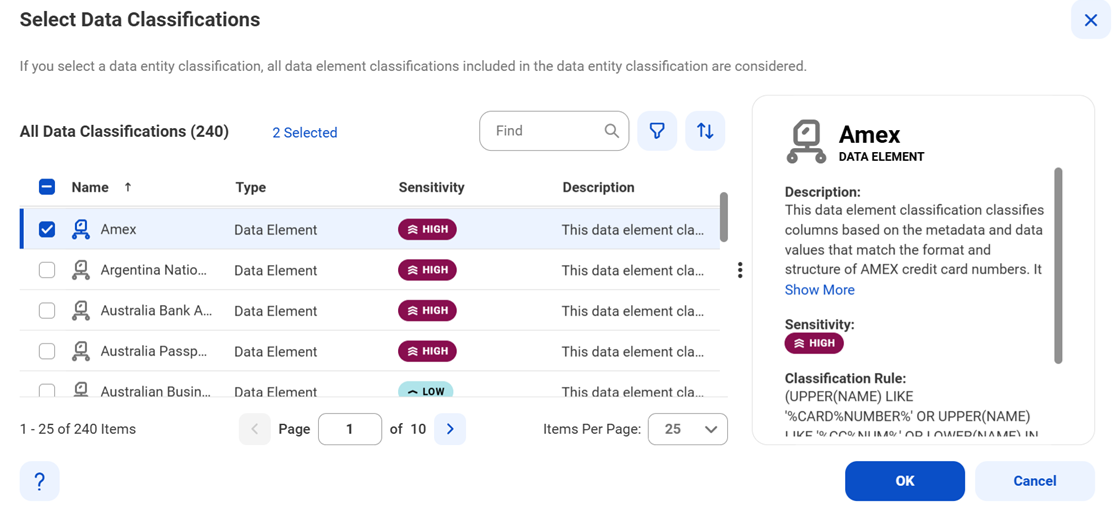
- Data Classification Rules. Choose from predefined or custom data classifications.
1Click Add Data Classification. The Select Data Classifications dialog box appears.
2Select the data classifications that you want to use.
3Click OK.
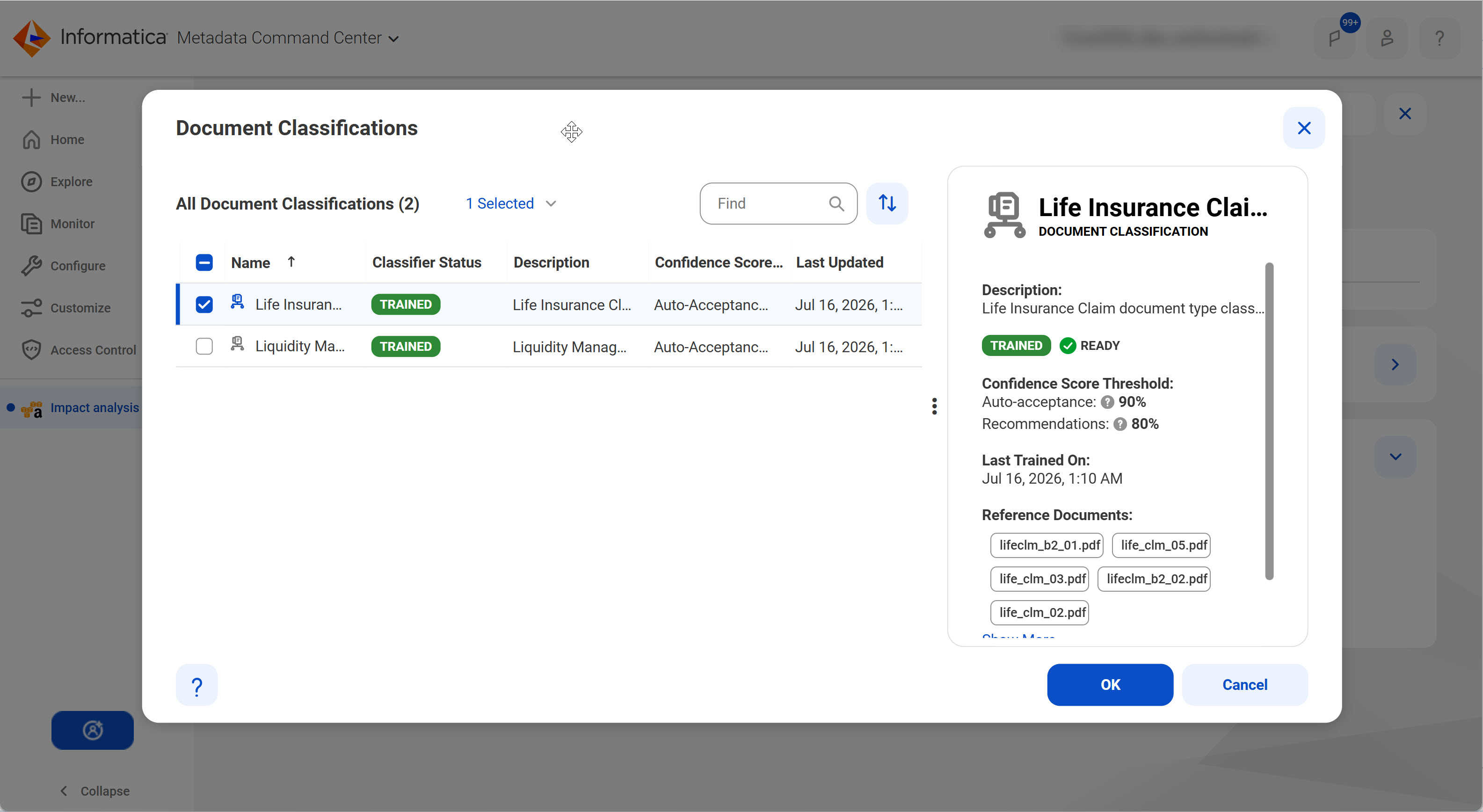
4Optionally, select Enable Document Classification to automatically identify and classify unstructured documents, such as PDFs and text files, for enhanced search and discovery.
aClick Select Document Classifications. The Document Classifications dialog box appears.
bChoose one or more document classifications that you created for your organization.
cClick OK.
Configure relationship discovery
Enable the relationship discovery capability to identify pairs of similar columns and relationships between tables within a catalog source.
Before you configure relationship discovery, perform the following tasks:
•Enable data profiling on the Data Profiling and Quality tab, and select Keep Signatures and Values as the run mode in the Parameters section. These configurations enable you to retain values of the columns in the profiling results and discover relationships.
1Click the Relationship Discovery tab.
2Select Enable Relationship Discovery.
3In the Column Similarity area, select the Relationship Inference Model.
Note:
The relationship inference models that you imported appear in the Relationship Inference Model field.
4In the Joinable Tables Relationship area, specify the Containment Score Threshold to identify joinable table relationships within the catalog source. This score is an indicator of the data overlap between any two given columns which determines whether the tables are joinable.
Note:
A higher score means that the objects have more overlapping data and a lower score means lesser overlapping data between the two objects. A containment score threshold lower than 0.4 might result in a large number of false positives.
After you run the catalog source job, you can view the inferred relationships on the Relationships tab of the extracted assets in Data Governance and Catalog.
Configure glossary associations
Enable the glossary association capability to associate glossary terms with technical assets, or to get recommendations for glossary terms that you can manually associate with technical assets in Data Governance and Catalog.
Metadata Command Center considers all published business terms in the glossary while making recommendations to associate your technical assets.
1Click the Glossary Association tab.
2Select Enable Glossary Association.
3Select Enable auto-acceptance to automatically accept glossary association recommendations.
4Specify the Confidence Score Threshold for Auto-Acceptance to set a threshold limit based on which the glossary association capability automatically accepts the recommended glossary terms.
Note:
Specify a percentage from 80 to 100. If the score is higher than the specified limit, the glossary association capability automatically assigns a matching glossary term to the data element.
5Select Enable Below-threshold Recommendations to receive glossary association recommendations below the auto-acceptance threshold. If you enable auto-acceptance, you can enable below-threshold recommendations to receive glossary recommendations below the auto-acceptance threshold.
6Specify the Confidence Score Threshold for Recommendations to set a threshold based on which the glossary association capability makes recommendations
If you enable auto-acceptance, specify a percentage from 80 to the selected auto-acceptance threshold. You can accept or reject the recommended glossary terms that fall within this range in Data Governance and Catalog.
If you disable auto-acceptance, specify a percentage from 80 to 100 inclusive.
7Choose to automatically assign business names and descriptions to technical assets. You can then choose to retain existing assignments and only assign business names and descriptions to assets that don't have assignments, or allow overwrite of existing assignments.
By default, existing assignments are retained.
8Optional. Choose to ignore specific parts of data elements when making recommendations. Select Yes and enter prefix and suffix keyword values as needed.
Click Select to enter a keyword. You can enter multiple unique prefix and suffix keywords. Keyword values are case insensitive.
9Optional. Choose specific top-level business glossary assets to associate with technical assets. Selecting a top-level asset selects its child assets as well. Select Top-level Glossary Assets and specify the assets on the Select Assets page.
10Optional. Choose to use abbreviations and synonym definitions from lookup tables for accurate glossary association. Select Yes to enable, and then click Select to upload a lookup table.