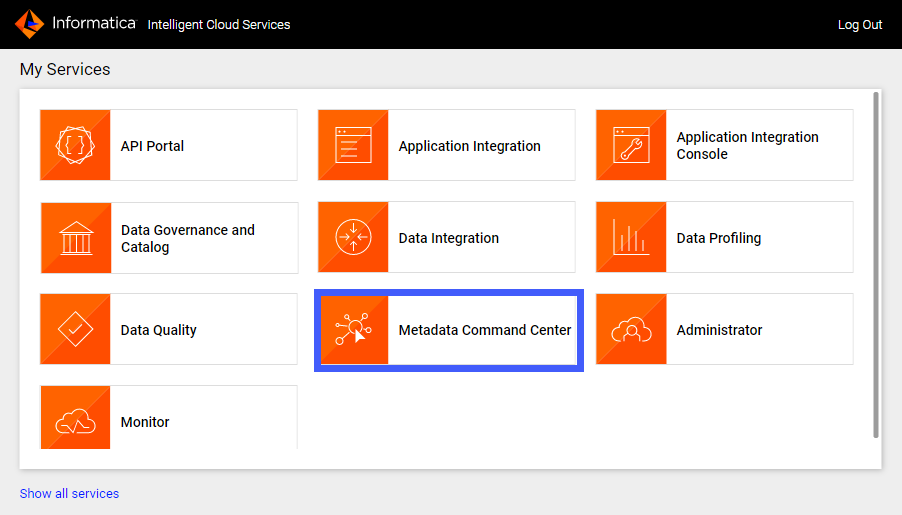
1Click Metadata Command Center.
The Metadata Command Center box appears on the My Services page.
The Metadata Command Center home page appears.
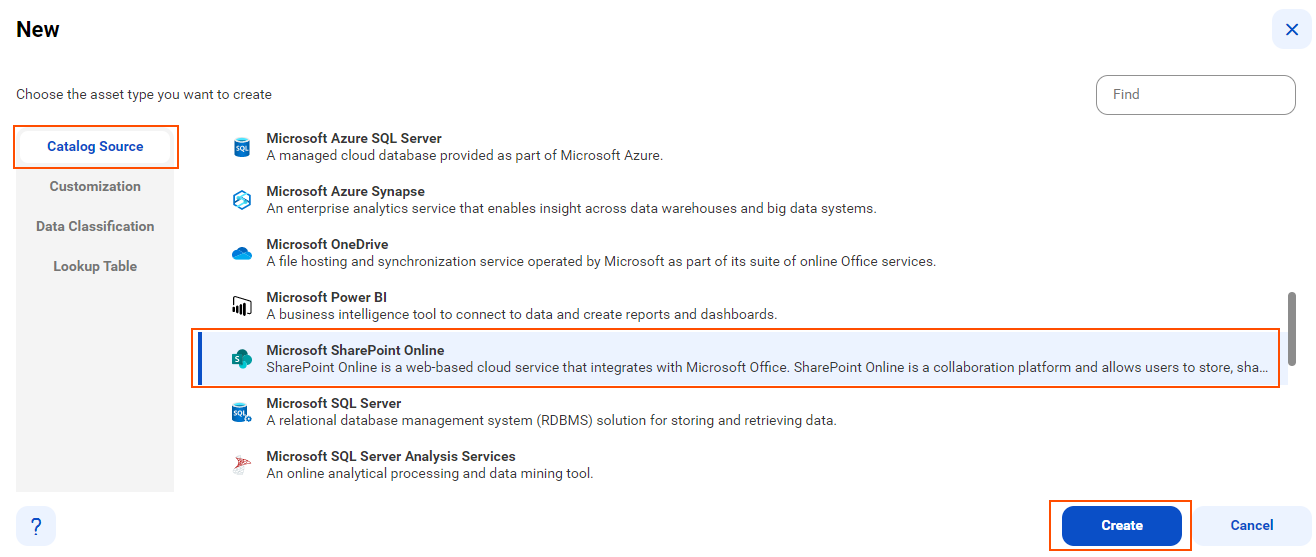
2Click New.
3Select Catalog Source from the list of asset types.
4Select Microsoft SharePoint Online from the list of catalog source types.
5Click Create.
The New Catalog Source dialog box appears.
The New Catalog Source page opens.
6In the General Information section, enter a name and an optional description for the catalog source.
Note:
You can rename a catalog source after you create it, but to apply the change to all associated objects you must rerun the metadata extraction job.
After you save the catalog source, you can update the description in Metadata Command Center and Data Governance and Catalog. The update appears only in the service in which you update it.
7In the Connection Information area, select the connection that you created in Administrator.
Note:
To create or edit a catalog source, you need permissions on the connection to the source system. Select a connection that you have access to, or ask the administrator to grant the necessary permissions to the connection that you want to use.
8Click Connection Properties to expand and view the connection properties for the selected connection.
9Click Test Connection to test your connection to the source system.
10Click Next.