Microsoft SQL Server Reporting Services Sources > View results in Data Governance and Catalog > View metadata extraction results
  

View metadata extraction results

After a job runs in Metadata Command Center, view the results in Data Governance and Catalog. You can view details about source system contents in a hierarchical structure and trace data lineage.
    1Log in to Intelligent Data Management Cloud.
    The My Services page appears.
    2Click Data Governance and Catalog.
    The Data Governance and Catalog box appears on the My Services page.
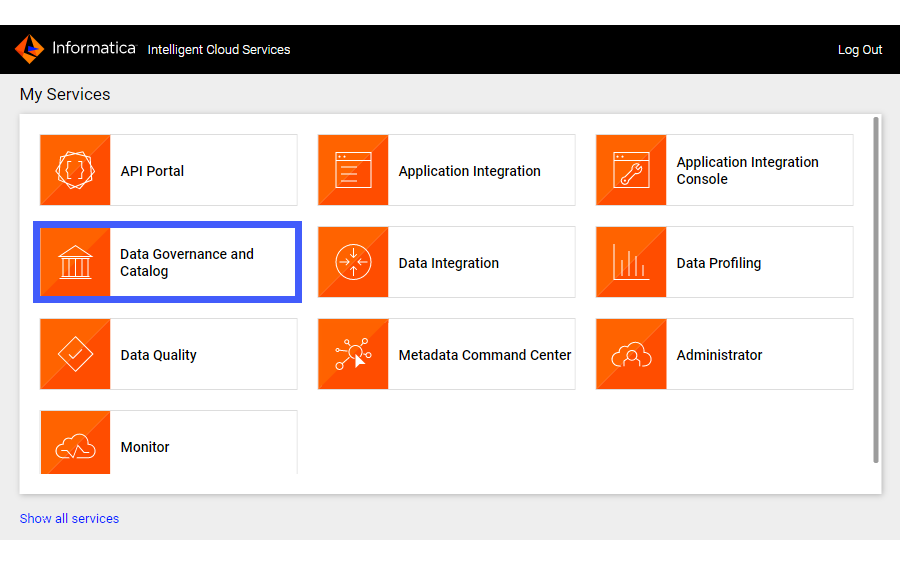
    The screenshot shows the Informática Intelligent Cloud Services selection screen with Data Governance and Catalog highlighted.
    3On the Data Governance and Catalog home page, click the number in the Technical Assets panel.
    The Technical Assets page opens.
    4Select Catalog Source in the Filter list.
    The list of catalog sources opens.
    5Search for the catalog source from which you extracted metadata, and click the name.
    The Overview tab of the asset opens.
    The following image shows a sample Microsoft SQL Server Reporting Services catalog source asset page:
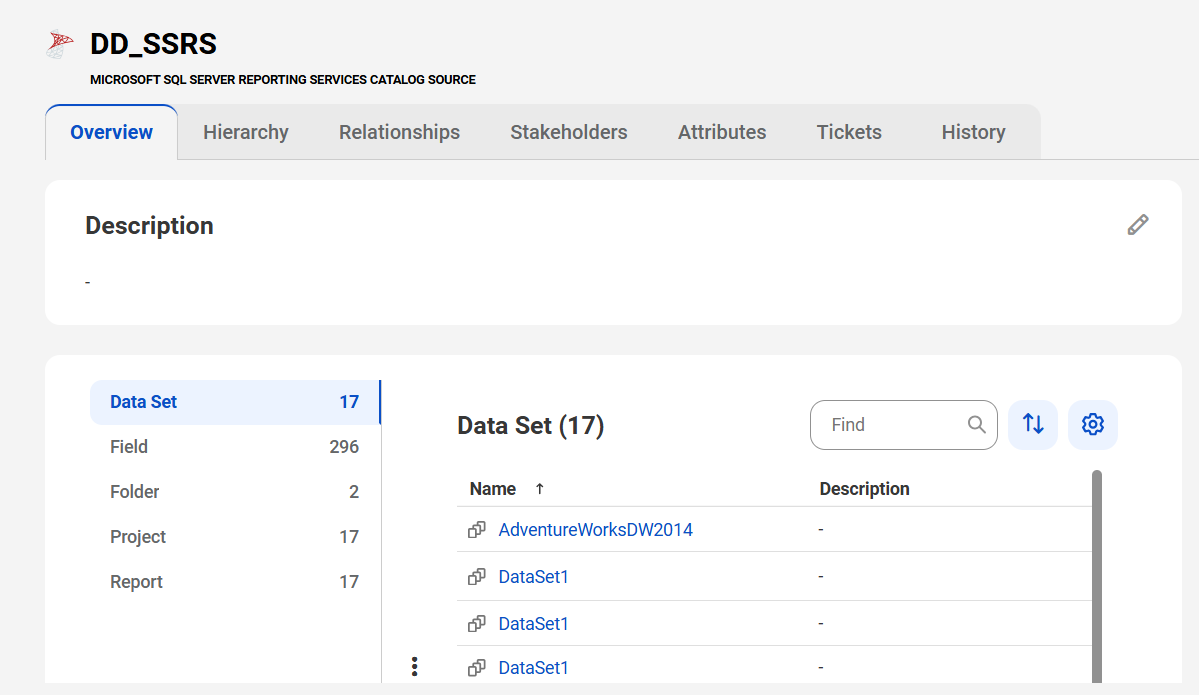
    The image shows a sample Microsoft SQL Server Reporting Services asset page with tabs that allow you to view the asset.
    6View the asset from different perspectives by clicking on the tabs.
For more information about working with assets, see Working with Assets in Data Governance and Catalog help.