1To associate users or user groups as stakeholders with technical assets extracted from the catalog source, perform the following steps:
- aOn the Associations page, click Stakeholders.
- bSelect Assign Stakeholders.
- c Select a stakeholder role.
- dClick Select to add users and user groups from the stakeholder role as stakeholders for the technical assets.
- eSelect one or more users or user groups to assign as stakeholders for the technical assets, and click OK.
- fTo assign users or user groups from another stakeholder role, click Add and then repeat the steps.
The Add Users & User Groups dialog box displays a list of users and user groups assigned to the selected stakeholder role.
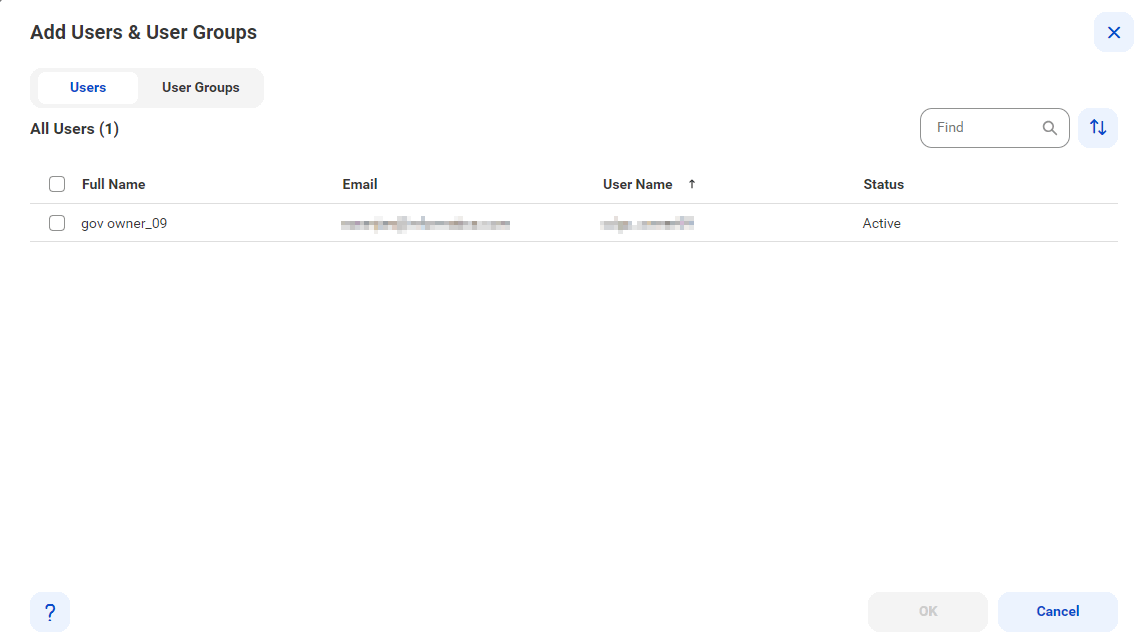
Only the selected users and user groups belonging to the specified stakeholder role are granted the permissions to technical assets.
2To assign asset groups to technical assets extracted from the catalog source, perform the following steps:
- aOn the Associations page, click Asset Groups.
- bSelect Assign Asset Groups.
- cClick Select.
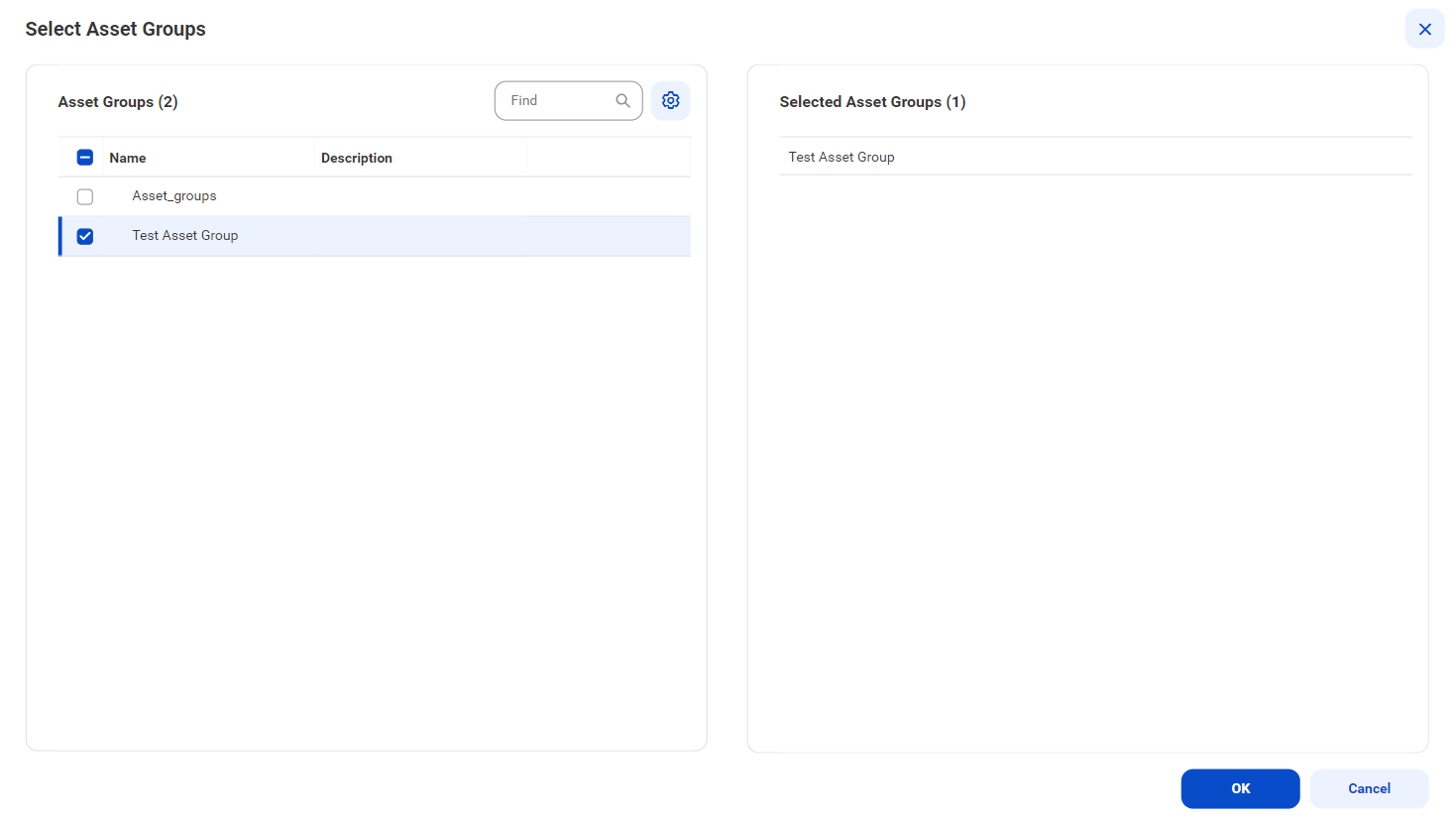
The Select Asset Groups dialog box displays the list of asset groups.
If you enabled an access policy that includes an asset group, you can only view assets that belong to that asset group.
3Select the asset groups to which you want to assign technical assets extracted from the catalog source, and click OK.
4Choose to save and run the job or to schedule a recurring job.
- - To save and run the job, click Save and then Run.
- - To schedule a recurring job, click Next to open the Schedule page.