When you configure the Qlik Sense catalog source, you define the settings for the metadata extraction capability.
The metadata extraction capability extracts source metadata from external source systems. You can also configure other capabilities that the catalog source includes.
You can save the catalog source configuration at any point after you enter the connection information. After you save the catalog source, you can choose to run the catalog source job. To run the job once, click Run. To run metadata extraction and other capabilities on a recurring schedule, configure schedules on the Schedule tab.
Configure metadata extraction
When you configure the Qlik Sense catalog source, you choose a runtime environment and enter configuration parameters for metadata extraction.
1In the Connection and Runtime area, choose a serverless runtime environment or the Secure Agent group where you want to run catalog source jobs.
Note:
Serverless runtime environment options are available if the catalog source works with a serverless runtime environment.
2Choose to retain, delete, or deprecate objects that are deleted from the source system in the catalog with the Metadata Change Option.
- Retain. Retains objects that are deleted from the source system in the catalog. If you update or add a filter, the catalog retains objects extracted from the previous job and extracts additional objects that match the current filter. Objects deleted from the source system are not deleted from the catalog. Enrichments added on deleted objects and relationships are retained.
- Delete. Deletes metadata from the catalog based on objects deleted from the source system and changes you make to the filter. Enrichments added on deleted objects and relationships are also permanently lost. Objects renamed in the source system are removed and recreated in the catalog.
- Deprecate. When objects are deleted from the source system, the catalog changes the lifecycle of the imported objects to Obsolete. The lifecycle of objects also changes to Obsolete when you add exclusion filters or reduce the scope so that objects extracted in earlier jobs are no longer included. For example, the first job includes the sales schema. The second job also includes the sales schema, but excludes the sales.transactions table. In this case, the second job marks the sales.transactions object as Obsolete, even though the first job includes it. This does not impact enrichments applied to deprecated objects and relationships. Objects renamed in the source system are removed and recreated in the catalog. When you run the catalog source job again for other capabilities such as data classification, relationship discovery, or glossary association, the job doesn't consider obsolete objects. Obsolete objects remain in the catalog until they are purged when you run a Purge Obsolete Objects job on the Explore page.
Note:
You can also change the configured metadata change option when you run a catalog source.
3In the Filters area, define one or more filter conditions to apply for metadata extraction:
aSelect Yes to view filter options.
bFrom the Object type list, select Applications or Streams.
cEnter a value to specify the object location.
Filters can contain the following wildcards:
▪ Question mark. Represents a single character.
▪ Asterisk. Represents multiple characters.
Filters are case-insensitive.
The following image shows the filter condition options:
Examples:
▪ To include metadata from all applications named ‘APP’, select Applications as the object type and enter APP in the value field.
▪ To include metadata from all streams with names that start with ‘Ap’ followed by a single character, select Streams as the object type and enter Ap? in the value field.
▪ To include metadata from all applications with names that start with ‘APP’, select Applications as the object type and enter APP* in the value field.
dTo define an additional filter with an OR condition, click the Add icon.
4In the Configuration Parameters area, enter configuration parameters.
The following table describes the properties that you can enter:
Property
Description
Incremental Import
Choose whether you want to extract the metadata that has changed since the previous run or extract complete metadata.
Select one of the following options:
- True. Extracts only the changes to the metadata since the last metadata extraction job.
- False. Extracts the complete metadata.
Log Folder
Path to the Qlik Sense log folder.
Use this option if you extract metadata from a source system that contains dynamic information such as subroutines, loops, and variable definitions. The log files in the log folder are used to extract complete lineage.
If the log folder on the Qlik Sense machine is accessible to the Secure Agent, you can specify the direct path to the folder. If the folder is not accessible, you can copy the files to a log folder accessible to the Secure Agent.
To enter multiple paths, use the -cluster.log.folder miscellaneous option.
Qvd Folder
Path to the QVD folder stored in the QVD server.
Use this option if you extract metadata from a source system that contains parameterized connections.
To enter multiple paths, use the cluster.qvd.folder miscellaneous option.
Worker Threads
Optional. The number of worker threads to process metadata asynchronously.
You can enter a positive integer value.
If you don’t enter a value, Metadata Command Center computes and assigns a value between one and six based on the Java Virtual Machine (JVM) architecture and the number of available CPU cores on the Secure Agent machine.
Miscellaneous Options
You can specify the following additional options to pass at runtime:
-database.type ORACLE -log.notavailable -file.path [qlik server file path]=[agent file path] -m 4G -customXMILocation [path to xmi files]
- -m. Specify the memory size required to run the metadata extraction job. For example, enter -m 4G. The default memory size is 1 GB.
- -database.type. Specify the list of database types as comma-separated value pairs. For example, enter -database.type ORACLE
If you connect to the database using an ODBC connection, specify the database type to parse database-specific SQL syntax to generate the lineage.
- -log.notavailable. Specify this option if have not entered any value for the Log Folder property. If you extract metadata from a source system that contains dynamic metadata such as subroutines, loops, and variable definitions, the Qlik Sense document execution log files are required because you can't directly extract the dynamic metadata from the Qlik Sense scripts. In such cases, some critical metadata for lineage can be missing.
This option lets you extract metadata even if the log folder is not available.
- -cluster.log.folder. If you need to enter more than one log folder path, specify this option to enter the paths.
Example:
-cluster.log.folder d:\cluster1\
-cluster.log.folder d:\cluster2\
- -cluster.qvd.folder. If you need to enter more than one QVD folder path, specify this option to enter the paths.
You can specify multiple paths for multiple cluster configurations.
Example:
-cluster.qvd.folder d:\cluster1\
-cluster.qvd.folder c:\cluster2\
- -file.path. A Qlik Sense document contains statements such as INCLUDE, STORE, or LOAD. If the original file path is not accessible, use this option to replace a portion of the original file path with a new one by specifying multiple file path options.
Example:
-file.path [qlik server file path]=[agent file path]
The catalog source applies multiple file path options in the order in which they are specified.
- -directory. A Qlik Sense document DIRECTORY statement is used to set the directory path for subsequent LOAD statements.
If you can't access this directory, use a DIRECTORY statement to redirect it to another directory. Copy the DIRECTORY statement from a Qlik Sense document execution log, add =, and specify the path to another directory. For example, if folder c:\folder1 is redirected to folder d:\folder2, enter -directory "c:\folder1=d:\folder2".
When the path after the DIRECTORY statement is empty, such as -directory "[]=d:\folder2", then all DIRECTORY statements are redirected to the specified directory.
- -customXMILocation. Specify this option if you want to load the XMI files that are generated when you run a metadata extraction job. Specify the location where the XMI files are stored.
- -connection.map. Specify this option if you want to map a source path to a destination path. You can use this option when different paths point to the same object.
Here, directory C:\data is referenced using multiple network drives like M: and N: on Windows.
- -websocket.timeout. Specify the time in seconds that the import bridge needs to wait for a websocket response. Default is 30.
When you store the Qlikshare files on a Windows machine and run the Secure Agent on a Linux machine, you need to copy the QVD and log files from Windows to the Linux machine. To view the complete lineage in Data Governance and Catalog and to perform connection assignments, pass the following options at runtime:
- -file.path "<location where QVD and log files are available on the Windows machine>=<location where QVD and log files are available on the Linux machine>"
- -directory "<all directories>=<location where QVD and log files are available on the Linux machine>"
- -connection.map "<location where QVD and log files are available on the Linux machine>=<location where QVD and log files are available on the Windows machine>"
5Optional. In the Configuration Parameters area, enter additional settings.
The following table describes the property that you enter for additional settings:
Note:
The Additional Settings section appears when you click Show Advanced.
Property
Description
Expert Parameters
Enter additional configuration options to be passed at runtime. Required if you need to troubleshoot the catalog source job.
Caution:
Use expert parameters when it is recommended by Informatica Global Customer Support.
6Configure additional capabilities for the catalog source by clicking on the tabs.
Configure lineage discovery
Enable the lineage discovery capability and use CLAIRE to build complete lineage by recommending endpoint catalog source objects to assign to reference catalog source connections.
1Click the Lineage Discovery tab.
2Select Enable Lineage Discovery.
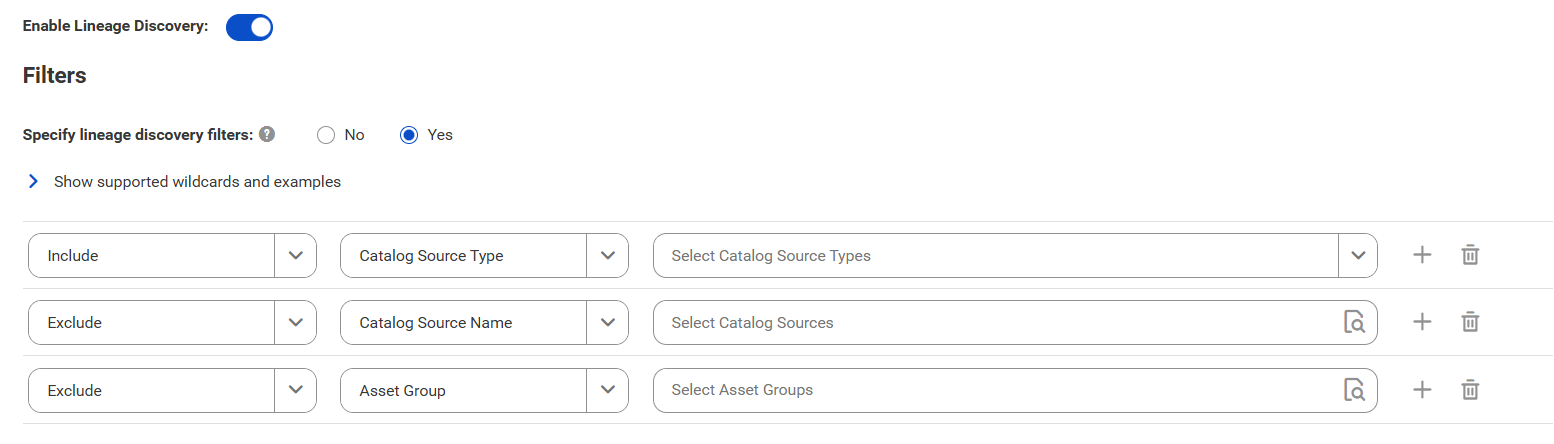
3In the Filters area, define one or more filter conditions to apply for lineage discovery.
To define filters, you can choose to select catalog source types, asset groups, or enter a catalog source name or search from a list of catalog sources.
aSelect Yes to view filter options.
bFrom the Include/Exclude list, choose to include or exclude catalog sources for lineage discovery based on the filter parameters.
cFrom the filter type list, select catalog source type, catalog source name, or asset group.
dIn the filter value field, select the required catalog source types, or click the Search button and select catalog sources or asset groups.
Filters can contain the asterisk wildcard to represent multiple characters or empty text.
The filter options appear.
Examples:
▪ To include or exclude all Oracle catalog sources, select Catalog Source Type as the filter type and select Oracle in the filter value field.
▪ To include or exclude the 'Oracle_Retail' catalog source, select Catalog Source Name as the filter type and search for the catalog source or enter Oracle_Retail in the filter value field.
▪ To include or exclude all catalog sources with names that start with 'Oracle', select Catalog Source Name as the filter type and search for the catalog source or enter Oracle* in the filter value field.
▪ To include or exclude all catalog sources with names that end with 'Retail', select Catalog Source Name as the filter type and search for the catalog source or enter *Retail in the filter value field.
▪ To include or exclude all catalog sources with names that contain 'Ret', select Catalog Source Name as the filter type and search for the catalog source or enter *Ret* in the filter value field.
▪ To include or exclude all catalog sources that are part of the 'Financial Group' asset group, select Asset Group as the filter type and search Financial Group in the filter value field.
Note:
You can't add more than one include or exclude filter for the same filter type.
eOptionally, to define an additional filter with an AND condition, click the Add icon.
For more information about lineage discovery, see Lineage discovery.
Configure data classification
Enable the data classification capability to identify and organize data into relevant categories based on the functional meaning of the data.
1Click the Data Classification tab.
2Select Enable Data Classification.
3Choose one or both of the following options:
- Generated Data Classifications. CLAIRE automatically generates data classifications for the data elements.
- Data Classification Rules. Choose from predefined or custom data classifications.
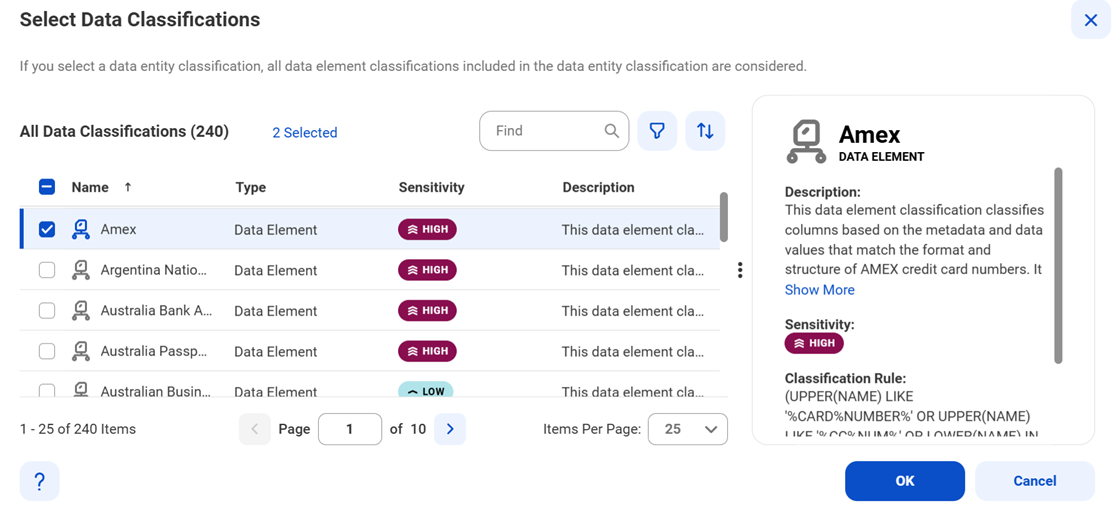
1Click Add Data Classification. The Select Data Classifications dialog box appears.
2Select the data classifications that you want to use.
3Click OK.
Configure glossary associations
Enable the glossary association capability to associate glossary terms with technical assets, or to get recommendations for glossary terms that you can manually associate with technical assets in Data Governance and Catalog.
Metadata Command Center considers all published business terms in the glossary while making recommendations to associate your technical assets.
1Click the Glossary Association tab.
2Select Enable Glossary Association.
3Select Enable auto-acceptance to automatically accept glossary association recommendations.
4Specify the Confidence Score Threshold for Auto-Acceptance to set a threshold limit based on which the glossary association capability automatically accepts the recommended glossary terms.
Note:
Specify a percentage from 80 to 100. If the score is higher than the specified limit, the glossary association capability automatically assigns a matching glossary term to the data element.
5Select Enable Below-threshold Recommendations to receive glossary association recommendations below the auto-acceptance threshold. If you enable auto-acceptance, you can enable below-threshold recommendations to receive glossary recommendations below the auto-acceptance threshold.
6Specify the Confidence Score Threshold for Recommendations to set a threshold based on which the glossary association capability makes recommendations
If you enable auto-acceptance, specify a percentage from 80 to the selected auto-acceptance threshold. You can accept or reject the recommended glossary terms that fall within this range in Data Governance and Catalog.
If you disable auto-acceptance, specify a percentage from 80 to 100 inclusive.
7Choose to automatically assign business names and descriptions to technical assets. You can then choose to retain existing assignments and only assign business names and descriptions to assets that don't have assignments, or allow overwrite of existing assignments.
By default, existing assignments are retained.
8Optional. Choose to ignore specific parts of data elements when making recommendations. Select Yes and enter prefix and suffix keyword values as needed.
Click Select to enter a keyword. You can enter multiple unique prefix and suffix keywords. Keyword values are case insensitive.
9Optional. Choose specific top-level business glossary assets to associate with technical assets. Selecting a top-level asset selects its child assets as well. Select Top-level Glossary Assets and specify the assets on the Select Assets page.
10Optional. Choose to use abbreviations and synonym definitions from lookup tables for accurate glossary association. Select Yes to enable, and then click Select to upload a lookup table.