Relationship views are available for technical assets in the catalog source. You can connect assets to each other using different types of relationships.
A relationship between assets shows how the assets relate to one another. When data from a source system is ingested into the catalog, Data Governance and Catalog can automatically create relationships among the technical assets of that source system.
For more information about viewing relationships, see Relationships in the Data Governance and Catalog help.
View relationships at catalog source level
The Relationships tab of an asset page displays the relationships between the selected asset and other business and technical assets in Data Governance and Catalog.
The SAP PowerDesigner catalog source reads metadata from the input data model and creates reference assets in the model. You can view the relationship with reference objects without creating a connection assignment. After you create a connection assignment, you can view the relationship information of the actual objects extracted by the SAP PowerDesigner catalog source.
To view relationships at the catalog source level, search for and open an SAP PowerDesigner catalog source, click the Relationships tab and expand the catalog source.
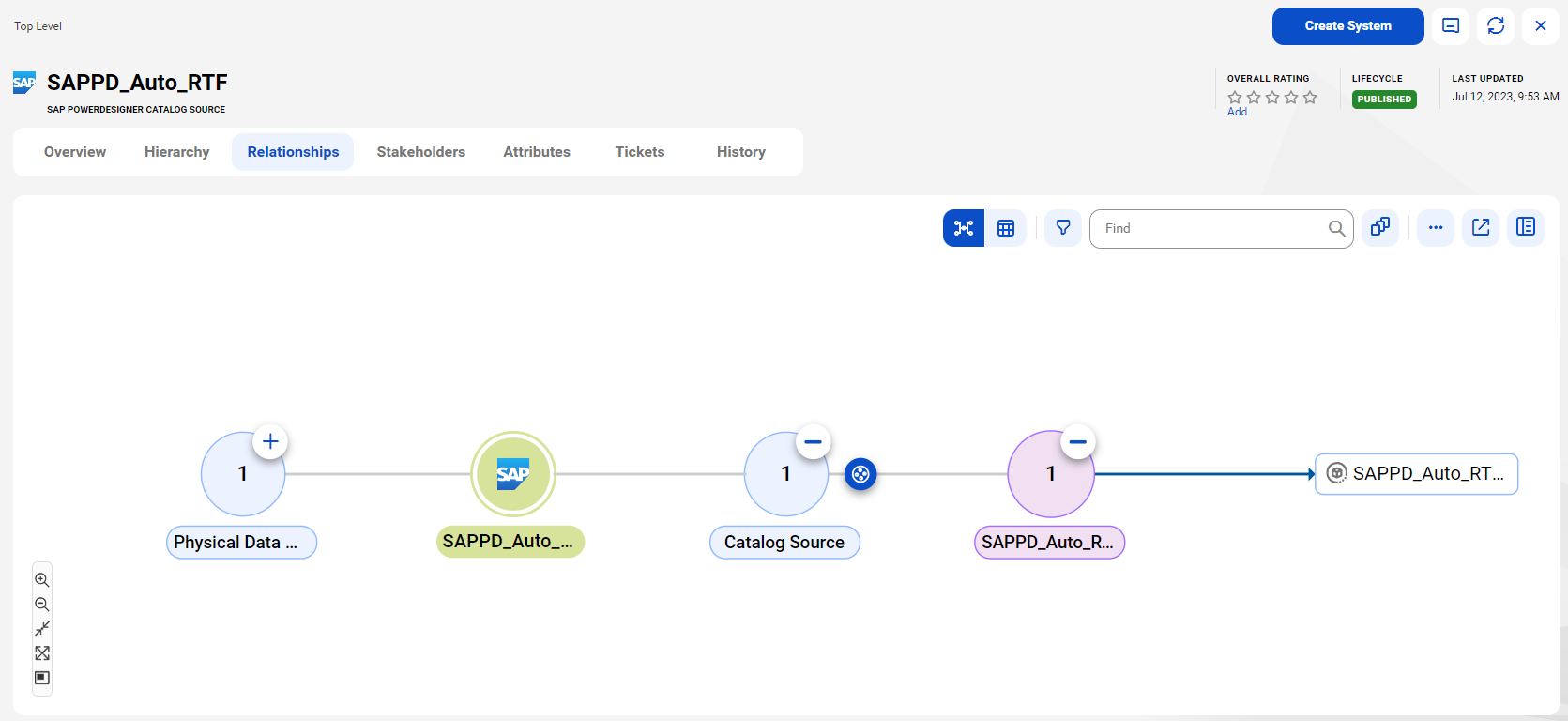
The following image shows the relationship between the SAPPD_Auto_RTF catalog source and a referenced catalog source:
View relationships at data set level and data element level
The relationships at the data set level and the data element level show how the technical assets such as tables and columns are related to the selected asset.
Data sets are technical assets that contain sets of data. For example, a table in a source object. Data elements are objects upstream or downstream of a data set. For example, a column in a source object.
View relationships at the data set level
The relationships at the data set level show how the technical assets such as tables are related to the selected asset. To view relationships at the data set level, open a technical asset such as a table, click the Relationships tab, and then expand the data set.
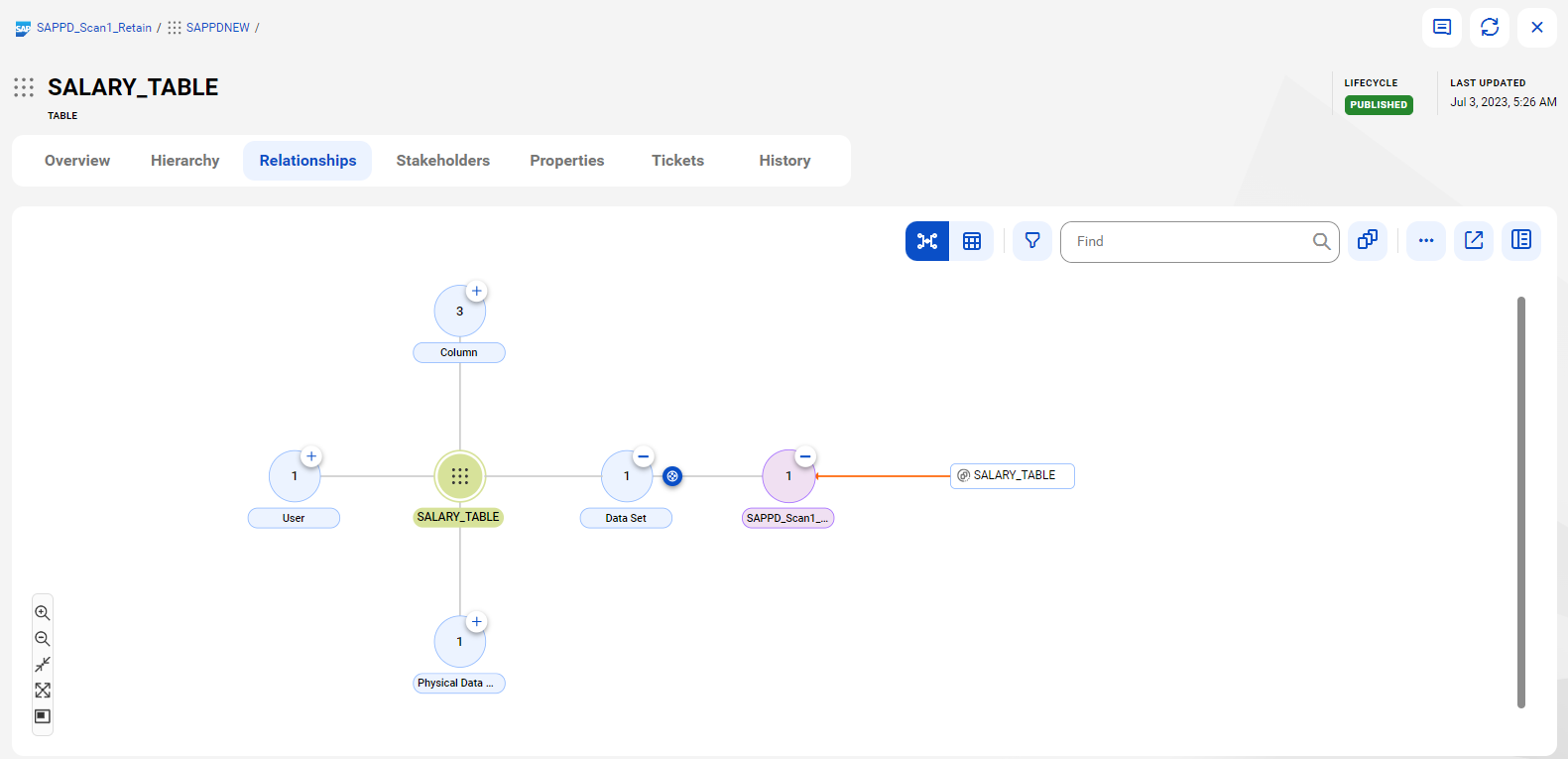
The following image shows the relationship between the SALARY_TABLE and the referenced table before connection assignment:
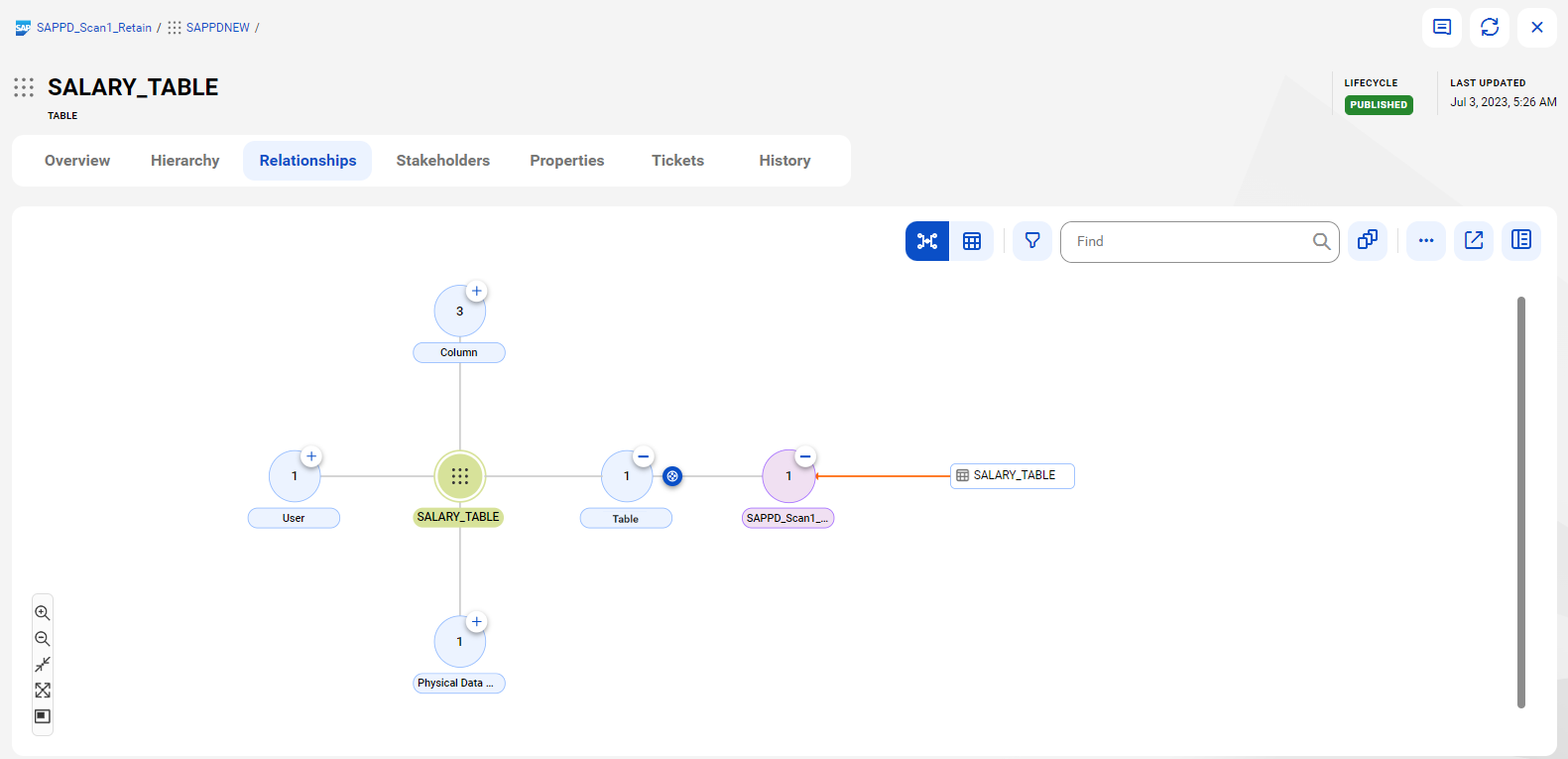
The following image shows the relationship between the SALARY_TABLE and the actual table after connection assignment:
View relationships at the data element level
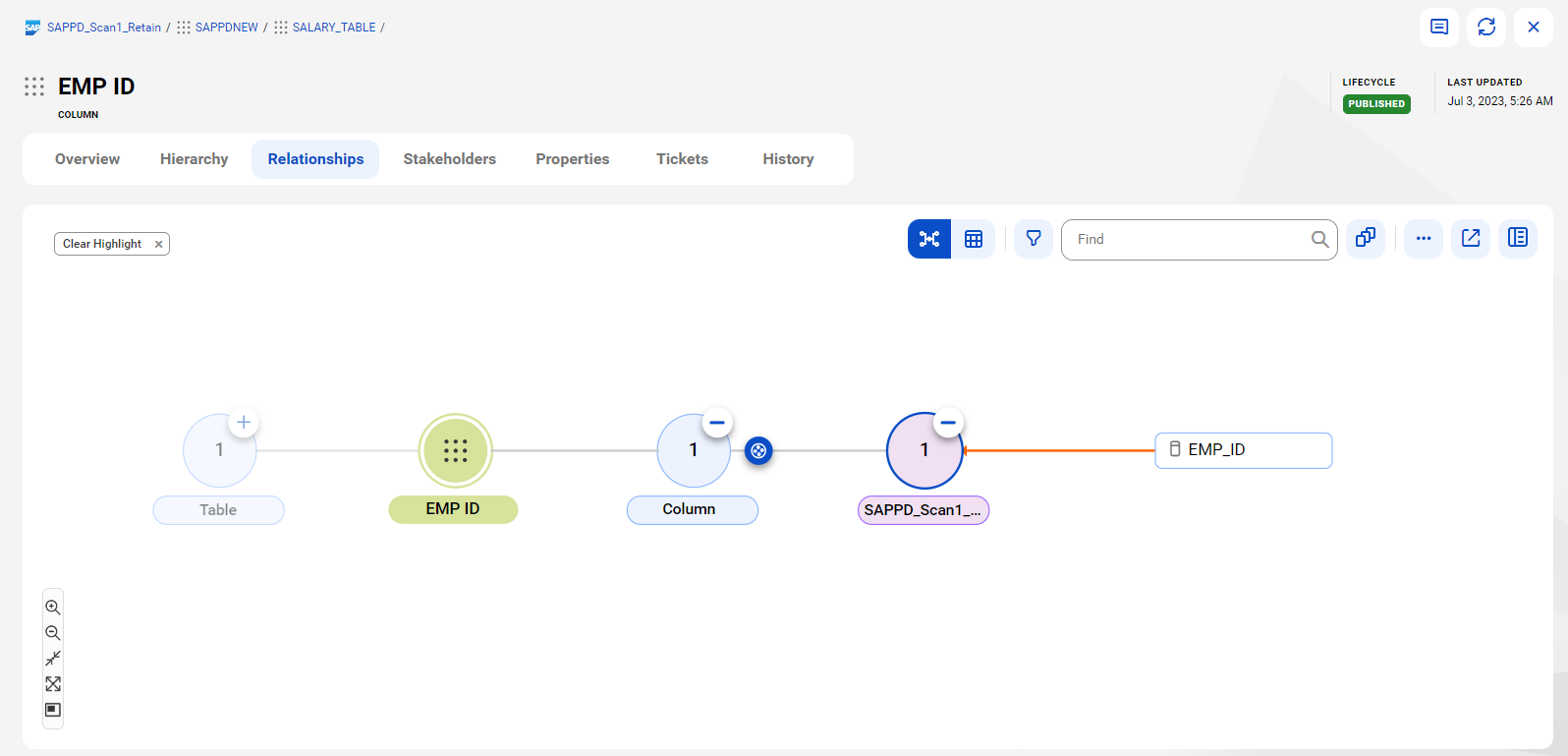
The data element level displays relationship details of the data set. The relationships at the data element level show how the technical assets such as columns are related to the selected asset. To view relationships at the data element level, open a technical asset, click the Relationships tab, and then expand the data element.
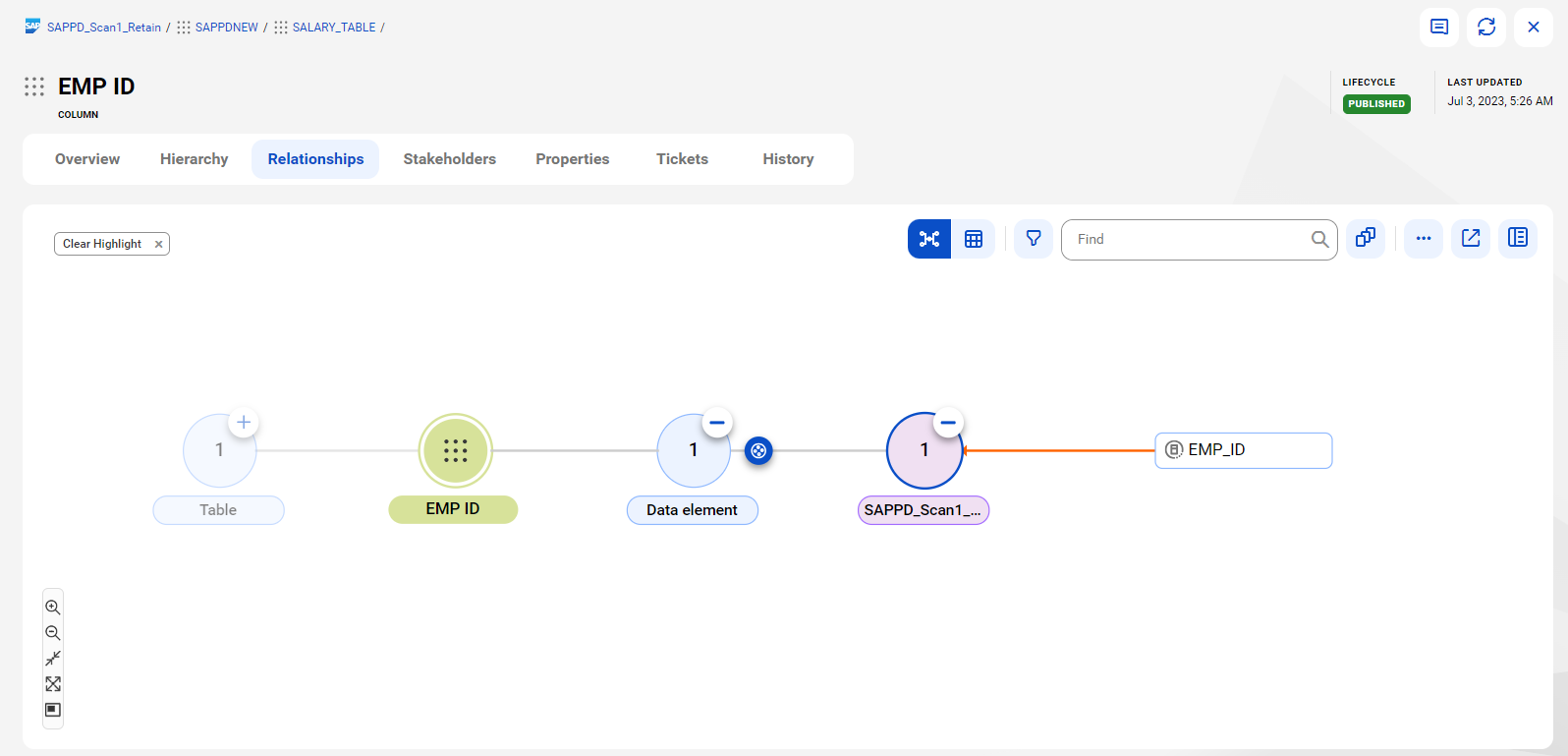
The following image shows the relationship between the EMP ID column and the referenced data element before connection assignment:
The following image shows the relationship between the EMP ID column and the actual column after connection assignment: