1Log in to Intelligent Data Management Cloud.
The My Services page appears.
2Click Data Governance and Catalog.
The Data Governance and Catalog box appears on the My Services page.
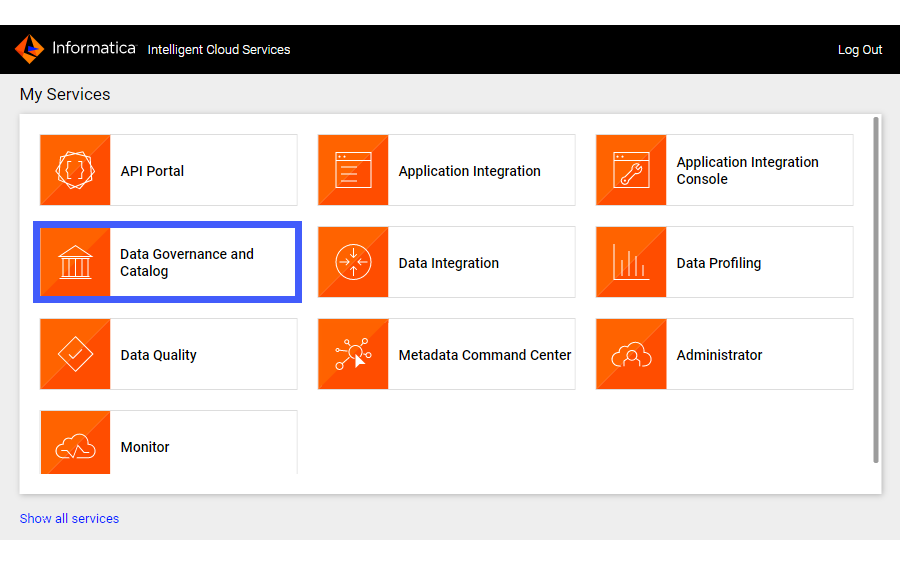
3On the Data Governance and Catalog home page, click the number in the Technical Assets panel.
The Technical Assets page opens.
4Select Catalog Source in the Filter list.
The list of catalog sources opens.
5Search for the catalog source from which you extracted metadata, and click the name.
The Overview tab of the asset opens.
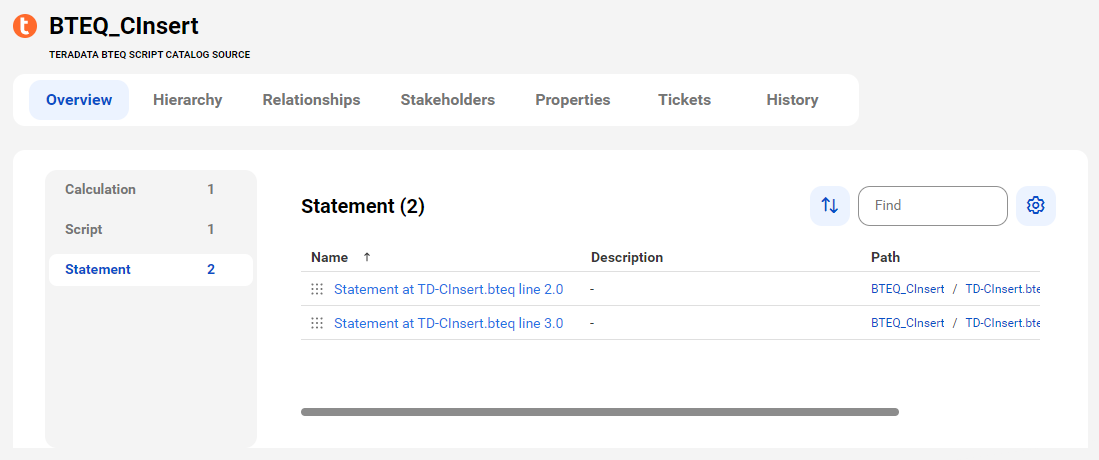
6View the asset from different perspectives by clicking on the tabs.
Note:
If you run catalog sources created prior to the July 2023 release with Retain as the Metadata Change Option, duplicate calculations appear in Data Governance and Catalog. To avoid duplicate calculations and to view complete lineage information, run catalog sources created prior to the July 2023 release with Delete as the Metadata Change Option.