Getting Started > Editing your user settings
  

Editing your user settings

In your user settings, you can configure how you receive email notifications.
To access user settings, click the User icon on the toolbar and then select Settings. The user settings page includes a section called Notification Settings.
The Notification Settings section lists categories of events that trigger notifications, such as changes in an asset's stakeholders and new comments on an asset. By default, you receive an email notification each time an event occurs. You can disable all email notifications, disable event notifications by category and subcategory, and for some categories you can choose to receive an email summarizing events at an interval that you specify.
The following image shows the Notification Settings section:
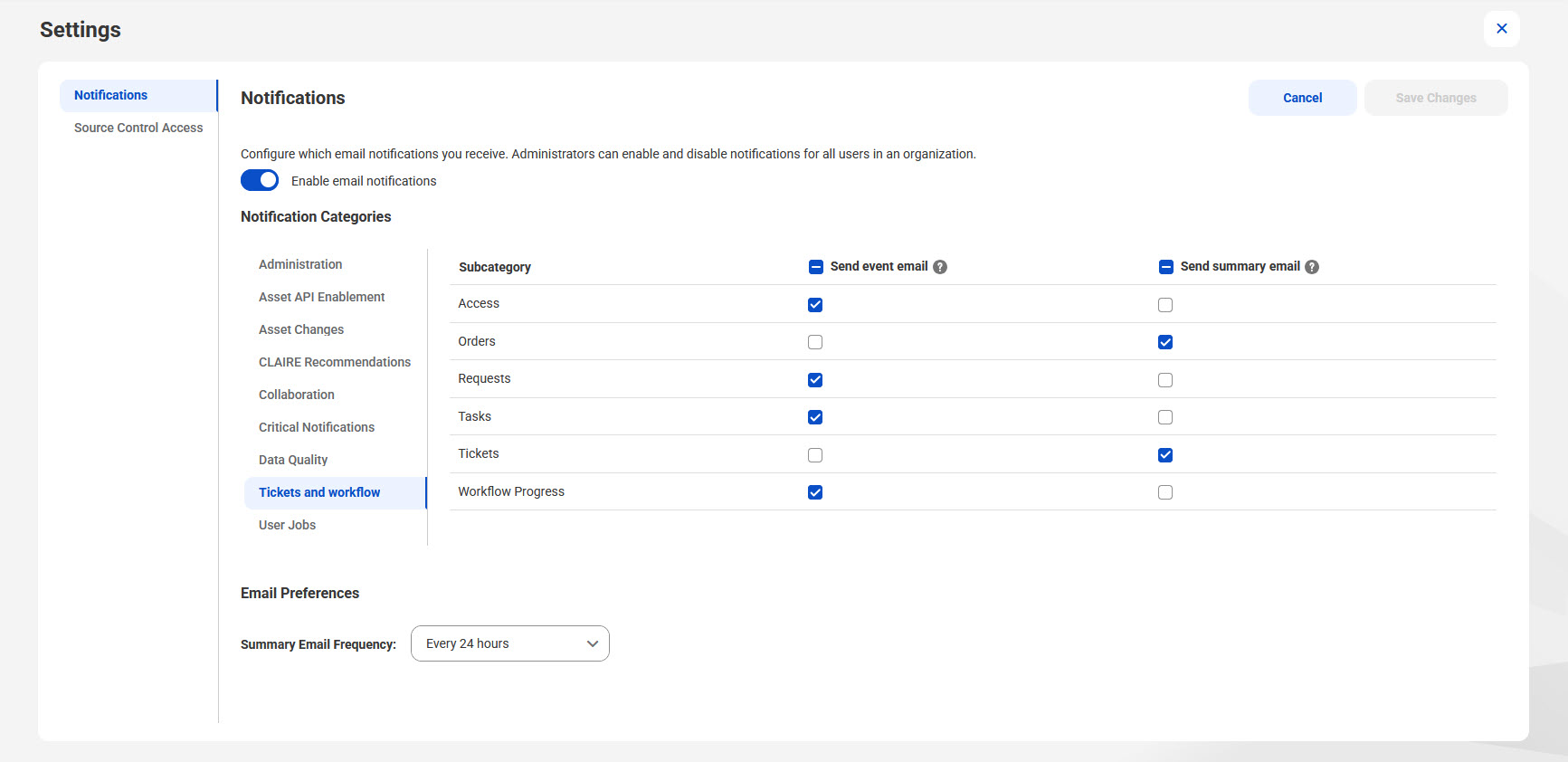
The Notification Settings page shows Tickets and workflow as the selected category with Subcategory options Access, Orders, Requests, Tasks, Tickets, and Workflow Progress. Each subcategory has options to send event emails and send summary emails with checkboxes. Summary Email Frequency is set to send every 24 hours.