In a mapping, you can configure a Source transformation to represent a single Microsoft Azure Synapse SQL object.
The following table describes the Microsoft Azure Synapse SQL properties that you can configure in a Source transformation:
Property
Description
Connection
Name of the source connection.
You can select an existing connection, create a new connection, or define parameter values for the source connection property.
If you want to overwrite the parameter at runtime, select the Allow parameter to be overridden at run time option when you create a parameter. When the task runs, the agent uses the parameters from the file that you specify in the task advanced session properties.
You can switch between a non-parameterized and a parameterized Microsoft Azure Synapse SQL connection. When you switch between the connections, the advanced property values are retained.
Source Type
Type of the source object.
Select Single Object, Multiple Objects, Query, or Parameter.
When you specify a custom SQL query as source type, the Secure Agent evaluates the properties in the following order to run a mapping:
1SQL Override
2Table Name Override
3Custom SQL
You cannot parameterize a source query object at runtime in a mapping.
Object
The source object for the task.
You can use external tables as Microsoft Azure Synapse SQL sources in mappings.
Parameter
Select an existing parameter for the source object or click New Parameter to define a new parameter for the source object. The Parameter property appears only if you select Parameter as the source type.
If you want to overwrite the parameter at runtime, select the Allow parameter to be overridden at run time option when you create a parameter. When the task runs, the agent uses the parameters from the file that you specify in the task advanced session properties. Ensure that the parameter file is in the correct format.
Filter
Filters records based on the filter condition.
You can specify a simple filter or an advanced filter.
Sort
Not applicable.
The following table describes the Microsoft Azure Synapse SQL source advanced properties that you can configure in a Source transformation:
Property
Description
Azure Blob Container Name
Required if you select Azure Blob storage in the connection properties.
The name of the container in Microsoft Azure Blob Storage.
The container name must not contain special characters.
ADLS FileSystem Name
Required if you select ADLS Gen2 storage in the connection properties.
The name of the file system in Microsoft Azure Data Lake Storage Gen2.
The file system name must not contain special characters.
You can also specify the path of the directory under the file system. Use only a forward slash to specify the directory path.
Schema Name Override
Overrides the schema specified in the connection.
Table Name Override
Overrides the table name of the imported Microsoft Azure Synapse SQL source table.
Staging File Format
Type of file format to use when you stage the files in Azure storage.
Select one of the following formats:
- Delimited Text
- Parquet
Field Delimiter
Character used to separate fields in the file. Default is 0x1e. You can specify 'TAB' or 0-256 single-char printable and non-printable ASCII characters. Non-printable characters must be specified in hexadecimal.
Note: Multi-char ASCII characters except TAB are not applicable. You cannot use the following non-printable characters:
00x0, 0x0, 0x0A , 0x1B, 0x0D, and 0x1F
Number of Concurrent Connections to Blob Store
Number of concurrent connections to extract data from the Microsoft Azure Blob Storage. When reading a large-size blob, you can spawn multiple threads to process data. Configure Blob Part Size to partition a large-size blob into smaller parts.
Default is 4. Maximum is 10.
Blob Part Size
Partitions a blob into smaller parts each of specified part size. When reading a large-size blob, consider partitioning the blob into smaller parts and configure concurrent connections to spawn required number of threads to process data in parallel.
Default is 8 MB.
Pre-SQL
Pre-SQL command that must be run before reading data from the source.
Post-SQL
Post-SQL command that must be run after reading data from the source.
SQL Override
When you read data from a Microsoft Azure Synapse SQL object, you can configure SQL overrides and define constraints.
On Pre-Post SQL Error
Determines the behavior when a task that includes pre-SQL or post-SQL commands encounters errors.
Select one of the following options:
- Continue. The task continues regardless of errors.
- Stop. The task stops when errors occur while executing pre-SQL or post-SQL commands.
Quote Character
Specifies the quote character to skip when you read data from Microsoft Azure Synapse SQL.
The quote character that you specify must not exist in the source table. If it exists, enter a different quote character value.
Default is 0x1f.
Interim Directory
Optional. Path to the staging directory in the Secure Agent machine.
Specify the staging directory where you want to stage the files when you read data from Microsoft Azure Synapse SQL. Ensure that the directory has sufficient space and you have read permissions to the directory.
Default staging directory is /tmp.
You cannot specify an interim directory when you use the Hosted Agent.
Tracing Level
Sets the amount of detail that appears in the log file. You can choose terse, normal, verbose initialization, or verbose data. Default is normal.
Adding multiple source objects
Perform the following steps to add multiple source objects in a mapping:
1Click New > Mappings.
2Select Mapping and click Create.
3In the Source Properties page, specify the name and provide a description in the General tab.
4Click the Source tab.
5Select the source connection and source type as Multiple Objects to be used for the task.
6In the Objects and Relationships section, click the arrow to open the Action menu and then select Add Source Object.
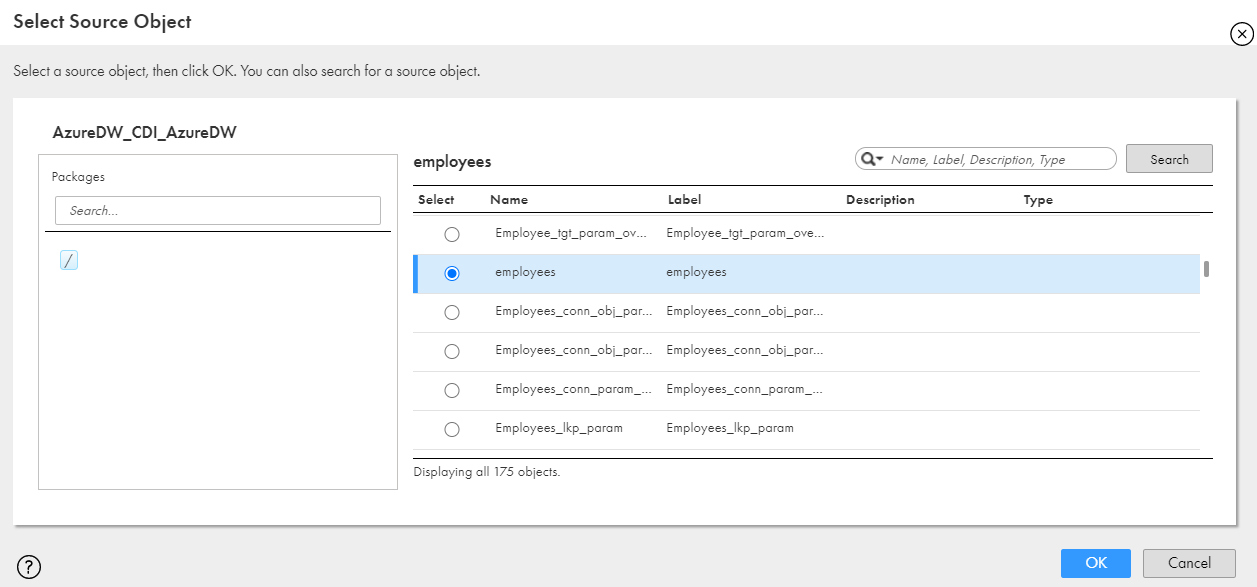
7Select a source object from the list and click OK.
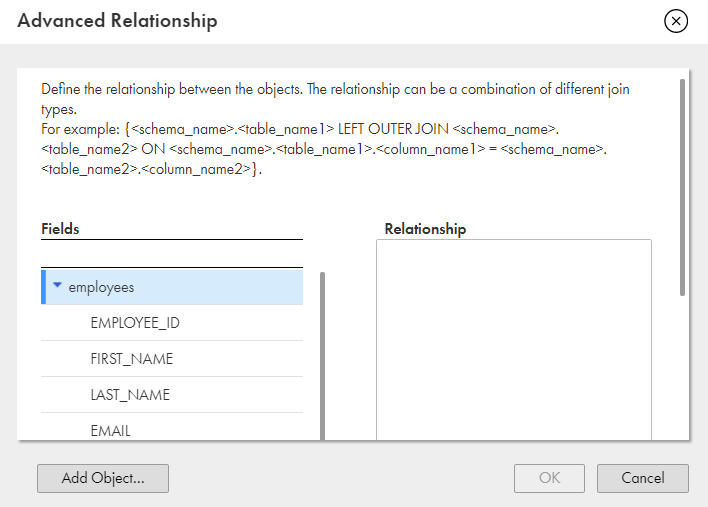
8In the Objects and Relationships section, click the arrow next to the source object and then click Advanced Relationship to add related objects.
9In the Advanced Relationship page, click Add Object.
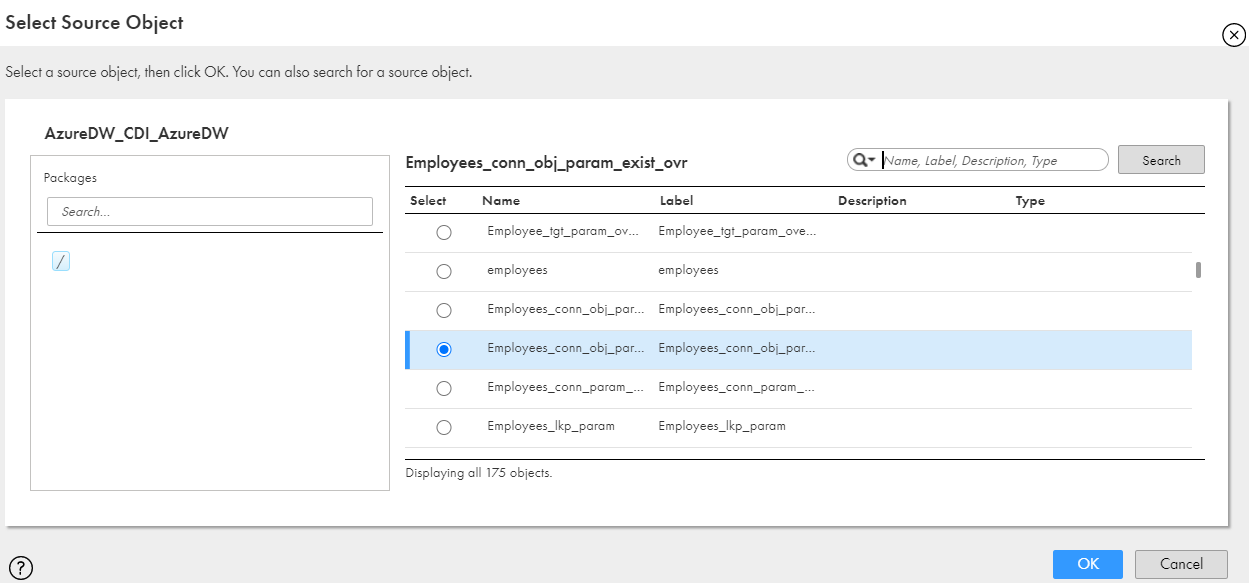
10In the Select Source Object page, select an object from the list and click OK.
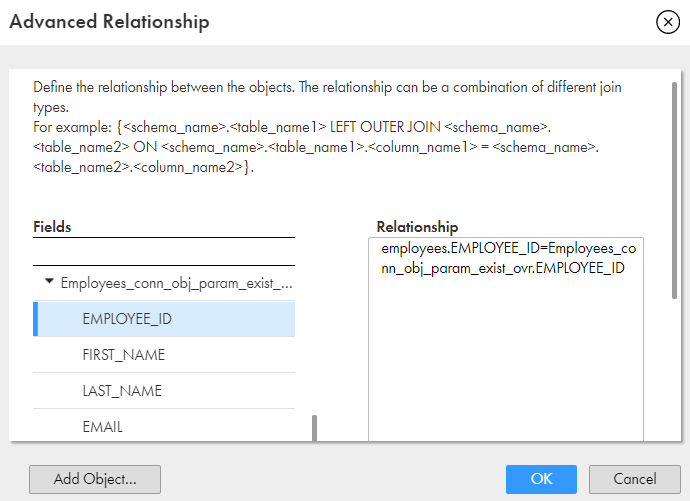
11In the Advanced Relationship page, select the required fields for the objects and create a join condition to define the relationship for all objects.
Note: You can join only two source tables. You must create an inner join to define the relationship. You must define only a join condition, not the complete join query. If the table name or column name is a reserved keyword or the table name contains special characters, enclose the name in square brackets. For example, [AUTHORIZATION].[BROWSE]=[int].[BROWSE].