The October 2026 release includes the following new features and enhancements.
Filter related records with business entity record fields
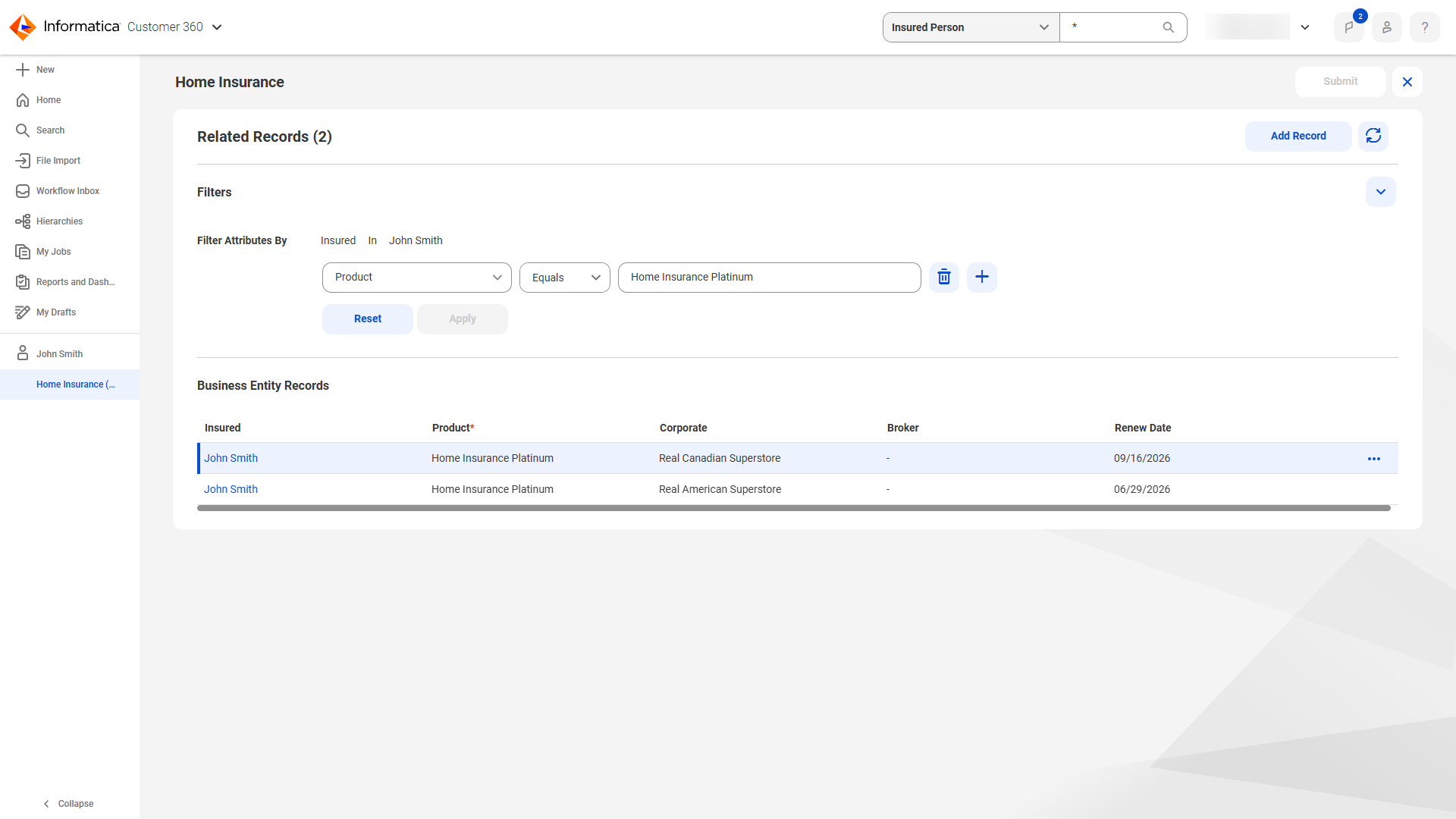
When you manage related records that are based on business entity record fields in the related records table, you can filter the table to focus on the records that you want to view and edit.
The following image shows a related records table that filters for related records with Home Insurance Platinum as the value for the Product field:
Source records and workflow inbox management experience
The Source Records page and the workflow inbox include the following capabilities for filtering records and overriding survivorship:
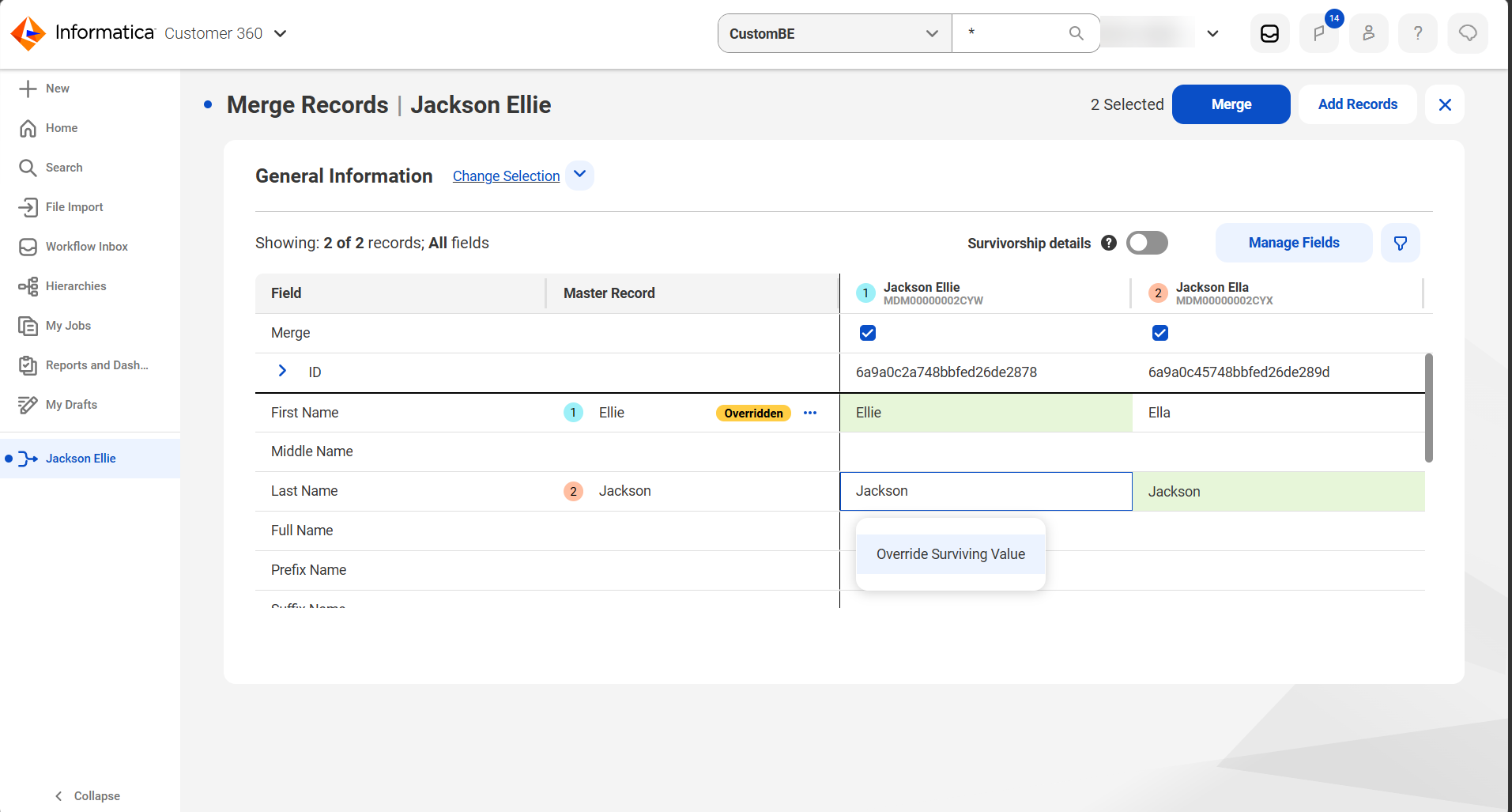
•When you merge records, you can override field values in both manual merge previews and workflow inbox tasks, and preview the surviving field values of the merged record before you submit or approve the merge.
The following image shows the Override Surviving Value option in the manual merge preview:
•On the Source Records page, you can filter source records that have an overriding field value and those that match a specified field value.
Data Import
When you import records, you can update individual fields in a target record instead of replacing the entire record. The update applies only to the fields in the import file that are mapped to the target fields. Other fields remain unchanged. You can also control how the update handles empty values in mapped fields. When a mapped field is empty in the import file, you can overwrite the target value with null or leave it unchanged.
Note:
This functionality is available only after you migrate your rule associations to use Enrichment and Validation Orchestrator in organizations created before the October 2025 release.
For more information about updating fields containing data, see Import all data.
Default values
When you create a record, the business application populates default values for the fields that have default values configured. You can override the default values.
Tasks and tickets
You can view your tasks in the task inbox and the related tickets in the ticket manager.
Task inbox
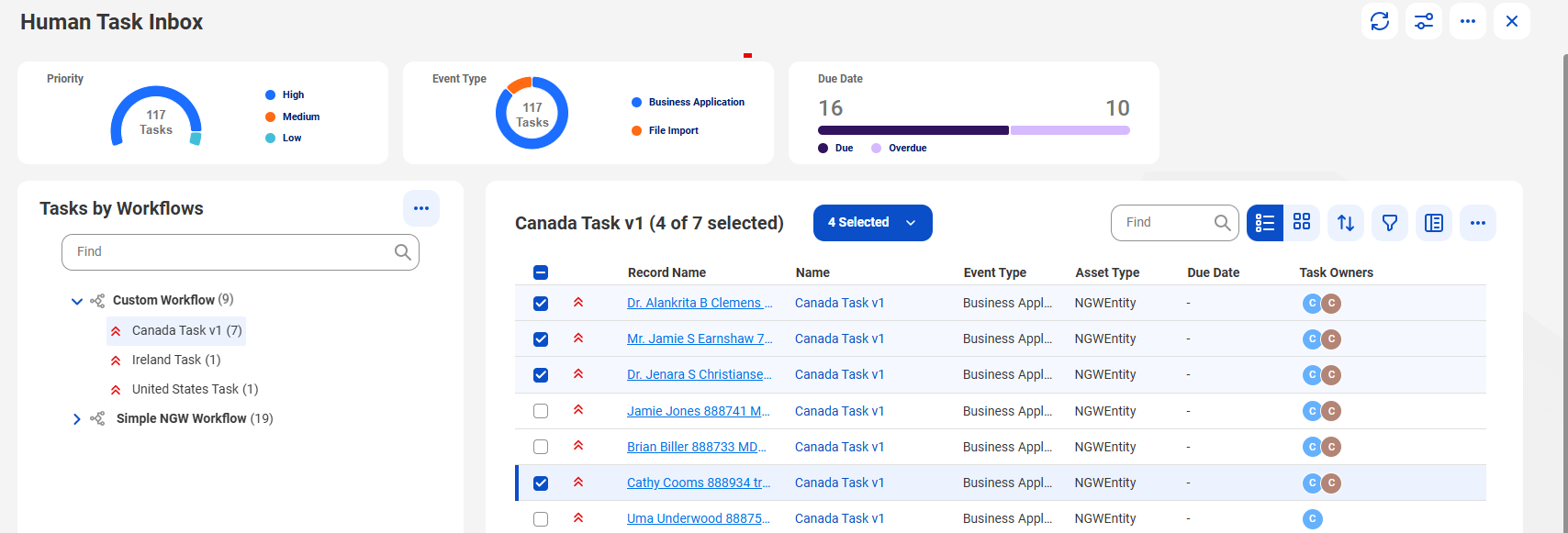
You can use the task inbox to view all the tasks assigned to you.
You can perform the following actions in the task inbox:
- Claim, act on, and comment on tasks individually.
- Group tasks by workflows, and claim, act on, and comment on multiple tasks at once.
- Assign or reassign individual or multiple tasks to users, user roles, or user groups.
- View a process flow that shows the status and position of each task in the workflow.
- Filter, sort, and search for tasks based on task details.
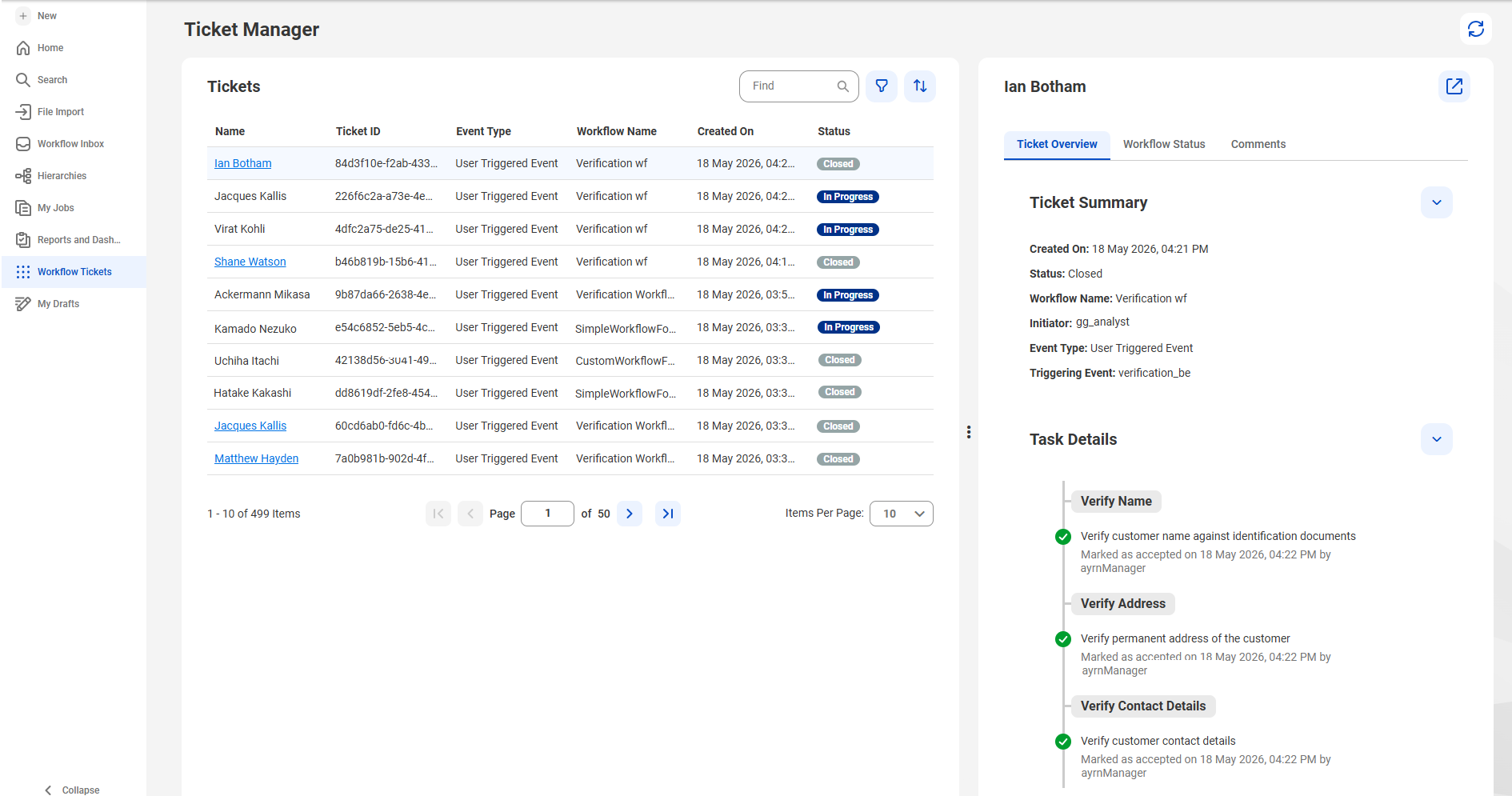
You can track the status of your updates in the ticket manager. A ticket is created automatically when a workflow is triggered, and show workflow milestones, statuses of all the tasks in a workflow, and the comments as reviewers complete their tasks.
For example, a ticket for a product onboarding workflow lists all the tasks, such as validation of product name, brand name, and description, and approval or rejection of the product. The ticket is closed after the product is approved or rejected.
These features are being made generally available in phases. If they aren't available in your organization, contact Informatica Global Customer Support.
Dynamic field definitions
When you add dynamic field definitions to a record, you can select folders to add all the fields, field groups, and subfolders they contain at once.
To enhance search accuracy, MDM SaaS now returns more relevant results. When you search for records, you might notice changes in your search results. For example, a search for a record with the first name Benjamin also returns records with the first names Ben and Benny.
Match Analysis and Explainability dashboard
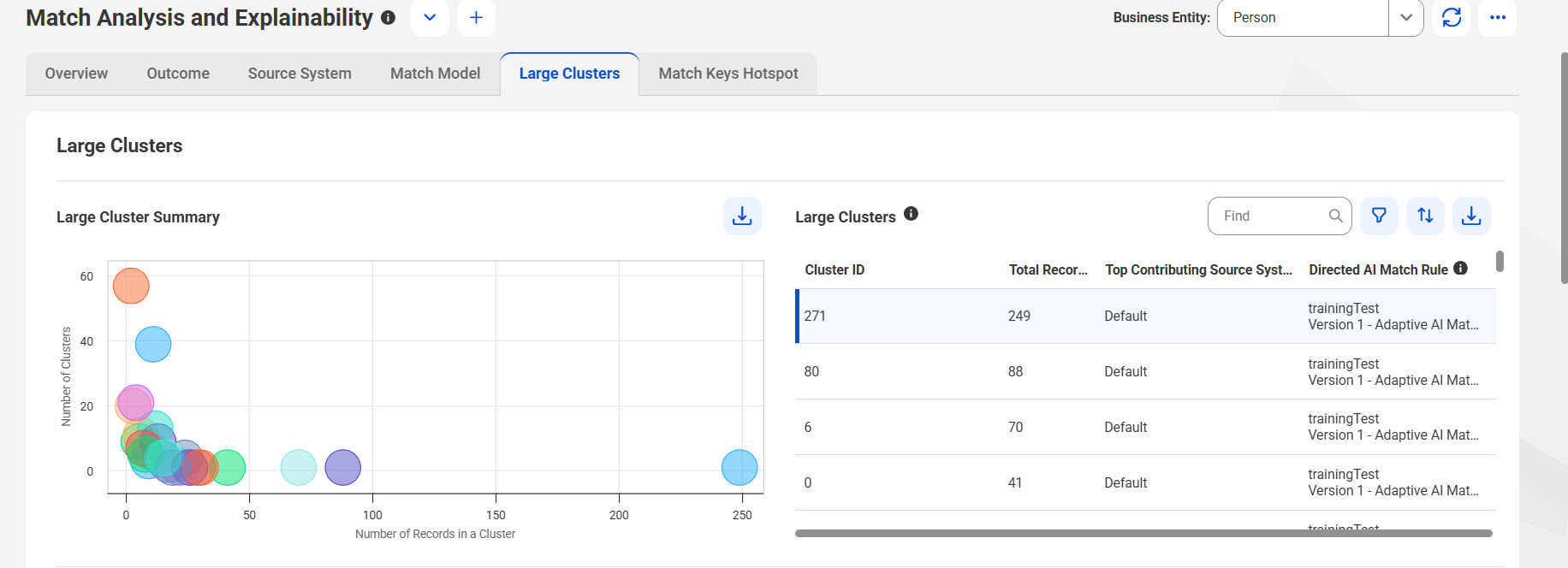
You can now use the Match Analysis and Explainability dashboard to analyze and identify large clusters of records that are formed during the match process. You can then fine-tune the match model configuration to prevent the formation of large clusters to avoid overmatching.
The following image shows the Large Clusters tab in the Match Analysis and Explainability dashboard:
For more information about the Large Clusters tab in the Match Analysis and Explainability dashboard, see Large Clusters tab.