When you export assets, AI Agent Engineering creates an export ZIP file that contains the assets you selected for export.
You can select individual assets to export, or you can select an entire project or folder. When you export a project or folder, the export file includes all of the assets in the project or folder.
Note:
Informatica recommends that you include no more than 1000 objects in an export file.
Export files
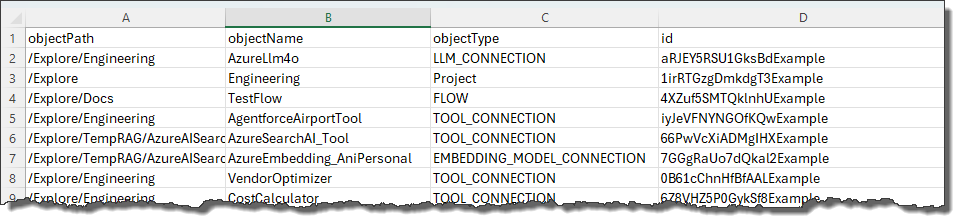
The export file includes a CSV that lists the objects within the file.
The following image shows an example of an export CSV file:
Export file structure
The export file retains the file structure of the source organization's Explore page for projects, folders, and assets. Runtime environments are located in the SYS folder.
Object names
Each object is contained in a ZIP file along with its associated metadata and JSON file. The zip file includes the object name appended with the object type.
The following table lists the object types and the associated extension appended to AI Agent Engineering asset names:
Object Type
Extension
Project
Project
Folder
Folder
Runtime environment
AGENT
Agent flow
FLOW
Embedding model connection
EMBEDDING_MODEL_CONNECTION
Memory connection
MEMORY_CONNECTION
Model connection
LLM_CONNECTION
Tool connection
TOOL_CONNECTION
Exporting assets
You can select a single asset, multiple assets, or a project or folder to export.
To include multiple assets, you can either select each asset within a folder or select a project or folder to export all of its assets. If you export a project, during import you can import the entire project or import only the assets that you select.
1Log in to the source organization.
2On the Explore page, navigate to the assets that you want to export.
3Select the assets that you want to export.
To export a single asset or project, select the asset or project, and then click Actions and select Export.
To export multiple assets, select the check box to the left of each asset to export. Or, select the check box for each project or folder that contains the assets to export. From the Actions menu, select Export.
4On the Export Assets page, change the job name or accept the default.
5Select whether to include dependent objects for the assets.
6Click Export.
7To see the progress of the job, select My Import/Export Logs from the navigation bar and then select Export from the menu at the top of the page. Click the name of the log to open the log details page.
8To download the export file when the job completes, on the log details page, click the export file name.
Tip:
You can quickly open the log details page for a completed export job in
Notifications
. When the export process is complete, a message appears in
Notifications
. Click the link in the message to open the log details page.