To use the Slack Initializer assets for communicating with Slack, perform the following steps:
1Publish the A2E Agent service connector.
2Configure and publish the A2E Agent connection.
3Configure and publish the processes.
Slack Initializer package contents
The following table lists the assets that the Slack Initializer package contains:
Asset Name
Asset Type
Description
A2EConnector
Service connector
Service connector that sends POST requests to the agent flow in AI Agent Engineering.
A2EAppConnection
App connection
App connection that invokes the service to trigger the agent flow in AI Agent Engineering.
Call A2E
Process
Process that invokes the self-healing agent flow in AI Agent Engineering based on Slack messages.
SlackInitializer
Process
Process that receives a query from Slack, calls the agent flow, and then returns the generated response to the Slack channel.
Step 1. Publish the A2E Agent service connector
You can publish the A2EConnector service connector from the assets page.
To publish the service connector, click Actions in the row that contains the service connector and select Publish.
Step 2. Configure and publish the A2E Agent connection
Configure the user credentials and runtime environment in the A2EAppConnection connection, and then publish the connection.
1Open the A2EAppConnection connection.
2From the Type list, select A2EConnector from the assets folder.
3From the Runtime Environment list, select the Secure Agent.
4In the Connection Properties section, enter values for the following properties:
Property
Description
User name
IDMC user name to authorize requests.
Password
IDMC password to authorize requests.
5Save and publish the connection.
Step 3. Configure and publish the processes
Configure the Secure Agent and the AI agent parameters from the agent flow, and then publish the processes.
1Open the Call A2E process.
2On the Start tab of the Start step, select the Secure Agent from the Run On list.
This should be the same Secure Agent you selected when you deployed the AI agent.
3Save and publish the process.
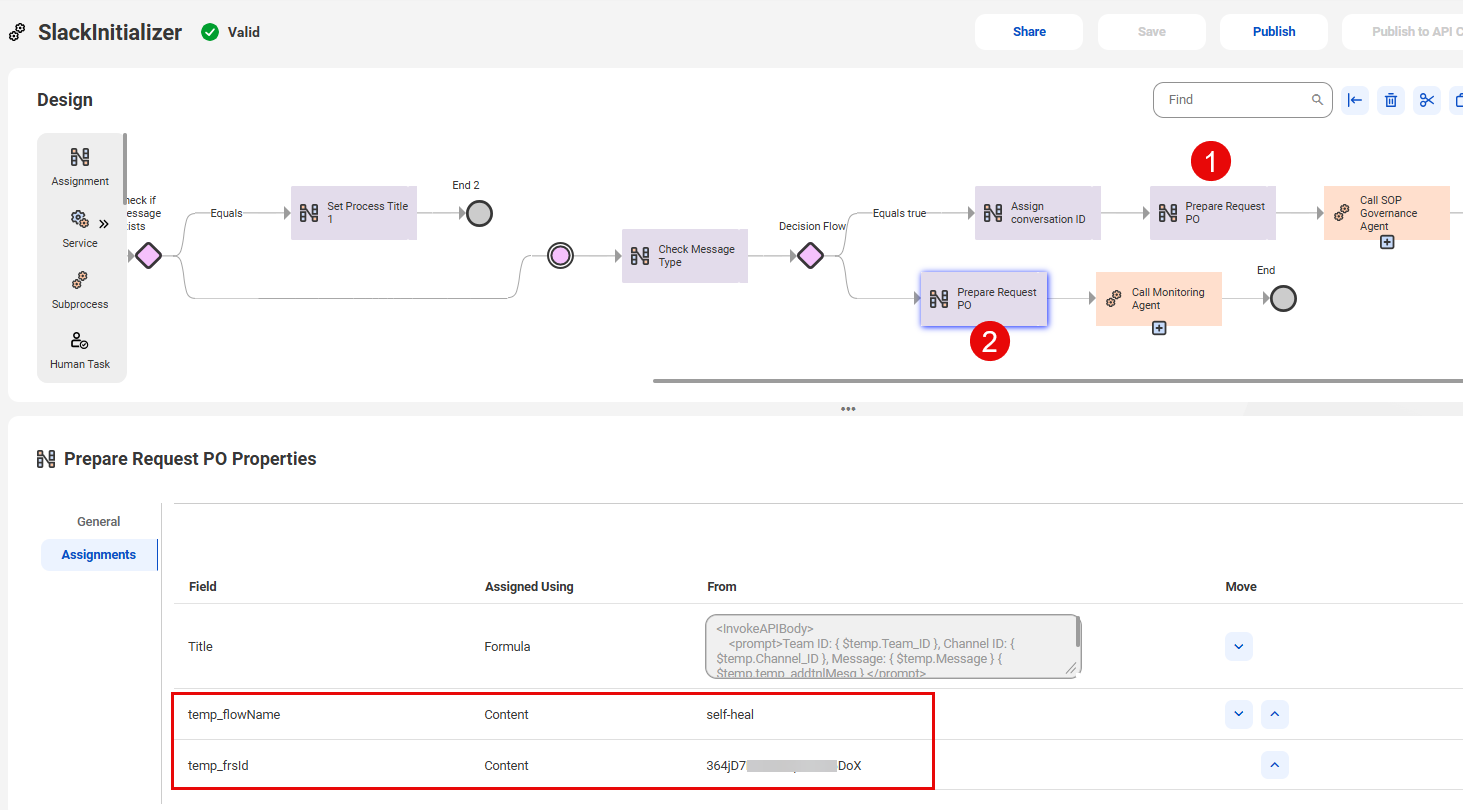
4Open the SlackInitializer process.
5On the Start tab of the Start step, select the Secure Agent from the Run On list.
This should be the same Secure Agent you selected when you deployed the AI agent.
6On the Assignments tab of the Prepare Request PO step, enter the following values extracted from the URL you copied from the agent flows in AI Agent Engineering: